
Frontend Web Development: A Visual, Hands-On Guide
Learn frontend web development visually: build a real app one layer at a time with HTML, CSS and JavaScript, fix a classic bug, see what the DOM is, what breaks without each layer, how to fit any screen, why accessibility matters, and exercises.


On this page
In The Parts of Web Development you saw that a web app has a side the user sees and a side they don't. This guide is about the first one, the frontend, which is made of three elements: HTML, CSS and JavaScript.
The best way to understand them is to watch each one arrive. You'll build a small tip calculator one layer at a time, and take a screenshot at every stage. You'll then fix a classic bug, see what JavaScript really changes, remove each layer to find out what breaks, fit the page to a phone, and test it for people who don't use a mouse. Exercises wrap it up.
All results below come from real runs in Chrome on Windows. You only need a text editor and a browser.
Three layers, three jobs
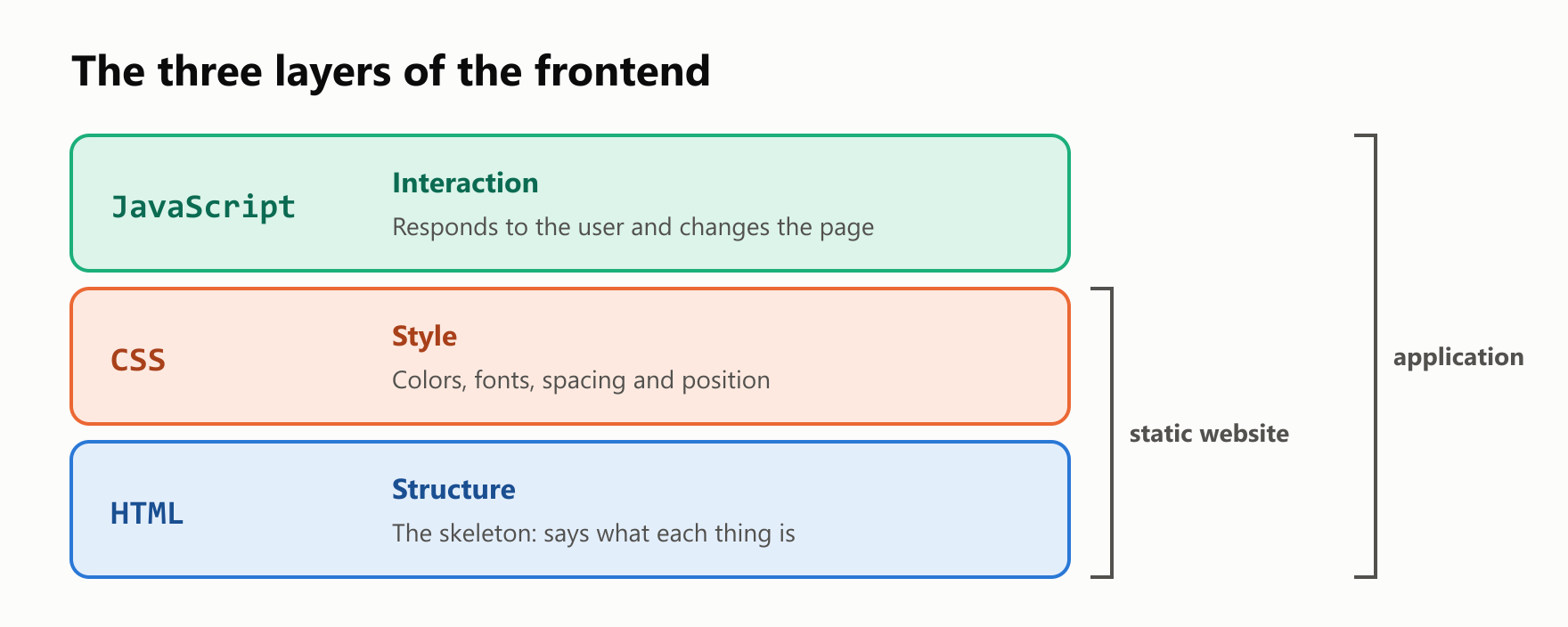
Each element has one job, and they stack on top of each other:
Layer 1: HTML, the structure
HTML is a markup language. It defines the fundamental structure of a page, and you write it with tags. Create a new folder, and save this as index.html:
1<!doctype html>
2<html lang="en">
3  <head>
4    <meta charset="utf-8">
5    <meta name="viewport" content="width=device-width, initial-scale=1">
6    <title>Tip Calculator</title>
7  </head>
8  <body>
9    <main>
10      <h1>Tip Calculator</h1>
11      <form id="form">
12        <label for="bill">Bill</label>
13        <input id="bill" type="number" min="0" step="0.01" value="100">
14        <label for="percent">Tip (%)</label>
15        <input id="percent" type="number" min="0" value="15">
16        <button>Calculate</button>
17      </form>
18      <p id="result">Enter the bill and press Calculate.</p>
19    </main>
20  </body>
21</html>
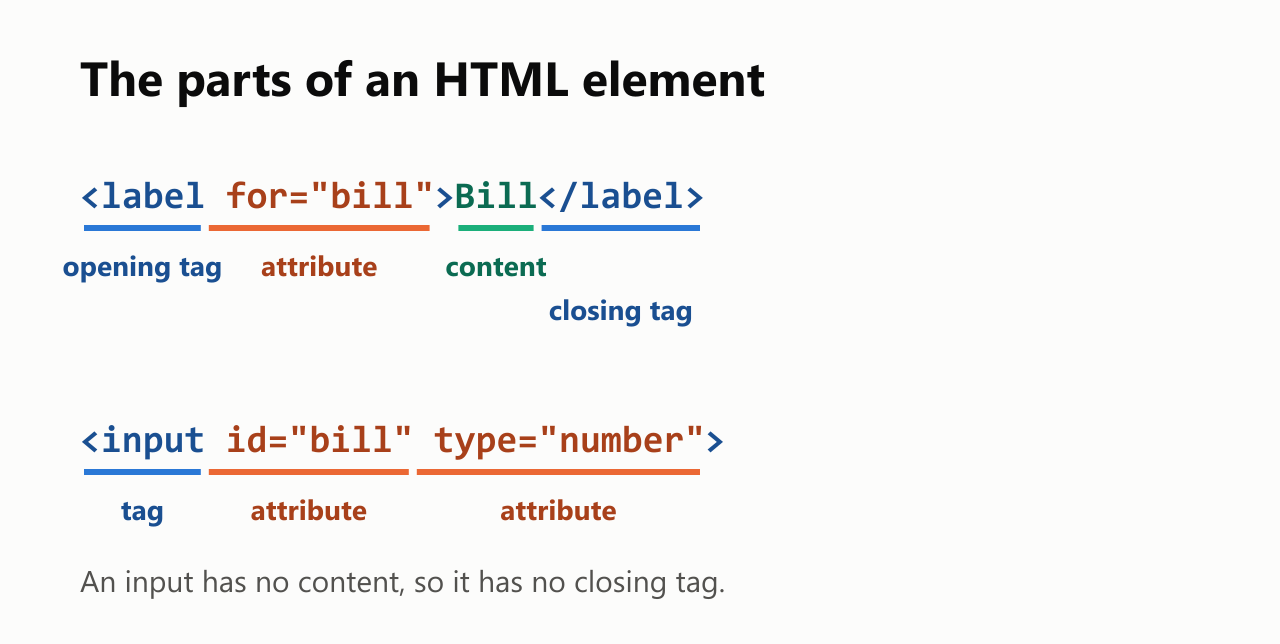
Each tag can carry extra information in attributes:
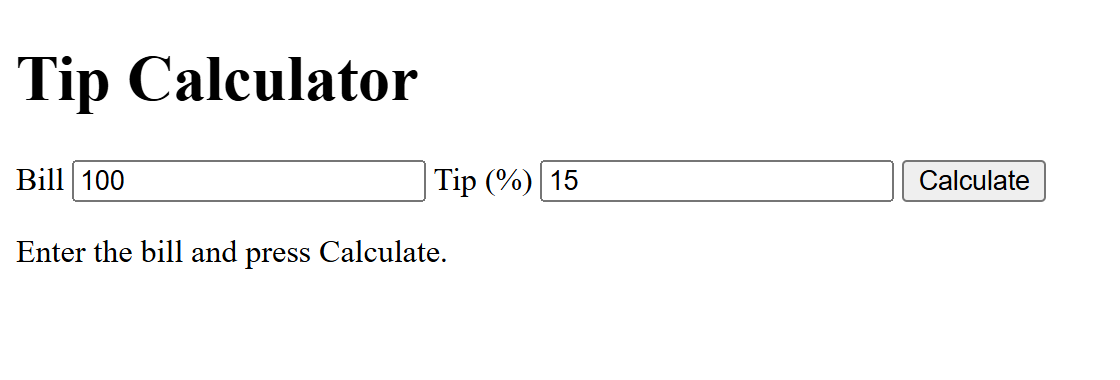
Double-click the file to open it in your browser. It's plain, and it's all there. The heading is a heading, and the fields are real fields you can type in:
If you want to go deeper, there's a whole guide on what HTML is.
Layer 2: CSS, the style
While HTML defines the basic structure, CSS defines the style: the colors, the fonts, the spacing and the position of each element. Save this as style.css:
1body {
2  margin: 0;
3  padding: 24px;
4  background: #e3eefb;
5  font-family: system-ui, sans-serif;
6}
7
8main {
9  max-width: 420px;
10  margin: 0 auto;
11  padding: 24px;
12  border-radius: 12px;
13  background: white;
14}
15
16h1 {
17  margin-top: 0;
18  color: #1a4f91;
19}
20
21form {
22  display: grid;
23  grid-template-columns: 1fr 1fr;
24  gap: 12px;
25  align-items: center;
26}
27
28input {
29  padding: 8px;
30  font-size: 16px;
31}
32
33button {
34  grid-column: 1 / -1;
35  padding: 12px;
36  border: none;
37  border-radius: 8px;
38  background: #2a78d6;
39  color: white;
40  font-size: 16px;
41}
42
43#result {
44  font-size: 20px;
45  font-weight: bold;
46}
47
48@media (max-width: 400px) {
49  form {
50    grid-template-columns: 1fr;
51  }
52}
Each rule has a selector, which picks the elements, and declarations, which say how they look. Connect the file by adding this line inside <head>:
<link rel="stylesheet" href="style.css">Refresh the page:
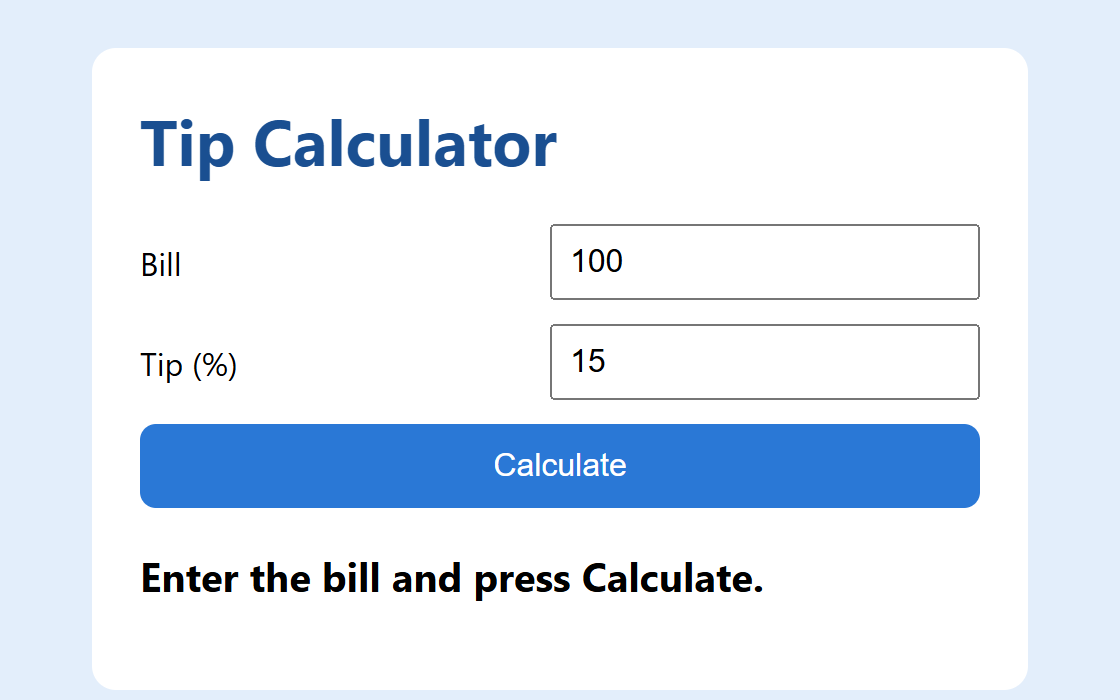
It looks like a finished product now. Press Calculate, though. The page reloads, the address gets a ? at the end, and the message stays the same. HTML and CSS together give you a static website: it can show things, and it can't respond. To learn more, see what CSS is.
Layer 3: JavaScript, the interaction
A website only becomes an application once it interacts with the user, and that comes from scripts written in JavaScript. Save this as script.js:
1const form = document.querySelector("#form");
2const billInput = document.querySelector("#bill");
3const percentInput = document.querySelector("#percent");
4const result = document.querySelector("#result");
5
6form.addEventListener("submit", (event) => {
7  event.preventDefault();
8  const bill = billInput.value;
9  const tip = bill * percentInput.value / 100;
10  const total = bill + tip;
11  result.textContent = `Tip: ${tip}. Total: ${total}.`;
12});
Connect it by adding this line just before </body>:
<script src="script.js"></script>The script finds the elements, then waits for an event: the form being submitted. preventDefault cancels the reload you saw before. Refresh and press Calculate:
Tip: 15. Total: 10015.The page responds, and the answer is wrong. A 100 bill plus a 15 tip isn't 10015.
The bug in value
The value of an input is always text, even with type="number". So bill is the string "100". The * operator converts it to a number, which is why the tip is right. The + operator joins strings, so "100" + 15 gives "10015". It's the same bug that opens the TypeScript series.
The fix is to convert the text to numbers yourself. Change the script to this:
1const form = document.querySelector("#form");
2const billInput = document.querySelector("#bill");
3const percentInput = document.querySelector("#percent");
4const result = document.querySelector("#result");
5
6form.addEventListener("submit", (event) => {
7  event.preventDefault();
8  const bill = Number(billInput.value);
9  const tip = bill * Number(percentInput.value) / 100;
10  const total = bill + tip;
11  result.textContent = `Tip: ${tip.toFixed(2)}. Total: ${total.toFixed(2)}.`;
12});
Tip: 15.00. Total: 115.00.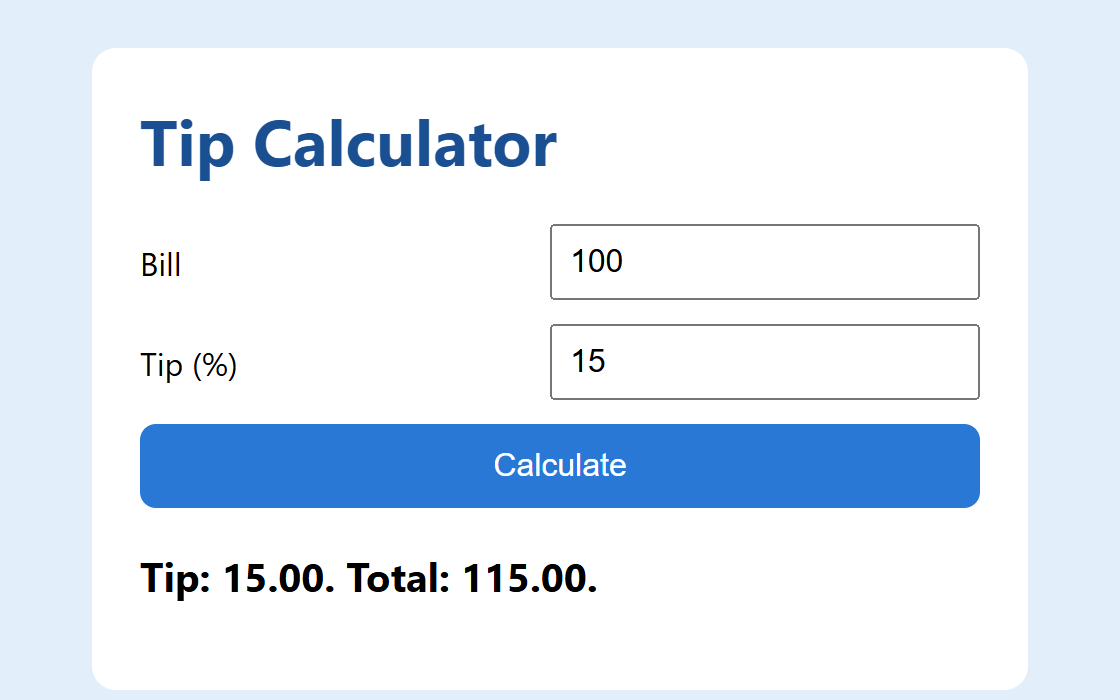
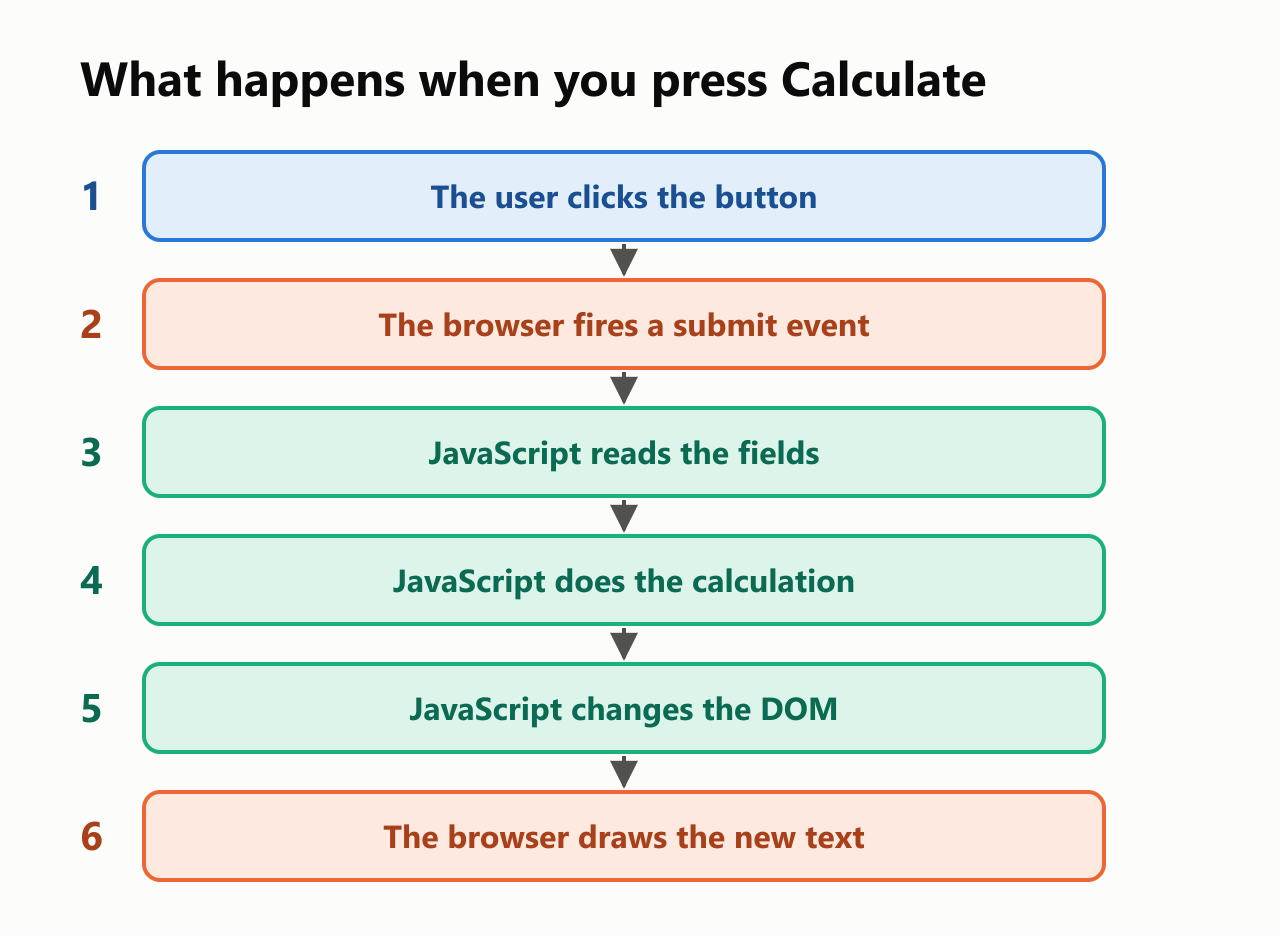
That's the pattern behind almost every interaction on the web:
What JavaScript really changes
result.textContent = ... doesn't touch your index.html file. When a browser loads a page, it builds a live model of it in memory, called the DOM (Document Object Model). JavaScript changes that model, and the browser redraws the screen to match.
We checked this after pressing the button: the live page contained 115.00, and the index.html file didn't. Refresh, and the result is gone, because the browser builds a new DOM from the file.
Take a layer away
Now that all three work, what happens if you remove one? We tried it:
| What's missing | How it looks | Press Calculate | Result |
|---|---|---|---|
| Nothing | Styled | Tip: 15.00. Total: 115.00. | Everything works |
| CSS | Plain, like the first screenshot | Tip: 15.00. Total: 115.00. | Ugly, and it still works |
| JavaScript | Styled | The page reloads, with no result | Pretty, and it does nothing |
This is why the layers are kept in separate files. Each has a single job, so you can change the design without touching the logic. It also shows the order of importance: the HTML has to be there for anything else to work.
One page, any screen
Your page will be seen on phones as well as computers. That's what the last rule in style.css is for. A media query applies CSS only under certain conditions, and here it changes the form to a single column on narrow screens. The viewport line in the HTML tells phones to use their real width.
At 560 pixels wide, the form has two columns. At 360, it has one:
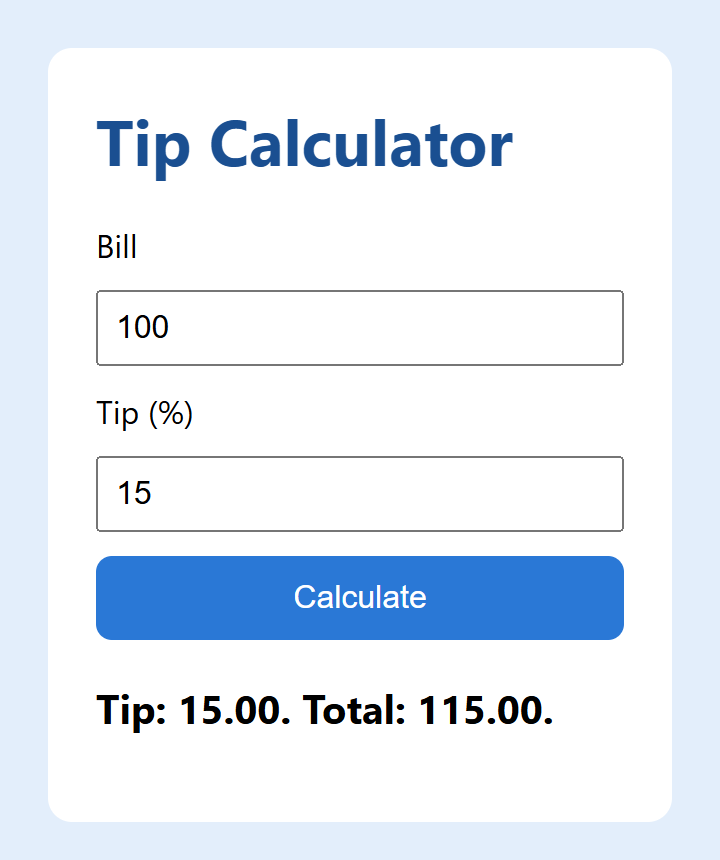
Designing a page to adapt like this is called responsive design.
Built for everyone
Not everyone uses a mouse, and not everyone can see the screen. Some people use only a keyboard, and others use a screen reader, which reads the page aloud. Choosing the right HTML does most of the work, so we tested a good and a bad version of the same things side by side:
1<label for="labeled">Bill</label>
2<input id="labeled">
3<input id="unlabeled">
4<div id="fake" onclick="document.title = 'fake clicked'">Calculate</div>
5<button id="real" onclick="document.title = 'real clicked'">Calculate</button>
Pressing the Tab key moved through the page in this order:
labeled -> unlabeled -> realThe <div> was skipped, so a keyboard user can't reach that "button" at all. The real <button> works with no extra code. Chrome's accessibility tree, which is what a screen reader gets, shows the second difference:
textbox "Bill"
textbox ""
button "Calculate"
The field with a <label> has a name. The other is an unnamed box, and the fake button isn't a button at all. That's why the calculator uses <label>, <button> and <form>. Pressing Enter inside a field also submits the form, for free.
Your browser's tools
Every modern browser includes developer tools. Press F12 on any page, or Cmd+Option+I on a Mac, and try these panels:
- Elements shows the live DOM. Press Calculate and watch the text change, and edit the CSS to try ideas.
- Console shows errors from your scripts, and lets you run JavaScript. Try
document.title. - Network shows every file the page requested.
For a frontend developer, these are the most-used tools after the code editor. The guide on what happens when you visit a website shows how to read the Network panel.
Beyond the three
Job listings mention plenty of other names, such as React, Vue, Angular, TypeScript, Tailwind and Vite. They can look like a fourth layer, and they aren't. Browsers still run HTML, CSS and JavaScript:
- Frameworks such as React or Vue are JavaScript code that makes large interfaces easier to build.
- TypeScript is compiled to JavaScript before it runs.
- CSS tools such as Tailwind or Sass end up as ordinary CSS.
- Build tools such as Vite prepare your files for the browser.
They all make the same three layers easier to work with at scale, so learning the basics first pays off with every one of them.
Have you thought about frontend?
Frontend work suits you if you like seeing your work on the screen right away, care about the details people touch, and want to think about how real users behave. A good path is the order of this guide: HTML, then CSS, then JavaScript, with a small project at each step. Learn a framework once plain JavaScript feels comfortable.
Your turn: practice
Try these before peeking at the answers.
Exercise 1: Which layer? (warm-up). Is each change done with HTML, CSS or JavaScript?
- Adding a third input field
- Making the button green
- Showing an error when the bill is empty
- Adding space between two fields
- Turning a line of text into a heading
Exercise 2: Predict it. What does each line print? Press F12 and run them in the Console to check.
1console.log("20" + 3);
2console.log("20" * 3);
3console.log("20" - 3);
4console.log(Number("20") + 3);
Exercise 3: Split the bill. Add a People field with the value 4, and change the message so that it also shows how much each person pays.
Exercise 4: Dark mode. Using only CSS, add dark colors for people whose device is set to dark mode. Hint: @media (prefers-color-scheme: dark).
Exercise 5: Live results (challenge). Remove the button and the form's submit listener. Update the result as the user types, using the input event, and remember the tip percentage after a refresh, using localStorage.
Quick quiz
- What's the job of each of the three frontend languages?
- What's the difference between a tag and an attribute?
- What's the difference between a static website and an application?
- Why did the first version give 10015?
- What does
preventDefaultdo in the calculator? - What's the DOM?
- What happens to the calculator without its CSS? And without its JavaScript?
- What's a media query for?
- Why use
<button>and not a<div>with a click handler? - Does a browser run React or TypeScript directly?
Answers
Exercise 1: (1) HTML. (2) CSS. (3) JavaScript. (4) CSS. (5) HTML.
Exercise 2: + joins text, and the other operators convert it to a number:
1203
260
317
423
Exercise 3: Add the field before the button in index.html:
<label for="people">People</label>
<input id="people" type="number" min="1" value="4">
Then replace the line that sets the message in script.js:
const people = Number(document.querySelector("#people").value);
const share = total / people;
result.textContent = `Tip: ${tip.toFixed(2)}. Total: ${total.toFixed(2)}. Each: ${share.toFixed(2)}.`;
Tip: 15.00. Total: 115.00. Each: 28.75.Exercise 4: Add this to the end of style.css. No HTML or JavaScript changes:
1@media (prefers-color-scheme: dark) {
2  body {
3    background: #10243f;
4  }
5
6  main {
7    background: #1c2f4a;
8    color: white;
9  }
10
11  h1 {
12    color: #9cc4f5;
13  }
14}
Exercise 5: The input event fires on every change. Replace script.js with this, and remove the <button> from the HTML:
1const billInput = document.querySelector("#bill");
2const percentInput = document.querySelector("#percent");
3const result = document.querySelector("#result");
4
5function update() {
6  const bill = Number(billInput.value);
7  const tip = bill * Number(percentInput.value) / 100;
8  const total = bill + tip;
9  result.textContent = `Tip: ${tip.toFixed(2)}. Total: ${total.toFixed(2)}.`;
10  localStorage.setItem("percent", percentInput.value);
11}
12
13billInput.addEventListener("input", update);
14percentInput.addEventListener("input", update);
15
16const savedPercent = localStorage.getItem("percent");
17if (savedPercent !== null) {
18  percentInput.value = savedPercent;
19}
20
21update();
Typing 20 in the tip field gave this, and the 20 was still there after a refresh:
Tip: 20.00. Total: 120.00.Quiz: (1) HTML defines the structure, CSS the style and JavaScript the interaction. (2) A tag marks an element, and an attribute adds information to it. (3) A static website only shows things, and an application responds to the user. (4) value is text, and + joins text. (5) It cancels the form's default action, which reloads the page. (6) The live model of the page in the browser's memory, which JavaScript changes. (7) Without CSS, it looks plain and still works. Without JavaScript, it looks fine and does nothing. (8) Applying CSS only under certain conditions, such as a narrow screen. (9) A <button> works with a keyboard and has a role for screen readers, with no extra code. (10) No. They end up as JavaScript.
Cheat sheet
| I want to… | Write |
|---|---|
| Link a stylesheet | <link rel="stylesheet" href="style.css"> |
| Link a script | <script src="script.js"></script> |
| Name a field | <label for="bill">Bill</label> |
| Pick an element in CSS | #result { … } |
| Lay out in columns | display: grid; grid-template-columns: 1fr 1fr; |
| Adapt to small screens | @media (max-width: 400px) { … } |
| Fit phones | <meta name="viewport" content="width=device-width, initial-scale=1"> |
| Pick an element in JavaScript | document.querySelector("#result") |
| React to an event | form.addEventListener("submit", (event) => { … }) |
| Stop the page from reloading | event.preventDefault(); |
| Read a number from a field | Number(billInput.value) |
| Change the text on the page | result.textContent = "…"; |
| Open the developer tools | Press F12, or Cmd+Option+I on a Mac |
Wrapping up
Frontend development depends on three elements:
- HTML defines the skeleton of the page, with tags and attributes.
- CSS styles it, with colors, fonts, spacing and position.
- JavaScript makes it dynamic, which turns a website into an application.
- Events drive the interaction: read the page, calculate, and change it.
- An input's
valueis text, so convert it before doing math. - JavaScript changes the DOM, and not your files.
- Media queries adapt the page to any screen.
- The right HTML makes a page accessible, to keyboards and screen readers.
- Frameworks and TypeScript still end up as HTML, CSS and JavaScript.
Have you thought about following the path of a frontend developer?
Read next

Ruby Blocks and Iterators: Write Your Own
Learn how Ruby methods receive blocks, pass values with yield, handle a missing block, and return an Enumerator. Build and run your own iterator.
 nbkhope
C++ std::vector: Size, Capacity, and Safe Growth
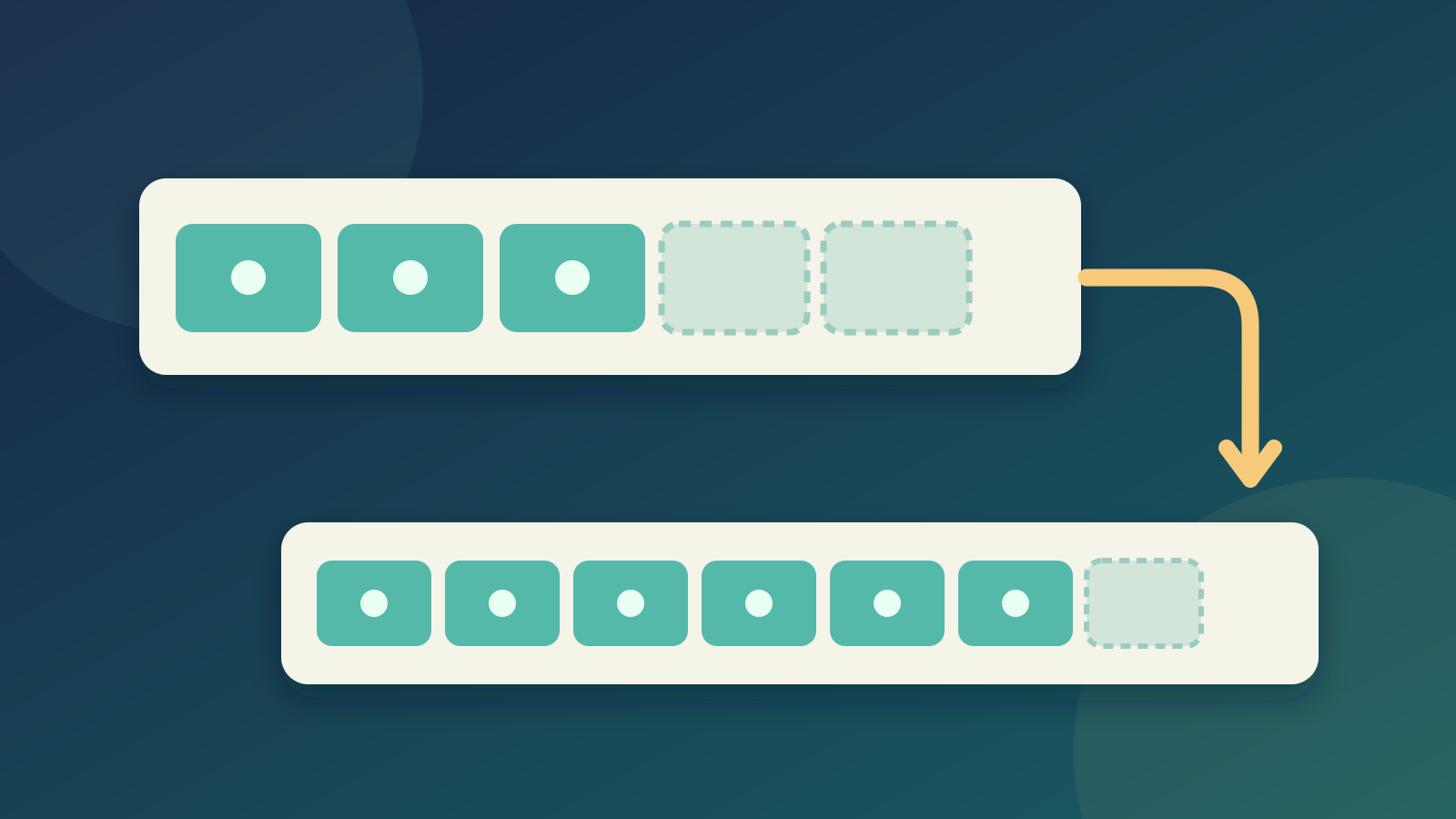
Learn how std::vector grows in C++: the difference between size and capacity, when reserve helps, why resize is different, and how growth can invalidate references.
nbkhope
How to Handle Errors in Go: A Hands-On Guide
Learn Go's everyday error pattern with runnable examples: return an error, check it, add context with %w, and recognize a missing file with errors.Is.
nbkhope
Comments
Be kind and specific. Comments with links from new accounts appear after a moderator reviews them.