What Is HTML? A Simple Guide to the Language Behind Every Web Page
A friendly, jargon-free guide to HTML, the language every web page is written in. Learn what tags are, build a tiny page you can open in your own browser, see how browsers forgive mistakes, and peek inside the first website ever and a real Wikipedia page.

On this page
Every web page you have ever visited, from a news site to your bank to this article, arrives on your device as a plain text file written in HTML. You can see it for yourself: on a computer, open any website, right-click an empty spot and choose View page source (or press Ctrl+U on Windows, Option+Command+U on a Mac in Chrome). That wall of text full of angle brackets is HTML.
HTML stands for HyperText Markup Language. It sounds technical, but the idea is simple: HTML is a way of labeling text so a browser knows what each part is. "This is a heading." "This is a paragraph." "This is a link to another page." "Show a picture here." This article explains, in plain language, what HTML is, how it works, and how it became the foundation of the web.
What the name means
- HyperText is text with links. Click a word, and you jump to another document. The idea dates back to the 1960s, but the web made it part of everyday life.
- Markup means adding labels to text, the way an editor marks up a draft with notes like "make this a title" or "bold this word."
- Language means there are fixed rules for how to write those labels, so every browser understands them the same way.
So HTML is not a programming language. It doesn't calculate, make decisions or repeat steps. It describes a document: what's in it and how the pieces fit together. (Programmers love to argue about this, but that's the common view.)
Tags: the labels of HTML
The labels in HTML are called tags. A tag is a word between angle brackets, like <p> for paragraph. Most tags come in pairs: an opening tag and a closing tag, which has a slash, like </p>. Whatever sits between them is the content.
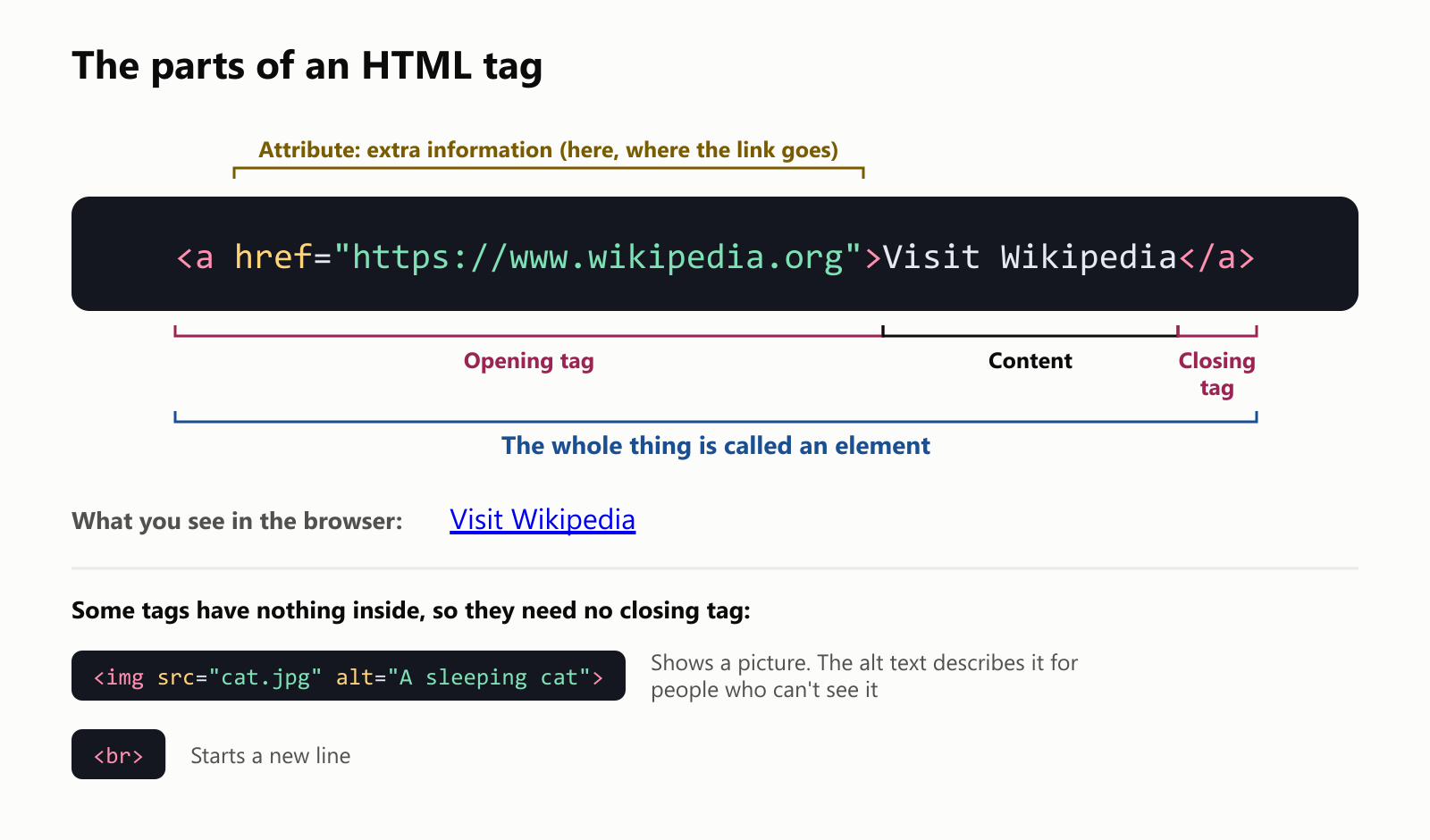
- The opening tag says where something starts, and the closing tag says where it ends.
- An attribute adds extra information inside the opening tag. In a link, the
hrefattribute says where the link goes. - The opening tag, the content and the closing tag together are called an element.
- A few tags, like
<img>for images and<br>for a line break, have no content, so they have no closing tag.
Notice the alt attribute on the image. It's a short description of the picture. Blind people who use screen readers (programs that read the page aloud) hear it instead of seeing the picture, and it also shows up if the image fails to load.
Your first web page
Here's a complete web page. It's just a text file:
1<!DOCTYPE html>
2<html lang="en">
3  <head>
4    <meta charset="utf-8">
5    <title>My Pancake Recipe</title>
6  </head>
7  <body>
8    <h1>My Pancake Recipe</h1>
9    <p>The <strong>easiest</strong> breakfast in the world.</p>
10    <h2>Ingredients</h2>
11    <ul>
12      <li>1 cup of flour</li>
13      <li>1 cup of milk</li>
14      <li>1 egg</li>
15    </ul>
16    <p>Learn more on
17      <a href="https://en.wikipedia.org/wiki/Pancake">Wikipedia</a>.
18    </p>
19    <button>I made it!</button>
20  </body>
21</html>
We saved this file and opened it in Google Chrome. Here's exactly what appeared:
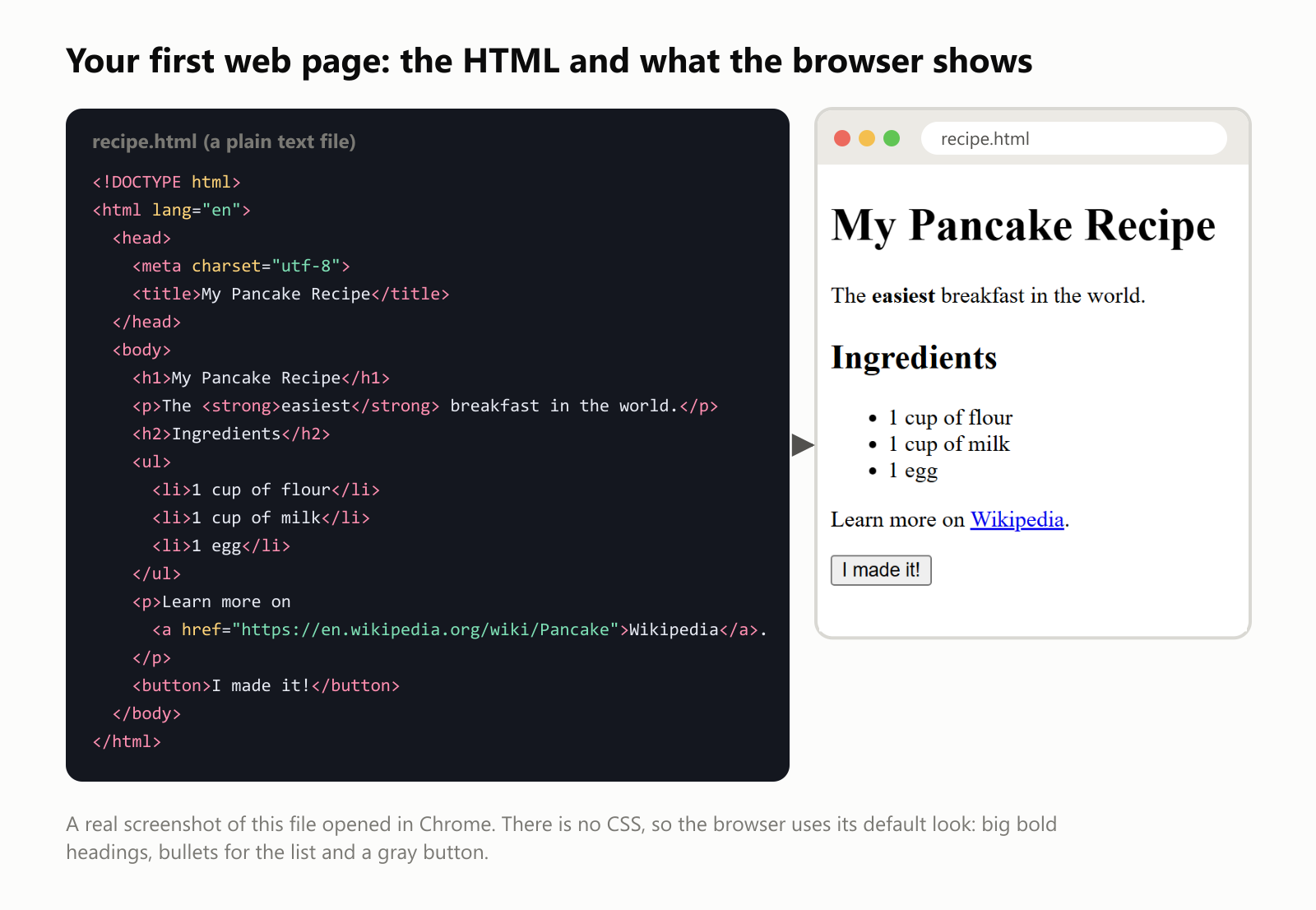
Let's read it from the top:
<!DOCTYPE html>tells the browser "this is a modern HTML page."<html>wraps the whole page.lang="en"says it's in English, which helps screen readers pronounce words correctly.<head>holds information about the page that isn't shown in it, like the<title>, which appears on the browser tab and in search results.<body>holds everything you actually see.<h1>is the main heading and<h2>a smaller one. There are six levels, down to<h6>.<p>is a paragraph,<strong>marks important words (shown in bold),<ul>is a bulleted list and each<li>is one item in it.<a>is a link (the "a" stands for "anchor") and<button>is a button. This button doesn't do anything yet: making it react to a click is JavaScript's job.
The page looks plain because it has no CSS, the language that controls colors, fonts and layout. Without it, every browser uses the same simple default look: big bold headings, bullets and a gray button.
Try it yourself
You don't need to install anything:
- Open a plain text editor: Notepad on Windows, or TextEdit on a Mac (choose Format, then Make Plain Text).
- Copy the code above into it.
- Save it as
recipe.html. - Double-click the file. It opens in your web browser, and you've made a web page.
Change the words, save, and refresh the browser to see your changes.
The page is a tree
When the browser reads HTML, it doesn't keep it as text. It builds a tree out of it, like a family tree: each tag becomes a box, and the tags inside it become its children.
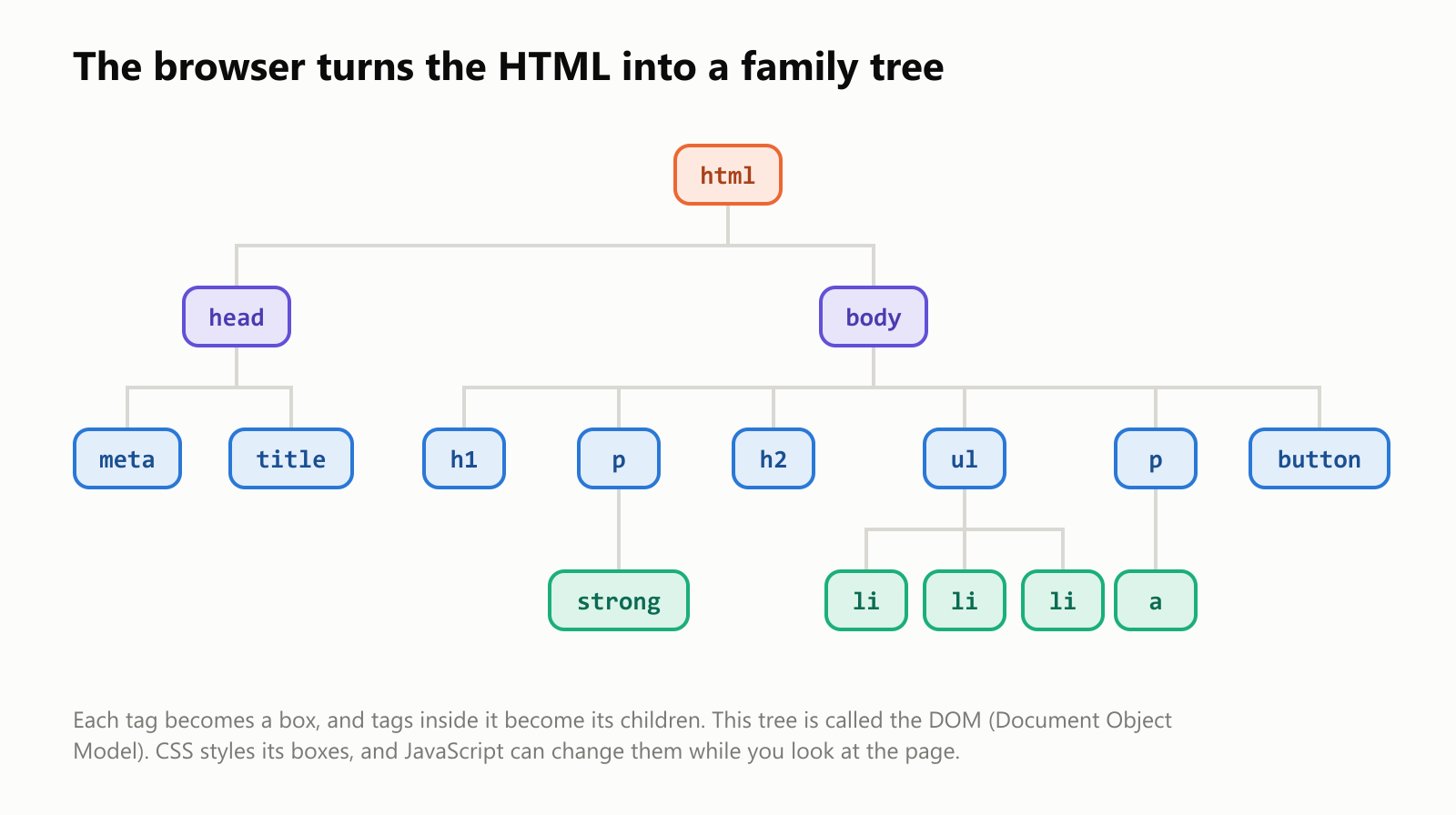
Programmers call this tree the DOM (Document Object Model). It's what the other two web languages work with. CSS says how each box should look. JavaScript can add, remove or change boxes at any time, which is how a page shows a new message without reloading.
A common way to picture the three languages: HTML is the frame of a house, CSS is the paint and decoration, and JavaScript is the electricity that makes things work when you flip a switch.
How a browser shows a page
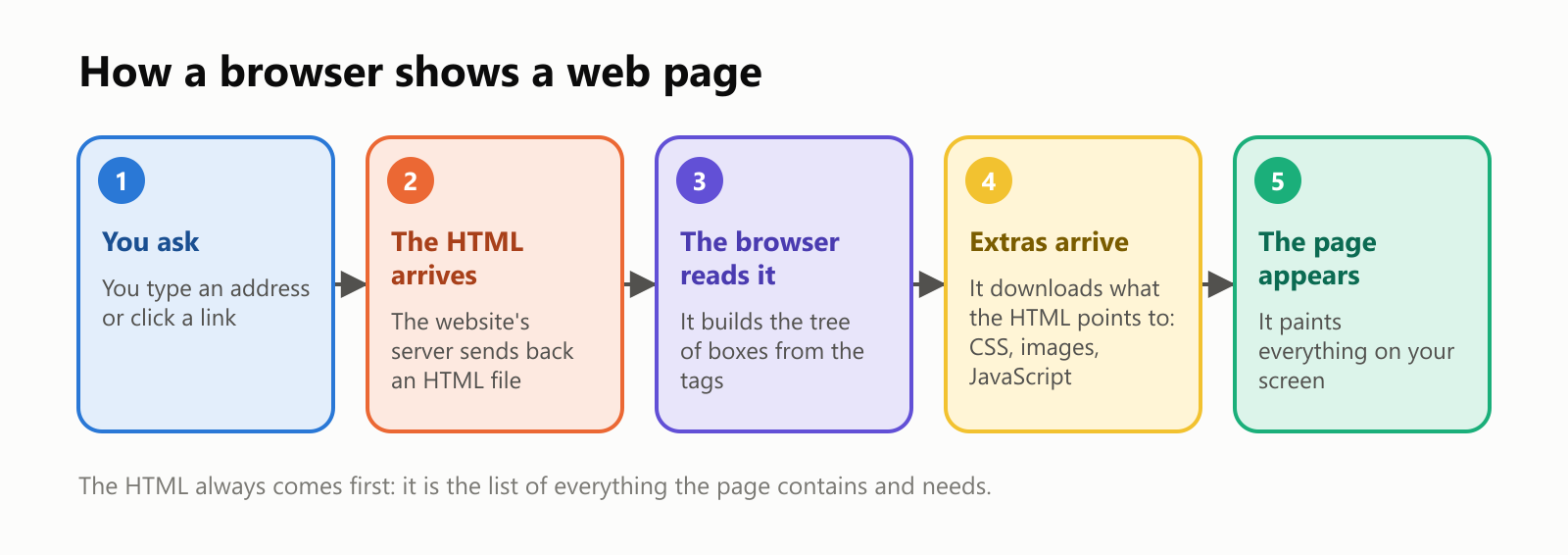
The HTML file is always the first thing to arrive. Pictures, videos, styles and scripts are separate files, and the HTML points to each of them with tags like <img>, <link> and <script>. That's why, on a slow connection, you sometimes see the text of a page before its pictures or its design.
Tags that say what each part is
Some tags don't change how anything looks. Instead, they say what each part of the page is:
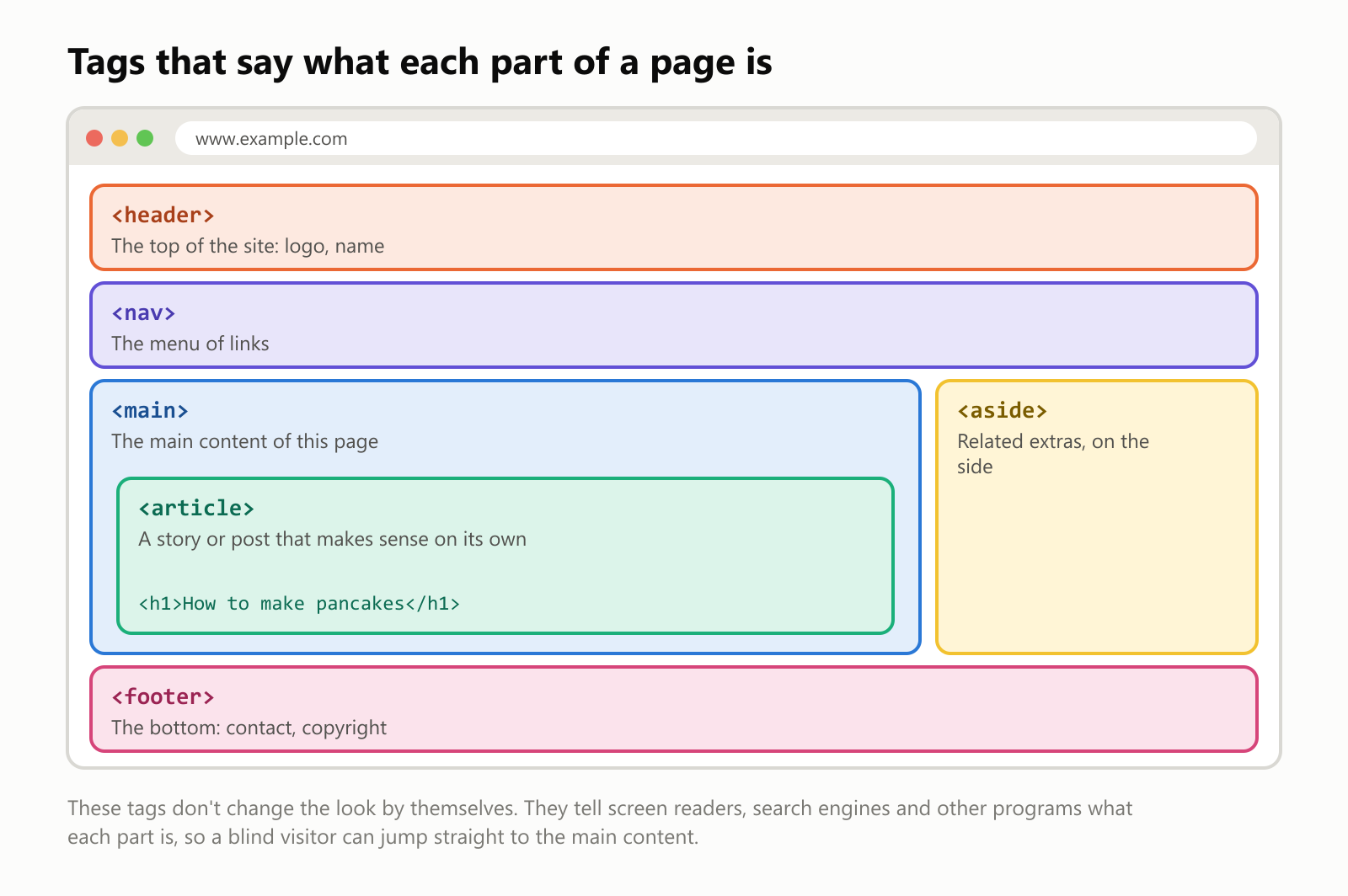
This is called semantic HTML ("semantic" means "about meaning"), and it matters more than it seems:
- Accessibility. Screen readers use these tags to let blind and low-vision visitors jump straight to the menu or the main content, instead of listening to the whole page from the top.
- Search engines. Google and others read the HTML to understand what a page is about. Headings and articles help them.
- Reader mode and other tools. Your browser's "reader view," translation tools and AI assistants all rely on the HTML to find the real content.
You could build a whole page out of <div> tags, which are just plain boxes, and it could look exactly the same. But to a screen reader or a search engine, it would be a page with no signposts.
HTML forgives mistakes
Most computer languages stop with an error message if you make a single typo. HTML doesn't. Browsers are built to do their best with whatever they get. We tried it with a messy file where we forgot to close the heading tag:
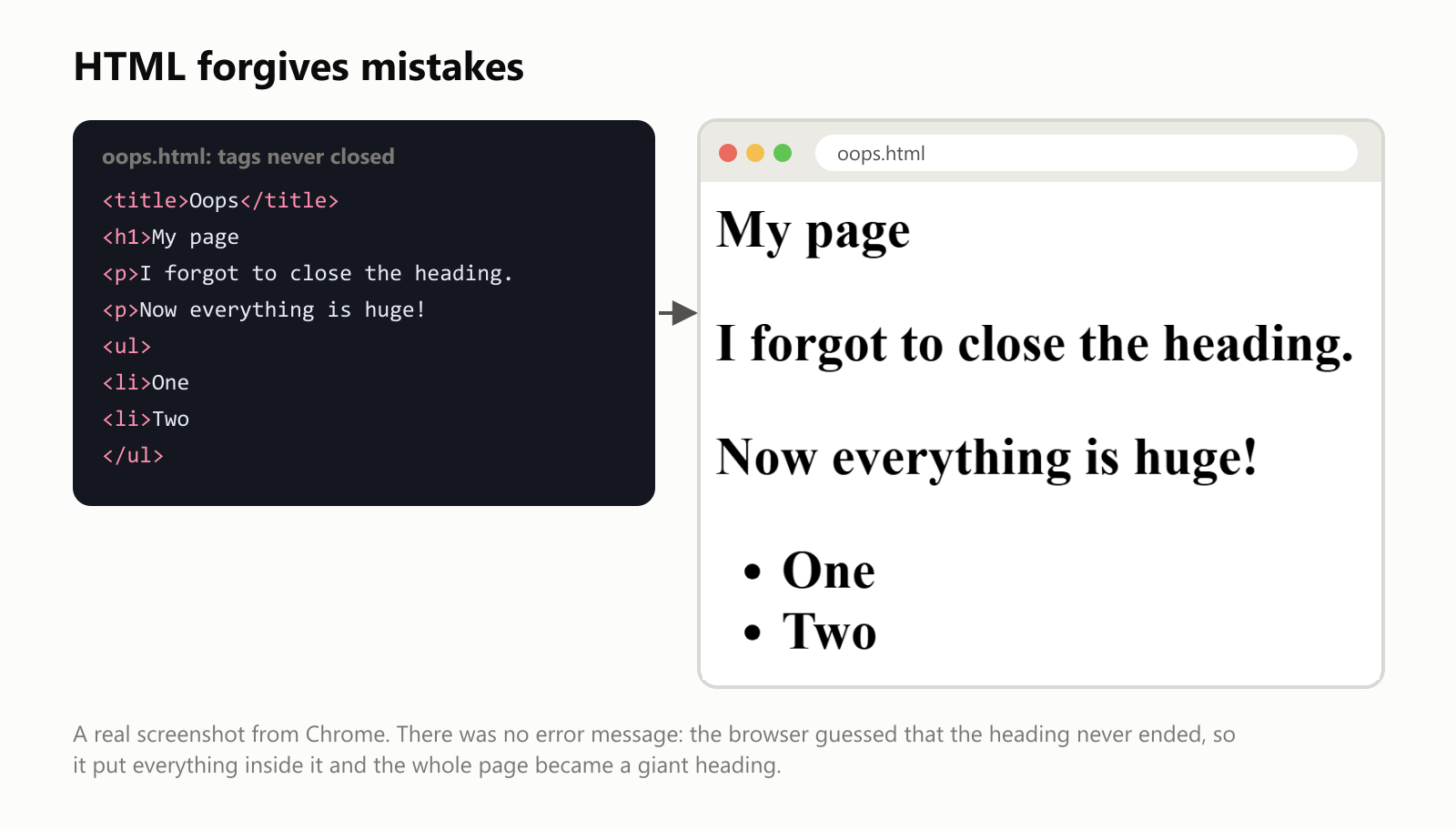
Chrome showed no error. It guessed that the heading never ended, so it put everything inside it, and the whole page became a giant heading. It also quietly closed the paragraphs and list items for us.
This forgiving behavior was a deliberate choice, and it's one reason the web grew so fast: anyone could write a page, and small mistakes didn't stop it from working. Since HTML5, the rules spell out exactly how browsers should repair broken pages, so Chrome, Safari, Firefox and Edge all fix them the same way.
The most common tags
You can do a lot with a handful of tags:
| Tag | What it is | Example |
|---|---|---|
<h1> to <h6> | Headings, from biggest to smallest | <h1>My Blog</h1> |
<p> | Paragraph | <p>Hello there.</p> |
<a> | Link | <a href="https://example.com">Click</a> |
<img> | Image | <img src="dog.jpg" alt="My dog"> |
<ul>, <ol>, <li> | Bulleted list, numbered list, list item | <li>Milk</li> |
<strong>, <em> | Important (bold) and emphasized (italic) text | <em>really</em> |
<div>, <span> | Plain boxes for grouping things, to style them with CSS | <div>...</div> |
<table>, <tr>, <td> | Table, row and cell | <td>42</td> |
<form>, <input>, <button> | Forms, text boxes and buttons | <input type="email"> |
<video>, <audio> | Video and sound players | <video src="cat.mp4" controls> |
Inside a real web page
How do real pages use these tags? We downloaded the HTML file of Wikipedia's article about HTML and counted every tag in it:
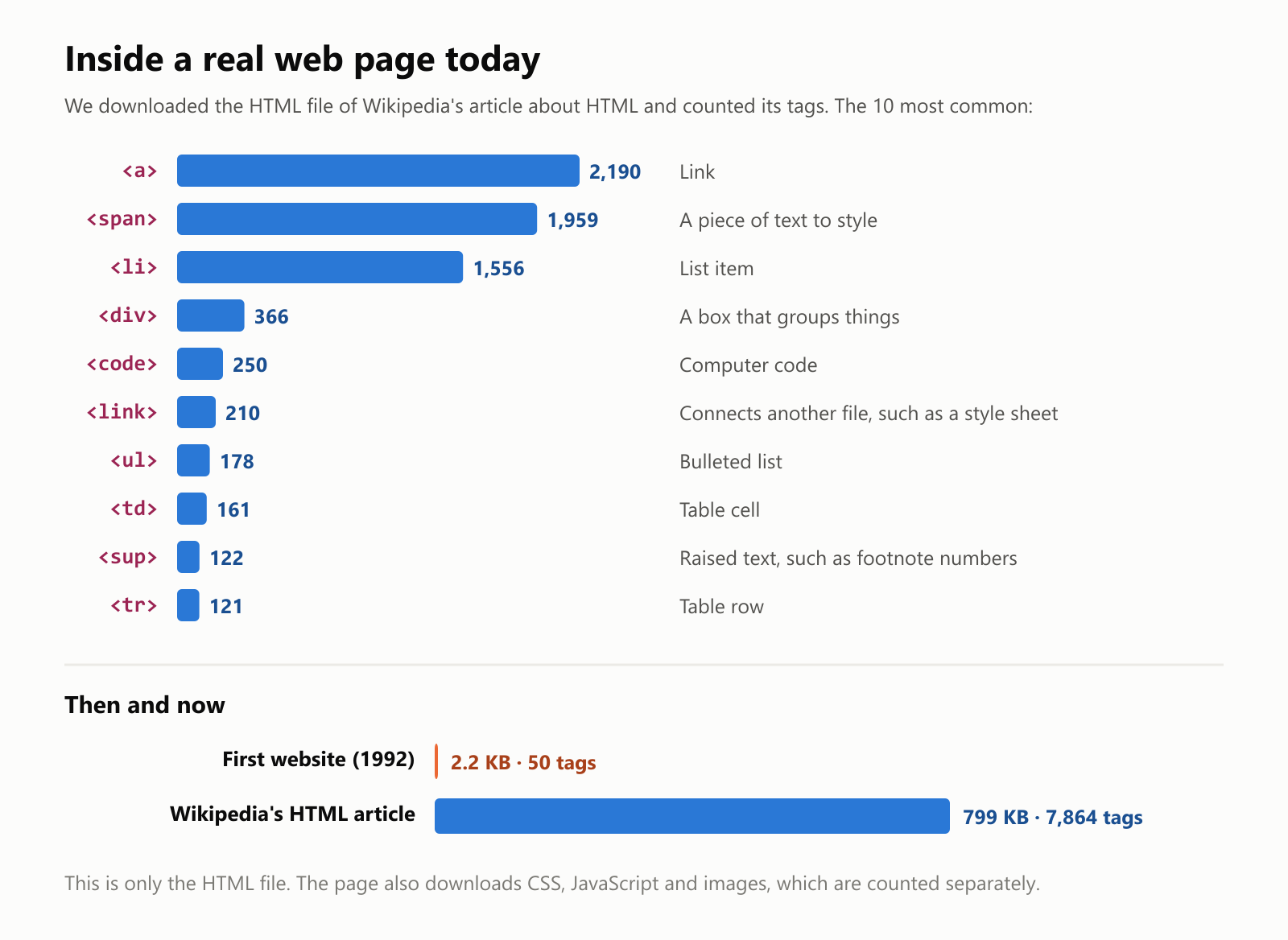
- The page has 7,864 tags of 58 different kinds.
- The most common tag is the link,
<a>, with 2,190. That's the "hyper" in hypertext: Wikipedia is a giant web of links. - Next come
<span>and<li>, used for the menus, the footnotes and the long lists of references. - The HTML file alone is about 799 KB, roughly 360 times bigger than the first website ever made.
The first website still works
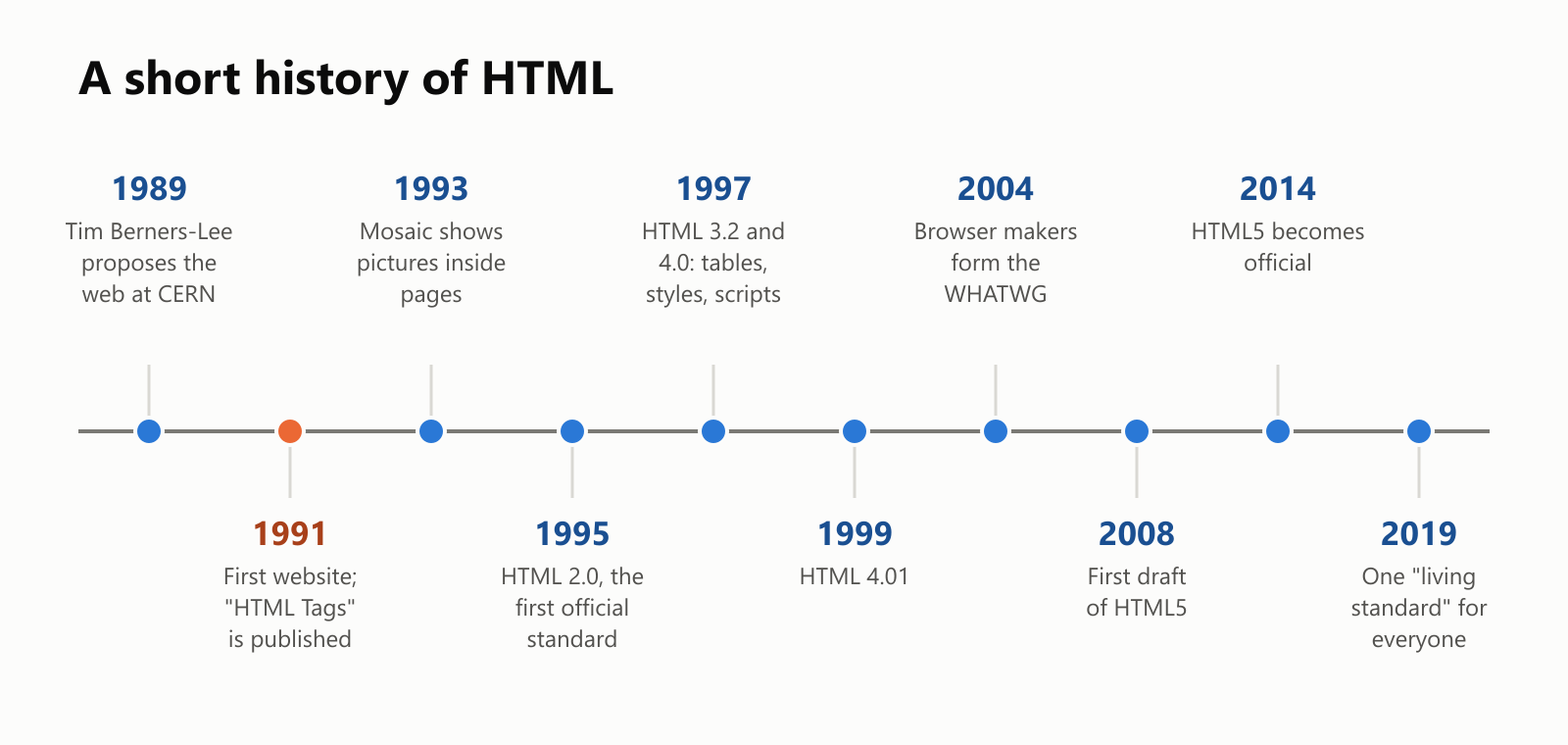
HTML was invented by Tim Berners-Lee, a British scientist at CERN, the physics laboratory near Geneva, Switzerland. In 1989 he proposed a system to help scientists share documents, and by 1991 he had built the first web browser, the first web server and the first website. HTML was based on an older markup language called SGML, which CERN already used for its documents.
CERN still keeps a copy of that first website online. We opened it in Chrome:
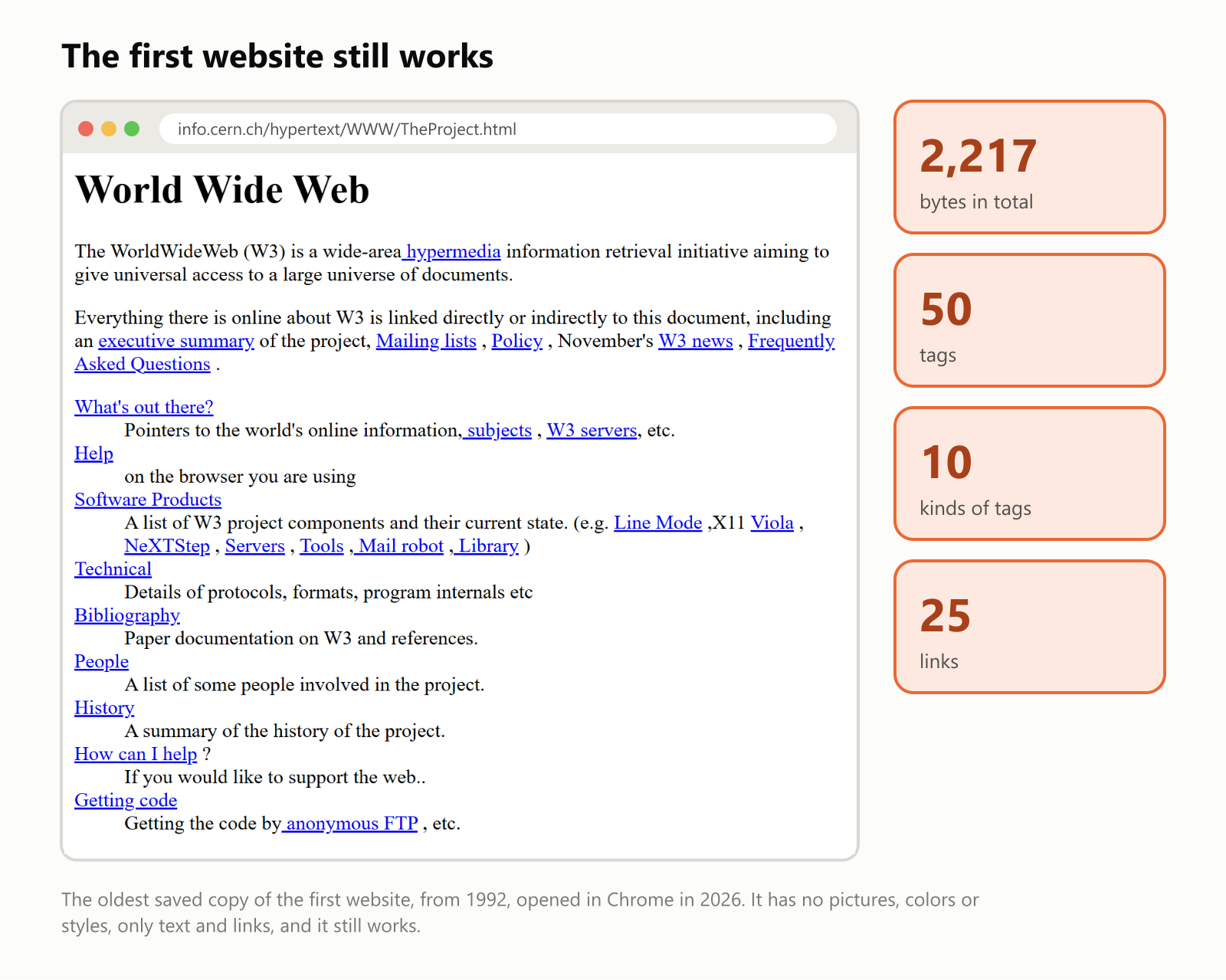
It's only 2,217 bytes, less than a short email. It has no pictures, colors or styles, just headings, text and 25 links. Some of its tags, like <NEXTID>, are no longer part of HTML, yet a 2026 browser opens it without trouble. That's one of HTML's quiet superpowers: pages written more than 30 years ago still work.
HTML keeps growing
The first description of HTML, a 1991 document called "HTML Tags," listed fewer than two dozen tags. We counted the tags in each version's official list since then:
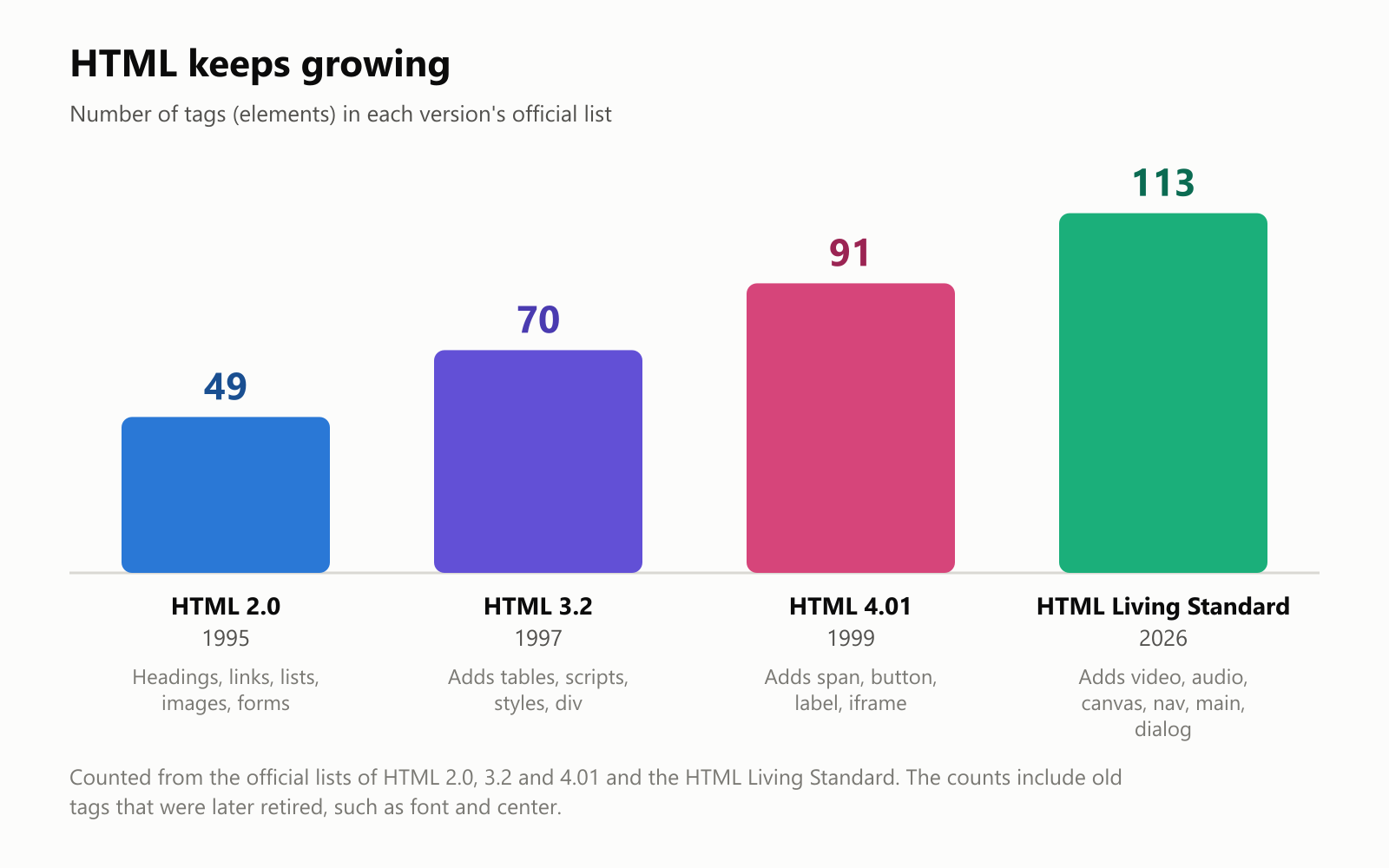
In the late 1990s, during the "browser wars" between Netscape and Microsoft's Internet Explorer, each company invented its own tags to win users. Netscape had <blink>, which made text flash on and off, and Internet Explorer had <marquee>, which made text scroll across the screen. Pages often worked in one browser and broke in the other.
Standards bodies stepped in. The World Wide Web Consortium (W3C), founded by Berners-Lee in 1994, published official versions of HTML. In 2004, Apple, Mozilla and Opera, frustrated with the W3C's direction, formed their own group, the WHATWG, and started what became HTML5. It added video and audio without plug-ins like Flash, drawing with <canvas>, and tags like <nav> and <article>. HTML5 became an official W3C standard in 2014.
Today, HTML is a "living standard": since 2019 there is just one version, maintained by the WHATWG with browser makers, and it gets small updates all the time instead of big numbered releases. That's why nobody talks about "HTML6."
Common questions
Is HTML hard to learn? No. It's often the first thing people learn in web development. You can learn the basic tags in an afternoon and make a real page the same day.
Do I need HTML if I use a website builder? Not to get started. Tools like WordPress, Wix or Google Sites write the HTML for you. But knowing a little HTML helps you fix things when they look wrong.
Is HTML still used, or has something replaced it? Every web page still reaches your browser as HTML. Many modern sites are built with tools and frameworks that generate it automatically, but HTML is always what comes out the other end. Many phone apps and even some desktop apps, like VS Code, are built with HTML inside too.
What's the difference between HTML and a website? A website is usually many HTML pages, plus CSS, JavaScript, images and a server that sends them. HTML is the part that holds the content and structure.
Glossary
- HTML: HyperText Markup Language, the language web pages are written in.
- Tag: a label in angle brackets, like
<p>, that marks where a part of the page starts or ends. - Element: an opening tag, its content and its closing tag, together.
- Attribute: extra information inside an opening tag, like
hrefin a link oraltin an image. - Browser: the app you use to visit websites, like Chrome, Safari, Firefox or Edge.
- DOM: the tree of boxes the browser builds from the HTML.
- CSS: the language that controls how a page looks.
- JavaScript: the language that makes a page interactive.
- Semantic HTML: using tags that describe what each part of a page is, like
<nav>or<article>. - Screen reader: a program that reads a page aloud for people who are blind or have low vision.
- WHATWG: the group of browser makers that maintains the HTML standard today.
Wrapping up
HTML is the oldest and simplest of the web's three languages, and the one everything else is built on. It's a set of labels that tell a browser what each piece of text is: a heading, a paragraph, a link, an image. Browsers turn those labels into a tree, fill it with styles and scripts, and paint it on your screen, forgiving your mistakes along the way.
The first website was 2,217 bytes of HTML, and it still opens today. If you want to try it yourself, write the pancake page in Notepad, double-click it, and you'll have built your own small piece of the web.
Read next
A Brief History of Computer Programming: From Wires to Apps
From Ada Lovelace’s 1843 notes to today’s apps and AI coding assistants, see how programming changed—and what a program really is—in plain language.
 nbkhope
A Brief History of Programming Languages: From Machine Code to Modern Tools
From machine code and FORTRAN to Python, JavaScript, and Rust, explore how programming languages evolved and why there are so many.
nbkhope
What Is the JavaScript Programming Language? A Simple Guide to the Language of the Web
A friendly, jargon-free guide to JavaScript, the programming language that makes websites interactive. Learn what it does in your browser, how it was born in 10 days, why it gets faster as it runs, and where it's used beyond the web.
nbkhope
Comments
Be kind and specific. Comments with links from new accounts appear after a moderator reviews them.