What Is Bash? A Simple Guide to the Bourne Again Shell and the Command Line
A friendly, jargon-free guide to Bash, the program inside the black text window that developers type into. Have a first real conversation with it, see what happens when you press Enter, rename 1,000 photos in under a second and read your first script.

On this page
You've seen it in movies: a hacker in a dark room, typing into a black window full of glowing text. Real life is less dramatic, but that window is real, and millions of people use it every day. Very often, the program inside it is called Bash.
Bash is a shell: a program that lets you control a computer by typing commands instead of clicking icons. Its name stands for Bourne Again SHell, a pun we'll explain later. It runs on most of the world's web servers, comes with nearly every Linux system, is still included on every Mac and can run on Windows too. This article explains, in plain language, what Bash is, how it works and why something so old-fashioned-looking is still everywhere.
What is a shell?
When you use a phone or a laptop, you usually talk to it with taps and clicks. A shell is another way in: you type what you want in words, and the computer answers in words.
A good way to picture it is a restaurant:
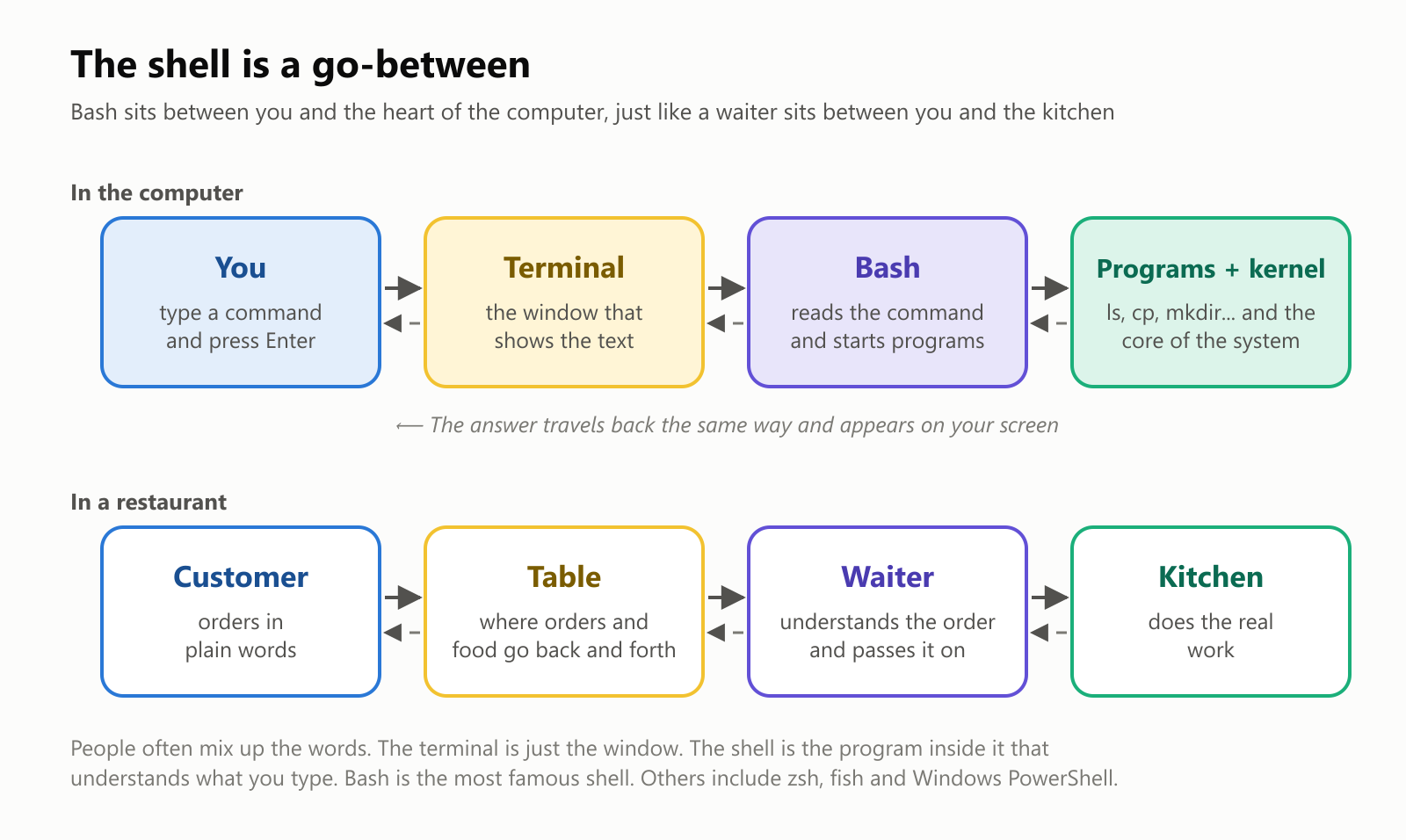
You are the customer. The terminal is the table: just the window where text goes in and out. Bash is the waiter: it understands your order and passes it to the kitchen. The kitchen is the rest of the computer: the programs that do the actual work, and the kernel, the core of the operating system that controls the hardware.
That's why people say "open a terminal" and "type it in the shell" almost as if they were the same thing. They work together, but they're different programs. On a Mac, for example, the window is an app called Terminal, and the shell inside it can be Bash or its cousin zsh.
A first conversation with Bash
Here is a real session. We typed these commands into Bash 5.2 on Ubuntu Linux, as a user named maria, on a computer named laptop, and copied the answers exactly:
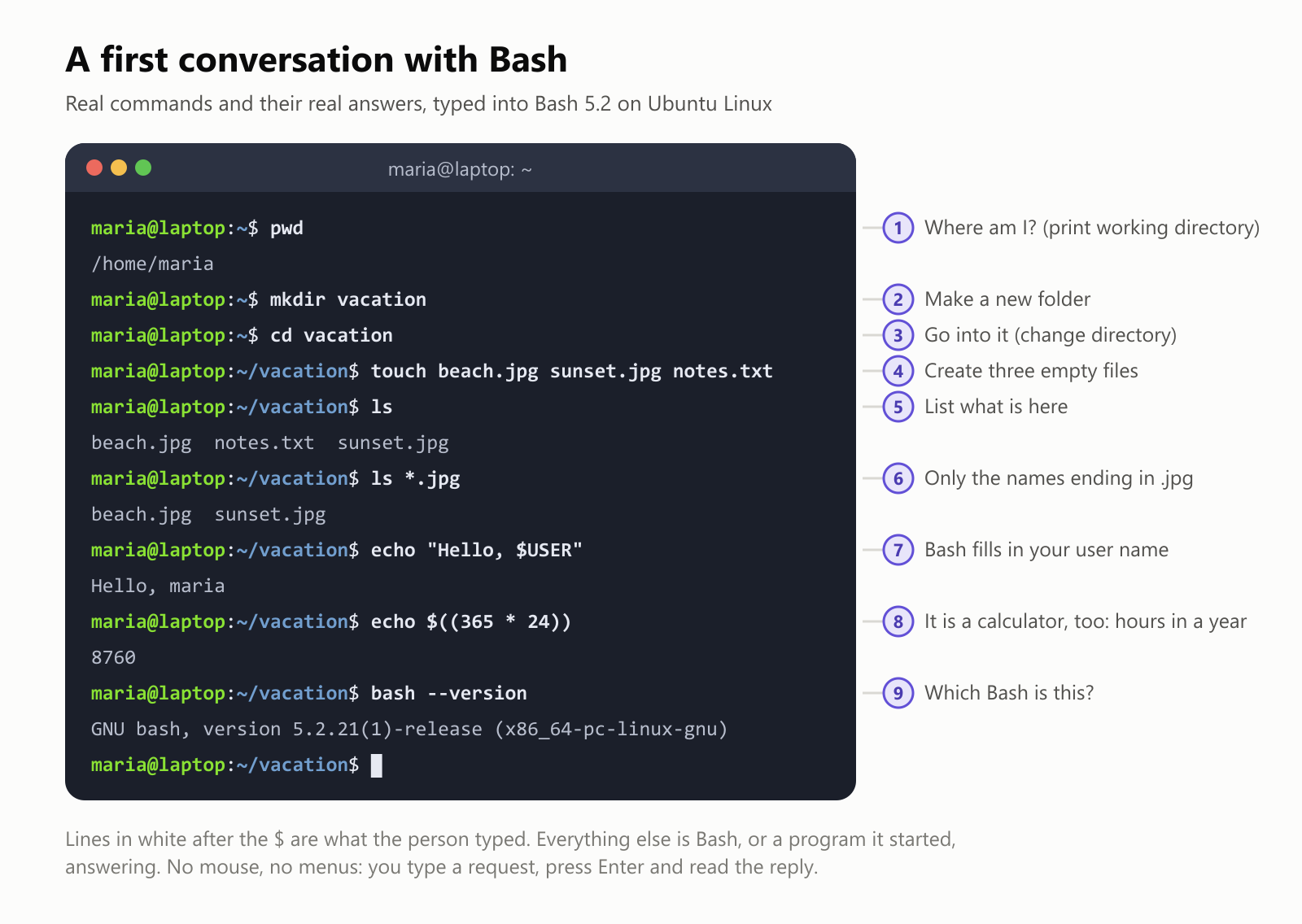
A few things to notice:
- Each line starts with
maria@laptop:~$. That's the prompt: Bash's way of saying "I'm listening". - After
cd vacation, the prompt changed to~/vacation$. Bash always shows you where you are. - Many commands, like
mkdirandtouch, print nothing at all when they work. In the shell, silence means success. $USERwas replaced with the wordmaria. Words that start with$are variables: names that stand for a value.
Anatomy of a command
Every command follows the same simple pattern. Here's one that copies a photo into a folder called backup:
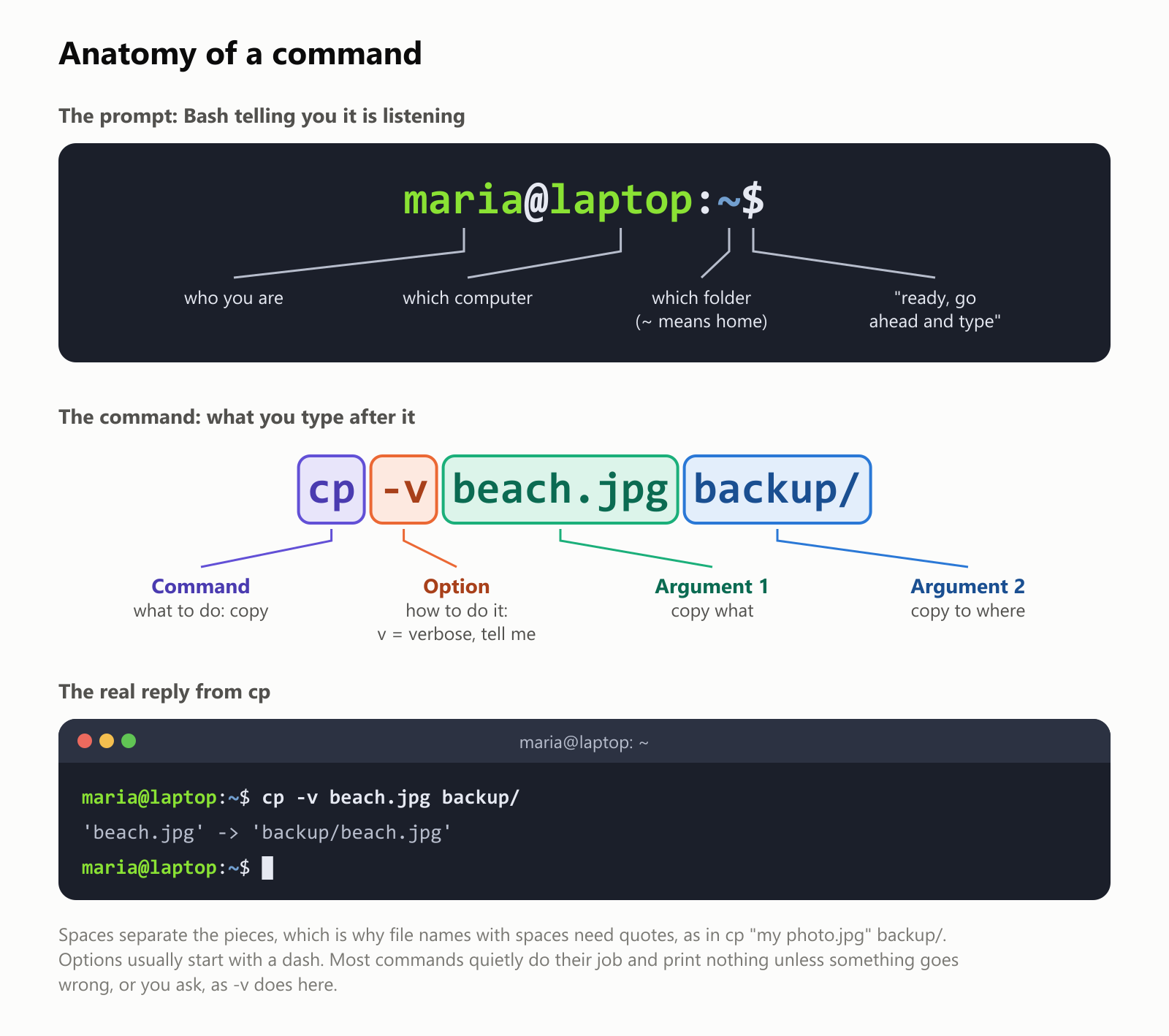
- The command is the verb: what to do. Here,
cpmeans copy. - Options change how it's done. They usually start with a dash:
-vaskscpto tell us what it did. - Arguments are what to do it to: copy
beach.jpgintobackup/.
Command names are short because people type them all day: cp for copy, mv for move, ls for list, rm for remove. They look cryptic at first, but there are only a handful you use often.
What Bash does when you press Enter
Bash doesn't just pass your words along. Before running anything, it reads your command and rewrites it. Bash has a feature, set -x, that shows the rewritten command, so we used it to watch this happen:
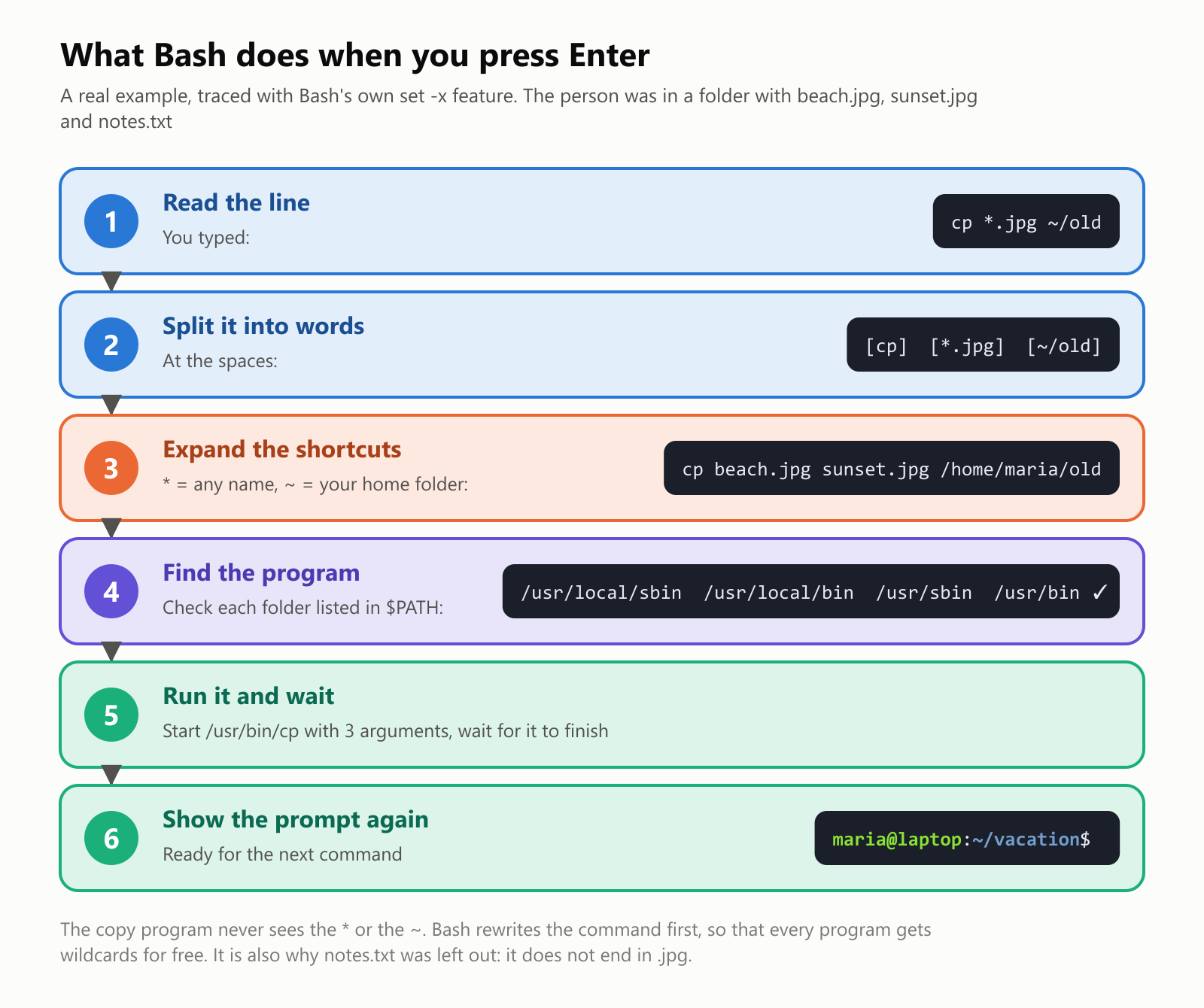
The most useful trick here is the *, called a wildcard. *.jpg means "every name that ends in .jpg". Bash swaps it for the real list of files before the program even starts. So cp, mv, rm and every other program get wildcards for free, without having to know anything about them.
One quirk to know about: if nothing matches, Bash leaves the * as it is. When we emptied the folder and ran the same kind of copy, we got this real error:
cp: cannot stat '/home/maria/vacation/*.jpg': No such file or directorycp went looking for a file literally named *.jpg. It's a classic surprise for beginners, and a good reminder that it's Bash, not the program, that handles the *.
Ten everyday commands and five handy keys
You can get surprisingly far with very few commands:
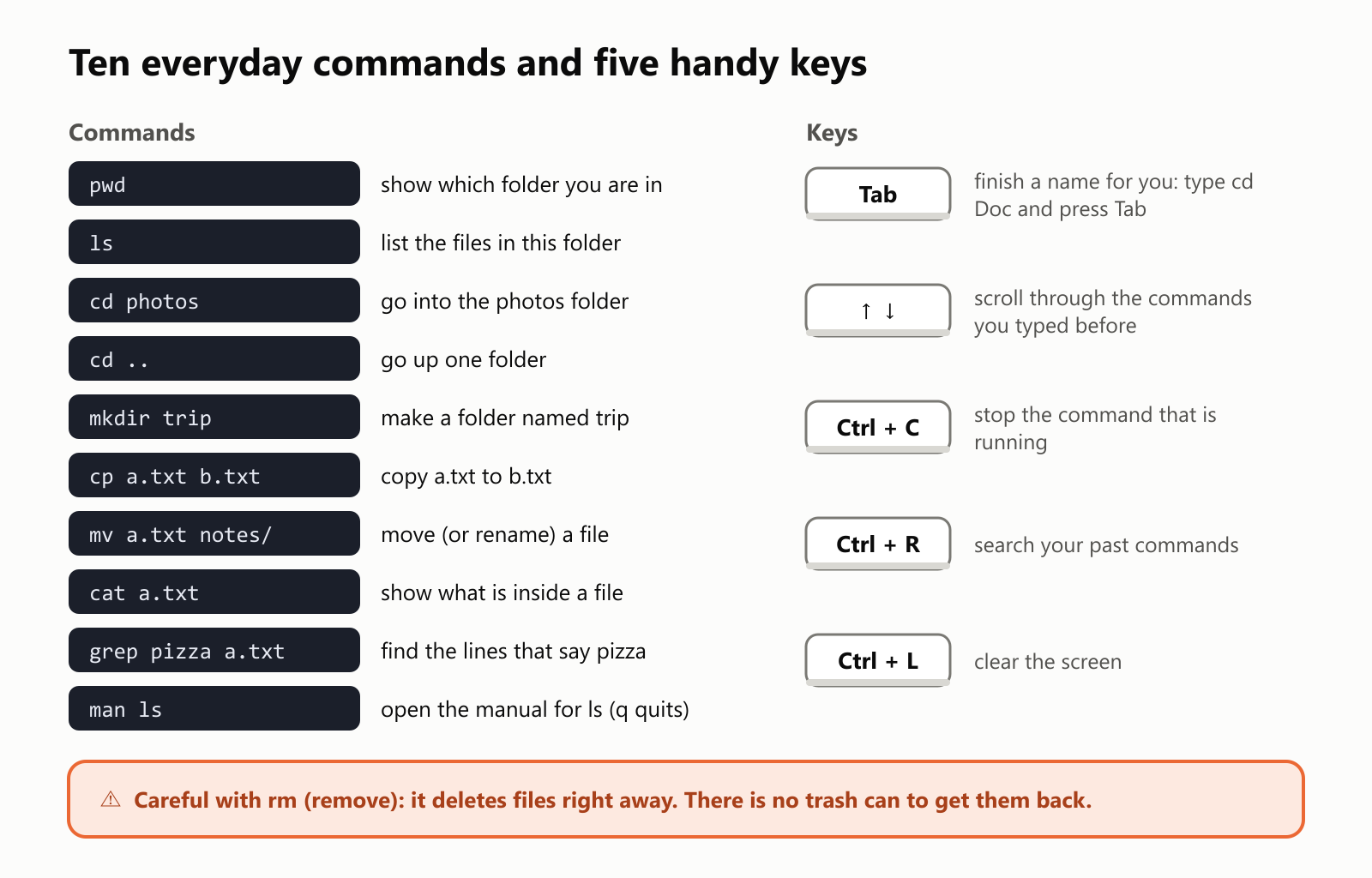
The keys matter as much as the commands. Experienced users rarely type a full file name: they type the first few letters and press Tab, and Bash finishes it. The up arrow brings back the last command, so fixing a typo takes a second. And Ctrl + C is the emergency brake when something runs longer than you expected.
Bash can also connect commands together. The | symbol, called a pipe, sends one command's output into the next, and > saves output to a file:
ls *.jpg | wc -l          # list the photos, then count the lines: prints 2
ls *.jpg > photos.txt     # save the list of photos in a file
Pipes are one of the great ideas from Unix, and the Unix article shows six small programs piped together to find the most common words in a story.
Why type when you can click?
For one file, clicking is fine. The shell shines when you need to do the same thing many times. Imagine your camera named 1,000 vacation photos IMG_0001.jpg to IMG_1000.jpg, and you want them called beach-trip-0001.jpg and so on. We tried it:
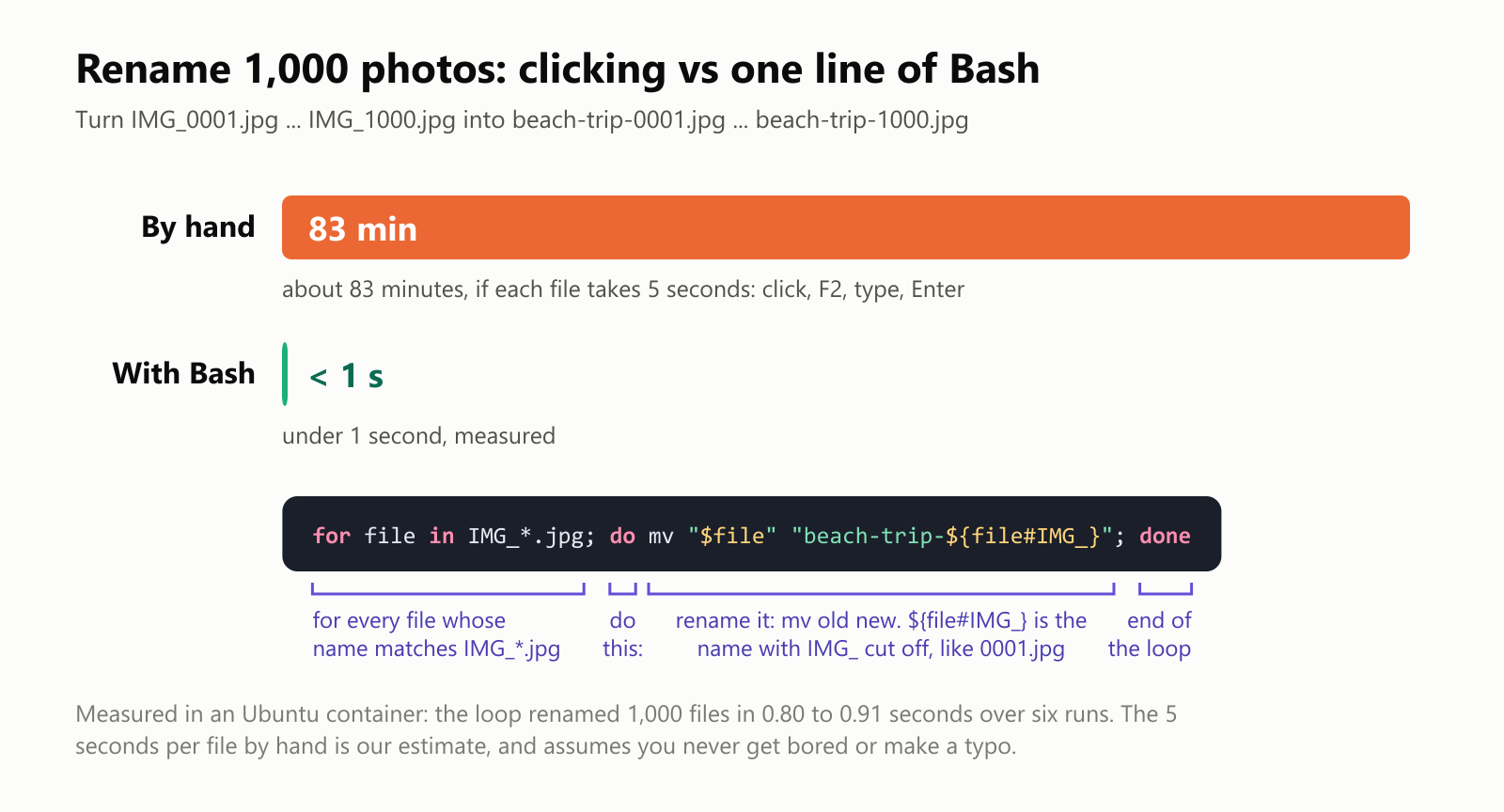
That one line is a loop: "for every file matching IMG_*.jpg, do this, then you're done". In our test it renamed all 1,000 files in less than a second, every time. By hand, even at a brisk 5 seconds per file, it would take well over an hour, and you'd probably make a few typos along the way.
This is the real reason the shell has survived for 50 years. Clicking is easy to learn, but it doesn't scale. Typing commands takes a little learning, and then it lets you do a thousand things as easily as one.
Scripts: recipes of commands
If you find yourself typing the same commands again and again, you can save them in a file and run the file. That file is a Bash script, and it's where Bash stops being just a command line and becomes a programming language:
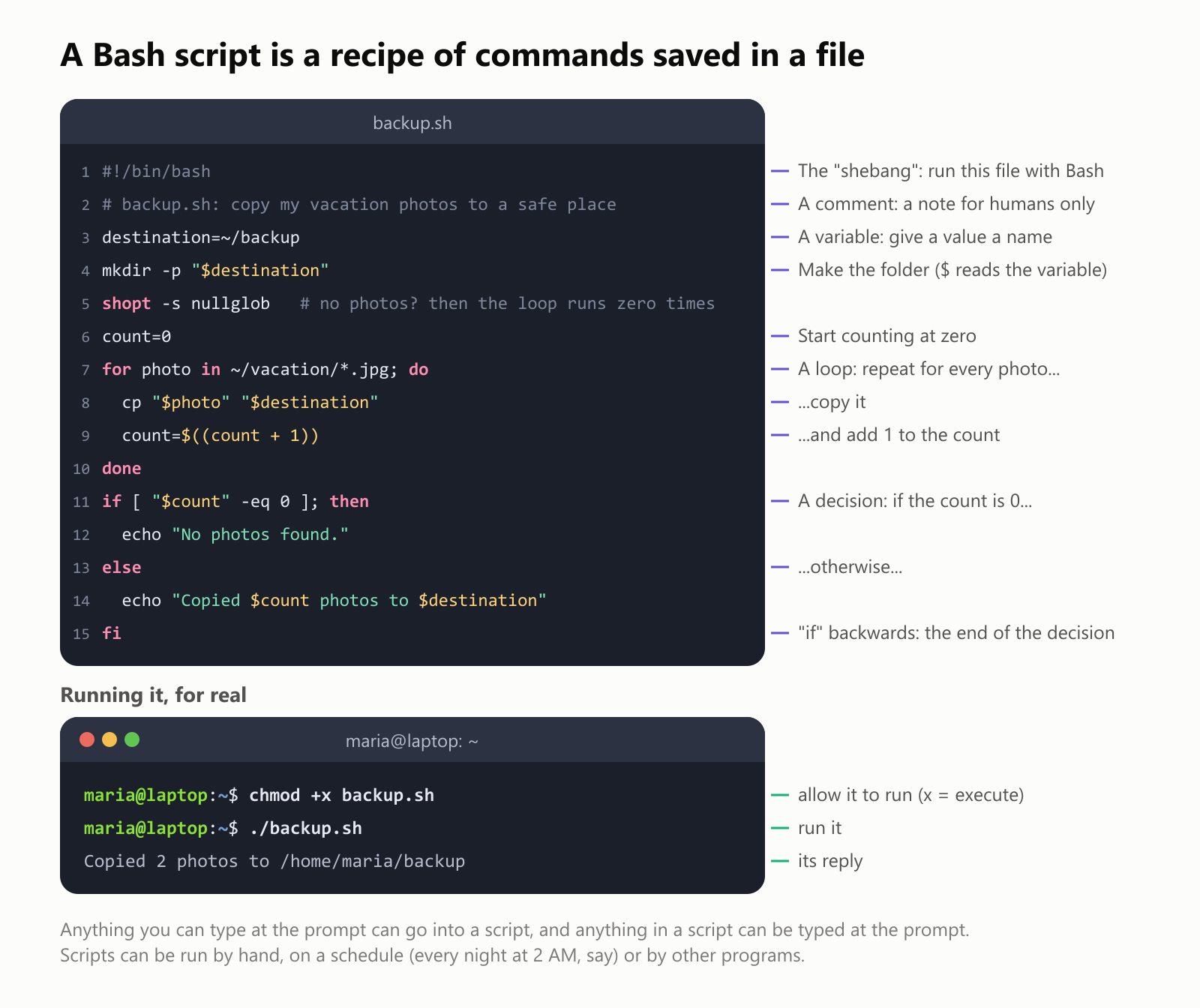
The script has everything a programming language needs: variables to remember things, loops to repeat things and decisions (if) to choose what to do. Line 5 handles the quirk from earlier: without it, an empty folder would make cp complain about a file called *.jpg. With it, the script correctly says "No photos found." We tested both cases.
Scripts like this quietly run the modern world:
- Servers use them to start up, make backups and clean old files, often on a schedule, like every night at 2 AM.
- Installing software on Linux often means running a script someone else wrote.
- Automated builds, like GitHub Actions, run their steps with Bash by default on Linux. Every time a developer pushes new code, Bash scripts test it and ship it.
- Docker containers, the boxes most cloud apps run in, are usually set up with shell commands.
Where you'll find Bash
- Linux: Bash is the standard shell on most Linux systems, from Ubuntu laptops to the servers that run websites and the cloud.
- Mac: Bash was the Mac's default shell from 2003 to 2019. Since macOS Catalina, new accounts use zsh instead, but Bash is still installed. Apple ships an old version, 3.2, because newer versions use a license (the GPLv3) that Apple avoids.
- Windows: Windows has its own shells, Command Prompt and PowerShell. Since 2016, it can also run real Bash through WSL, the Windows Subsystem for Linux. Many developers also use Git Bash, which comes with Git for Windows.
- Small computers: the Raspberry Pi, routers and many other gadgets run Linux, and usually have a Bash or Bash-like shell inside.
How many people actually use it? In the 2025 Stack Overflow Developer Survey, nearly half of the developers who answered said they had worked with Bash or another shell in the past year:
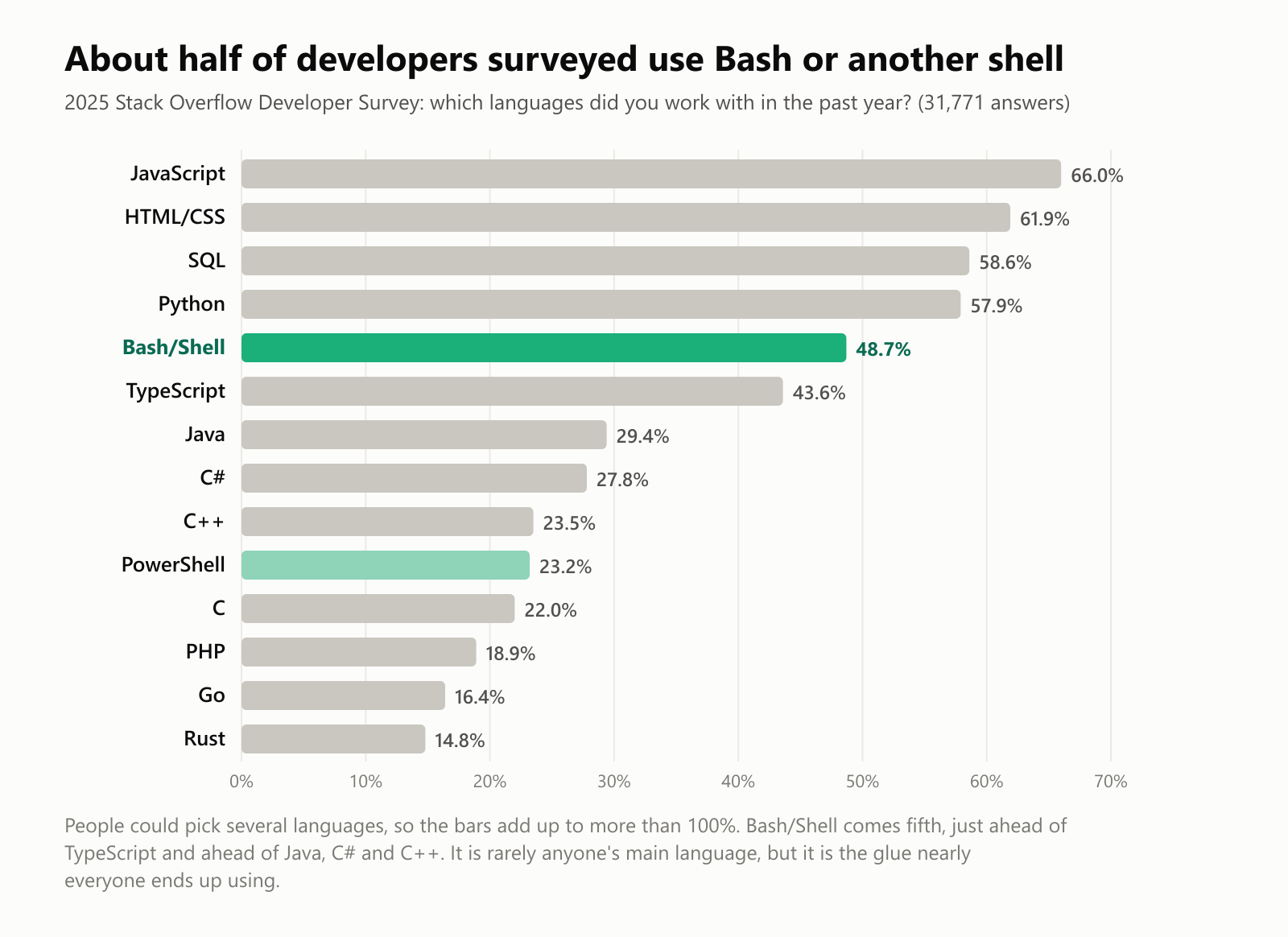
Bash is rarely anyone's main language. Nobody builds a phone app in it. But it's the glue that holds everything else together, which is why it ranks above famous languages like Java and C++.
Bash keeps growing
Bash is over 35 years old, and it's still being improved. We downloaded six versions from GNU's official archive and measured two things: how long the printed manual is, and how many lines of code the program has:
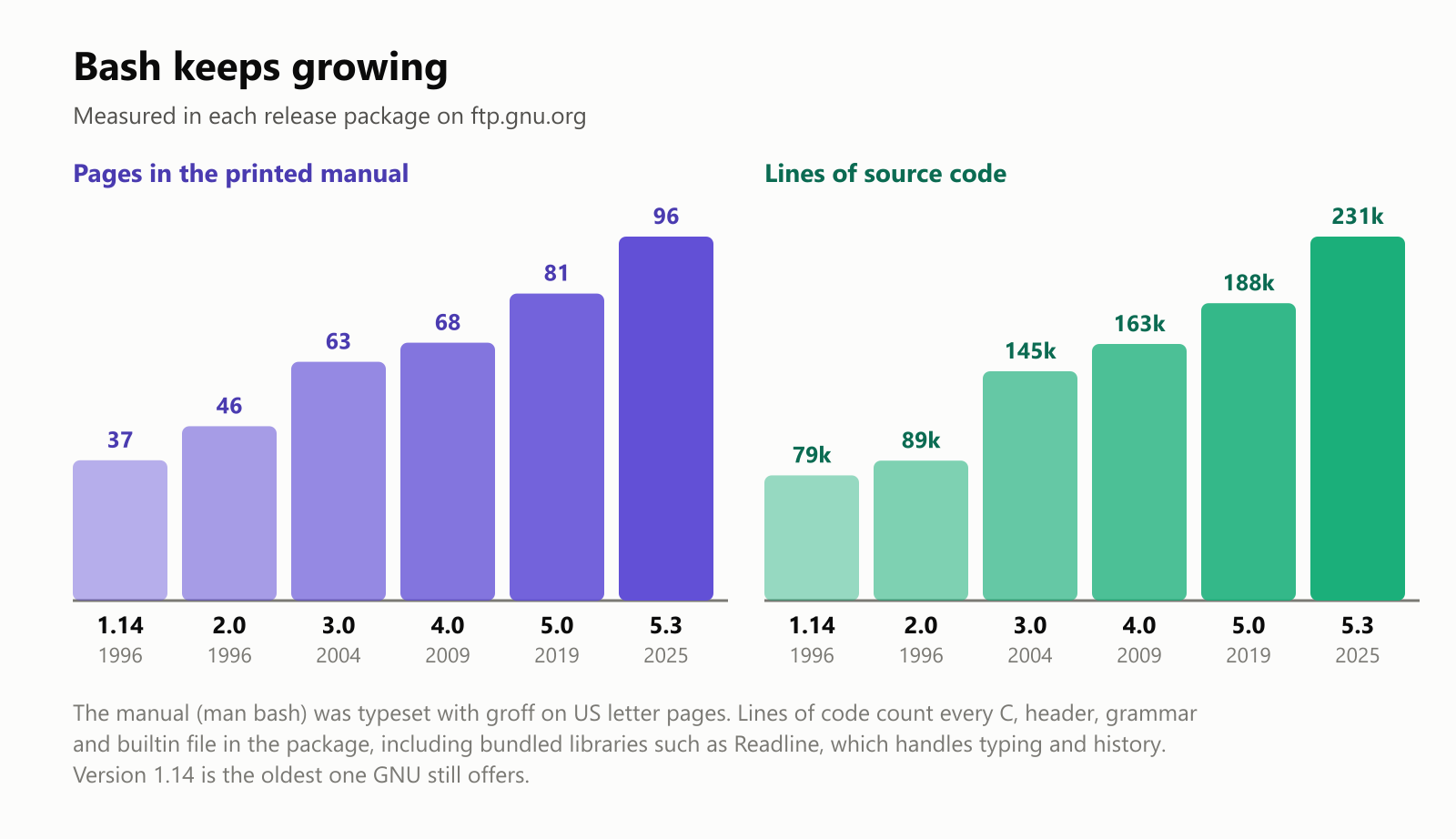
The manual more than doubled, from 37 to 96 pages, and the code nearly tripled. Yet a script written for Bash in the 1990s will usually still run today. Bash's maintainers work hard not to break old scripts, because so much of the world depends on them.
You can read that 96-page manual yourself: type man bash (press q to quit). It's famously long, and famously complete.
The family of shells
Bash didn't appear out of nowhere. It's part of a family of Unix shells going back to 1971:
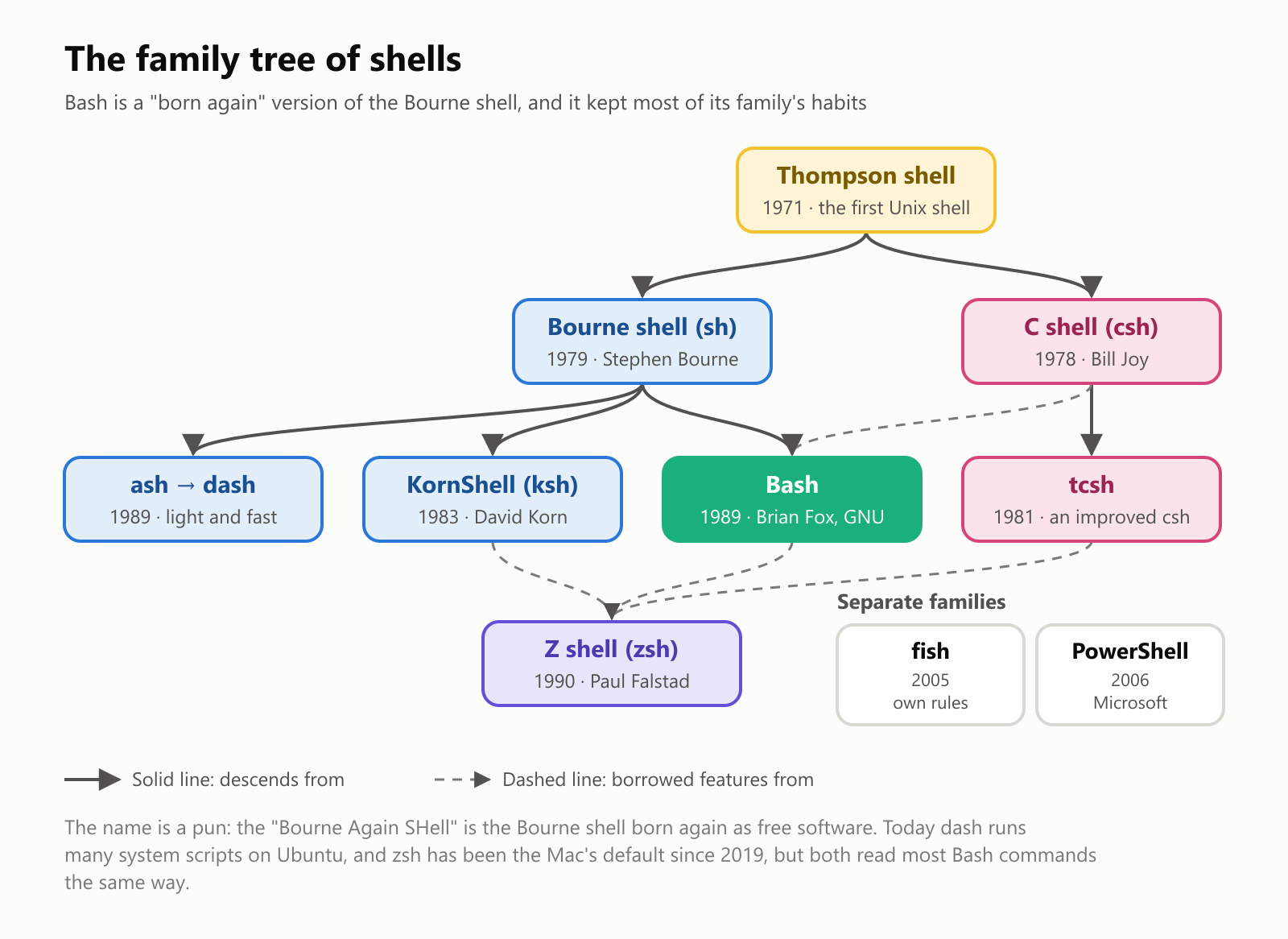
In 1979, Stephen Bourne at Bell Labs wrote the Bourne shell, known simply as sh. It became the standard Unix shell, and its way of writing commands and scripts is still the basis of most shells today.
But the Bourne shell belonged to AT&T. In the 1980s, the GNU Project, started by Richard Stallman to build a completely free Unix-like system, needed a free shell. In 1988, programmer Brian Fox started writing one for the Free Software Foundation, and released it in 1989. It understood Bourne shell scripts, added the best features from other shells, and got a playful name: the Bourne Again SHell, a pun on "born again".
A few years later, Chet Ramey took over its care. He has maintained Bash for more than three decades, which makes him one of the longest-serving caretakers of any important piece of software.
When Linux appeared in 1991, it combined Linus Torvalds's kernel with GNU's tools, Bash among them. Linux took Bash everywhere Linux went, which today means most servers on the internet.
The day Bash made headlines
In September 2014, a security researcher named Stéphane Chazelas found a bug in Bash that had gone unnoticed since 1989. It was nicknamed Shellshock.
The problem was in how Bash read certain settings passed to it by other programs. A carefully crafted piece of text could trick Bash into running commands nobody asked for. Because many web servers used Bash behind the scenes, attackers could sometimes take control of a server just by visiting a web address with the wrong text in it.
Fixes went out within days, and system administrators around the world rushed to update. The episode was a wake-up call: some of the most important software in the world is maintained by very few people, often as a labor of love.
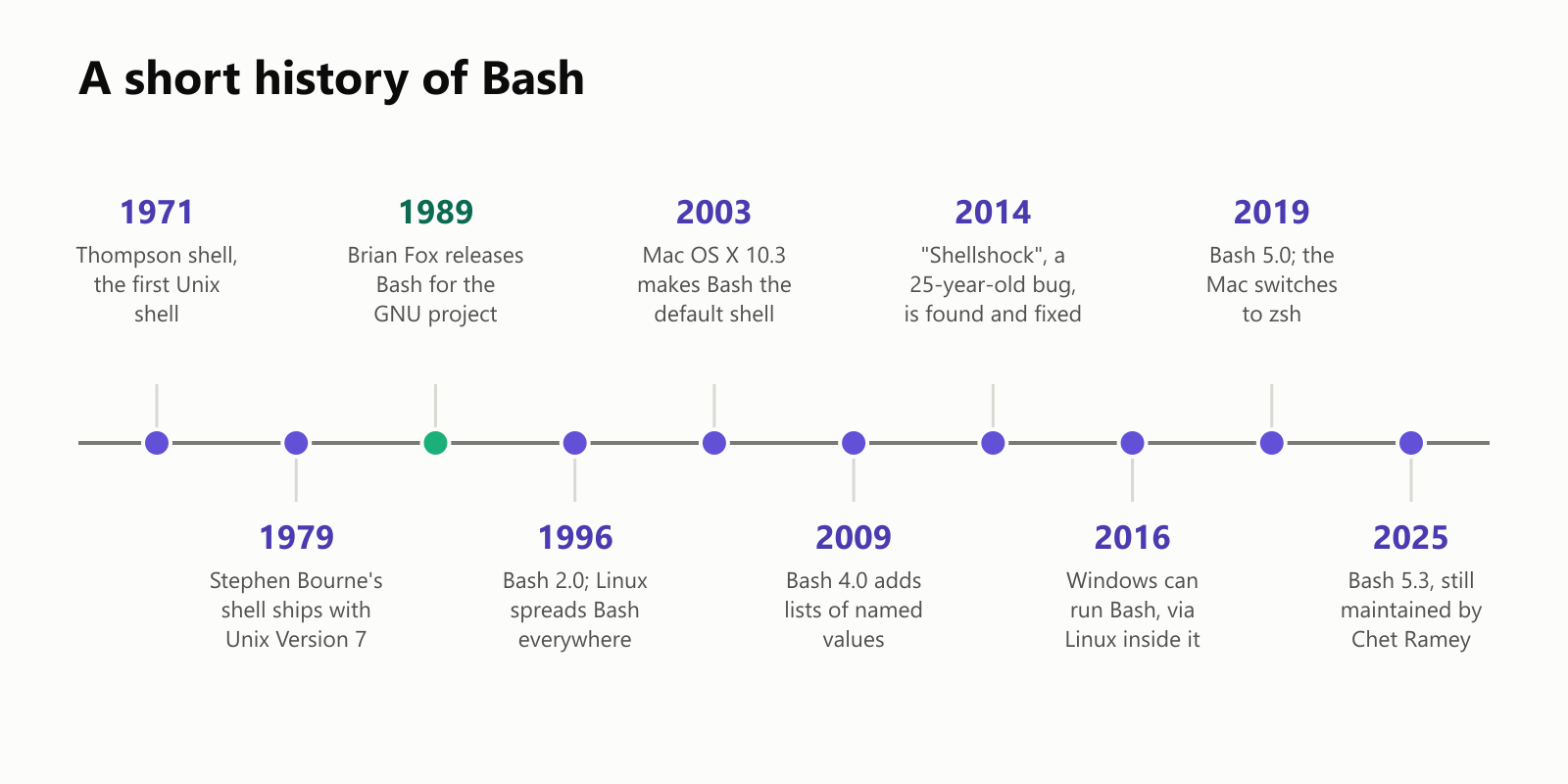
A short history
Try it yourself
You almost certainly have a shell on your computer right now:
- Mac: open the Terminal app (search for it with Cmd + Space). The shell will be zsh, which understands all the basic commands in this article. Type
bashand press Enter to switch to Bash, andexitto go back. - Linux: open the Terminal app. It's very likely Bash already.
- Windows: open PowerShell as an administrator and run
wsl --install. After a restart, you'll have Ubuntu Linux with Bash inside Windows. Or install Git for Windows, which comes with Git Bash.
Then try a few safe commands:
1pwd                      # where am I?
2ls                       # what's here?
3echo "Hello, $USER"      # say hello
4echo $((60 * 60 * 24))   # seconds in a day
5date                     # today's date and time
6history                  # everything you've typed so far
Two safety tips: be careful with rm, which deletes immediately with no trash can, and never paste commands from strangers on the internet into your terminal without understanding them. A shell does exactly what you tell it to, including the bad things.
Common questions
Is Bash a programming language? Yes. Bash is both a shell you type into and a scripting language, with variables, loops and decisions. It's great for gluing programs together and automating chores, and not meant for building big apps.
What's the difference between Bash and zsh? They're close cousins. Both understand nearly all the everyday commands, and most simple scripts work in both. zsh adds extra conveniences for typing, and Bash is more common on servers and in scripts.
Is the Windows Command Prompt the same thing? It's the same idea, a shell, but a different family. Command Prompt descends from DOS, and PowerShell is Microsoft's modern shell. Their commands are different: dir instead of ls, for example. See What Is the DOS Operating System? for that branch of the story.
What is sudo? A command that runs another command as the administrator, the user who's allowed to change anything. You'll see it in installation instructions, like sudo apt install firefox. It asks for your password because it's powerful.
Do I need Bash if I'm not a programmer? No, but a little goes a long way. If you ever need to rename hundreds of files, fix a Raspberry Pi project or follow technical instructions, knowing ten commands makes it much less scary.
Glossary
- Shell: a program that reads commands you type and runs them.
- Bash: the Bourne Again SHell, the most widely used shell, made for the GNU Project in 1989.
- Terminal: the window that shows the shell's text. Also called a terminal emulator.
- Command line: typing commands, as opposed to clicking in a graphical interface.
- Prompt: the text, like
maria@laptop:~$, that shows the shell is ready for a command. - Command: the first word you type, the thing to do, like
cp. - Option: a setting that changes how a command works, usually starting with a dash, like
-v. - Argument: what the command should work on, like a file name.
- Wildcard: a pattern like
*.jpgthat Bash expands into matching file names. - Variable: a name that holds a value, read with
$, like$USER. - Pipe: the
|symbol, which sends one command's output into another. - Script: a file of commands that can be run like a program.
- Shebang: the
#!/bin/bashfirst line that says which program should run a script. - PATH: the list of folders where Bash looks for programs.
Wrapping up
Bash is the waiter between you and your computer's kitchen. You type a request in words, it expands your shortcuts, finds the right program, runs it and shows you the answer. Save a few of those requests in a file, and you have a script that can do in a second what would take an hour of clicking.
It was born in 1989 as a free copy of an older shell, named with a pun, and it now runs on most of the servers that make up the internet. You don't need to become an expert. Open a terminal, type pwd, then ls, then press the up arrow. You've just had your first conversation with Bash.
Read next
What Is the C# Programming Language? A Simple Guide to Microsoft's Language for Apps, Websites and Games
A friendly, jargon-free guide to C#, Microsoft's popular programming language behind Unity games, websites and business apps. Learn where its name comes from, how it runs on almost any device, and why it cleans up memory for you.
 nbkhope
What Is the C++ Programming Language? A Simple Guide to the Language Behind Games and Browsers
A friendly, jargon-free guide to C++, the programming language behind video games, web browsers and much of the software you use every day. Learn what it adds to C, how classes and automatic cleanup work, and why it's both fast and famously complex.
nbkhope
What Is the C Programming Language? A Simple Guide to the Language That Runs the World
A friendly, jargon-free guide to C, the 50-year-old programming language hiding inside your phone, your car and the internet. Learn what C is, why it's so fast, how it works with memory, and why it still matters today.
nbkhope
Comments
Be kind and specific. Comments with links from new accounts appear after a moderator reviews them.