
Azure Key Vault for Node.js: A Visual, Hands-On Guide
Learn Azure Key Vault for Node.js visually, with no Azure account: run a local emulator, sign in with no password in your code, store and read secrets, rotate versions, recover deleted secrets, cache values safely, handle failures, and do the exercises.


On this page
Some values in an application must never reach version control: a database password, an API key, a token that signs logins. A common first step is to keep them apart from the code, in a .env file or a secrets module. That keeps them out of Git, but every server still holds its own readable copy, and changing a password means touching them all.
Azure Key Vault is a cloud service that keeps those values in one protected place. Besides secrets, it also stores cryptographic keys and certificates. In this guide you'll run a vault on your own computer, connect from Node.js with no password in your code, and store and read secrets. You'll then rotate a secret, disable one, recover a deleted one, fit the vault into an app without calling it too often, and see what happens when it can't be reached. Exercises wrap it up.
You don't need an Azure account to follow along. Microsoft doesn't offer a Key Vault emulator, so we use Lowkey Vault, a community test double that speaks the same API. All outputs below come from real runs with Lowkey Vault 7.4.0 in Docker, @azure/keyvault-secrets 4.12, @azure/identity 4.14 and Node.js 26 on Windows. The portal screenshots are real too, with the account details and names replaced by this guide's examples. Nothing here ran against a real vault, and the last section lists what's different there.
Why a vault?
Here's the idea in one picture:
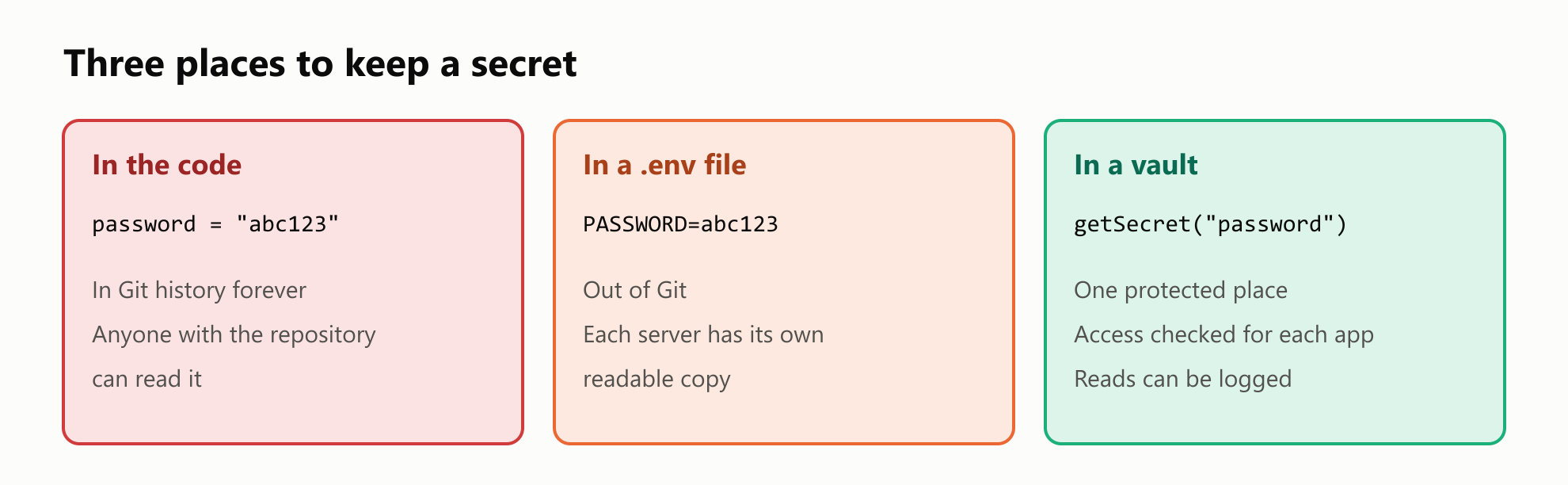
A vault holds secrets: a name, such as database-password, and a text value of up to 25 KB. Names may only use letters, digits and hyphens, so database_password won't work. The vault encrypts every value and only hands it to callers who have permission.
Start a local vault
Lowkey Vault runs in Docker. Port 8443 is the vault, and port 8080 stands in for the service that hands out sign-in tokens:
docker run -d --name key-vault -p 8443:8443 -p 8080:8080 nagyesta/lowkey-vault:7.4.0Like the real service, it refuses a caller who doesn't present a token:
curl -sk -o /dev/null -w "%{http_code}\n" "https://localhost:8443/secrets?api-version=7.6"401This is a test tool with no real protection, so never put a real secret in it.
In a new folder, install the two libraries:
npm init -y
npm install @azure/identity @azure/keyvault-secrets
@azure/keyvault-secrets talks to the vault, and @azure/identity proves who you are.
The Azure library only talks to a vault over https, and the emulator uses a self-signed certificate that Node.js doesn't trust. We could turn off certificate checks, but that's a dangerous habit. It's better to trust this one certificate. Save this as save-certificate.mjs and run it once with node save-certificate.mjs:
1// save-certificate.mjs
2import { writeFileSync } from "node:fs";
3import { connect } from "node:tls";
4
5const socket = connect({ host: "localhost", port: 8443, rejectUnauthorized: false }, () => {
6  writeFileSync("lowkey-vault.pem", socket.getPeerX509Certificate().toString());
7  console.log("Saved lowkey-vault.pem");
8  socket.end();
9});
Saved lowkey-vault.pemThen save this as trust-local-vault.mjs. It adds the certificate to the list that Node.js trusts, and it needs Node.js 24 or later:
1// trust-local-vault.mjs
2import { readFileSync } from "node:fs";
3import { getCACertificates, setDefaultCACertificates } from "node:tls";
4
5setDefaultCACertificates([...getCACertificates("default"), readFileSync("lowkey-vault.pem", "utf8")]);
You may know the NODE_EXTRA_CA_CERTS variable. It works too, but only when it's set before Node.js starts, so it has no effect inside a .env file. Without one of these, every call fails with this:
self-signed certificate; if the root CA is installed locally, try running Node.js with --use-system-caFinally, create a file called .env, and keep it out of Git. It holds no secrets, only addresses:
KEY_VAULT_URL=https://localhost:8443
IDENTITY_ENDPOINT=http://localhost:8080/metadata/identity/oauth2/token
IDENTITY_HEADER=header
Run each program with this command:
node --import ./trust-local-vault.mjs --env-file=.env main.mjsHow your app signs in
So how does an app prove who it is, with no password in the code? In Azure, an app can have a managed identity: an identity that Azure creates and looks after, with no password for you to store.
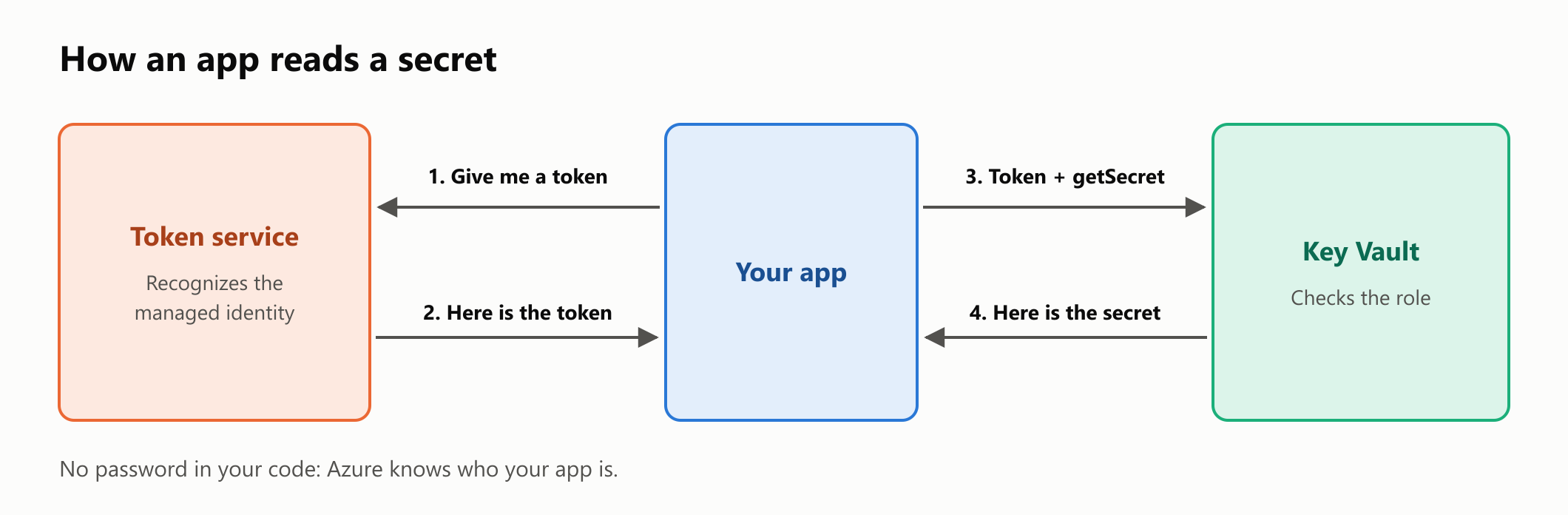
Our two IDENTITY_ variables point the library at the emulator's fake token service, so your code runs through the same steps. Save this as vault.mjs. It's the one place that creates the client, and the rest of this guide imports it:
1// vault.mjs
2import { DefaultAzureCredential } from "@azure/identity";
3import { SecretClient } from "@azure/keyvault-secrets";
4
5export const client = new SecretClient(
6  process.env.KEY_VAULT_URL,
7  new DefaultAzureCredential(),
8  { disableChallengeResourceVerification: true },
9);
DefaultAzureCredential tries a list of sign-in methods in order and uses the first one that works: environment variables, then a managed identity, then developer tools like az login. That's why the same code runs on your laptop and in Azure.
Why disableChallengeResourceVerification? The library checks that the vault's address really belongs to Azure, and localhost doesn't. Without the option, it stops with this:
The challenge resource 'localhost' does not match the requested domain. Set disableChallengeResourceVerification to true in your client options to disable. See https://aka.ms/azsdk/blog/vault-uri for more information.Keep that option for local work only.
Using a real vault in Azure
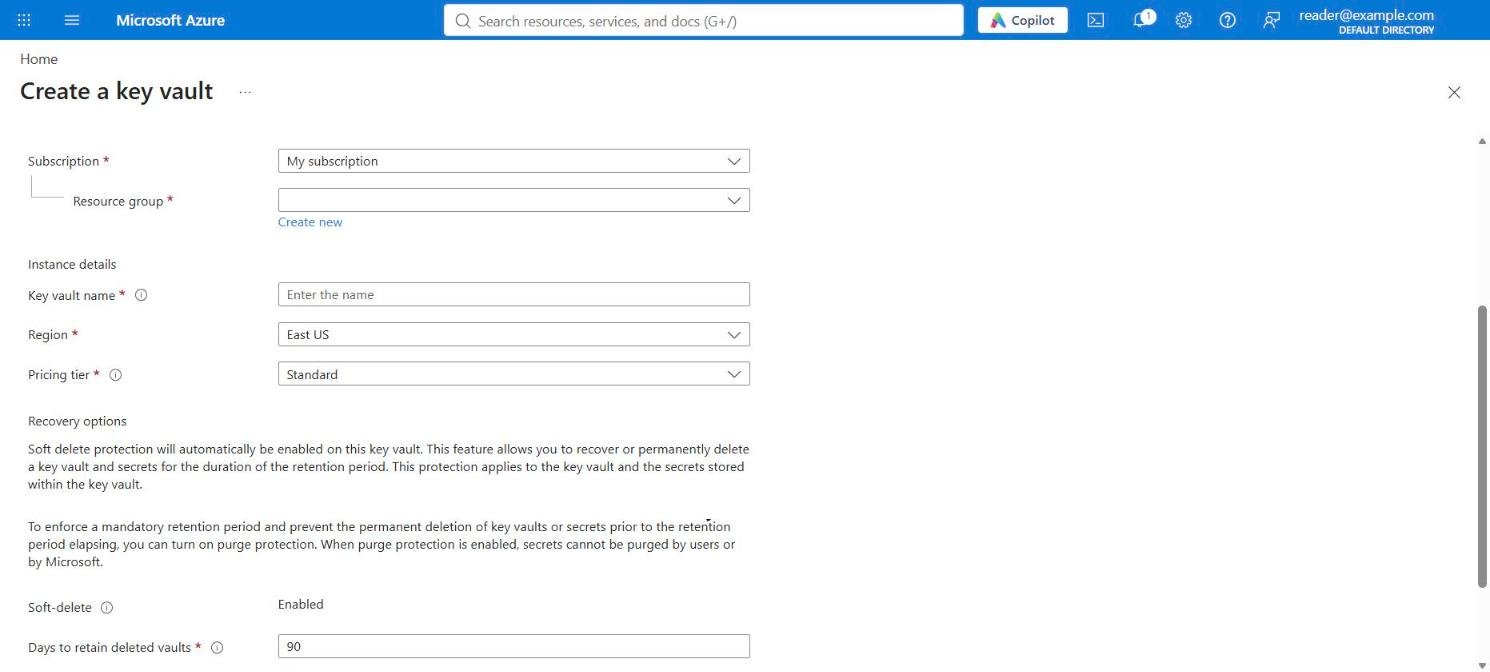
For a real vault, in the Azure portal, search for Key vaults and click Create. Pick your subscription, a resource group, a name, a region and a pricing tier:
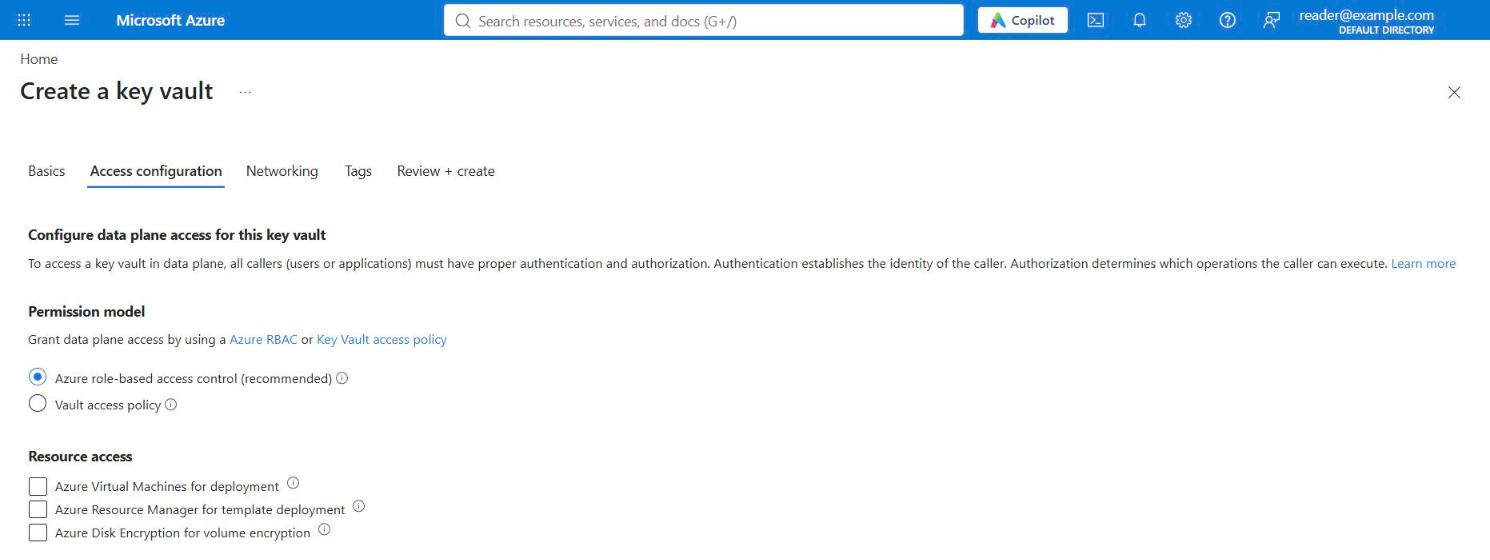
On the Access configuration tab, keep the permission model on Azure role-based access control. It's the default for new vaults. Older guides, including this one's first version, use Vault access policy, which Microsoft now calls legacy:
Now give your app permission. Follow the principle of least privilege: grant only what the app needs. On the vault's Access control (IAM) page, click Add role assignment and pick a role:
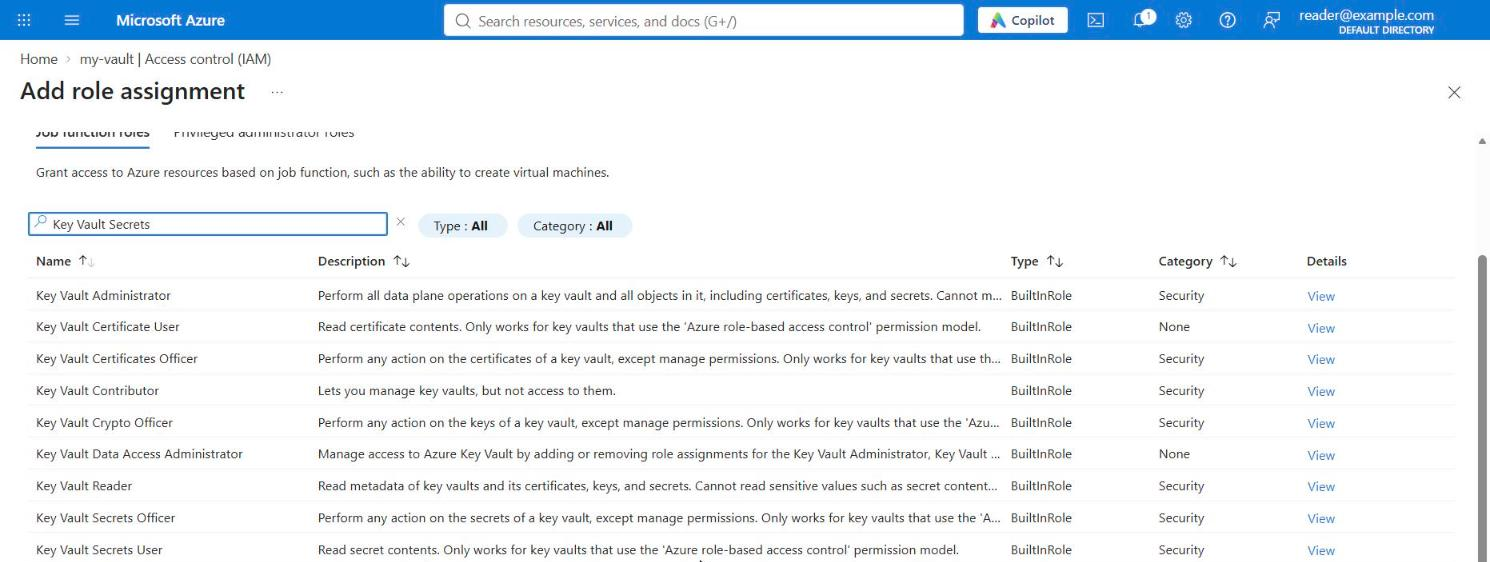
| Role | What it allows |
|---|---|
| Key Vault Secrets User | Reading secret values. This is the one for most apps |
| Key Vault Secrets Officer | Any action on secrets, for you or a deployment script |
| Key Vault Reader | Reading names and details, but never the values |
On the Members tab, choose your app's managed identity. You can add a secret from code, as we'll do next, or from the Secrets page:
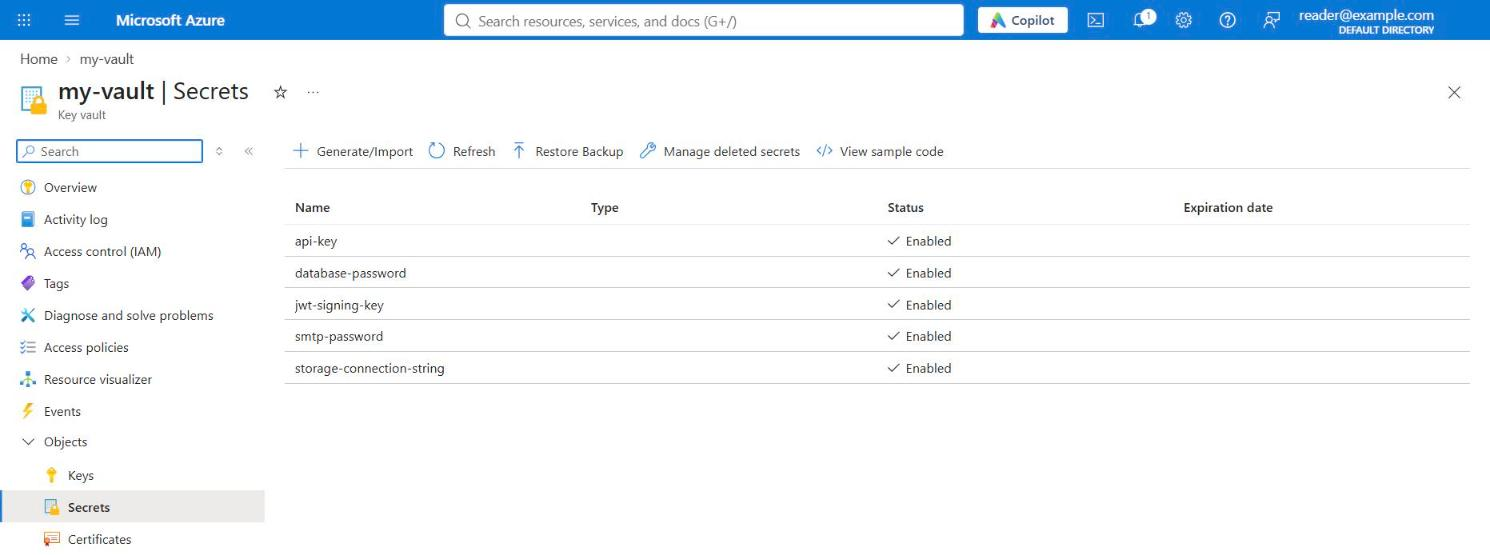
Generate/Import opens a short form:
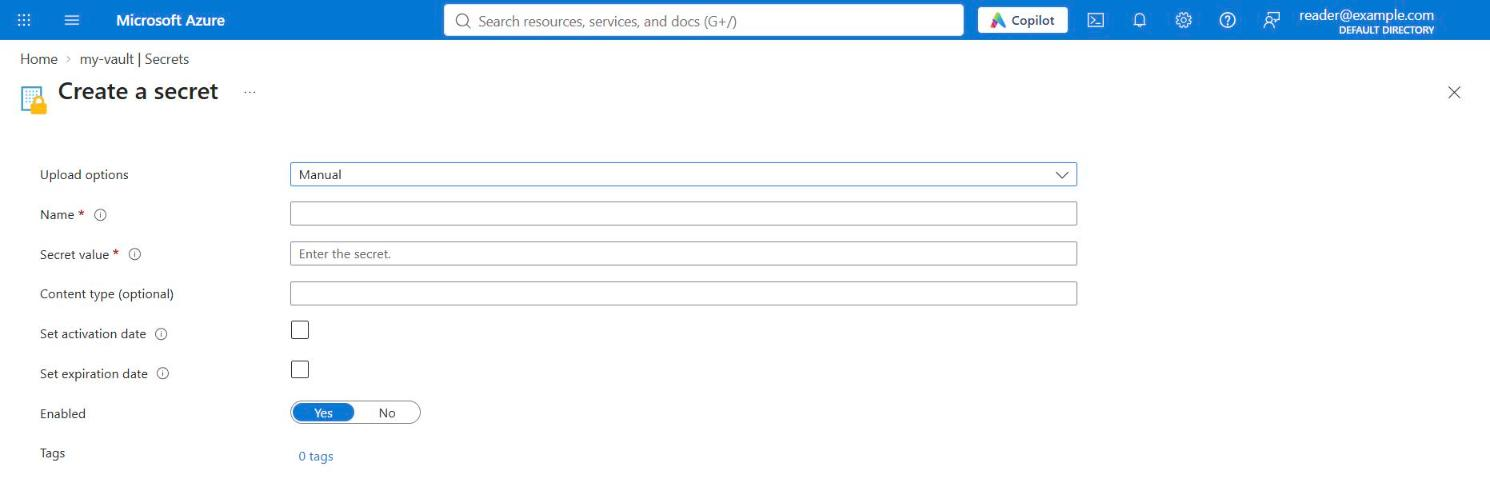
We didn't create a vault for this guide, and the screens change over time, so see Microsoft's guides to creating a vault and assigning roles.
Your code stays the same, with three differences. KEY_VAULT_URL becomes https://my-vault.vault.azure.net, you remove disableChallengeResourceVerification and the --import flag, and you drop the two IDENTITY_ variables, because Azure provides them. On your own machine, run az login and give your account a role, and DefaultAzureCredential picks that up. Once your app is deployed, Microsoft recommends replacing it with one specific credential, such as ManagedIdentityCredential.
What if your app runs outside Azure, with no managed identity? Then you create an app registration, give it a client secret, and sign in with ClientSecretCredential:
1import { ClientSecretCredential } from "@azure/identity";
2
3const credential = new ClientSecretCredential(
4  process.env.AZURE_TENANT_ID,
5  process.env.AZURE_CLIENT_ID,
6  process.env.AZURE_CLIENT_SECRET,
7);
We couldn't run this one locally. Notice its weak spot: that client secret is a password you now have to store somewhere and replace when it expires, which is why a managed identity is better when you can use one.
Write some secrets
setSecret takes a name and a value. Save this as seed.mjs, and run it once:
1// seed.mjs
2import { client } from "./vault.mjs";
3
4const secrets = [
5  { name: "database-password", value: "first-password" },
6  { name: "api-key", value: "demo-api-key" },
7  { name: "jwt-signing-key", value: "demo-jwt-key" },
8];
9
10for (const { name, value } of secrets) {
11  await client.setSecret(name, value);
12}
13
14console.log(`Saved ${secrets.length} secrets`);
Saved 3 secretsRead the secrets
getSecret returns one secret, with its text in value. We print these made-up values so you can see them. In a real app, never log a secret:
1// main.mjs
2import { client } from "./vault.mjs";
3
4const secret = await client.getSecret("database-password");
5console.log(secret.value);
6
7try {
8  await client.getSecret("missing");
9} catch (error) {
10  console.log(error.statusCode);
11}
first-password
404A name that doesn't exist throws an error, with the HTTP status 404.
To see what's in the vault, use listPropertiesOfSecrets. It returns an async iterator, which fetches the results page by page, so you loop over it with for await:
1// main.mjs
2import { client } from "./vault.mjs";
3
4for await (const properties of client.listPropertiesOfSecrets()) {
5  console.log(properties.name, properties.enabled, properties.value);
6}
api-key true undefined
database-password true undefined
jwt-signing-key true undefinedNotice undefined: listing never gives you a value. That's by design, because Key Vault separates the right to list from the right to read. To get every value, you need one more call for each secret:
1// main.mjs
2import { client } from "./vault.mjs";
3
4for await (const properties of client.listPropertiesOfSecrets()) {
5  const secret = await client.getSecret(properties.name);
6  console.log(`${secret.name} = ${secret.value}`);
7}
api-key = demo-api-key
database-password = first-password
jwt-signing-key = demo-jwt-keyWe'll come back to this loop, because it has a hidden bug.
Versions: rotate without losing history
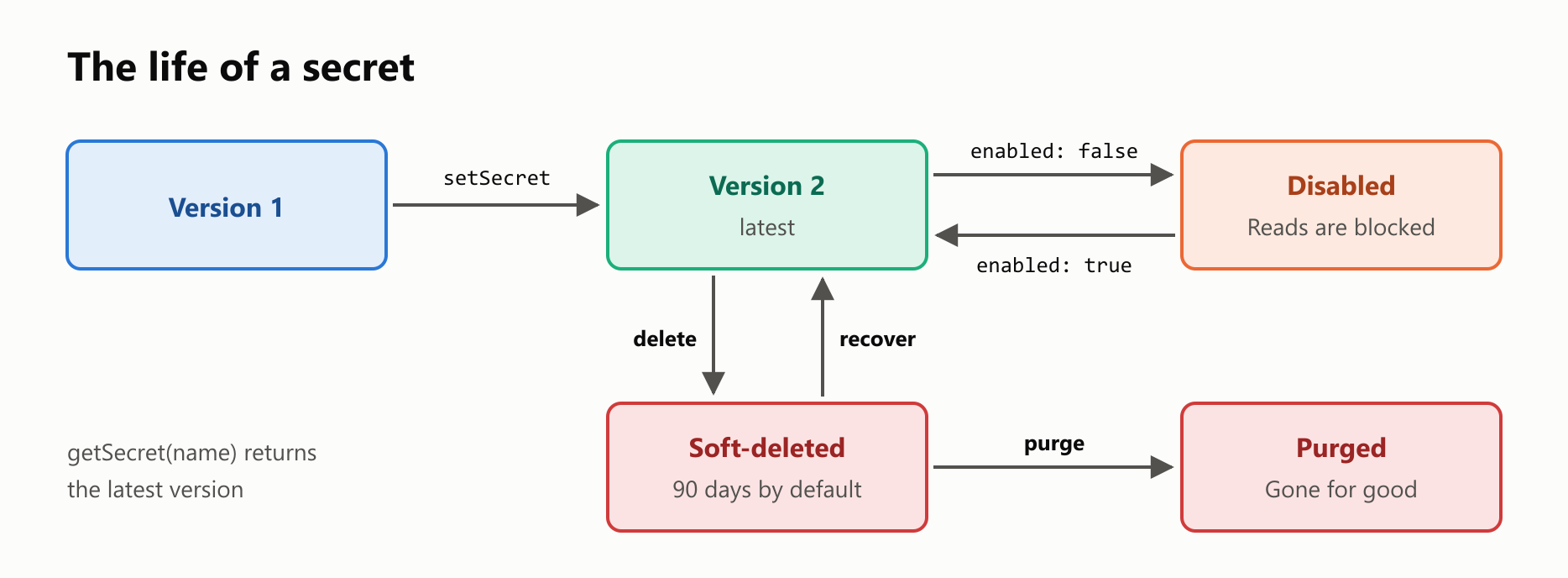
Replacing a password regularly is called rotation. Calling setSecret with an existing name doesn't overwrite the value. It creates a new version, and the old one stays:
1// main.mjs
2import { client } from "./vault.mjs";
3
4const before = await client.getSecret("database-password");
5
6await client.setSecret("database-password", "second-password");
7
8const latest = await client.getSecret("database-password");
9const previous = await client.getSecret("database-password", {
10  version: before.properties.version,
11});
12
13console.log(latest.value);
14console.log(previous.value);
15
16let versionCount = 0;
17for await (const properties of client.listPropertiesOfSecretVersions("database-password")) {
18  versionCount += 1;
19}
20console.log(`${versionCount} versions`);
second-password
first-password
2 versionsAsking by name gives you the latest version. Your app picks up a new password with no code change, and you can still reach the old one if something goes wrong.
Details on a secret
A secret can carry details: a contentType as a hint about its format, tags for your own notes, and an expiry date in expiresOn. Here's one that has already expired:
1// main.mjs
2import { client } from "./vault.mjs";
3
4await client.setSecret("old-token", "demo-old-token", {
5  contentType: "text/plain",
6  tags: { owner: "payments" },
7  expiresOn: new Date("2020-01-01T00:00:00Z"),
8});
9
10const secret = await client.getSecret("old-token");
11
12console.log(secret.value);
13console.log(secret.properties.contentType, secret.properties.tags);
14console.log(secret.properties.expiresOn < new Date());
demo-old-token
text/plain { owner: 'payments' }
trueDid you expect an error? The read worked. Microsoft's documentation describes expiresOn as informational for secrets, and says get works on expired ones. An expiry date is a reminder, and it's up to you to act on it.
Disable a secret, and find the bug
To really block a secret, turn it off with enabled: false. Now run the loop from before:
1// main.mjs
2import { client } from "./vault.mjs";
3
4const { properties } = await client.getSecret("old-token");
5await client.updateSecretProperties("old-token", properties.version, { enabled: false });
6
7try {
8  for await (const listed of client.listPropertiesOfSecrets()) {
9    await client.getSecret(listed.name);
10    console.log(`${listed.name} is readable`);
11  }
12} catch (error) {
13  console.log(`Stopped: ${error.message}`);
14}1api-key is readable
2database-password is readable
3jwt-signing-key is readable
4Stopped: Operation get is not allowed on a disabled entity.There's the bug. A disabled secret still shows up in the list, but reading it throws, so one disabled secret crashes a loop that reads them all. The fix is to check enabled first:
1// main.mjs
2import { client } from "./vault.mjs";
3
4for await (const listed of client.listPropertiesOfSecrets()) {
5  if (!listed.enabled) {
6    console.log(`Skipping ${listed.name}`);
7    continue;
8  }
9
10  const secret = await client.getSecret(listed.name);
11  console.log(`${secret.name} is readable`);
12}1api-key is readable
2database-password is readable
3jwt-signing-key is readable
4Skipping old-tokenDelete and recover
Deleting is a safety net with two steps. beginDeleteSecret is a long-running operation, so it returns a poller, and pollUntilDone waits for it to finish. The secret isn't gone yet. It's in a soft-deleted state:
1// main.mjs
2import { client } from "./vault.mjs";
3
4const deletion = await client.beginDeleteSecret("api-key");
5const deleted = await deletion.pollUntilDone();
6console.log(`Recoverable for ${deleted.properties.recoverableDays} days`);
7
8try {
9  await client.getSecret("api-key");
10} catch (error) {
11  console.log(`Read: ${error.statusCode}`);
12}
13
14try {
15  await client.setSecret("api-key", "new-value");
16} catch (error) {
17  console.log(`Write: ${error.statusCode}`);
18}
19
20const recovery = await client.beginRecoverDeletedSecret("api-key");
21await recovery.pollUntilDone();
22
23const secret = await client.getSecret("api-key");
24console.log(secret.value);1Recoverable for 90 days
2Read: 404
3Write: 409
4demo-api-keyWhile it's deleted, you can't read the secret, and you can't reuse its name, which is the 409, meaning conflict. Recovering brings it back with its value. In Azure, new vaults have soft delete on, it can't be turned off, and the waiting period can be from 7 to 90 days.
To remove a secret for good before that, you purge it with purgeDeletedSecret. That needs its own permission, and a vault with purge protection refuses until the period ends. The emulator's default vault is one of those, so we didn't run a purge here.
When to read the secrets
There are two simple ways to fit a vault into an app. In both, you create one central secrets module that the rest of the code calls.
The first is to read each secret once, when the app starts, and keep it in memory. The second is to ask the vault every time you need a value. Let's count the requests for 100 reads of the same secret:
1// main.mjs
2import { DefaultAzureCredential } from "@azure/identity";
3import { SecretClient } from "@azure/keyvault-secrets";
4
5let requests = 0;
6
7const client = new SecretClient(process.env.KEY_VAULT_URL, new DefaultAzureCredential(), {
8  disableChallengeResourceVerification: true,
9  additionalPolicies: [{
10    position: "perCall",
11    policy: {
12      name: "countRequests",
13      sendRequest(request, next) {
14        requests += 1;
15        return next(request);
16      },
17    },
18  }],
19});
20
21for (let round = 0; round < 100; round += 1) {
22  await client.getSecret("api-key");
23}
24console.log(`Every time: ${requests} requests`);
25
26requests = 0;
27let cachedValue;
28for (let round = 0; round < 100; round += 1) {
29  cachedValue ??= (await client.getSecret("api-key")).value;
30}
31console.log(`Once at startup: ${requests} requests`);
Every time: 100 requests
Once at startup: 1 requestsThis matters more than you might expect. Key Vault limits requests, answers 429 when you go over, and charges for them. Microsoft's own advice is to keep secrets in memory, and to read them again only when the copy stops working.
| Approach | Requests | Secret stays in memory | After a rotation |
|---|---|---|---|
| Every time | One for each read | Only briefly | Right away |
| Once at startup | The fewest | The whole time | Needs a restart |
| Cache, and reload on failure | A few | The whole time | At the first failure |
Which one is right depends on your app and how much risk you accept. The first version of this guide pointed out that asking every time keeps the value in memory for less time. That's true, though the price is more requests, and a slower app.
A secrets module
The third row is the best fit for most apps. Save this as secrets.mjs:
1// secrets.mjs
2import { client } from "./vault.mjs";
3
4const cache = new Map();
5
6export async function getSecretValue(name) {
7  if (!cache.has(name)) {
8    const secret = await client.getSecret(name);
9    cache.set(name, secret.value);
10  }
11
12  return cache.get(name);
13}
14
15export function forgetSecret(name) {
16  cache.delete(name);
17}
Now let's rotate the password while the app is running. connect stands in for a real database, which starts rejecting the old password:
1// main.mjs
2import { forgetSecret, getSecretValue } from "./secrets.mjs";
3import { client } from "./vault.mjs";
4
5let databasePassword = await getSecretValue("database-password");
6
7function connect(password) {
8  if (password !== databasePassword) {
9    throw new Error("Wrong password");
10  }
11
12  return "Connected";
13}
14
15async function connectToDatabase() {
16  try {
17    return connect(await getSecretValue("database-password"));
18  } catch {
19    console.log("Rejected, reading the vault again");
20    forgetSecret("database-password");
21    return connect(await getSecretValue("database-password"));
22  }
23}
24
25console.log(await connectToDatabase());
26
27databasePassword = "third-password";
28await client.setSecret("database-password", databasePassword);
29
30console.log(await connectToDatabase());
Connected
Rejected, reading the vault again
ConnectedThe app never restarted, and it only went back to the vault when it had to.
When the vault is down
Your secrets now live across a network, so think about what happens when it fails. Here we point at a port where nothing is listening:
1// main.mjs
2import { DefaultAzureCredential } from "@azure/identity";
3import { SecretClient } from "@azure/keyvault-secrets";
4
5const offline = new SecretClient("https://localhost:9999", new DefaultAzureCredential(), {
6  disableChallengeResourceVerification: true,
7});
8
9try {
10  await offline.getSecret("api-key");
11} catch (error) {
12  console.log(error.code);
13}ECONNREFUSEDThe library retried first, so that error took about five seconds to arrive here. With retryOptions: { maxRetries: 0 } it came straight away.
With settings, a safe default can keep an app running. With secrets, there's usually no safe default: a made-up password won't open your database. Stop the app at startup with a clear message, and let a secret you've already cached carry you through a short outage.
The emulator isn't Azure
The emulator is great for learning the API and for testing your code, and it can't prove everything:
| Lowkey Vault | A real vault | |
|---|---|---|
| Token | Must be there, and its value is ignored | Must be real and valid |
| Permissions | Not checked, so any caller can do anything | Checked on every call, and a missing role gives 403 |
| Network | localhost, with a self-signed certificate | vault.azure.net, with a trusted certificate |
| Request limits | None | Enforced, with 429 |
| Error details | Its own messages and some of its own status codes | Microsoft's messages and codes |
| Protection | None, so use made-up values only | Encrypted, with logging available |
For example, a name with an underscore gave us 500 from the emulator, and reading a disabled secret gave 404. Don't write code that depends on those exact answers. Check enabled before you read, as we did.
Before you go live, try your permissions on a real vault, because that's the one thing we couldn't test here.
What doesn't belong here
Key Vault is for a small number of sensitive values, read now and then. It isn't a database, and it isn't for ordinary settings like a page size. Those belong in Azure App Configuration, which can also hold references to Key Vault secrets, so your app has a single place to look.
When you're done, stop the emulator. Its data goes with it:
docker rm -f key-vaultYour turn: practice
Try these before peeking at the answers. Start the emulator and run seed.mjs first.
Exercise 1: Predict the output (warm-up). What does this program print? Think about versions.
1// main.mjs
2import { client } from "./vault.mjs";
3
4for (const value of ["red", "green", "blue"]) {
5  await client.setSecret("favorite-color", value);
6}
7
8const secret = await client.getSecret("favorite-color");
9console.log(secret.value);
10
11let versionCount = 0;
12for await (const properties of client.listPropertiesOfSecretVersions("favorite-color")) {
13  versionCount += 1;
14}
15console.log(versionCount);
Exercise 2: A new secret. Save a secret called smtp-password with the value demo-smtp, then read it back and print its value.
Exercise 3: Roll back. A new password broke something. Save good-password in a secret called app-password, and then bad-password. Keep the first version's ID, and make the good value the latest version again.
Exercise 4: Load several at once. Write loadSecrets(names), which reads the secrets at the same time and returns an object, such as { "api-key": "..." }. Try it with api-key and jwt-signing-key.
Exercise 5: Check at startup (challenge). Write findMissingSecrets(names), which returns the names that don't exist or are disabled, without reading any values. Try it with api-key, old-token and payment-key, and stop with a clear message if any are missing. If old-token isn't there, run the sections above first.
Quick quiz
- What's the problem with keeping a password in the code?
- What's still a weakness of a
.envfile on each server? - What's a managed identity, and why is it better than a client secret?
- What does
DefaultAzureCredentialdo? - Which role should an app that only reads secrets get?
- Why does
listPropertiesOfSecretsnot give you the values? - What happens when you call
setSecretwith a name that already exists? - Does an expiry date stop a secret from being read?
- What happens right after you delete a secret?
- Why shouldn't an app call the vault on every request?
Answers
Exercise 1: Each setSecret adds a version, and reading by name returns the latest:
blue
3
Exercise 2: One call to write, and one to read:
1// main.mjs
2import { client } from "./vault.mjs";
3
4await client.setSecret("smtp-password", "demo-smtp");
5
6const secret = await client.getSecret("smtp-password");
7console.log(secret.value);demo-smtpExercise 3: You can't reorder versions, so you read the old value and save it as a new version:
1// main.mjs
2import { client } from "./vault.mjs";
3
4const good = await client.setSecret("app-password", "good-password");
5await client.setSecret("app-password", "bad-password");
6
7const previous = await client.getSecret("app-password", {
8  version: good.properties.version,
9});
10await client.setSecret("app-password", previous.value);
11
12const secret = await client.getSecret("app-password");
13console.log(secret.value);good-passwordExercise 4: Promise.all runs the reads together, and Object.fromEntries builds the object:
1// main.mjs
2import { client } from "./vault.mjs";
3
4async function loadSecrets(names) {
5  const secrets = await Promise.all(names.map((name) => client.getSecret(name)));
6  return Object.fromEntries(secrets.map((secret) => [secret.name, secret.value]));
7}
8
9console.log(await loadSecrets(["api-key", "jwt-signing-key"]));
{ 'api-key': 'demo-api-key', 'jwt-signing-key': 'demo-jwt-key' }Exercise 5: The list has everything you need, and it never touches a value:
1// main.mjs
2import { client } from "./vault.mjs";
3
4async function findMissingSecrets(names) {
5  const available = new Set();
6
7  for await (const properties of client.listPropertiesOfSecrets()) {
8    if (properties.enabled) {
9      available.add(properties.name);
10    }
11  }
12
13  return names.filter((name) => !available.has(name));
14}
15
16const missing = await findMissingSecrets(["api-key", "old-token", "payment-key"]);
17
18if (missing.length > 0) {
19  console.log(`Can't start. Missing secrets: ${missing.join(", ")}`);
20  process.exitCode = 1;
21}
Can't start. Missing secrets: old-token, payment-keyQuiz: (1) It stays in Git history, where anyone with the repository can read it. (2) Each server holds its own readable copy, and a change means touching them all. (3) An identity that Azure creates and looks after, so you have no password to store. (4) It tries a list of sign-in methods and uses the first that works, so the same code runs locally and in Azure. (5) Key Vault Secrets User. (6) Listing and reading are separate permissions, so you can see names without seeing values. (7) It creates a new version, and the old one stays. (8) No, it's informational, and you have to act on it yourself. To block reads, disable the secret. (9) It's soft-deleted: you can't read it or reuse its name, and you can recover it during the waiting period. (10) Requests are limited and billed, and every call adds a delay, so keep values in memory.
Cheat sheet
| I want to… | Write |
|---|---|
| Create a client | new SecretClient(url, new DefaultAzureCredential()) |
| Allow a local vault | { disableChallengeResourceVerification: true } |
| Save a secret | await client.setSecret(name, value) |
| Save it with details | await client.setSecret(name, value, { contentType, tags, expiresOn }) |
| Read the latest version | await client.getSecret(name) |
| Read an older version | await client.getSecret(name, { version }) |
| List secrets, with no values | for await (const properties of client.listPropertiesOfSecrets()) |
| List a secret's versions | client.listPropertiesOfSecretVersions(name) |
| Disable a version | await client.updateSecretProperties(name, version, { enabled: false }) |
| Delete a secret | await (await client.beginDeleteSecret(name)).pollUntilDone() |
| Recover a deleted secret | await (await client.beginRecoverDeletedSecret(name)).pollUntilDone() |
| List deleted secrets | client.listDeletedSecrets() |
| Remove one for good | await client.purgeDeletedSecret(name) |
| Fail faster | { retryOptions: { maxRetries: 0 } } |
Wrapping up
A vault means your secrets live in one protected place:
- Keep secrets out of your code, and out of copies on every server.
- Sign in with a managed identity, so there's no password to store.
DefaultAzureCredentialfinds it for you. - Grant the least you can. Most apps need Key Vault Secrets User and nothing more.
- Use Azure RBAC. Access policies are the legacy model.
- Listing never gives you values, and it includes disabled secrets, so check
enabled. - Saving a secret adds a version, so you can rotate it and go back.
- Expiry dates are only a reminder. Disabling is what blocks a read.
- Deleting is recoverable for up to 90 days, and the name stays taken.
- Keep secrets in memory, and read them again when they stop working.
- Try your permissions on a real vault, because an emulator can't check them.
Together with Azure App Configuration, you now have a home for your settings and a safer one for your secrets.
Read next
What Is PowerShell? A Simple Guide to the Windows Command Line That Speaks in Objects
A friendly, jargon-free guide to PowerShell, the command line built into every Windows PC. Learn its Verb-Noun commands, see why it passes objects instead of plain text, rename 1,000 photos in under a second and find out why there are two PowerShells.
 nbkhope
What Is Bash? A Simple Guide to the Bourne Again Shell and the Command Line
A friendly, jargon-free guide to Bash, the program inside the black text window that developers type into. Have a first real conversation with it, see what happens when you press Enter, rename 1,000 photos in under a second and read your first script.
nbkhope
What Is Android? A Simple Guide to the System on Most of the World's Phones
A friendly, jargon-free guide to Android, the free operating system that runs most of the world's phones. Learn how it is built on Linux, why so many brands use it, what is inside a real app and the permissions it asks for, and why updates are slow.
nbkhope
Comments
Be kind and specific. Comments with links from new accounts appear after a moderator reviews them.