What Is PowerShell? A Simple Guide to the Windows Command Line That Speaks in Objects
A friendly, jargon-free guide to PowerShell, the command line built into every Windows PC. Learn its Verb-Noun commands, see why it passes objects instead of plain text, rename 1,000 photos in under a second and find out why there are two PowerShells.

On this page
If you use Windows, PowerShell is already on your computer. Right-click the Start button and choose Terminal, and the blue-and-black window that opens is, by default, running PowerShell. Most people never touch it. The people who keep schools, hospitals and offices running often use it every day.
PowerShell is Microsoft's shell: a program that lets you control a computer by typing commands instead of clicking. It's also a scripting language for automating chores, and it has one big idea that makes it different from older shells. This article explains, in plain language, what PowerShell is, how it works and why so many IT people swear by it.
What is PowerShell?
A shell is a go-between: you type a request in words, it figures out what you mean, gets the computer to do it and shows you the answer. Windows has had one since the 1980s, the Command Prompt, which descends from the DOS prompt. It worked, but it was limited. To manage a Windows computer seriously, you mostly had to click through settings windows, one computer at a time.
PowerShell, released in 2006, was Microsoft's answer. Its goal was simple to say: anything you can do by clicking in Windows, you should be able to do by typing, and then repeat on a thousand computers.
A first conversation with PowerShell
Here is a real session. We typed these commands into PowerShell 7.6, as a user named maria, in a folder of vacation photos, and copied the answers exactly. We ran it on Linux, which is why the folder is called /home/maria. On Windows it would be C:\Users\maria:
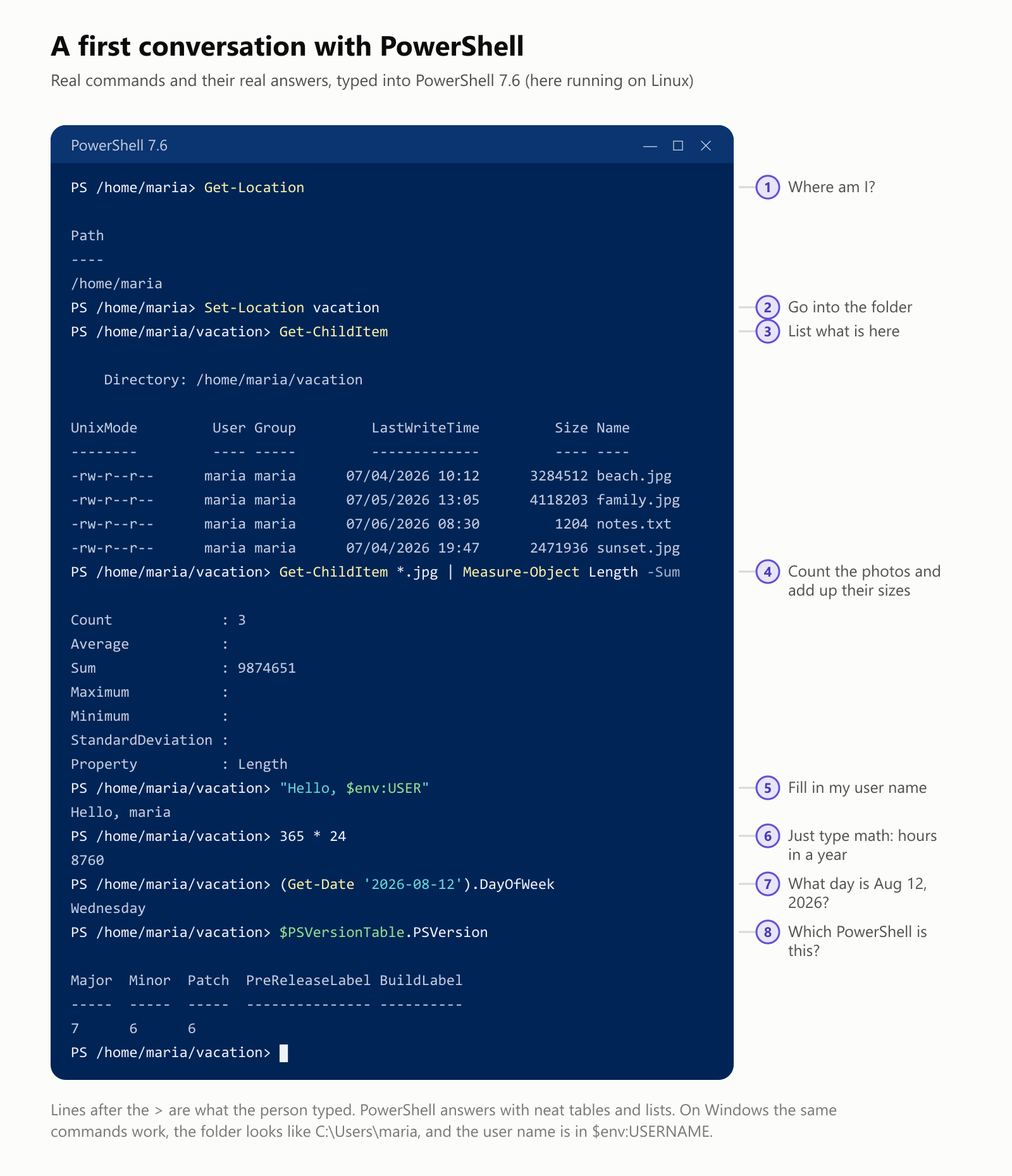
A few things to notice:
- The prompt starts with
PS, followed by the folder you're in and a>. That's PowerShell saying "go ahead". - The answers come back as tidy tables and lists, with column headings, not just loose lines of text.
- You can type math directly.
365 * 24answers8760, no extra command needed. - Words starting with
$are variables.$env:USERreads your user name from the system (on Windows it's called$env:USERNAME).
Commands with names you can guess
Older shells have short, cryptic command names like ls and grep. PowerShell went the other way. Every built-in command, called a cmdlet (say "command-let"), is named Verb-Noun: what to do, then what to do it to.
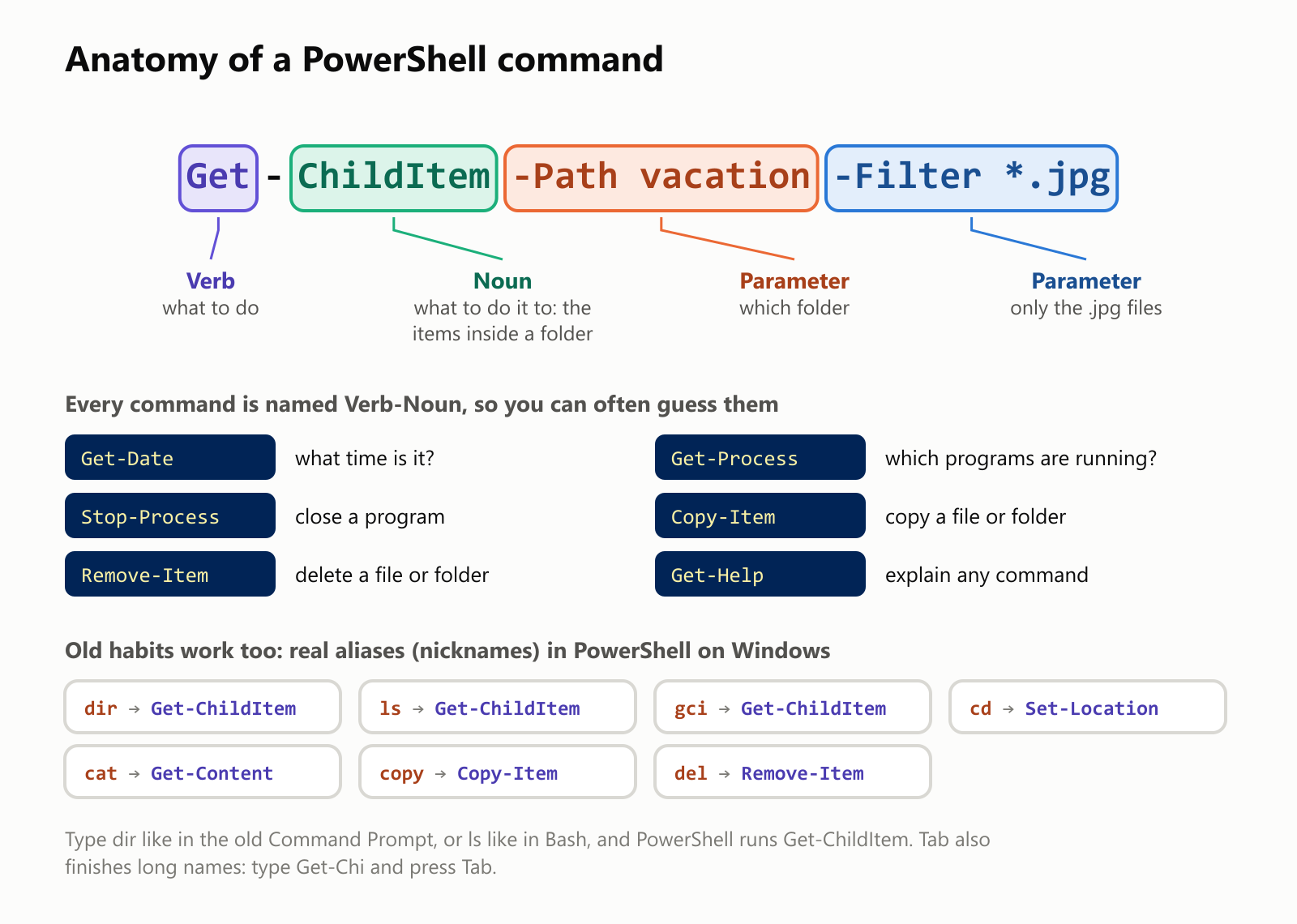
The names are long, but they read almost like English, and they're predictable. If Get-Process lists the programs that are running, it's a good bet that Stop-Process stops one. Settings beginning with a dash, like -Path and -Filter, are called parameters, and they have readable names too.
You don't actually have to type all of that. Press Tab and PowerShell finishes the name for you. And for people coming from other shells, PowerShell has aliases, short nicknames: dir (from the old Command Prompt) and ls (from Bash) both run Get-ChildItem.
Stuck? Two commands help you explore: Get-Command lists the commands that exist, and Get-Help explains any of them.
Get-Command -Noun Process      # every command that works with programs
Get-Help Get-ChildItem         # what Get-ChildItem does and its parameters
The big idea: objects, not just text
This is what makes PowerShell special. In most shells, like Bash, commands talk to each other in plain text. One program prints lines of words, and the next program has to pick those words apart.
PowerShell commands pass objects instead. An object is like a filled-in form: every piece of information sits in its own labeled box. Here's the same photo described both ways, real output from the same file:
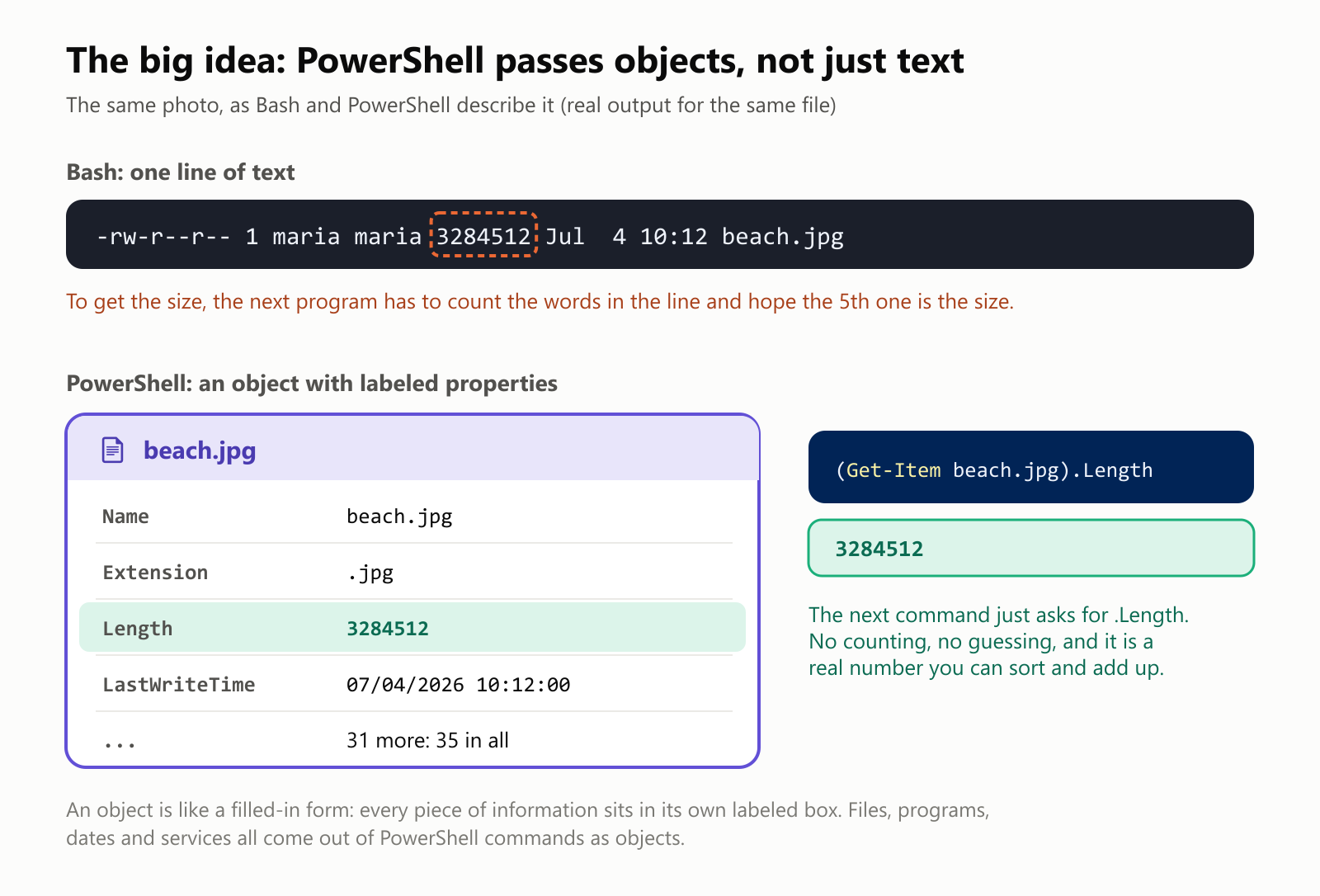
With text, getting the size means counting words in a line and hoping the layout never changes. With an object, you just ask for the box labeled Length. Our photo's object had 35 labeled properties in all: its name, size, dates, folder, permissions and more.
Files aren't the only objects. Running programs, dates, users, network adapters, services and printers all come out of PowerShell commands as objects. That's why one small set of commands can work with all of them.
Asking questions with the pipeline
Like other shells, PowerShell connects commands with the | symbol, called a pipe. The difference is that what flows through the pipe is objects. That turns a handful of general commands into a way to ask questions about anything:
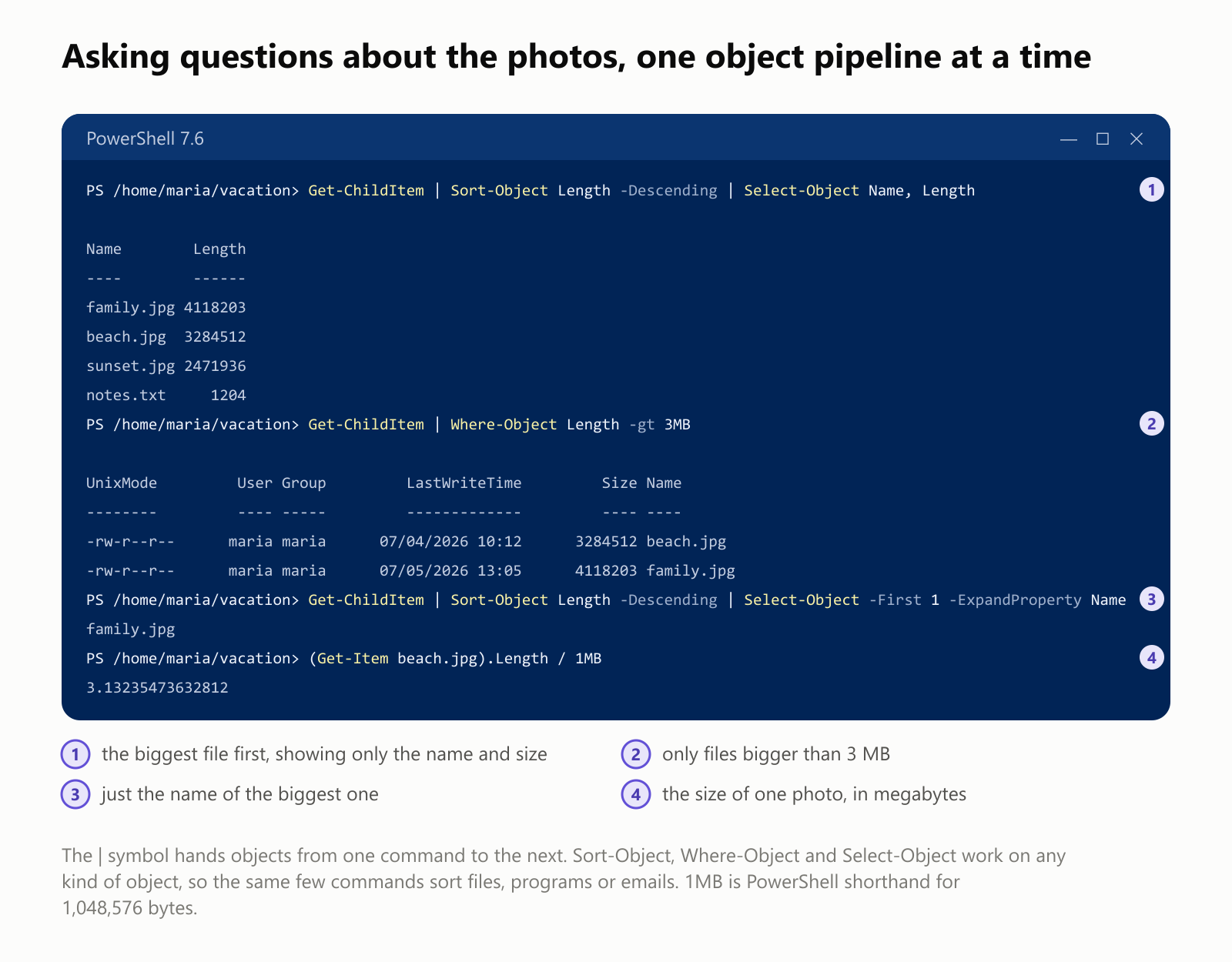
Sort-Objectputs things in order by any property: size, date, name.Where-Objectkeeps only the things that match a condition, like "bigger than 3 MB".-gtmeans "greater than".Select-Objectpicks which properties to show, or how many items.
Swap Get-ChildItem for Get-Process and the very same commands answer questions like "which five programs are using the most memory?"
Get is the most common verb
To see how the Verb-Noun idea plays out, we counted the 257 cmdlets that come built into PowerShell 7.6 and grouped them by their verb:
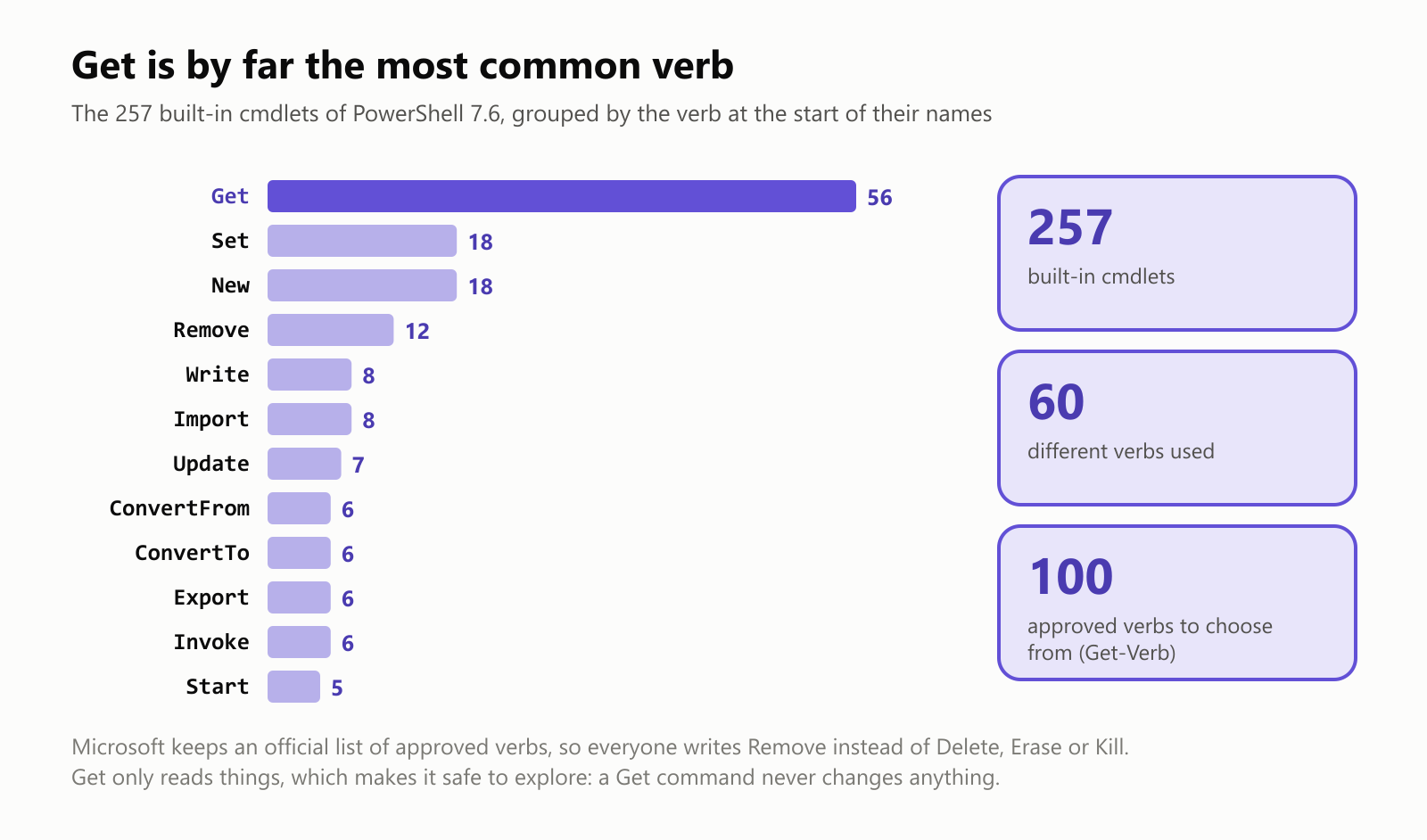
More than one in five starts with Get, and that's good news for beginners: Get commands only read information, they never change anything. Microsoft also keeps an official list of 100 approved verbs (type Get-Verb to see it), so that commands from different companies feel the same. Everyone writes Remove, not Delete, Erase or Kill.
Why type when you can click?
The real payoff of any shell is doing the same thing many times. Imagine a camera named 1,000 vacation photos IMG_0001.jpg to IMG_1000.jpg, and you want them called beach-trip-0001.jpg and so on. We tried it on a Windows 11 PC:
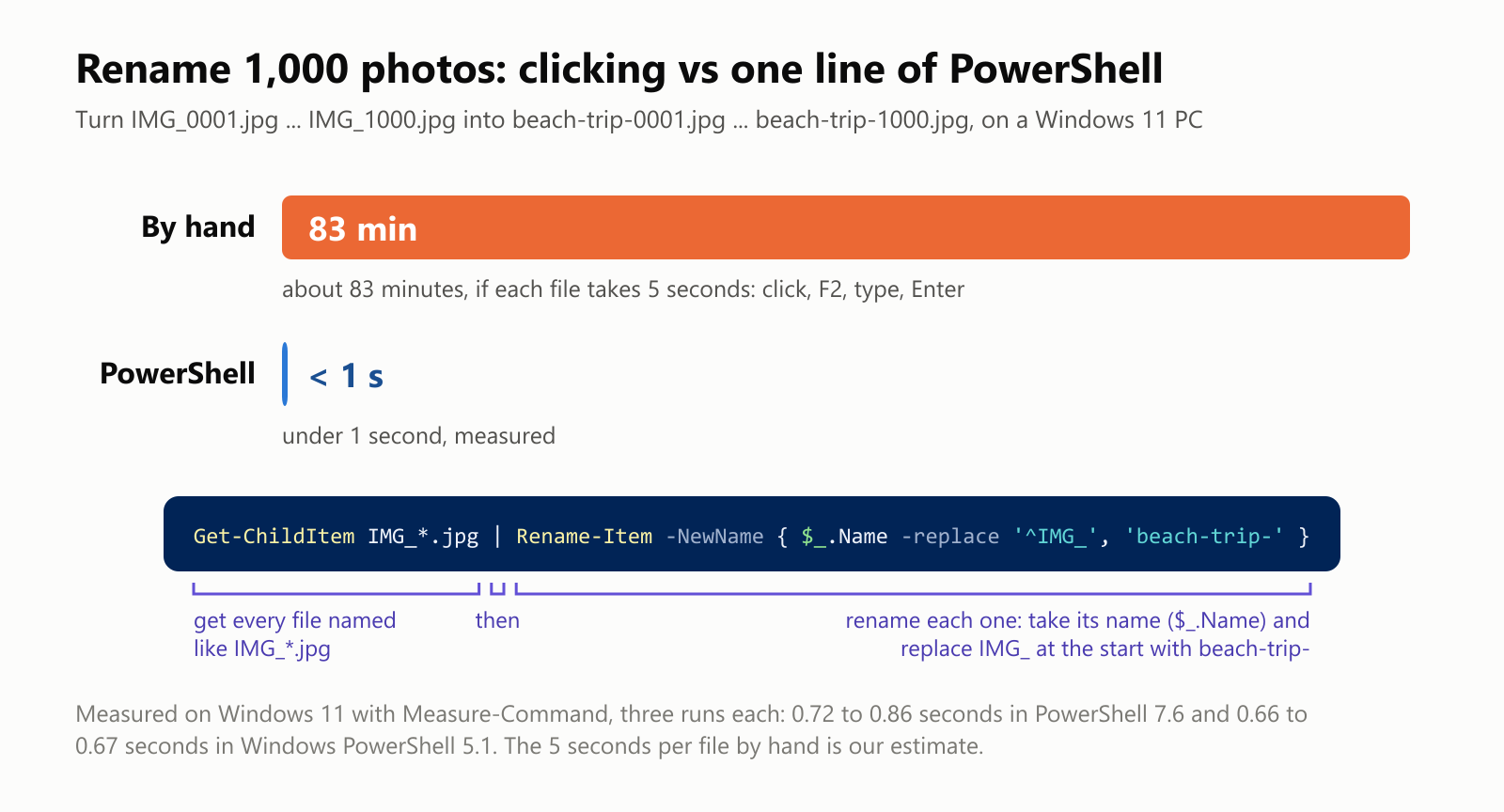
Read it left to right: get every file named like IMG_*.jpg, then rename each one. Inside the curly braces, $_ means "the current file", so $_.Name -replace '^IMG_', 'beach-trip-' takes each file's name and swaps the IMG_ at the start for beach-trip-. PowerShell's built-in Measure-Command timed it: under a second, in both the old and the new PowerShell.
Before running something that changes many files, there's a lovely safety feature. Add -WhatIf to most commands that change things, and PowerShell only tells you what it would do. This is real output:
PS /home/maria/vacation> Remove-Item *.txt -WhatIf
What if: Performing the operation "Remove File" on target "/home/maria/vacation/notes.txt".
Nothing was deleted. Remove the -WhatIf when you're happy with the plan.
Scripts: recipes saved in a file
Commands you use often can be saved in a file ending in .ps1, a PowerShell script. Here's a small one that backs up the vacation photos, and what happened when we ran it:
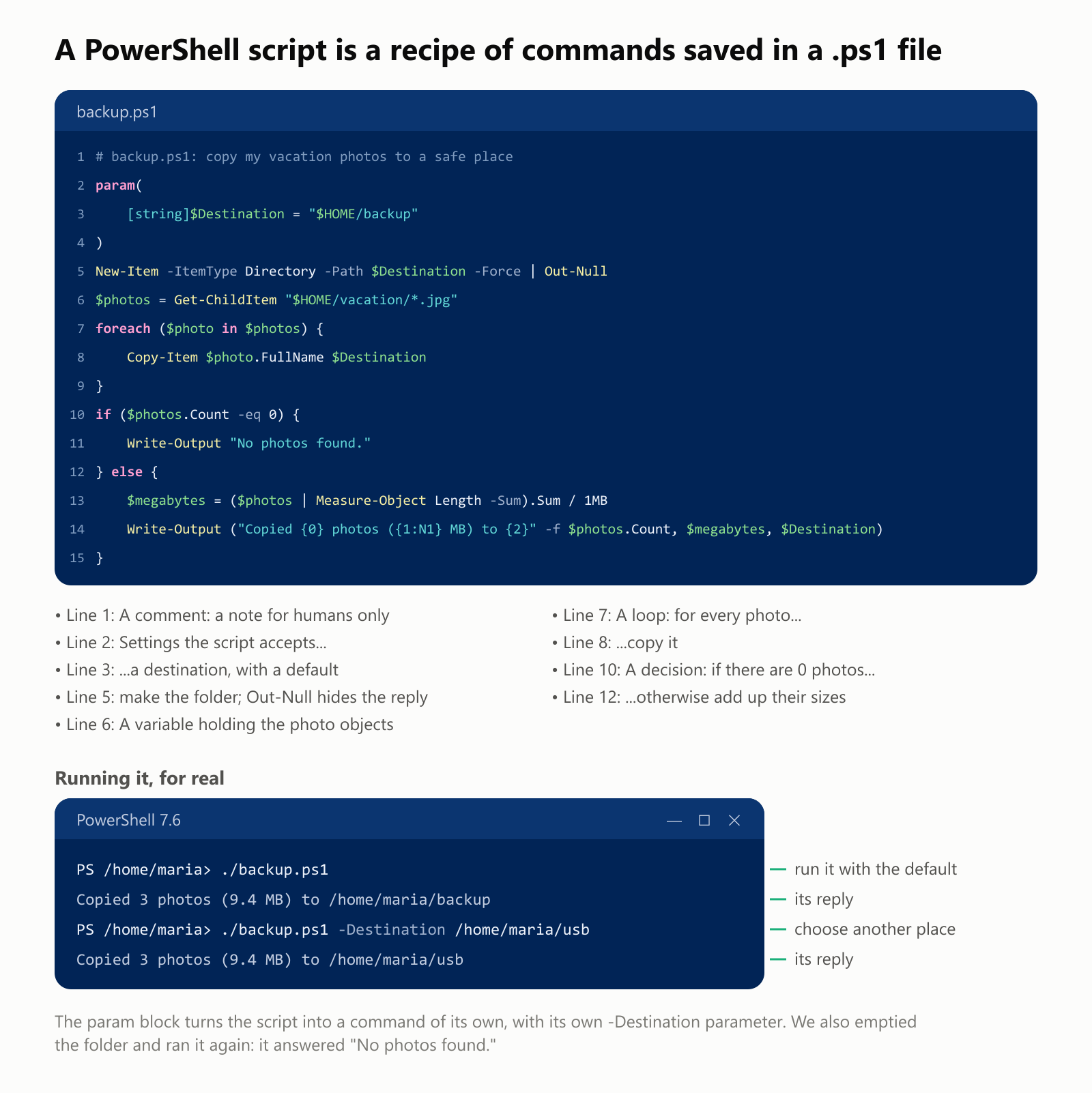
The script uses the classic building blocks of programming: variables ($photos), a loop (foreach) and a decision (if and else). Because the photos are objects, adding up their sizes takes one line. And the param block gives the script its own -Destination parameter, so it works just like a built-in command.
On Windows, you may hit a surprise the first time you run a script:
backup.ps1 cannot be loaded because running scripts is disabled on this system.That's PowerShell's execution policy, a safety net. Because a script can do anything you can do, Windows is cautious with them: depending on the version and settings, it blocks scripts entirely or only allows downloaded scripts that are digitally signed. Microsoft itself describes it as a guard against running scripts by accident, not a strong lock. Only change it if you understand where your scripts come from.
What people use it for
- Managing many computers at once. IT teams use PowerShell to set up new PCs, install updates and check settings on hundreds or thousands of machines, often remotely with
Invoke-Command. - Microsoft's cloud. Microsoft 365, Exchange email and Azure can all be managed with PowerShell. Adding 500 new students' email accounts is a short script instead of a week of clicking.
- Everyday chores. Renaming files, cleaning up old downloads, checking which programs start with Windows, or making a report of disk space.
- Developers. Build scripts, test runs and setup steps, especially on Windows.
In the 2025 Stack Overflow Developer Survey, 23.2% of developers who answered said they had worked with PowerShell in the past year. That's about the same as C++, and about half as many as Bash and other Unix shells (48.7%), which dominate on Linux servers.
Two PowerShells: which one do I have?
This confuses almost everyone, so here it is plainly. There are two PowerShells, and they can live side by side:
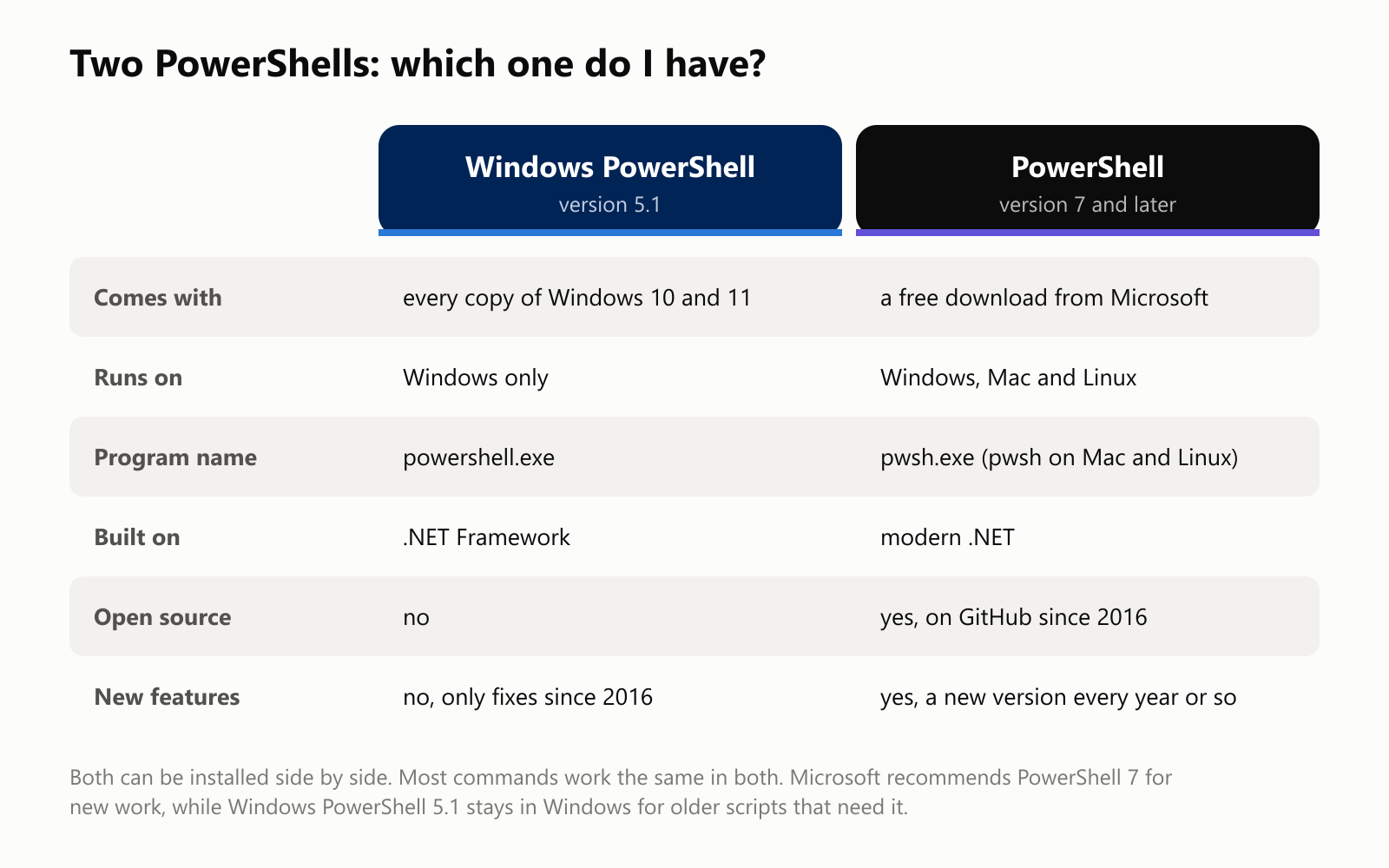
To check, type $PSVersionTable.PSVersion. If it says 5.1, you're using the one built into Windows. If it says 7 or more, you're using the modern one.
PowerShell keeps growing
We downloaded six releases of modern PowerShell from Microsoft's official GitHub page and counted the cmdlets built into each one, in a clean Linux container with nothing else installed:
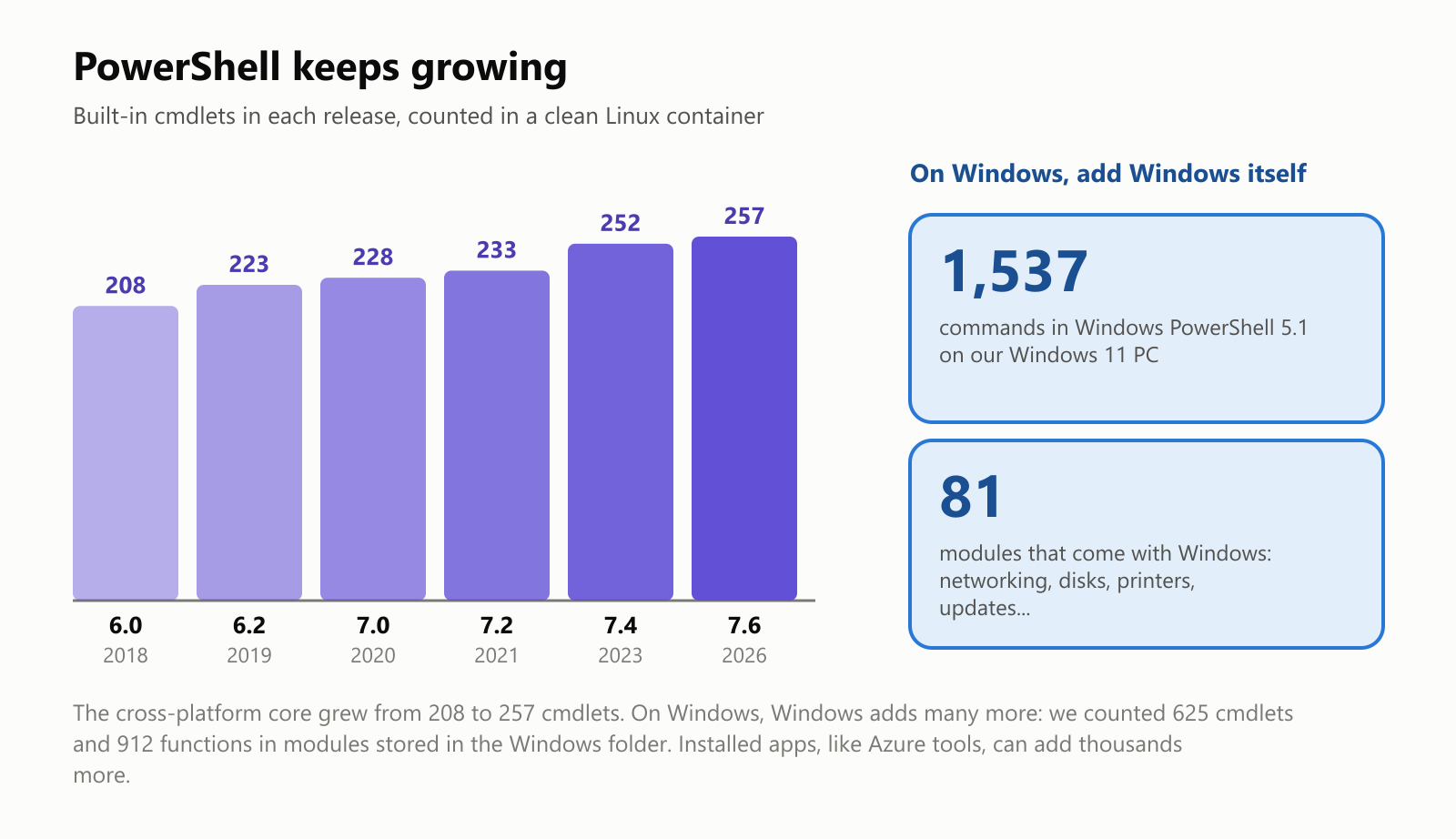
That's only the core. Windows adds many more commands of its own for things like networking, disks and printers: on our Windows 11 test PC, we counted 1,537 commands in modules stored in the Windows folder. Add-ons, called modules, bring even more. The PowerShell Gallery, Microsoft's free online catalog, lets you install them with one command, Install-Module.
Where PowerShell comes from
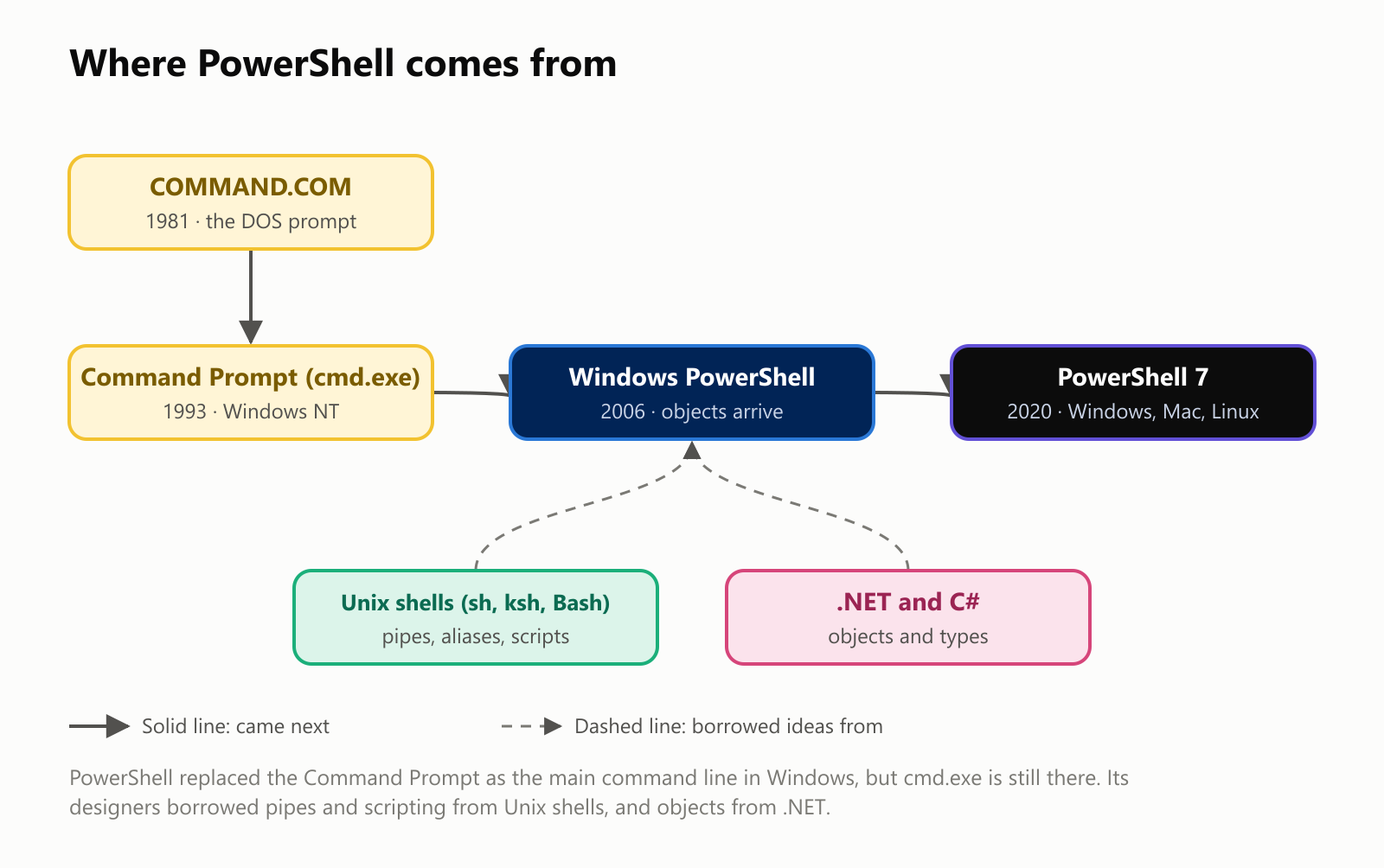
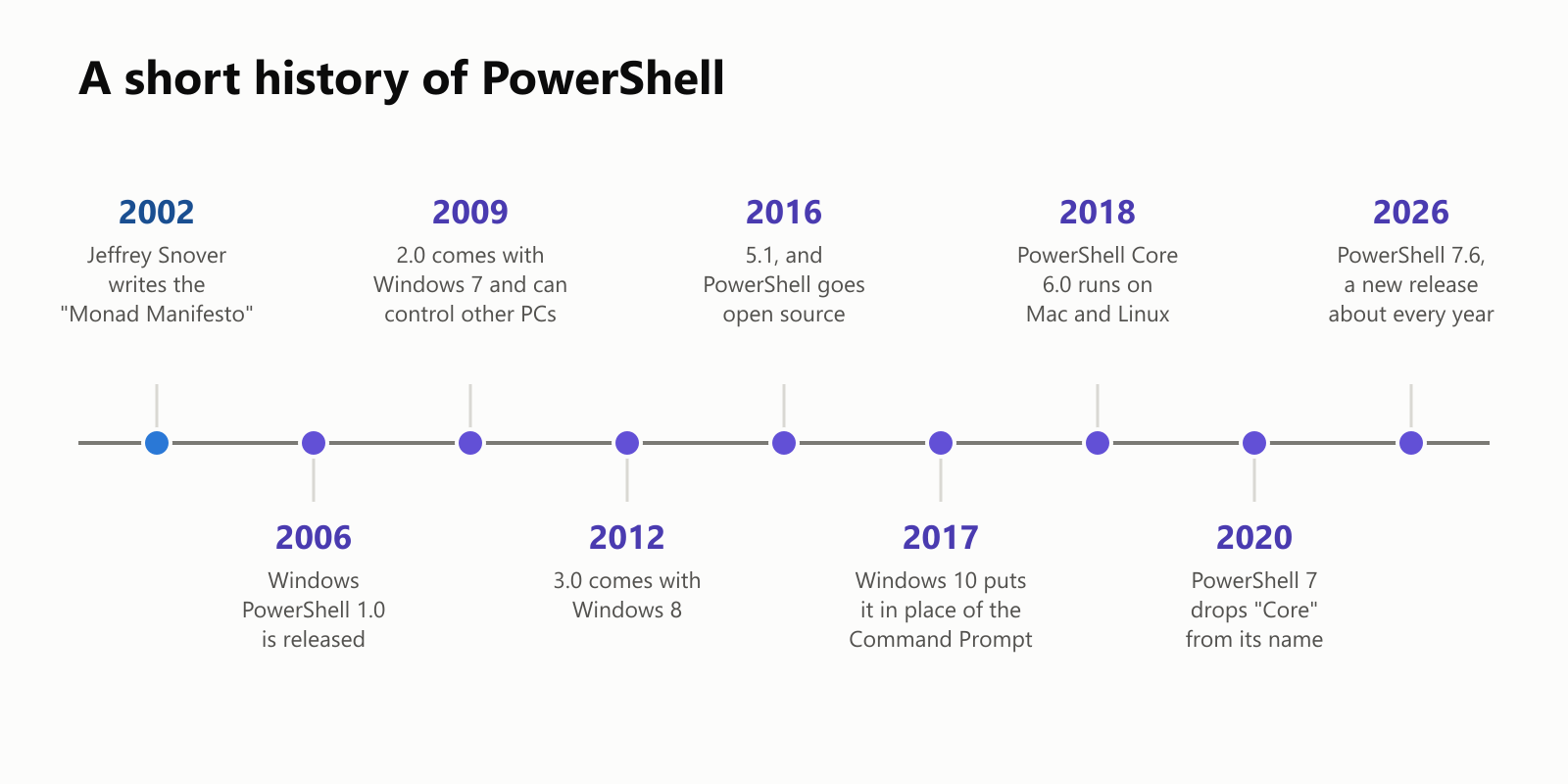
In August 2002, a Microsoft engineer named Jeffrey Snover wrote a paper called the "Monad Manifesto". He admired how Unix administrators could automate anything by gluing small commands together with pipes. But Windows stored its information in structured form, not as text files, so copying Unix wasn't enough. His idea was to keep the pipes, but send objects through them.
The project, code-named Monad, was shown to the public in 2003 and renamed Windows PowerShell before its release in November 2006. Version 2.0 came built into Windows 7 in 2009 and added remoting, the ability to run commands on other computers. By 2017, Windows 10 had put PowerShell in place of the Command Prompt in its main menus.
Then came a surprise. On August 18, 2016, Microsoft made PowerShell open source and announced it would run on Mac and Linux too. Today its code is public on GitHub, where more than 55,000 people have starred it. Snover later became a Technical Fellow, one of Microsoft's most senior engineering titles.
A short history
Try it yourself
- Windows: right-click the Start button and choose Terminal, or search for PowerShell in the Start menu. That's Windows PowerShell 5.1. To get the modern version, type
winget install --id Microsoft.PowerShell --source winget, then open PowerShell 7 from the Start menu. - Mac: download the PowerShell installer (
.pkg) from Microsoft's PowerShell releases page on GitHub, open it, then typepwshin the Terminal app. - Linux: Microsoft's documentation has instructions for Ubuntu, Debian, Fedora and others. Then type
pwsh.
Then try a few safe commands. They only read information:
1Get-Date                                     # today's date and time
2Get-ChildItem                                # what's in this folder?
3Get-Process | Sort-Object CPU -Descending | Select-Object -First 5   # the 5 busiest programs
4Get-Command -Verb Get | Measure-Object       # how many Get commands are there?
5Get-Help Get-Process                         # explain a command
6$PSVersionTable.PSVersion                    # which PowerShell is this?
Two safety tips: commands with verbs like Remove, Stop and Set change things, so try -WhatIf first. And never paste a command from a stranger on the internet into PowerShell, especially one you don't understand. A shell does exactly what it's told.
Common questions
Is PowerShell the same as the Command Prompt? No. The Command Prompt (cmd.exe) is the older Windows shell, descended from DOS, and it's still there. PowerShell is newer and far more capable, though it understands many old habits, like dir and cd.
Is PowerShell the same as Bash? They're both shells, but from different families. Bash comes from Unix and passes text between commands. PowerShell comes from Windows and passes objects. Today you can run either one on Windows, Mac or Linux.
What's the Terminal app, then? Windows Terminal is just the window, with tabs. Inside it you can run PowerShell, the Command Prompt, or even Linux shells. Windows 11 uses it as the default.
Is PowerShell a programming language? Yes, a scripting language. It has variables, loops, decisions and functions, and because it's built on .NET, it can use the same building blocks as full programs written in C#.
Is it safe to experiment? Commands that start with Get only read things. Be careful with commands that remove, stop or change things, and use -WhatIf to preview them.
Glossary
- PowerShell: Microsoft's shell and scripting language, built around objects.
- Shell: a program that reads commands you type and runs them.
- Cmdlet: a built-in PowerShell command, named Verb-Noun, like
Get-ChildItem. Said "command-let". - Parameter: a named setting for a command, starting with a dash, like
-Path. - Alias: a short nickname for a command, like
dirforGet-ChildItem. - Object: a bundle of information with labeled properties, like a filled-in form.
- Property: one labeled piece of an object, like a file's
Length. - Pipeline: commands joined with
|, passing objects from one to the next. - Variable: a name that holds a value, starting with
$, like$photos. - Script: a
.ps1file of commands that runs like a program. - Execution policy: the setting that decides whether scripts may run on Windows.
- Module: an add-on package of extra commands.
- -WhatIf: a parameter that shows what a command would do, without doing it.
Wrapping up
PowerShell is the command line built into Windows, and now available on Mac and Linux too. Its commands have readable Verb-Noun names, and its big idea is that commands pass objects, filled-in forms of information, instead of plain text. That lets a few general commands sort, filter and count anything, from photos to programs.
It was born from a 2002 manifesto about bringing Unix-style automation to Windows, and it ended up going open source and running everywhere. You don't need to become an expert to get something out of it. Open a Terminal, type Get-Date, then Get-ChildItem, then Get-Help Get-ChildItem. Every Get command is safe, and every one of them answers in objects.
Read next
What Is a Transformer in AI? The Idea Behind ChatGPT, Explained Simply
A friendly, jargon-free guide to transformers, the AI design behind ChatGPT, Claude and Gemini. Learn how "attention" lets AI understand words in context, what happens inside a transformer, and why it changed AI so quickly.
 nbkhope
What Is Reinforcement Learning? How AI Learns by Trial, Error and Reward
A friendly, jargon-free introduction to reinforcement learning, how AI learns by trial, error and reward, like training a dog with treats. Watch a real robot learn a maze, see why exploring matters, and learn how it shapes chatbots.
nbkhope
What Is Graph Engineering? How Today's AI Teams Up to Get Real Work Done
A friendly, jargon-free guide to graph engineering, the 2026 idea of building AI as a map of connected steps instead of one big loop. See how today's AI agents work, why small mistakes add up, and how checkers, branches and teamwork fix it.
nbkhope
Comments
Be kind and specific. Comments with links from new accounts appear after a moderator reviews them.