What Is Windows? A Simple Guide to the World's Most Popular PC Operating System
A friendly, jargon-free guide to Windows, the operating system on most of the world's desktop and laptop PCs. Learn what it does, how it is built, what runs inside it, why old programs still work, and how it grew from DOS into Windows 11.

On this page
If you've used a computer at school, at work or at home, there's a good chance it ran Windows. You clicked a Start button, opened programs in rectangular windows, dragged files into folders and emptied the Recycle Bin. All of that is Windows at work.
Windows is an operating system: the master program that runs the computer, shares it among all your apps, and gives you a way to control it. It's made by Microsoft, and roughly three out of four desktop and laptop computers in the world use it. This article explains, in plain language, what Windows does, how it's built, what's happening inside it right now, and how it got here.
What does Windows do?
Without an operating system, a computer is just a box of parts. Windows sits between you, your apps and the hardware, and quietly handles thousands of jobs:
- Starting and running apps, and letting many of them run at the same time.
- Managing memory, so each app gets its own space and can't scribble over another's.
- Organizing files into folders on your disk, and keeping track of who's allowed to open them.
- Talking to devices like the screen, keyboard, Wi-Fi, printer and webcam.
- Drawing the desktop: windows, menus, icons and the taskbar.
- Keeping you safe, with user accounts, passwords, a built-in antivirus called Microsoft Defender, and regular security updates.
A tour of the desktop
The name says it all: in Windows, every app opens in its own window, a rectangle you can move, resize, shrink and close.
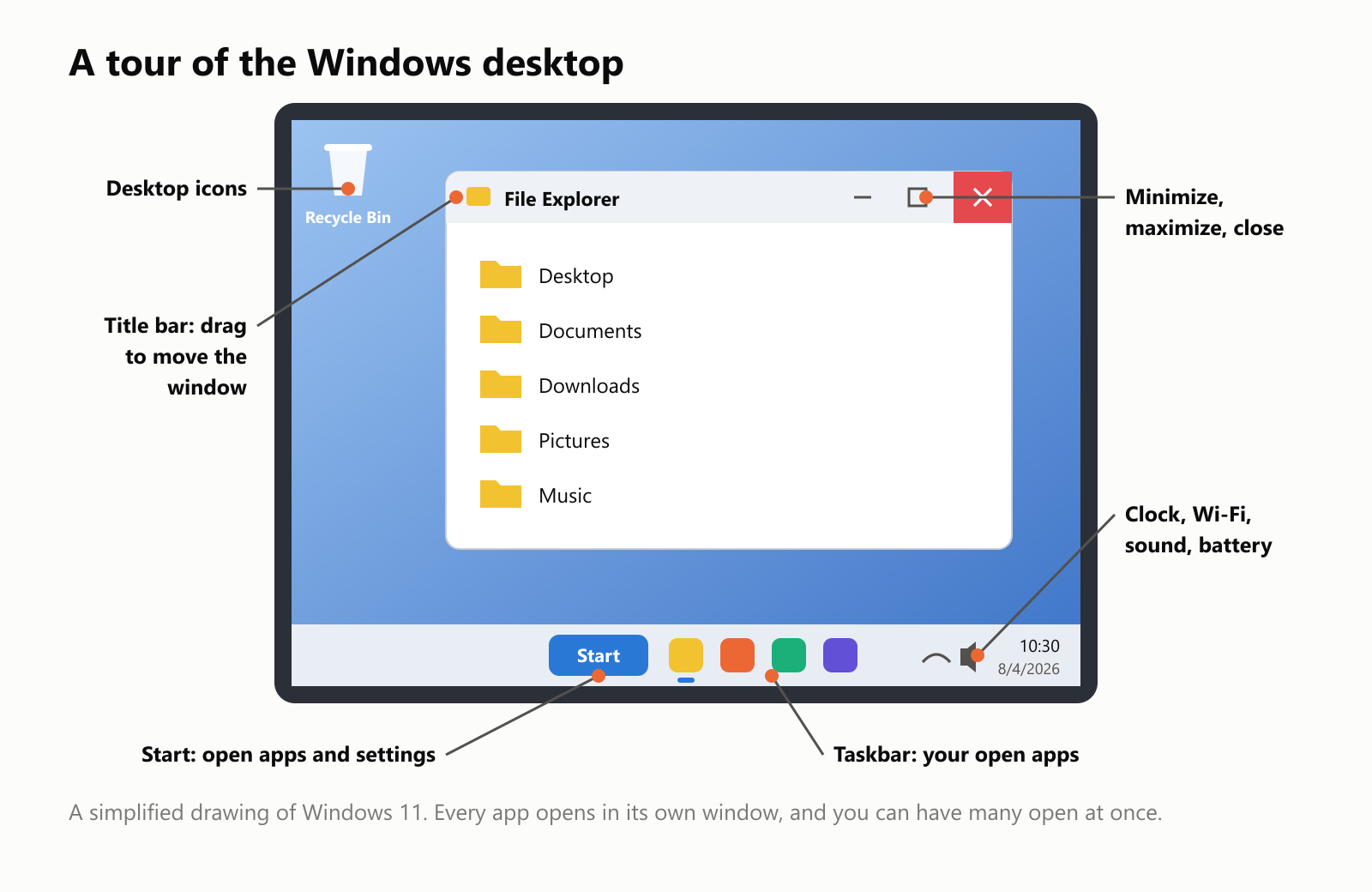
- The Start button opens a menu of your apps and settings, and lets you search your computer.
- The taskbar, along the bottom of the screen, shows the apps you have open. Click one to jump to it.
- Each window has a title bar at the top. Drag it to move the window. The three buttons in the corner minimize (hide it in the taskbar), maximize (fill the screen) and close it.
- File Explorer is the app for browsing your files and folders.
- The notification area, in the corner, shows the clock, Wi-Fi, volume and battery.
This way of using a computer, with windows, icons, menus and a mouse pointer, is called a graphical user interface, or GUI. Windows didn't invent it (that credit goes to researchers at Xerox, and Apple brought it to the public with the Macintosh in 1984), but Windows brought it to hundreds of millions of ordinary PCs.
How Windows is built
Windows is made of layers, a bit like a building. You only ever see the top floor.
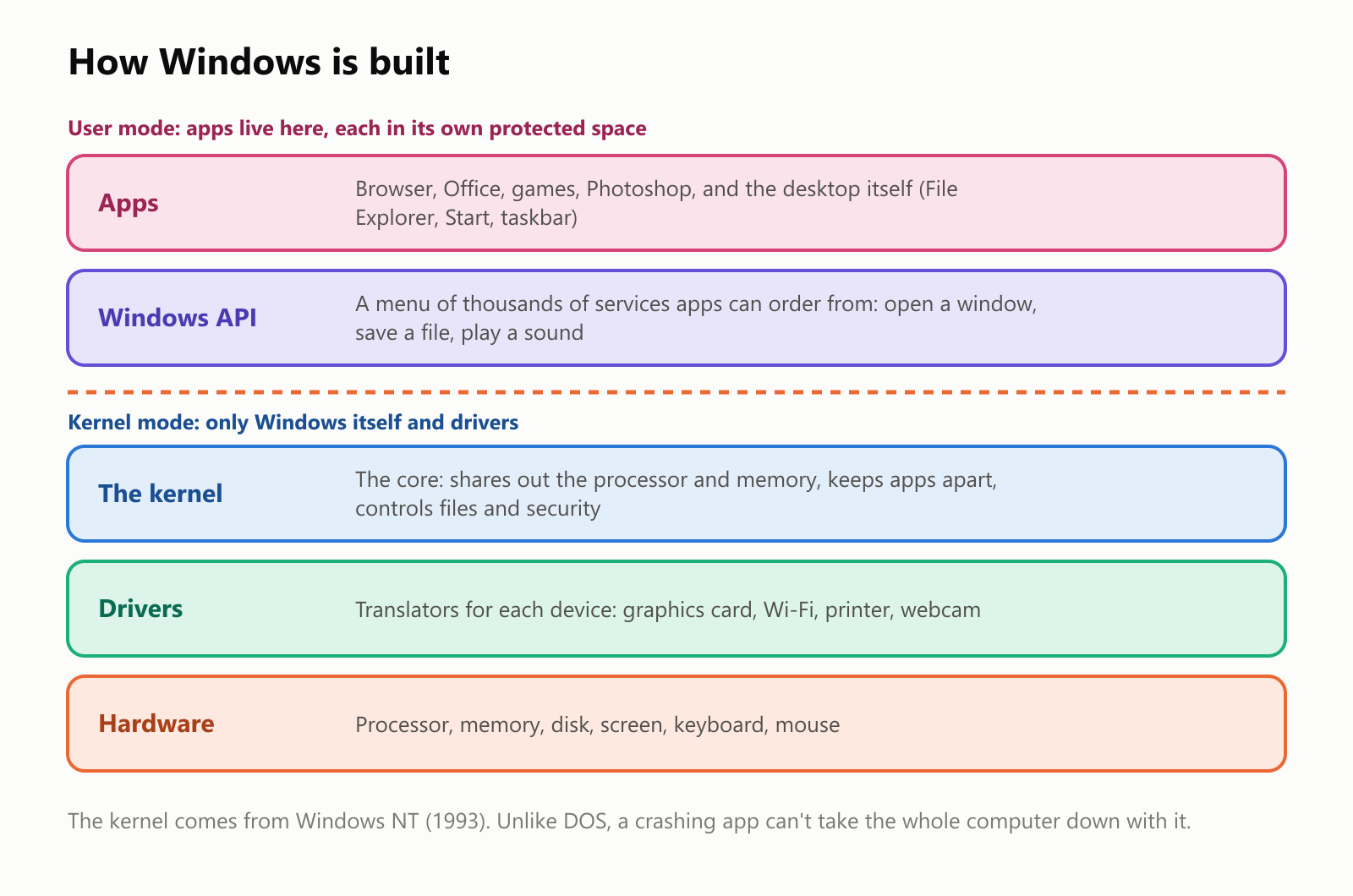
- Apps are the programs you use. Even the desktop itself, the Start menu and File Explorer are apps.
- The Windows API is a giant menu of ready-made services. When an app wants to open a window, save a file or play a sound, it doesn't do it by itself: it "orders" it from Windows. That's why most Windows apps look and behave alike.
- The kernel is the core of Windows. It decides which app gets the processor and when, hands out memory, and enforces the rules about who can do what.
- Drivers are small translators, one for each kind of device. A new printer usually comes with (or automatically downloads) a driver that teaches Windows how to talk to it.
The dashed line in the middle is important. Apps live in user mode, each in its own protected space. Only the kernel and drivers run in kernel mode, with full power over the machine. That's why, unlike in the DOS days, one misbehaving app usually just freezes or closes on its own, without crashing the whole computer. (When something in kernel mode goes badly wrong, you get the famous Blue Screen of Death and the computer restarts.)
What's running right now
Even when you think your computer is doing nothing, Windows is very busy. We counted what was running on the Windows 11 laptop used for this article:
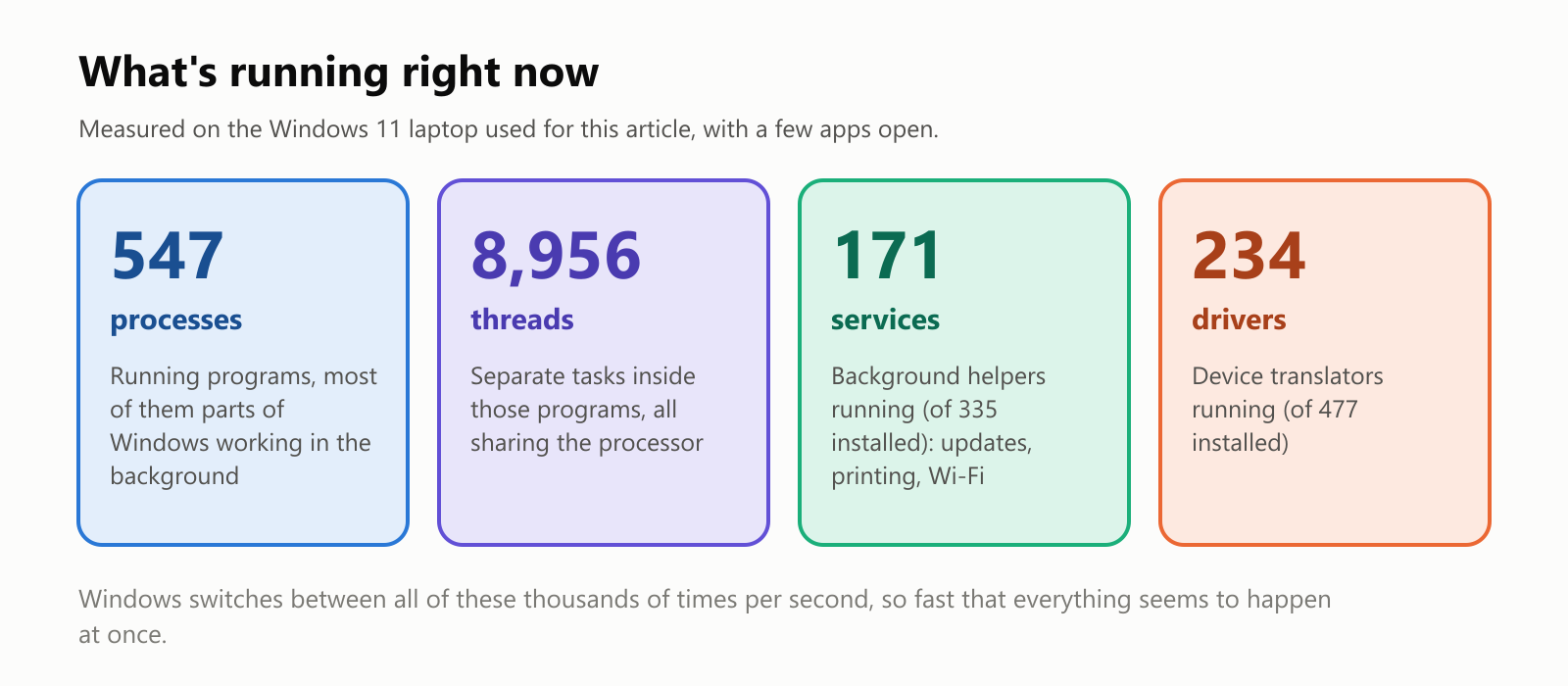
- 547 processes. A process is a running program. Only a handful were apps we had opened; most were parts of Windows itself, or helpers installed by other programs.
- 8,956 threads. Each program splits its work into smaller tasks called threads.
- 171 services running in the background, out of 335 installed: the helpers that install updates, manage Wi-Fi, run the printer queue and much more.
- 234 drivers running, out of 477 installed.
The laptop has only a handful of processor cores, so it can't truly run thousands of threads at once. Instead, the kernel gives each one a tiny slice of time, switching thousands of times per second. It happens so fast that everything seems to run at the same time. This trick is called multitasking.
Inside the Windows folder
Windows itself lives in a folder called C:\Windows. On our laptop, it held over a quarter of a million files:
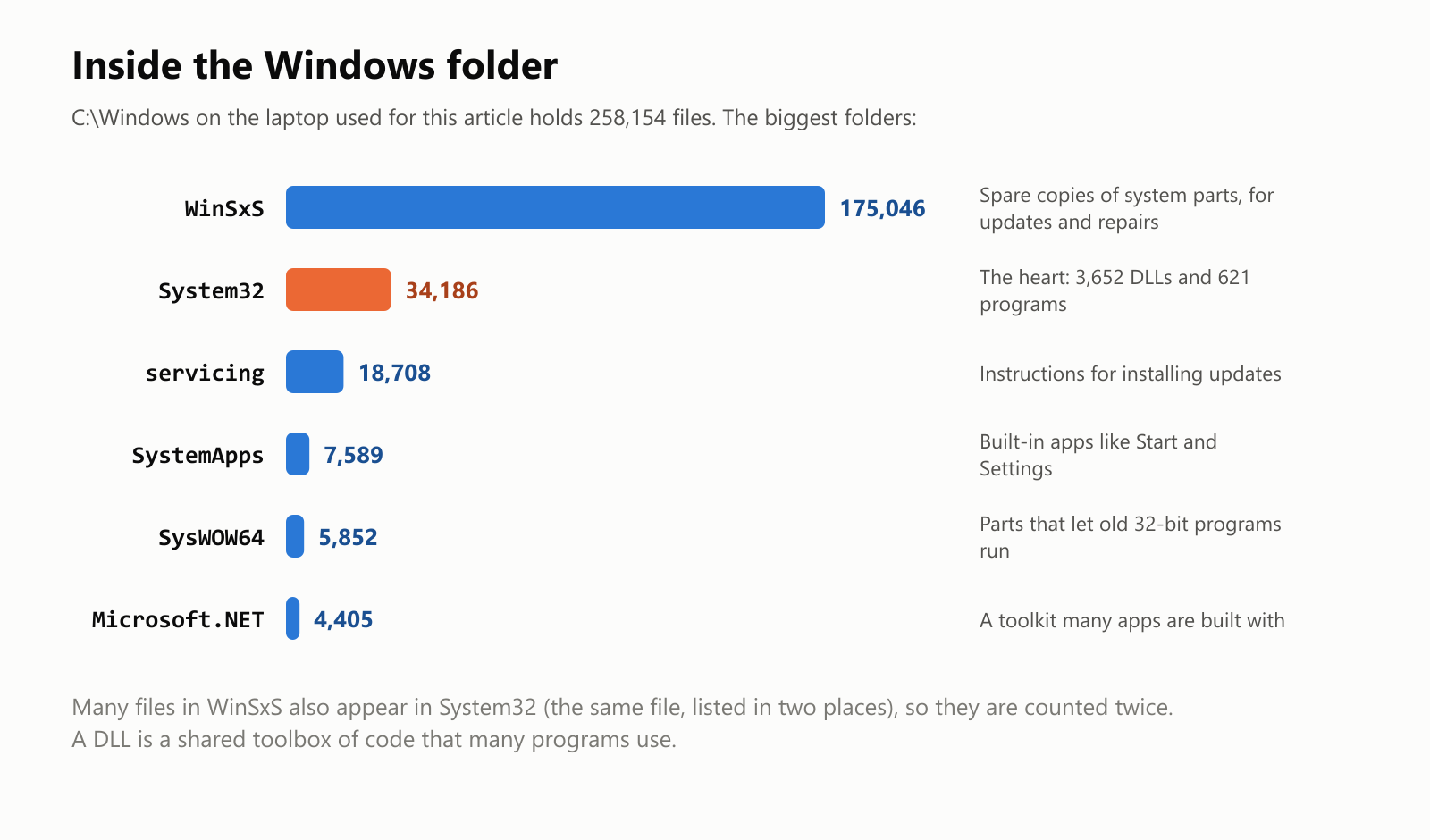
- System32 is the heart of Windows. It holds 621 programs and 3,652 DLLs. A DLL ("dynamic-link library") is a shared toolbox of code: instead of every app including its own code for, say, drawing buttons, they all borrow it from the same DLL.
- WinSxS holds spare copies of system parts so Windows can install updates, undo them, and repair itself. Many of its files are the very same files that appear in System32, listed in two places at once, so our count includes them twice.
- SysWOW64 is there so that older 32-bit programs can still run on today's 64-bit Windows. (Yes, the "64" folder holds the 32-bit parts. It's one of Windows' famous oddities.)
Why your old programs still work
Windows is famous for backward compatibility: programs written decades ago often still run on today's Windows. Microsoft goes to remarkable lengths to keep it that way, because businesses and people depend on old software.
A well-known story: while testing Windows 95, Microsoft found that the game SimCity had a bug that happened not to matter on DOS but crashed on Windows. Rather than let it break, Windows 95 was taught to recognize SimCity and quietly run it in a special mode that tolerated the bug.
We found a small example of this care on our own laptop. Some old programs check the Windows version number and refuse to run on a version they don't recognize. To protect them, Windows gives programs that don't declare they know about newer Windows an older version number. We wrote a tiny program that asks Windows its version in two ways, and built it twice:
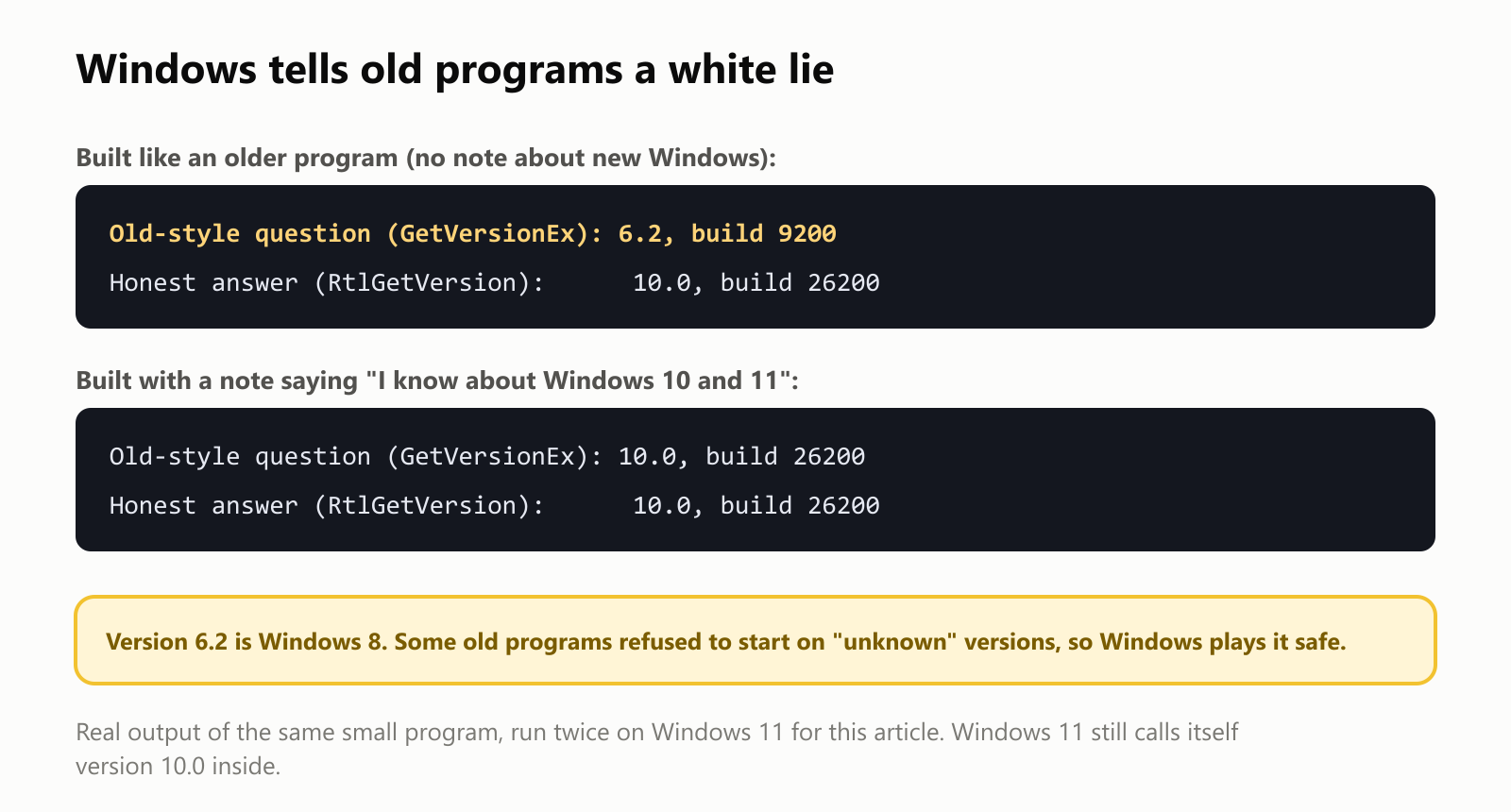
Built like an older program, it was told it was running on version 6.2, build 9200: that's Windows 8, from 2012. Built with a small note (called a manifest) saying "I know about Windows 10 and 11", it got the real answer. We also built a 32-bit version, and it ran just as happily on 64-bit Windows 11.
Notice that the real answer is 10.0, even though this is Windows 11. Microsoft kept the internal number at 10.0 to avoid breaking programs. The same goes for some older settings. Asking Windows its name in two different ways on our laptop gave two different answers:
1PS> (Get-ItemProperty 'HKLM:\SOFTWARE\Microsoft\Windows NT\CurrentVersion').ProductName
2Windows 10 Home
3PS> (Get-CimInstance Win32_OperatingSystem).Caption
4Microsoft Windows 11 HomeWho uses Windows?
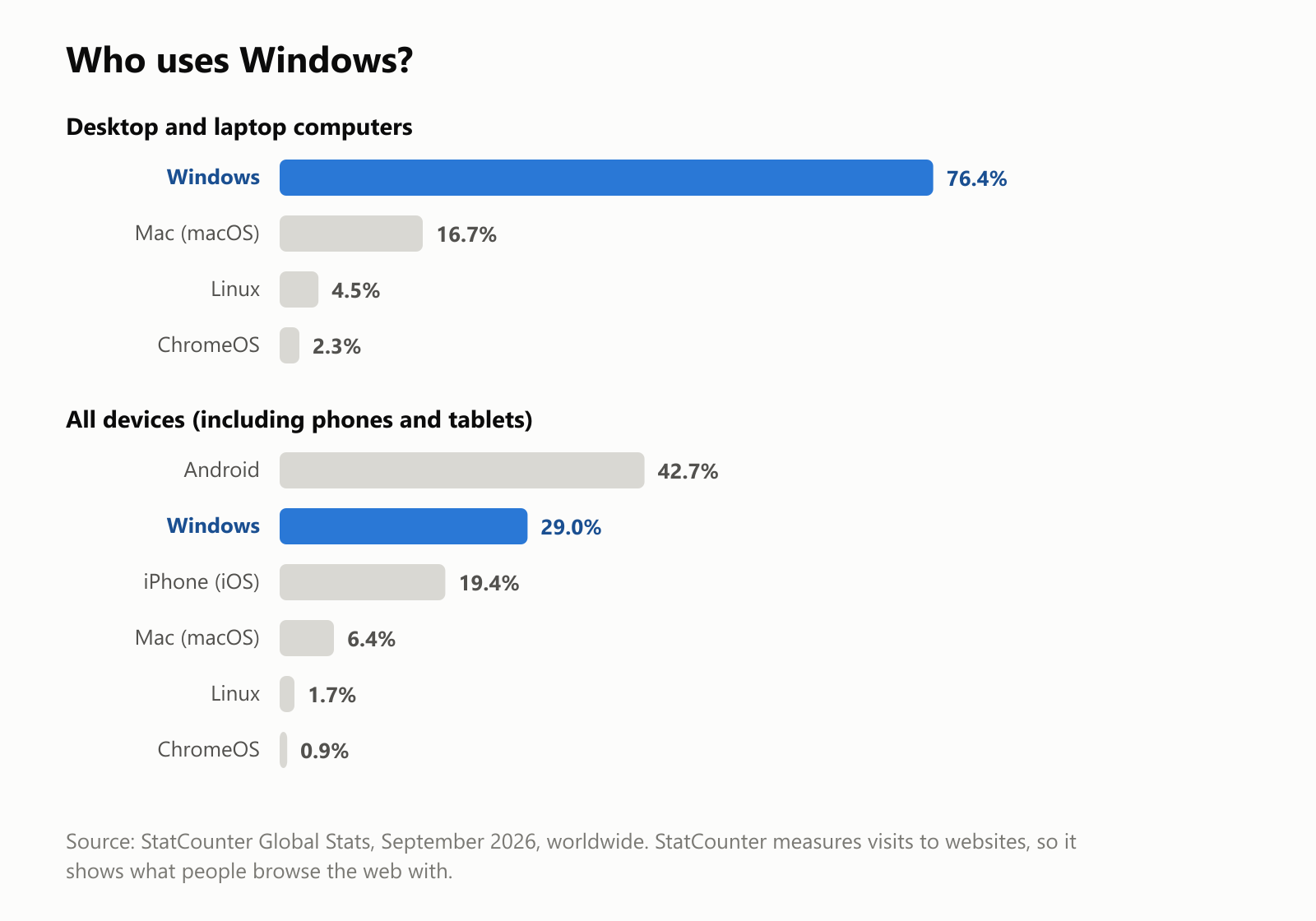
On desktop and laptop computers, Windows is far ahead: about 76% of them, according to StatCounter, which measures the systems people use to visit websites. Apple's Mac is a distant second at about 17%.
But count all devices, including phones and tablets, and the picture changes: Android (which is built on Linux) comes first, and Windows is second at about 29%. Microsoft tried to make Windows work on phones, but Windows Phone was discontinued in the late 2010s.
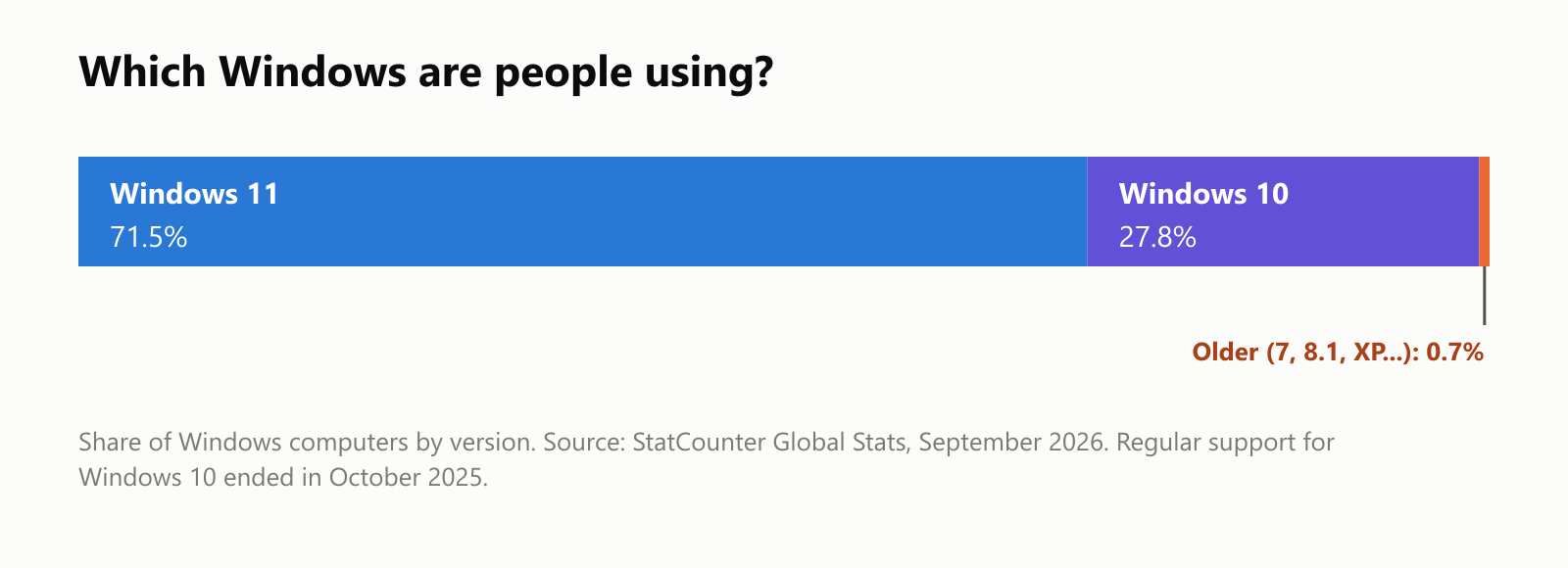
Most Windows computers now run Windows 11, but more than a quarter still run Windows 10, whose regular support ended in October 2025. Some couldn't upgrade, because Windows 11 requires newer hardware, including a security chip called TPM 2.0.
A short history
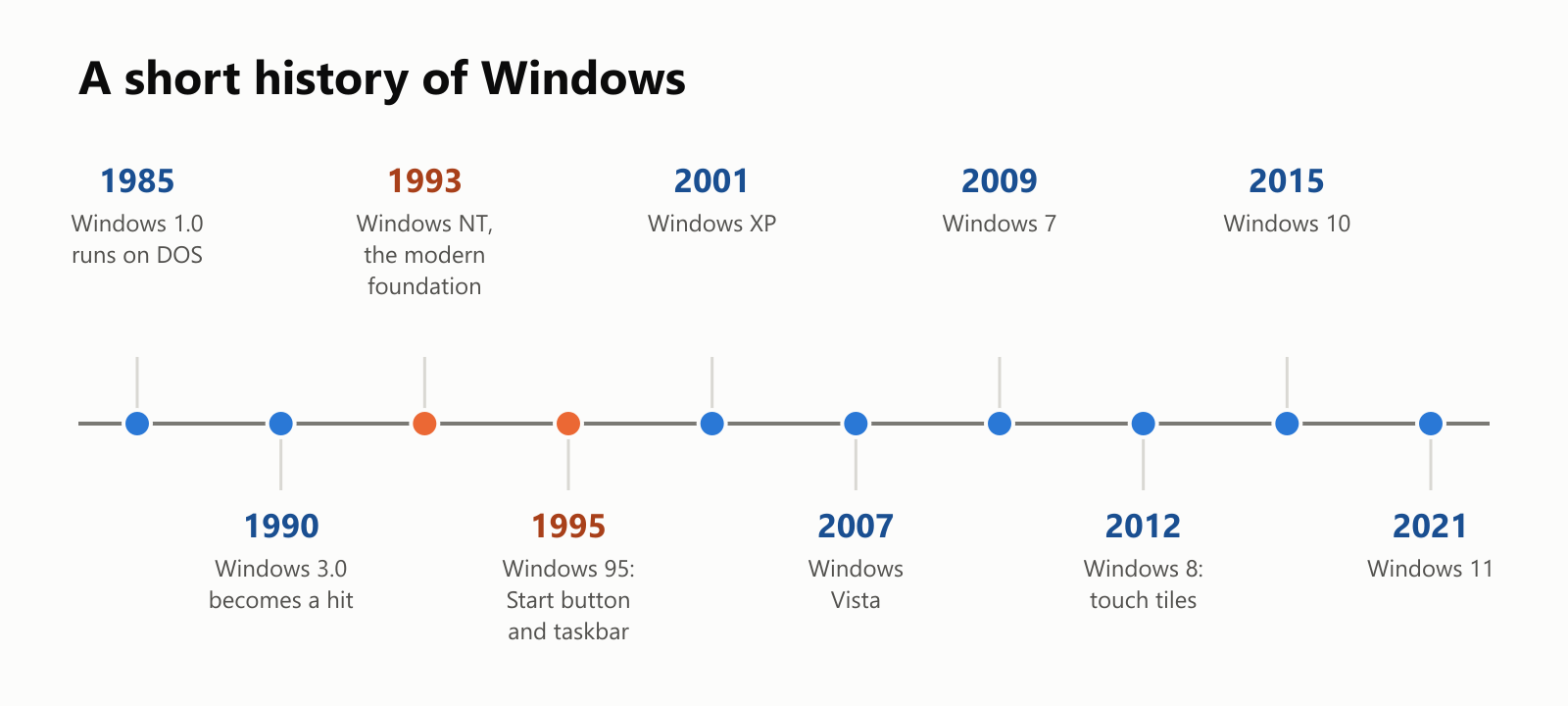
- 1985, Windows 1.0: a program you started from DOS by typing
WIN. Its windows couldn't even overlap; they were tiled side by side. - 1990, Windows 3.0: the first big hit, selling millions of copies. Windows 3.1 (1992) added more polish.
- 1993, Windows NT: a completely new, sturdier system, built from scratch for businesses by a team led by Dave Cutler. Every Windows today is based on it.
- 1995, Windows 95: a huge launch (with a Rolling Stones song in the ads) that introduced the Start button and taskbar, still used today. It still had DOS hidden underneath.
- 2001, Windows XP: brought the sturdy NT foundation to home users and ended DOS-based Windows. Many people kept using it for over a decade.
- 2007, Windows Vista: a new look and better security, but slow on many computers and not well loved.
- 2009, Windows 7: a polished, popular version.
- 2012, Windows 8: a bold redesign with big touch-friendly tiles, which confused many desktop users. The Start button disappeared, then returned in Windows 8.1.
- 2015, Windows 10: a free upgrade for many users. Microsoft skipped the number 9.
- 2021, Windows 11: a centered taskbar, rounded corners, and stricter hardware requirements.
The good and the not-so-good
Why people like Windows:
- It runs almost everything. The widest choice of software and games of any desktop system.
- Lots of hardware choices. Many companies make Windows computers, from cheap laptops to powerful gaming PCs.
- Familiar. Most schools and offices use it, so many people already know their way around.
- Backward compatible. Old programs and files usually keep working.
What people complain about:
- A big target. Because it's so popular, most viruses and scams are aimed at Windows. Keeping it updated matters.
- Updates. Windows updates itself regularly (security fixes arrive every month), which sometimes means waiting for a restart at an inconvenient moment.
- Clutter. New computers often come with extra apps, ads and notifications that some users find annoying.
- Cost. Unlike Linux, Windows isn't free. Its price is usually built into the cost of a new computer.
A small glossary
- Operating system: the master program that runs a computer and shares it among apps.
- Windows: Microsoft's operating system for desktop and laptop PCs.
- GUI: graphical user interface, using windows, icons, menus and a pointer.
- Start menu: the menu that opens your apps and settings.
- Taskbar: the bar showing your open apps.
- File Explorer: the app for browsing files and folders.
- Kernel: the core of the operating system, which manages the processor, memory and security.
- Driver: a small program that lets Windows talk to a specific device.
- Process: a running program.
- Service: a program that runs in the background to help Windows or other apps.
- DLL: a shared library of code that many programs use.
- Backward compatibility: the ability to run programs made for older versions.
- Task Manager: the app that shows what's running (Ctrl + Shift + Esc).
Wrapping up
Windows started in 1985 as a modest program running on top of DOS, and grew into the system on most of the world's desktop and laptop computers. Behind its familiar Start button and windows, hundreds of programs and services work together every second, and a lot of quiet effort goes into making sure that software written long ago still runs today.
The next time you click Start or close a window, you'll know a little more about the busy machinery underneath.
Read next
What Is a Transformer in AI? The Idea Behind ChatGPT, Explained Simply
A friendly, jargon-free guide to transformers, the AI design behind ChatGPT, Claude and Gemini. Learn how "attention" lets AI understand words in context, what happens inside a transformer, and why it changed AI so quickly.
 nbkhope
What Is Reinforcement Learning? How AI Learns by Trial, Error and Reward
A friendly, jargon-free introduction to reinforcement learning, how AI learns by trial, error and reward, like training a dog with treats. Watch a real robot learn a maze, see why exploring matters, and learn how it shapes chatbots.
nbkhope
What Is Graph Engineering? How Today's AI Teams Up to Get Real Work Done
A friendly, jargon-free guide to graph engineering, the 2026 idea of building AI as a map of connected steps instead of one big loop. See how today's AI agents work, why small mistakes add up, and how checkers, branches and teamwork fix it.
nbkhope
Comments
Be kind and specific. Comments with links from new accounts appear after a moderator reviews them.