
What Is HTTPS? How Your Browser Protects a Connection
What does HTTPS protect? Learn how TLS encrypts a browser connection, what a certificate proves, what remains visible, and how to inspect a site yourself.

On this page
What Is HTTPS? How Your Browser Protects a Connection
Look at a website address. If it begins with https://, your browser is using a protected connection for that page. That matters when you read a page, sign in, or send a form. But HTTPS answers a narrow question: is the connection to this site protected while data travels? It does not answer whether the site itself is honest.
Let's unpack the letters, follow a connection, and inspect one in a browser. For the wider journey from URL to page, read What Happens When You Visit a Website?.
HTTP plus a protected connection
HTTP is the language a browser and a web server use for requests and responses. The browser might ask for a page; the server returns HTML. HTTPS is HTTP carried over a secure connection using TLS (Transport Layer Security).
HTTP:   browser ─── readable traffic ─── website
HTTPS:  browser ═══ TLS-protected traffic ═══ website
The diagram describes the connection, not every system involved. A site may use a content delivery network (CDN), so the TLS connection can end at a server acting for the site. The website and services you choose to use can still process data you send them.
TLS provides three useful protections in transit:
| Protection | What it means |
|---|---|
| Confidentiality | Someone watching the connection should not be able to read the HTTP contents |
| Integrity | Changes to the protected data in transit can be detected |
| Server authentication | The browser checks that the certificate is valid for the domain it is connecting to |
The MDN TLS guide explains these protections. HTTPS does not make a message private from the site receiving it, from someone with access to your device, or from a person you choose to share it with.
What the certificate does
Before exchanging protected HTTP data, the browser and server establish a TLS connection. The server presents a digital certificate that connects a public key to a domain name. The browser checks the certificate and the trust chain behind it. The two sides then establish the keys used to protect their exchange.
You do not need to memorize the cryptography to use the web safely. Remember what the certificate check is for: it helps the browser know it is connecting to the domain in the address bar, rather than accepting an impostor on the network.
It does not certify that the business is legitimate, that the page's claims are true, or that a purchase is wise. Domain-validated certificates, including those issued by Let's Encrypt, establish control of a domain for certificate issuance; they are not a review of the site's conduct. A scammer can run a site with HTTPS. Check the whole domain name and the destination before entering a password or payment information.
What HTTPS does not hide
An HTTPS connection protects the HTTP contents in transit, including the path, page contents, form data, and most request headers from an ordinary observer between browser and site. It does not hide everything about the connection. Network operators can still see the destination IP address. DNS requests and other connection metadata can reveal the domain in some setups; privacy features can change what is visible.
The site itself receives what you send, such as a search query, form submission, or uploaded file. Your browser history, extensions, device, and account settings may also affect privacy. For a broader explanation of networks, see What Is the Internet?.
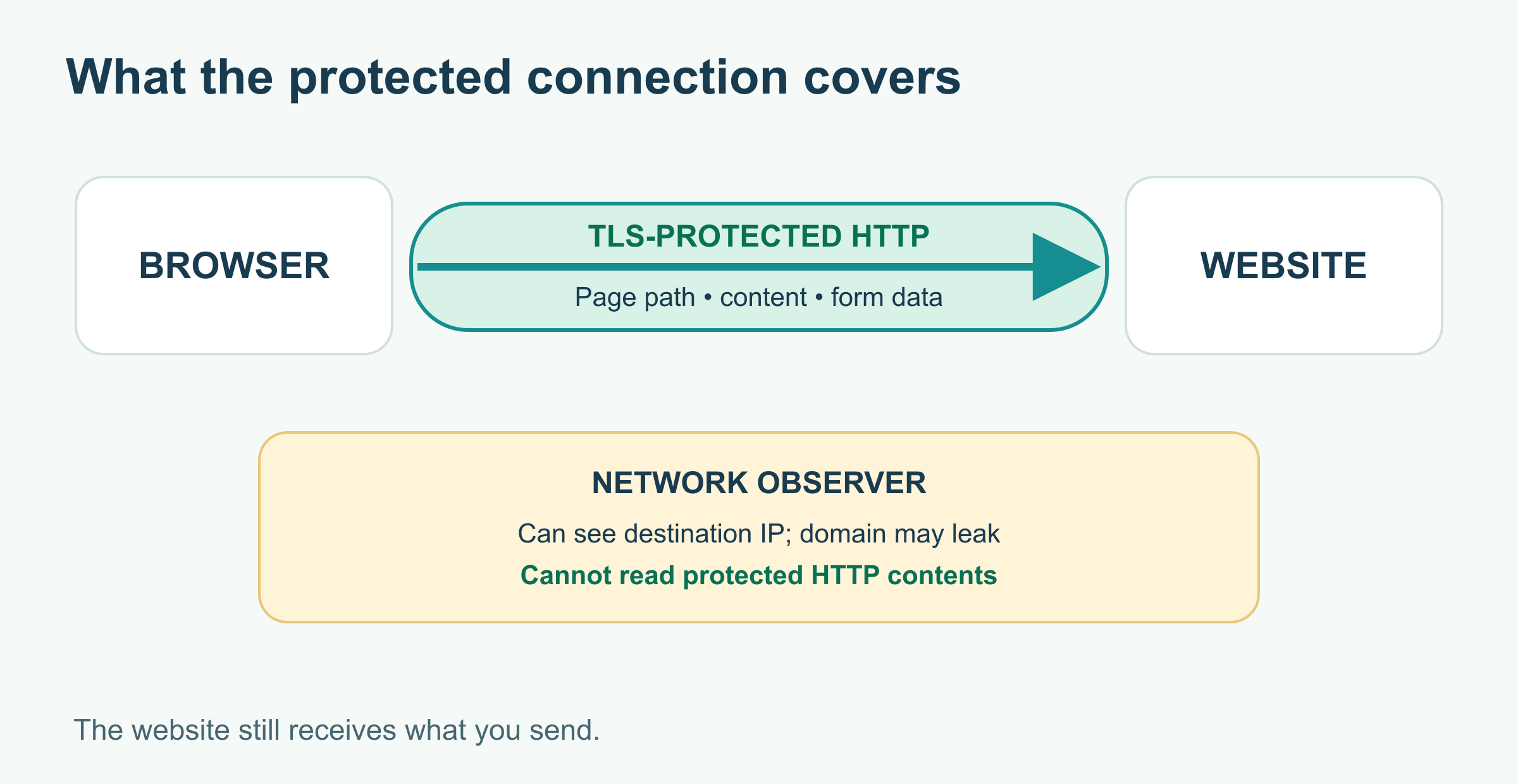
The boundary in the picture is the connection, not the website's honesty or your device's security. It also does not promise that the domain is always visible: DNS and other connection metadata vary with the setup and privacy features.
A secure page can request other resources
A page often loads images, stylesheets, scripts, and fonts from additional addresses. Mixed content happens when an HTTPS page tries to load a resource over unprotected HTTP. Modern browsers generally upgrade some such requests to HTTPS and block others; the exact handling depends on the resource. The MDN mixed-content guide explains the behavior.
If a browser reports a security warning, read it before continuing. Do not bypass a certificate warning for a site where you plan to sign in or send sensitive information. A wrong device clock, a misconfigured site, or interception can cause certificate problems; the warning alone does not tell you which one occurred.
Try it: inspect a real connection
Chrome's developer tools provide a way to see connection details. Labels can change with browser versions and language settings; the Chrome Privacy and security panel guide is the current reference.
- Open
https://example.com/in Chrome and confirm that the address begins withhttps://. - Open Developer Tools from the browser menu. Find Privacy and security, then the Security section. If your version has a separate Security panel, open that.
- In the overview, inspect whether Chrome reports a secure connection. Use View certificate if available to see the certificate's domain names, issuer, and validity period.
- Compare the domain shown in the address bar with the domain covered by the certificate. Then open the Network panel, reload, and select the main document to inspect its request URL.
You are inspecting a connection, not proving that every sentence on the page is true. If the panels look different, use Chrome's panel search or its documentation. Do not publish screenshots of request headers without checking for cookies or tokens.
A quick check before signing in
- Read the domain carefully. A familiar logo on a lookalike address is not enough.
- Check for HTTPS and warnings. Do not treat a certificate error as a routine nuisance.
- Ask who receives the data. The site can still see what you submit.
- Use account protection too. A unique password and multifactor authentication help against risks HTTPS cannot address.
HTTPS is an essential protection for data on the way to a website. Use it together with careful domain checks and sound account habits, not as a seal of approval for every page.
Further reading
Read next

What Happens When You Visit a Website? From URL to Web Page
Follow a website visit from the address bar through DNS, HTTPS, the server response, and browser rendering. Then watch the requests in your browser's Network panel.
 nbkhope

What Is a Neural Network? A Friendly Guide to How AI Learns
Neural networks learn patterns by adjusting connected, layered computations. Follow a cat-photo example to see neurons, weights, training, and what these models can and can’t do.
nbkhope
What Is a Local Area Network (LAN)? A Friendly Guide
A LAN links devices in a home, office, or other local space so they can share resources and reach the internet. See how switches, routers, and Wi-Fi fit together.
nbkhope
Comments
Be kind and specific. Comments with links from new accounts appear after a moderator reviews them.