What Is a Local Area Network (LAN)? A Friendly Guide
A LAN links devices in a home, office, or other local space so they can share resources and reach the internet. See how switches, routers, and Wi-Fi fit together.

On this page
What Is a Local Area Network (LAN)? A Friendly Guide
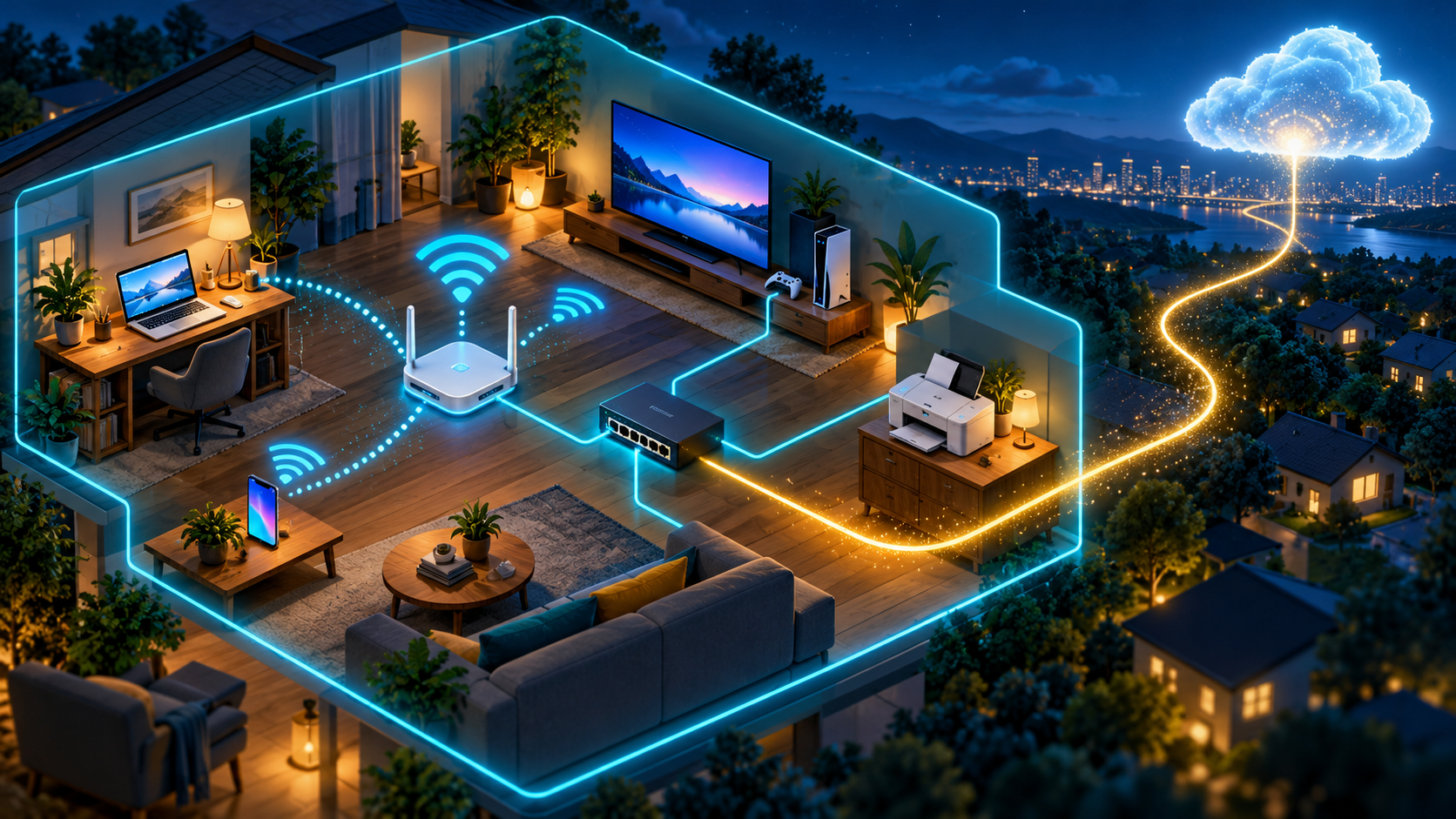
Your laptop prints a document without plugging into the printer. Your phone streams a video to the TV. A game console downloads an update while your smart speaker plays music. The quiet connector behind these everyday tricks is often a local area network, or LAN.
A LAN links devices in a limited place—like a home, office, classroom, or lab—so they can communicate and share resources. Let’s take a tour of the home network, meet its hardware, and follow a message from one room to another.
What makes a network “local”?
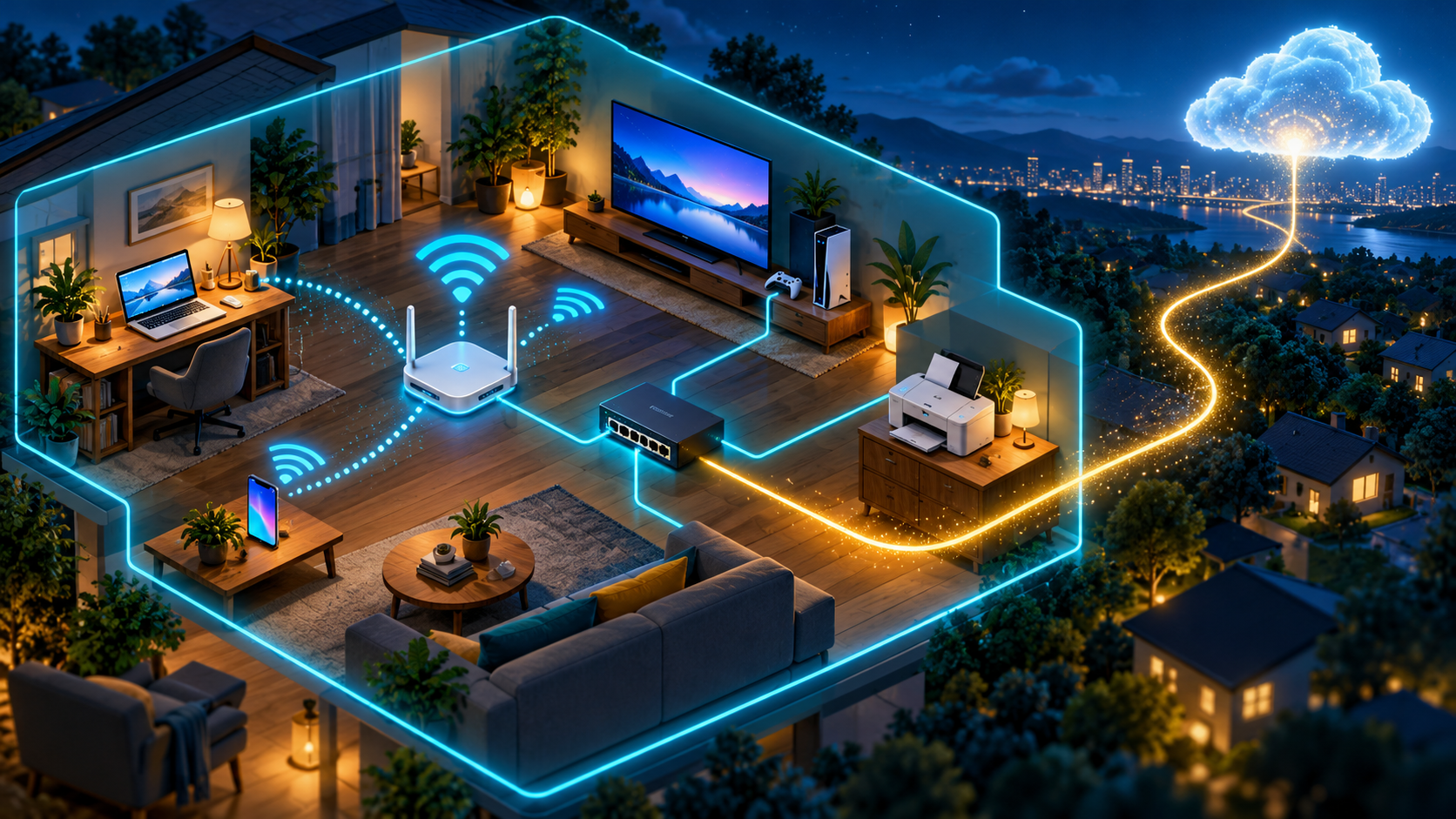
The “local” in LAN describes the network’s limited area, not whether it has internet access. A LAN can connect devices to each other even when the internet connection is down. It can be as small as two computers sharing files or as large as an office network spanning several floors.
LANs can use Ethernet cables, Wi-Fi, or both. A wireless LAN is commonly called a WLAN. Wi-Fi is one family of wireless networking technologies; Ethernet is the best-known wired LAN technology. Both let devices join a local network, even though the signals travel differently.
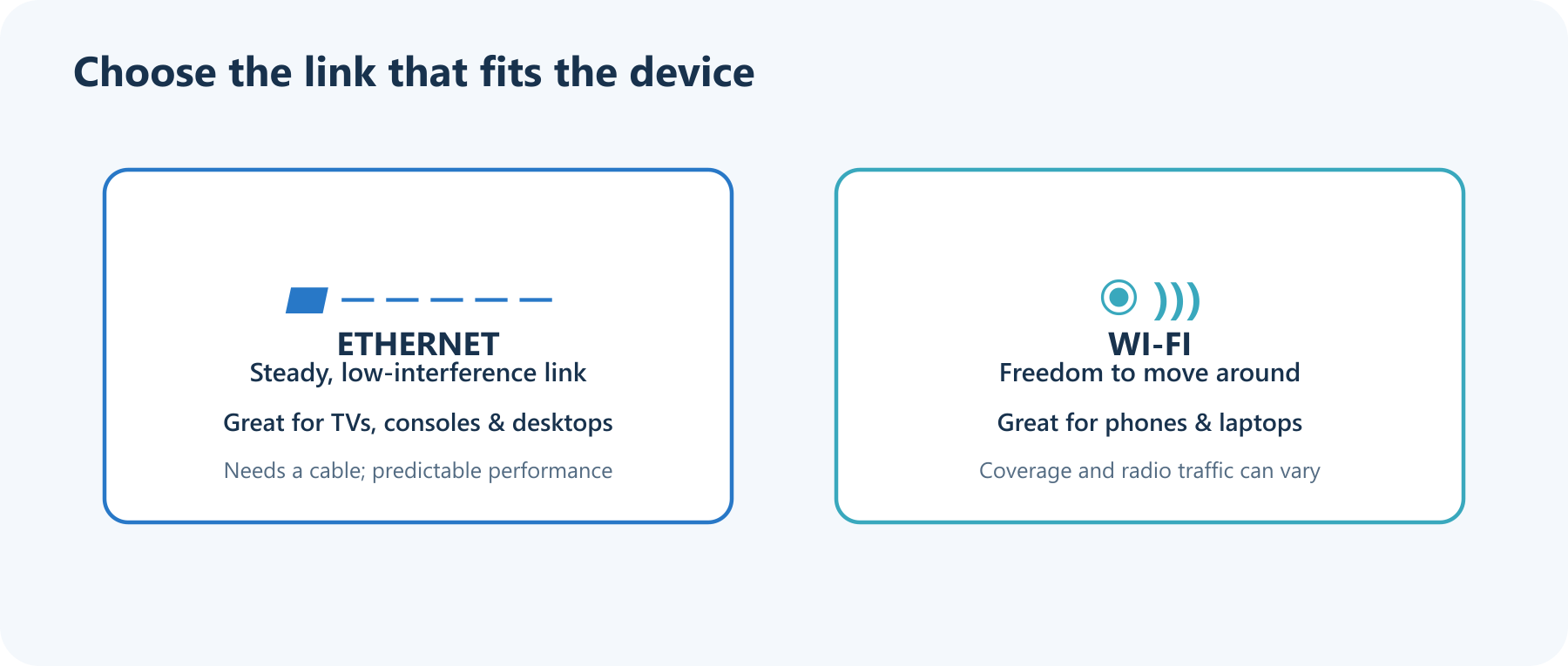
Ethernet is a strong fit for equipment that stays put, such as a TV, game console, or desktop. Wi-Fi is convenient for roaming devices. Many homes use both: there is no need to pick one team.
Compare a LAN to a neighborhood: your home network is the neighborhood, its devices are houses, and the internet is the wider world beyond it. A router is one of the gateways between those places.
A home LAN at a glance
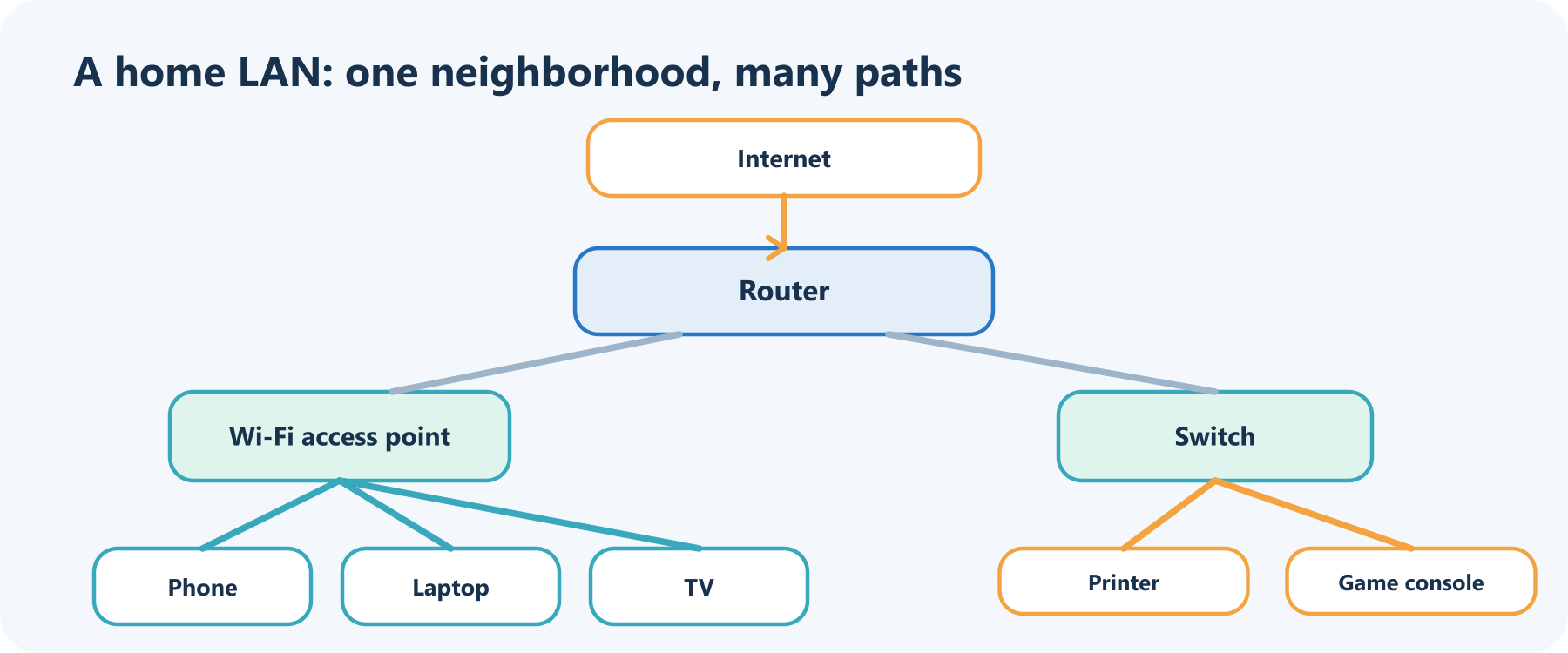
The picture is a common layout, not a shopping list. Your internet provider’s gateway may combine several devices in one box; a small home may not need a separate switch at all.
Who does what?
| Component | Its job | An easy way to remember it |
|---|---|---|
| Switch | Connects wired devices within a LAN and forwards local traffic to the right port | The office mail sorter |
| Router | Moves traffic between different IP networks, such as your home LAN and the internet | The road junction |
| Wireless access point (AP) | Connects Wi-Fi devices to the LAN | A wireless doorway into the network |
| Modem or ONT | Connects the provider’s cable, phone, or fiber service to your home equipment | The provider-side adapter |
| Firewall | Applies rules about which network traffic is allowed | The building’s checkpoint |
One device can do several jobs. A home “Wi-Fi router” commonly contains a router, a small switch, an access point, and a firewall. The names describe functions; they do not always mean separate boxes.
What happens when two devices talk?
Suppose your laptop wants to print a photo on the printer beside it. If both are on the same LAN, their traffic can stay inside the local network. A switch uses local link information to forward wired frames; Wi-Fi carries frames over radio through the access point. The router may not need to send this traffic out to the internet at all.
Now suppose the laptop asks for a website. It sends traffic to the router, which forwards it toward the internet service provider and onward to the destination. The response comes back through the router to your laptop. A home router also commonly gives devices local IP addresses automatically using DHCP, and performs functions such as network address translation (NAT) for IPv4 internet access.
That explains a common mix-up: Wi-Fi and internet are not synonyms. Wi-Fi is one way to join a LAN. The internet is a much larger network that your router may connect that LAN to.
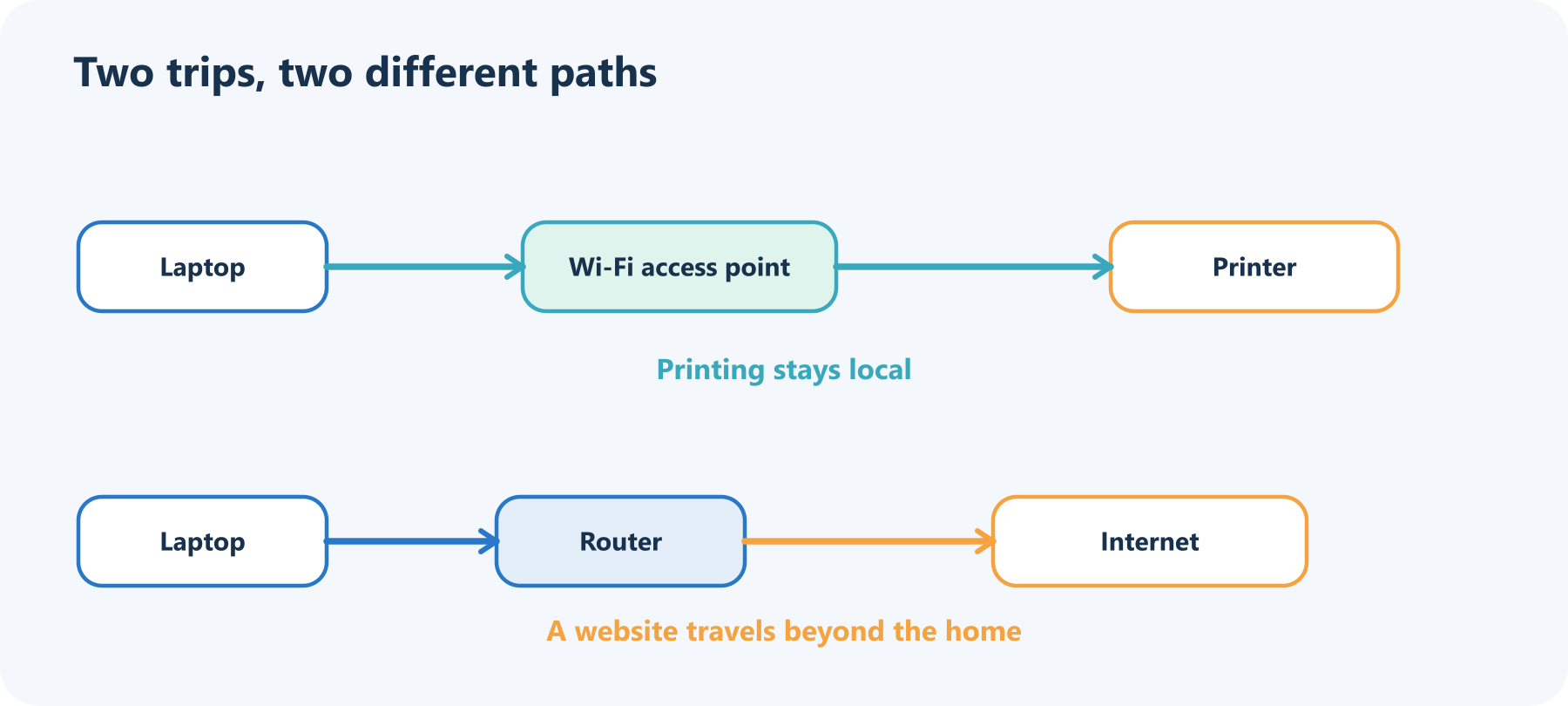
The first trip can work even if the provider connection is down. The second depends on the router having a working path to the provider and beyond.
Why bother having a LAN?
- Share resources: printers, files, media servers, and internet access.
- Connect lots of devices: computers, phones, cameras, TVs, and smart-home gadgets.
- Keep local traffic local: devices on the same LAN can exchange some data without sending it to an outside service.
- Organize access: business networks can use managed switches, access points, and virtual LANs (VLANs) to separate groups of devices logically.
A VLAN is a useful reminder that physical and logical boundaries can differ: several groups can share network equipment while being separated by configuration. VLANs are a managed-network feature; they are not required for a typical home setup.
Set up a small home LAN
- Place the provider gateway well. Keep it in an open, central spot if practical, away from cabinets and sources of interference.
- Connect wired devices when it makes sense. Ethernet is handy for a desktop, TV, or console that stays in one place. Wi-Fi gives phones and laptops room to roam.
- Give the Wi-Fi network a unique name and strong password. Use WPA3 Personal when the router and devices support it; WPA2 Personal is a fallback for older equipment.
- Change the router administrator password. This is different from the Wi-Fi password and protects the settings panel.
- Keep the router firmware current. Enable automatic updates if offered, and replace hardware that no longer receives security fixes.
- Create a guest network if available. It gives visitors a separate way to get online without sharing your main Wi-Fi password.
- Check what is connected. The router’s app or admin page usually lists current devices; rename devices you recognize so unfamiliar ones stand out.
The exact menus depend on the router maker and internet provider, but the ideas are widely applicable. For business, school, or regulated environments, follow the network administrator’s policies instead of changing shared equipment on your own.
If the LAN feels slow or stops working
Try this quick path before blaming the internet:
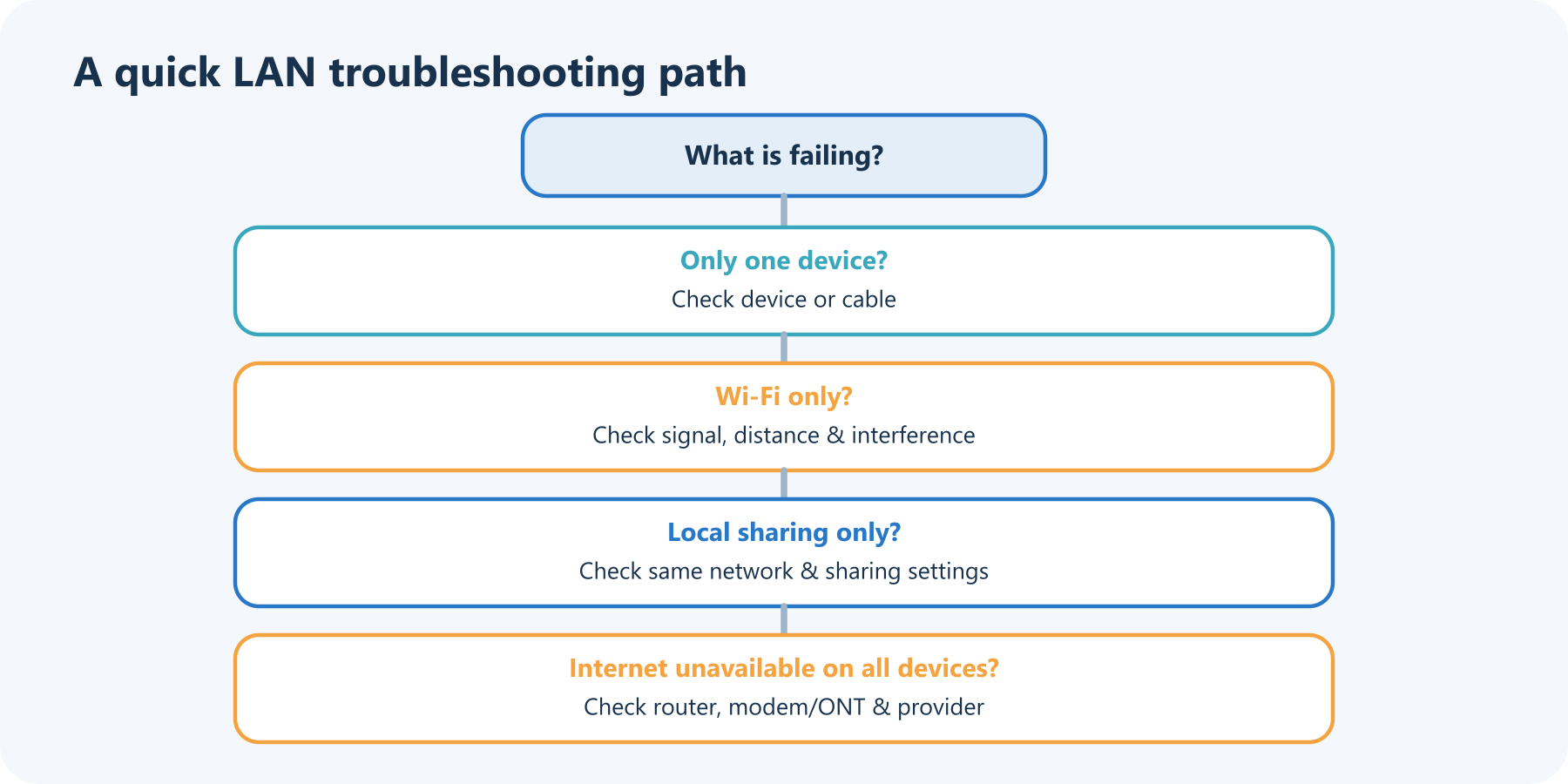
- Check one device, then another. If only one device is affected, restart its Wi-Fi or check its cable.
- Compare Wi-Fi with Ethernet. If wired devices work but Wi-Fi struggles, the issue may be wireless coverage or interference.
- Check local sharing. If the internet works but printing or device discovery fails, confirm both devices are on the same trusted network and that local sharing is enabled.
- Look at the router’s device list and status lights. A device with no address may not be joining the LAN correctly; a router with no provider connection may still have a healthy local network.
- Restart equipment in order. Follow your provider’s instructions; typically the modem/ONT comes online first, then the router.
- Change one thing at a time. A factory reset can erase the Wi-Fi name, password, and provider settings, so save it for last.
Keep your LAN secure
A LAN connects useful things—but it also creates paths between them. Secure the router and the devices that join it:
- Use WPA3 Personal when supported, or WPA2 Personal; avoid obsolete WEP or WPA settings.
- Change both default router-admin credentials and the Wi-Fi password.
- Install router and device updates, and stop using equipment that no longer gets security fixes.
- Turn on the router firewall. Disable remote administration and convenience features you don’t need.
- Put visitors and, where practical, smart-home devices on a guest or separate network.
- Treat a guest network as a helpful boundary, not a guarantee: review what devices can access and how the router implements isolation.
For a beginner-friendly walkthrough of home Wi-Fi settings, the U.S. Federal Trade Commission recommends encryption, changed default credentials, current router software, and a guest network.
LAN, WLAN, WAN: a pocket glossary
| Acronym | Stands for | Think… |
|---|---|---|
| LAN | Local Area Network | Devices in a limited place |
| WLAN | Wireless Local Area Network | A LAN using Wi-Fi or another wireless link |
| WAN | Wide Area Network | Networks connected over a larger area; the internet is the most familiar example |
| VLAN | Virtual LAN | A logical group separated by network configuration |
You’ve now met the everyday network behind the screens: a LAN is the local meeting place, switches connect neighbors, access points provide wireless doors, and routers connect that local world to other networks. Once those roles click, home networking starts to look less like blinking-light magic and more like a well-organized set of roads.
Sources and further reading
- Cisco: What is a LAN? — LANs, common components, and the local-versus-wide-area distinction.
- Cisco: What is a switch vs. a router? — how switching and routing differ.
- IEEE 802.11-2024 — the active IEEE standard for wireless LAN MAC and PHY specifications.
- IEEE 802.3-2022 — the active IEEE Ethernet standard.
- RFC 1918 — private IPv4 address blocks commonly used inside LANs.
- Federal Trade Commission: How to secure your home Wi-Fi network — practical home-router security steps.
Read next

How to Generate Audio from Text with Text-to-Speech (TTS)
Turn a written script into spoken audio: try your browser’s built-in voice, then generate an MP3 with a modern text-to-speech API. Learn voice selection, SSML pronunciation fixes, and quality checks.
 nbkhope
How to Label AI Data: A Practical Guide to Better Training Examples
Learn to label AI data with a clear task, practical label rules, a small pilot, and quality checks that catch disagreements instead of hiding them. Includes a worked customer-support example.
nbkhope
Build Your Own MCP Server: Give AI a New Superpower
Build a tiny MCP server from scratch: expose a useful tool, connect it to an AI host, test the conversation, and learn the safety checks that turn a fun demo into a solid integration.
nbkhope
Comments
Be kind and specific. Comments with links from new accounts appear after a moderator reviews them.