
Meet the hardware of the Internet
See the real devices and cables behind the ideas, from your router to the sea floor.
- Recognize the devices in a home and office network and say what each one does.
- Tell Ethernet, coaxial and fiber optic cables apart, and explain how each carries data.
- Compare the ways a home connects to the Internet, including satellite and cellular.
- Map a real device to the layer it works at.
People talk about “the cloud”, but the Internet is a physical thing. It has boxes that get warm, cables you can trip over and ships that lay glass across oceans. Every idea in this track lives in a piece of hardware somewhere.
This lesson is a tour, starting at your desk and ending at the bottom of the sea. Each card shows a real device, says what it does and links it to a concept. The colored tag shows the layer it mainly works at, using the same colors as everywhere else in the track. Some terms turn up here before they’re taught, such as NAT and DHCP. Don’t worry about them yet: each one gets its own lesson.
In your home
Most homes have one or two boxes from the provider, and they do far more than they appear to.
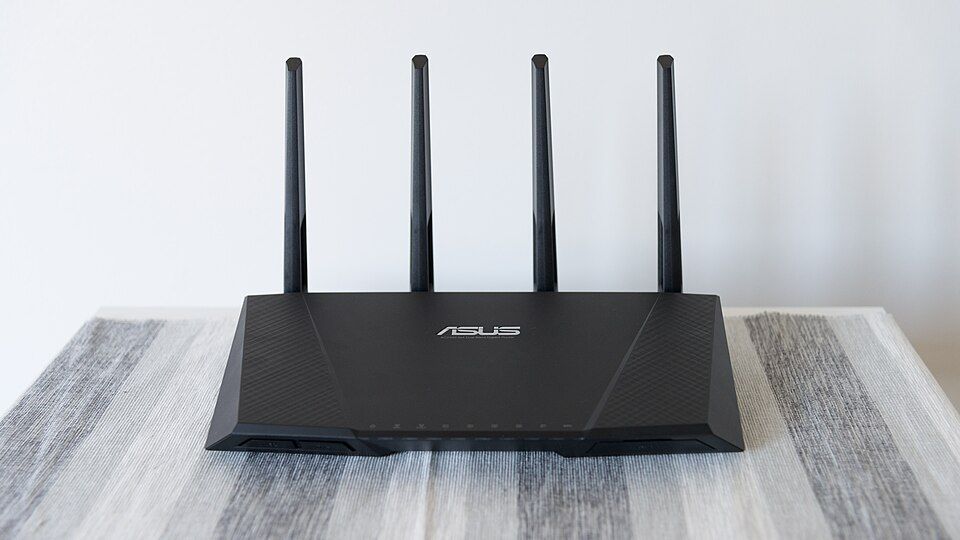
Home router
InternetConnects your home network to the Internet and sends packets between the two.
How it fits: It is your default gateway. It also runs NAT and usually DHCP, so one box gives your devices their addresses and shares your public address.
How to spot it: A small box with antennas or a smooth tower, one port marked WAN or Internet, and a few LAN ports.
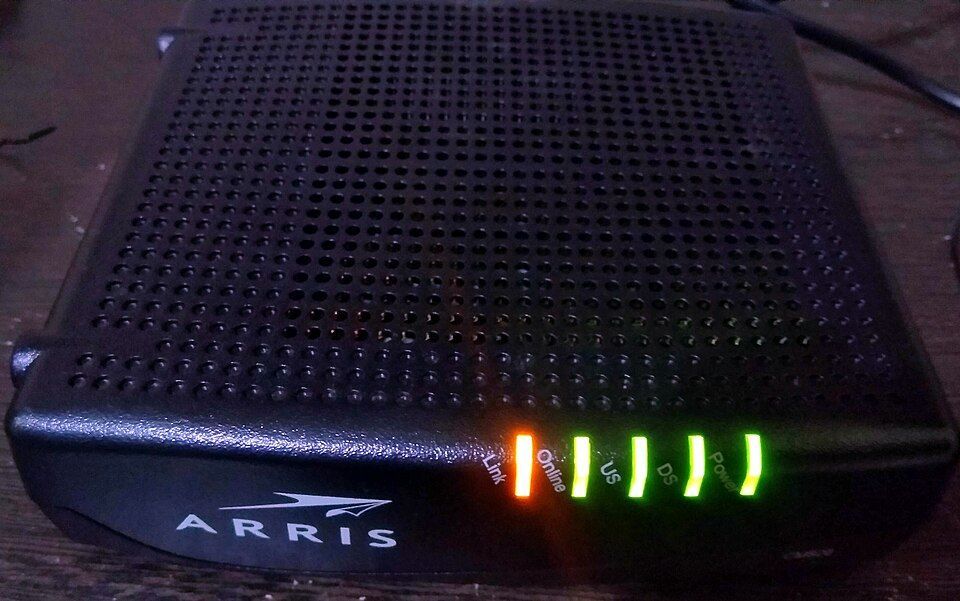
Cable modem
LinkTurns your data into signals the provider’s cable can carry, and back again. Modem is short for modulator-demodulator.
How it fits: It handles the link to your provider. It doesn’t route: it only moves data across that one connection, so it sits at the bottom of the stack.
How to spot it: A screw-on coaxial port on the back and status lights such as Power, Downstream, Upstream and Online.
Photo: VulcanSphere, CC BY 4.0, adapted
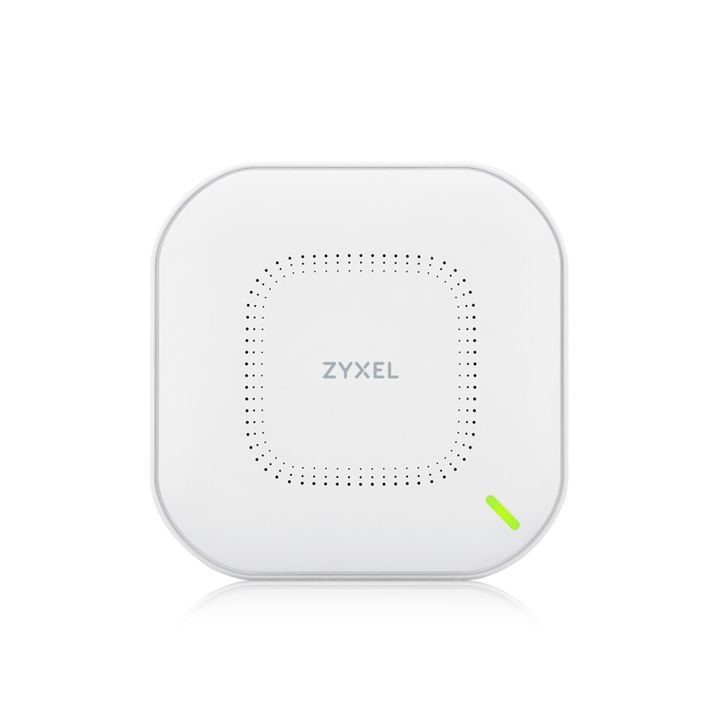
Wi-Fi access point
LinkConnects wireless devices to a wired network using radio.
How it fits: It’s the wireless version of a switch port. Frames travel over radio instead of copper, and MAC addresses work the same way.
How to spot it: A plain white disc on an office or school ceiling. Your home router has one built in.
Photo: Zyxel, CC BY-SA 4.0, adapted
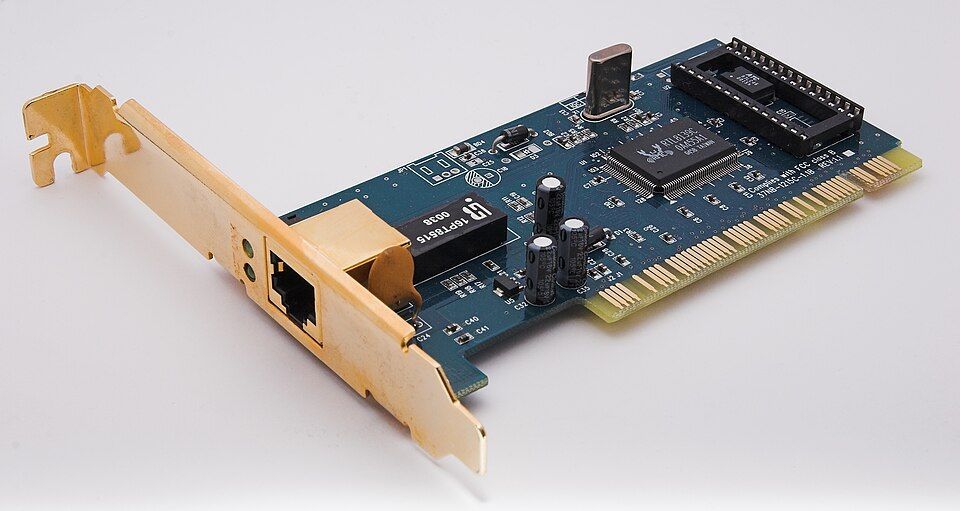
Network card
LinkConnects a computer to a network. Today it’s usually built into the motherboard, or is a tiny Wi-Fi chip.
How it fits: This is where a MAC address lives, and it’s what turns frames into electrical signals or radio waves.
How to spot it: An Ethernet socket on the back of a desktop, often with small blinking lights.
Photo: afrank99, CC BY-SA 2.0, adapted
So why is your “router” doing all of this? Because a typical home box is several devices in one case: a router, a small switch and a Wi-Fi access point, and sometimes a modem as well.
The cables
Bits have to become something physical to travel. There are three main choices: electrical pulses in copper, radio signals in coaxial cable, and pulses of light in glass.
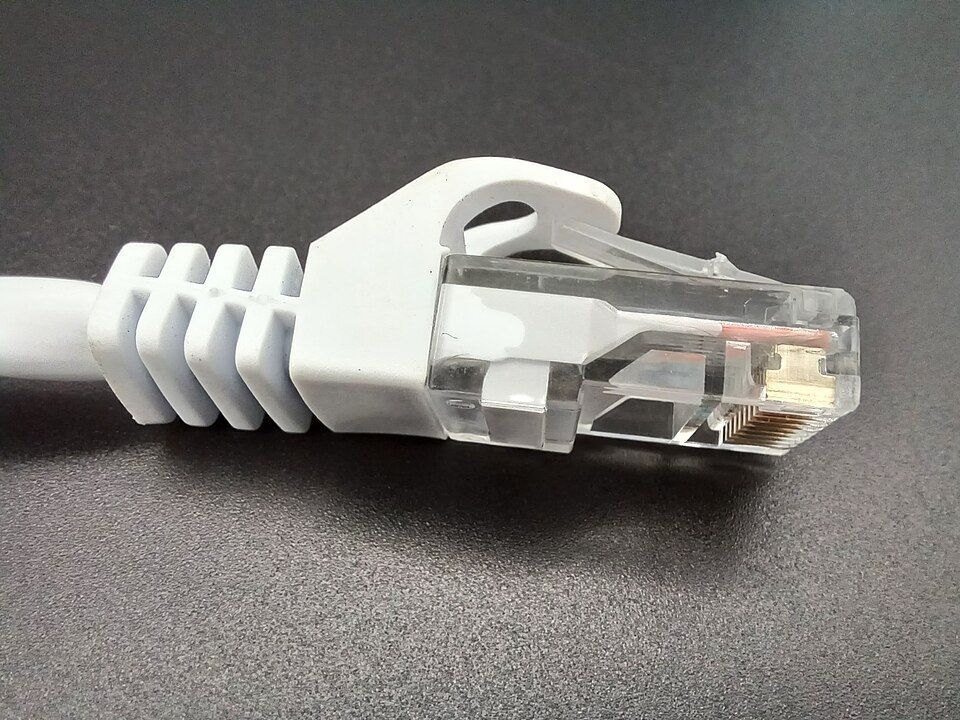
Ethernet cable (RJ45 plug)
LinkThe standard cable for wired networks. It has eight copper wires twisted into four pairs, which helps cancel out interference.
How it fits: This is what carries Ethernet frames between a device and a switch. A single run can be up to 100 meters.
How to spot it: A plug like a phone connector but wider, with eight gold contacts and a clip. The jacket is printed with a category such as Cat 5e or Cat 6.
Photo: Mx. Granger, CC0, adapted
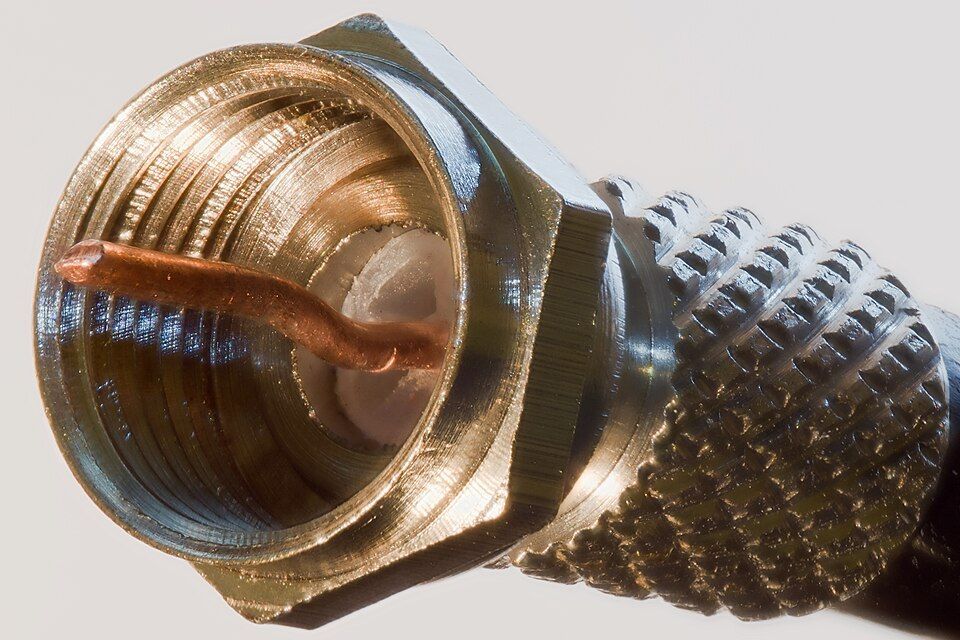
Coaxial cable
LinkA single copper core surrounded by insulation and a metal shield. It carries cable TV and cable Internet to millions of homes.
How it fits: The shield keeps radio-frequency signals in and interference out. Neighbors usually share the capacity, which is one reason speeds can dip at busy times.
How to spot it: A thick round cable and a screw-on connector with one thin wire poking out of the middle.
Photo: Colin, CC BY-SA 3.0, adapted
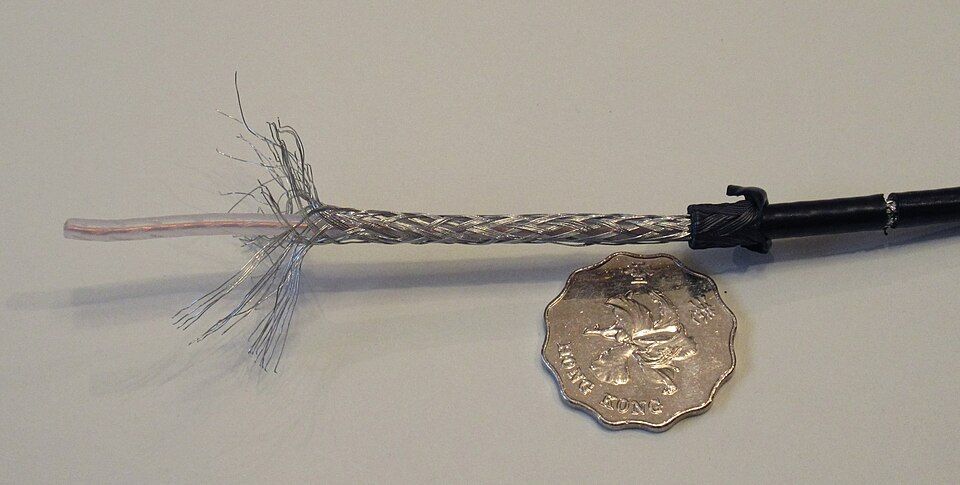
Inside a coaxial cable
LinkStrip one and you can see the braided metal shield around the inner conductor.
How it fits: “Coaxial” means the core and the shield share the same axis. The illustration below shows the same layers in cross-section.
How to spot it: The shield’s fine metal braid is the giveaway when a cable is cut open.
Photo: Wtshymanski, CC BY-SA 4.0, adapted
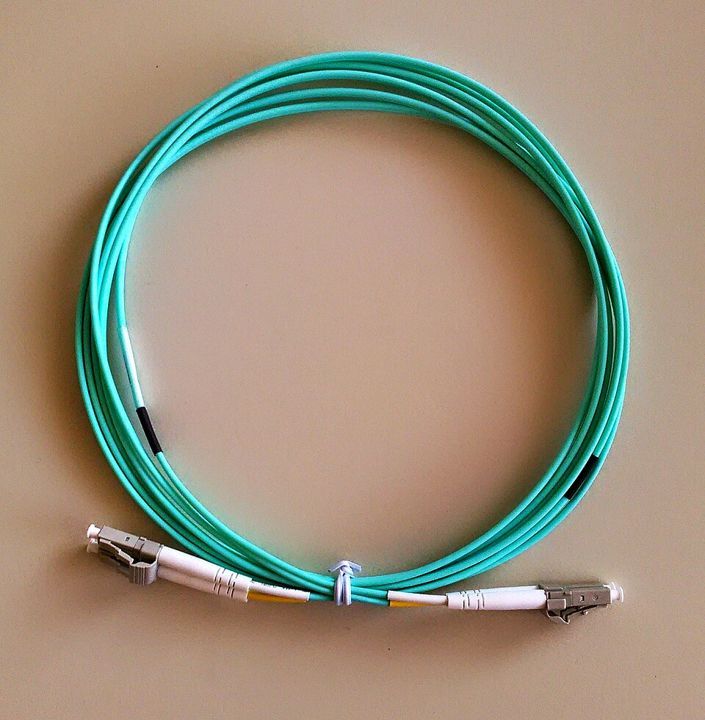
Fiber optic cable
LinkHair-thin strands of glass carry pulses of light. Nothing electrical travels through it at all.
How it fits: Light is why fiber can cross kilometers without losing the signal, and why it’s used for nearly every long link on the Internet. Light in this glass also sets the speed limit you’ll meet in the latency lesson.
How to spot it: A thin, light cable, usually orange, aqua or yellow, with small square connectors.
Photo: Christophe Finot, CC BY-SA 3.0, adapted
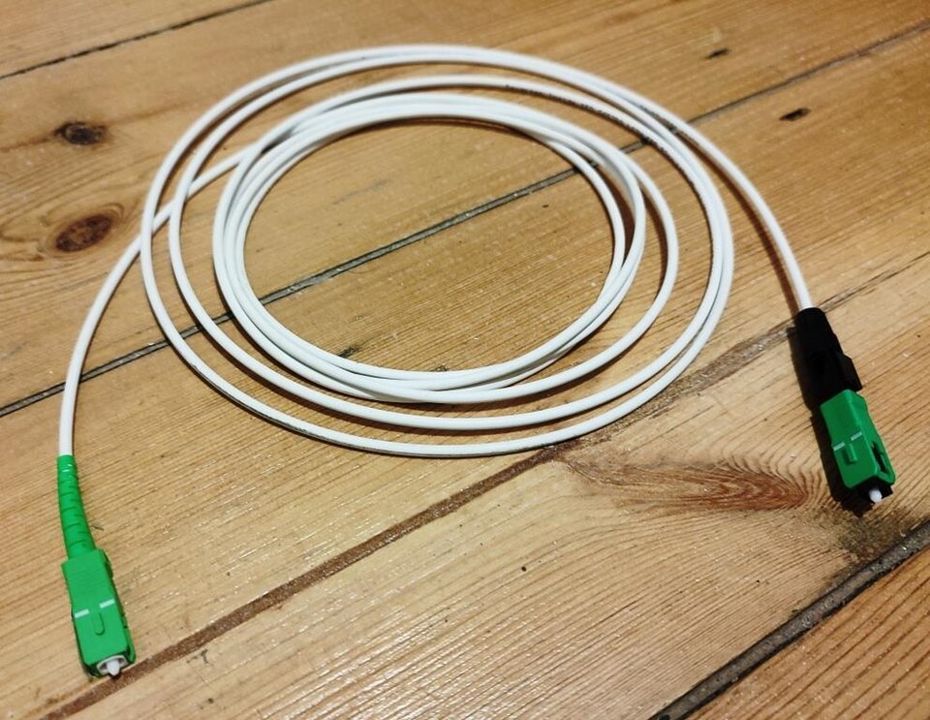
Fiber drop cable
LinkThe last piece of fiber into a home. It plugs into a small box from the provider called an ONT.
How it fits: The ONT does for light what a modem does for coax: it turns the provider’s signal into ordinary Ethernet for your router.
How to spot it: A thin white cable with a green connector. Never look into the end of a live fiber, because the laser can be invisible.
Photo: Alexceltare2, CC BY-SA 4.0, adapted
How your home reaches the world
The connection between your home and your provider is often called the last mile, and it’s the part you can choose. Each option uses different hardware, which sets your speed and latency.
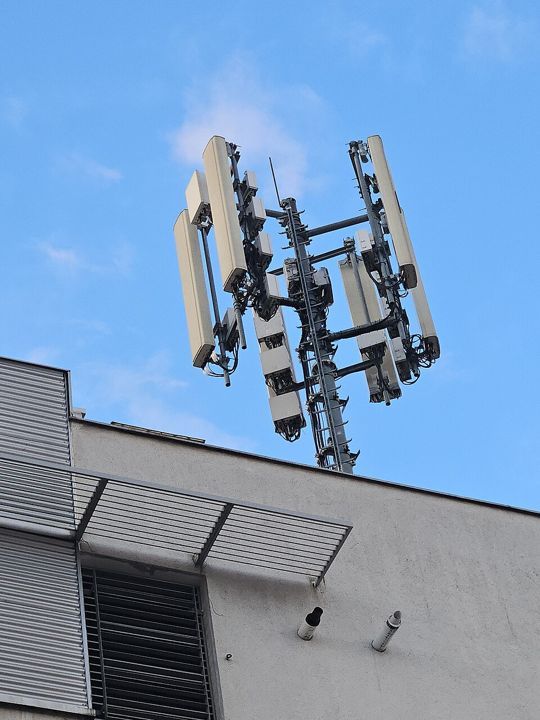
Cell tower
LinkConnects phones and home 4G or 5G routers to the provider using radio.
How it fits: Radio only covers the first hop. Behind the antennas, the tower is usually wired to the network by fiber, so your data soon goes back to glass.
How to spot it: Long rectangular panels on a mast or rooftop, each aimed in a different direction.
Photo: Mnalis, CC BY-SA 4.0, adapted
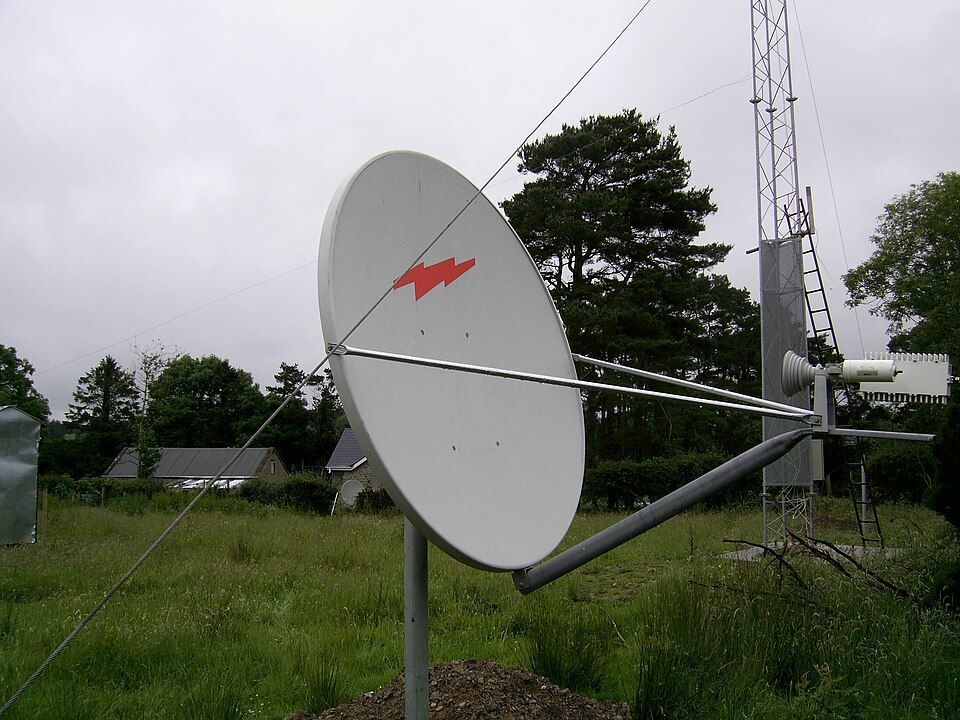
Satellite dish
LinkTalks to a satellite that stays over one point on Earth, about 36,000 km up. It reaches places no cable does, such as ships and remote farms.
How it fits: That distance is the catch. Up and down twice takes about 600 ms, so a fast plan can still feel slow. You’ll see why in the latency lesson.
How to spot it: A curved dish on a fixed mount, with an arm holding a small unit in front of it.
Photo: Gavigan, CC BY 2.5, adapted
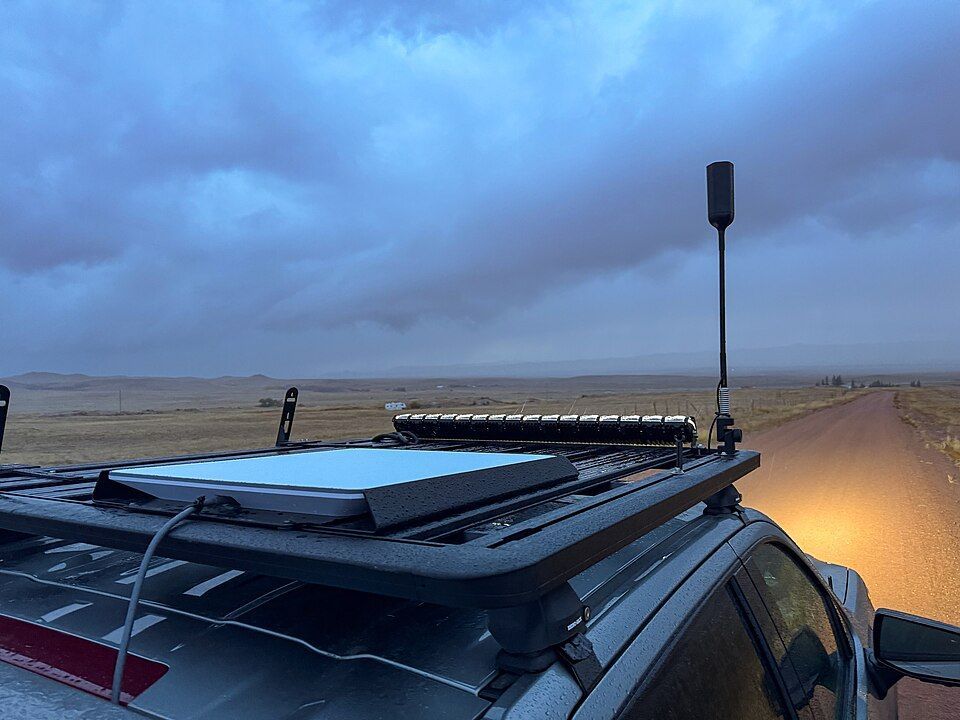
Low-orbit satellite terminal
LinkA flat antenna that tracks many satellites as they pass, only about 550 km up.
How it fits: Being about 65 times closer cuts the round trip to roughly 25–60 ms. Same idea as a dish, but physics changes the experience.
How to spot it: A flat rectangle aimed at open sky, with no curved dish at all.
Photo: Tony Webster, CC BY 2.0, adapted
Inside offices and data centers
Past your home, the same concepts run on bigger hardware. These are the machines that carry the packets you’ve been tracing.
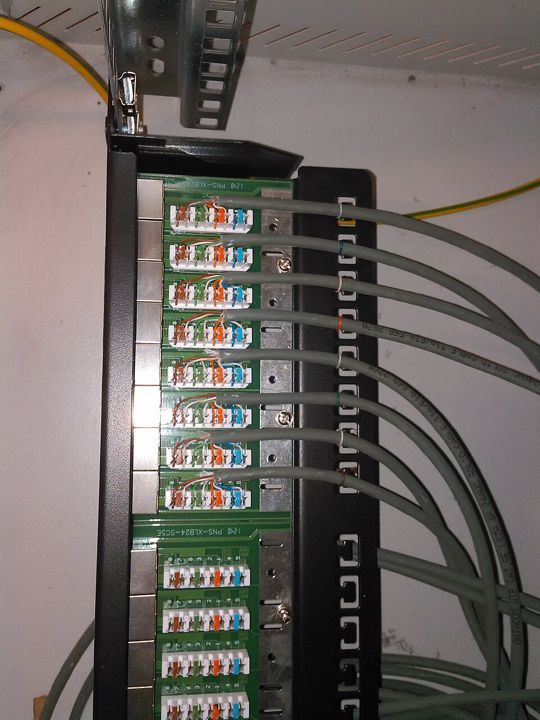
Patch panel
LinkGives every cable running through a building’s walls a labeled socket in one place. It has no electronics or power at all.
How it fits: It’s pure physical wiring. Short patch cables connect its sockets to a switch, so moving a desk means moving one cable.
How to spot it: Rows of numbered sockets with no lights, next to a switch in a rack.
Photo: Qeef, CC BY-SA 4.0, adapted
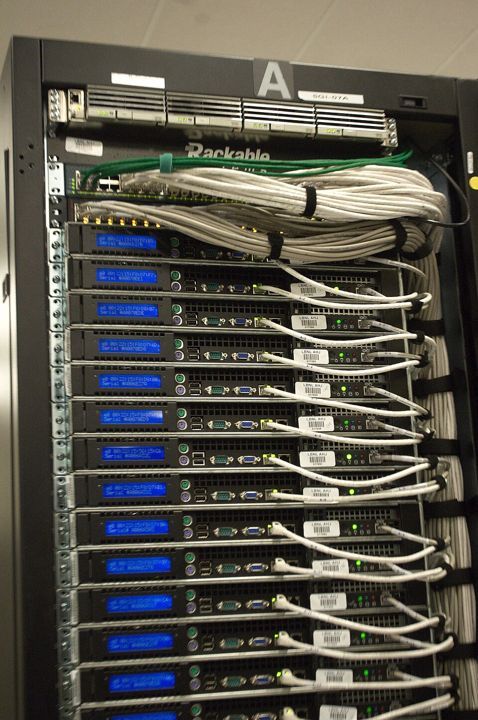
Server rack
ApplicationA steel frame that holds servers, switches and power in a standard 19-inch width.
How it fits: Servers are where the application layer runs. When you request a page, one of these machines is what answers.
How to spot it: A tall cabinet of flat boxes stacked like drawers, with bundles of cable and a loud fan noise.
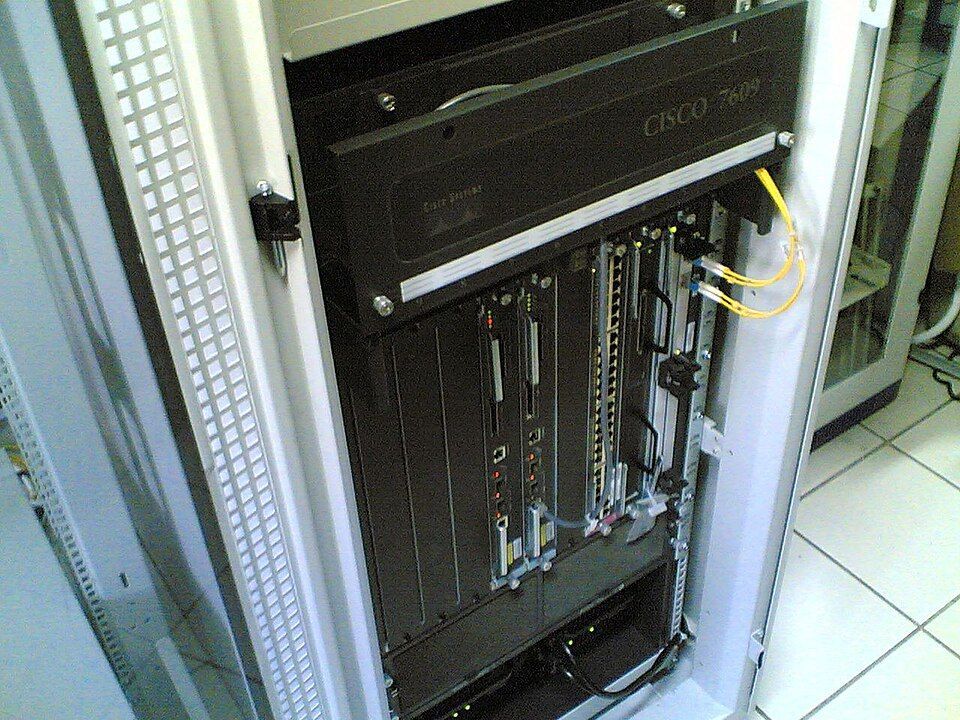
Carrier router
InternetA heavy-duty router that forwards huge volumes of traffic between networks. This one served a university network in Indonesia.
How it fits: It does the job of your home router: read the destination IP, apply longest-prefix match, send it on. It does this for hundreds of thousands of routes.
How to spot it: A big chassis with slide-in cards, usually with yellow or orange fiber plugged in.
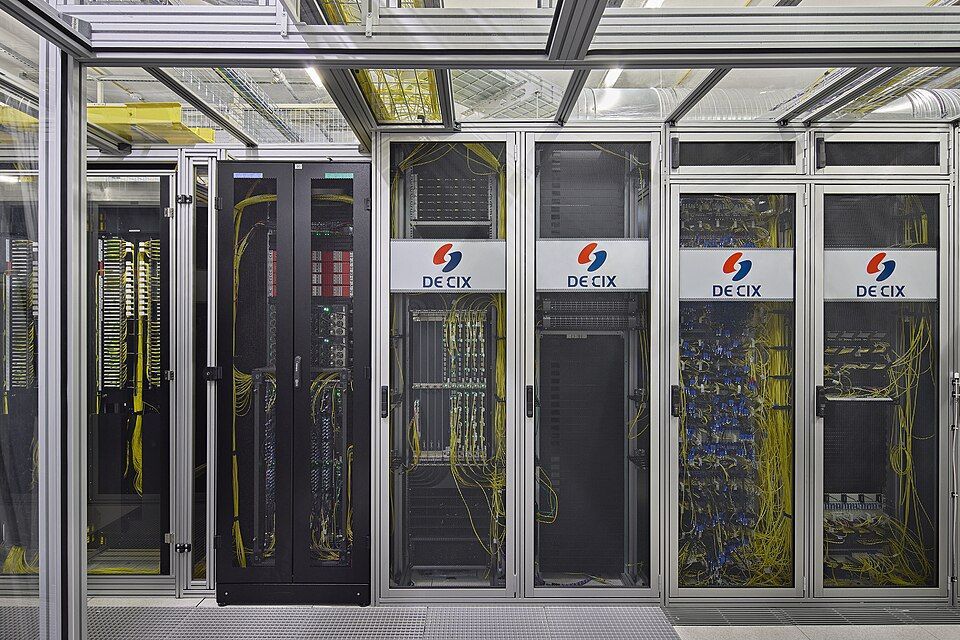
Internet exchange
InternetA building where networks plug into shared switches to swap traffic directly. DE-CIX in Frankfurt is one of the largest.
How it fits: The Internet is a network of networks, and this is where they physically meet. You’ll see a hop like this in traceroute, in the routing lesson.
How to spot it: Rows of cabinets and a great deal of yellow fiber. You’ll usually only see these on a tour.
Photo: Kirsten Bucher, CC BY-SA 3.0 de, adapted
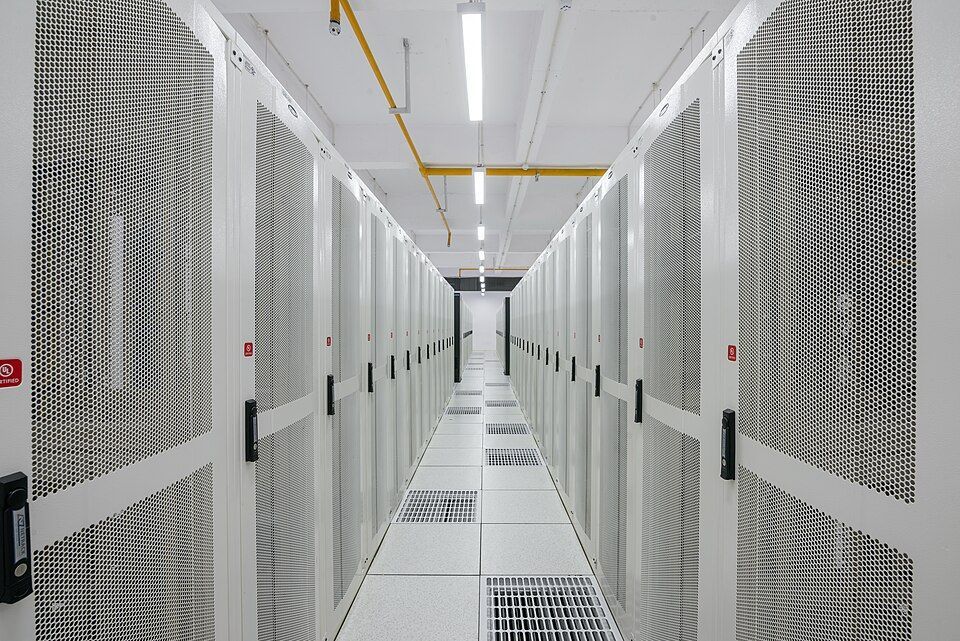
Data center
ApplicationA building full of racks, with its own power, cooling and security. “The cloud” is a large collection of these.
How it fits: This is the far end of your request. Companies build them near users and exchanges because distance is latency.
How to spot it: Windowless, heavily cooled halls with raised floors and long aisles.
Photo: PiDatacenters, CC BY-SA 4.0, adapted

Cable-laying ship
LinkCarries thousands of kilometers of cable, lays it on the sea floor and repairs it after breaks.
How it fits: The vast majority of traffic between continents runs through cables on the seabed, not satellites. A subsea cable is a garden-hose-thick line of glass fibers with steel armor.
How to spot it: A large drum-filled hull with big rollers at the bow or stern.
Photo: Gordon Leggett, CC BY 4.0, adapted
Try it
Name that device
Look at each photo and name it from its shape and connectors. Don’t scroll up! Trying to recall a device from memory is what makes you recognize it later.
Photo: Colin, CC BY-SA 3.0, adapted
Try it
Which layer does it work at?
Think about what each device reads to do its job. If it only passes signals along, it’s the link layer. If it reads IP addresses, it’s the Internet layer.
“Ethernet switch”
“Home router”
“Fiber optic cable”
“Web server”
“Wi-Fi access point”
“Carrier router”
Try it
Ask a device about its hardware
Your computer can tell you about the physical link it’s using. Click the line that answers each question.
This 1 Gb/s network feels slow. Which line suggests a damaged or old cable?
Key takeaways
A home “router” is usually a router, a switch and an access point in one box.
Copper carries electricity, coax carries radio signals and fiber carries light.
Your last-mile hardware sets your latency, and satellites show how much distance matters.
The biggest routers and your home router follow the same rules.
Lesson quiz
8 questions · pass with 6 correct · up to 50 XP
Passing this quiz completes the lesson and keeps your streak going. Questions you miss come back in review sessions later.
Questions about this lesson
Stuck? Ask. Figured something out? Share it. Explaining is one of the best ways to learn.
Loading posts…