How to Generate Images from Text: A Practical Guide
Turn an idea into an image with a better prompt, a repeatable generation workflow, and a modern open model. Learn how to iterate, steer composition, and check the result before using it.

On this page
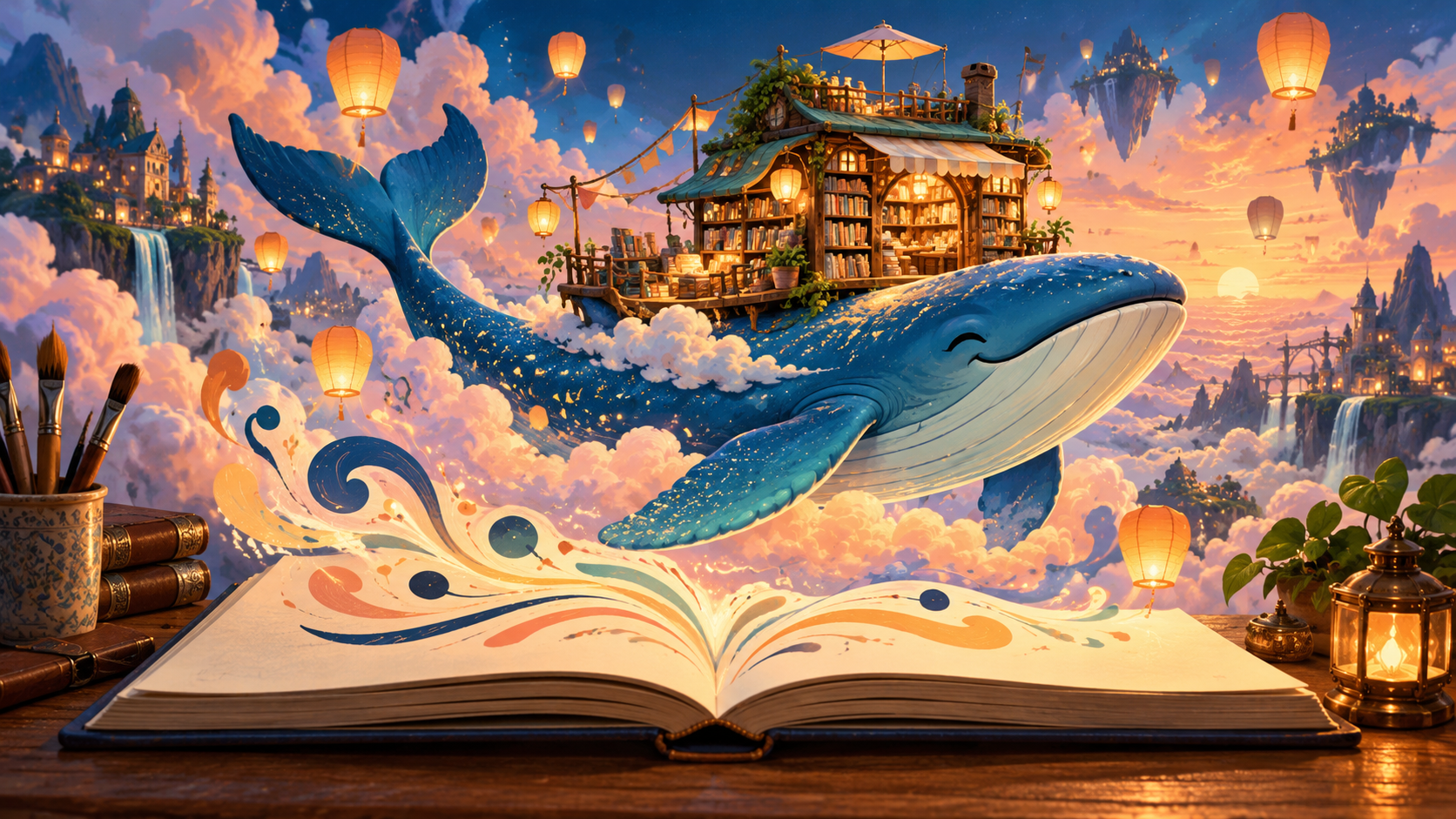
Imagine a tiny bookstore on the back of a whale, drifting through a sky full of paper lanterns. You can describe that scene in a sentence and ask an image generator to make it visible. A moment later, you have a picture to react to, revise, and make your own.
That’s text-to-image generation: a model turns a written description into a new image. This guide takes you from a blank prompt to a usable result, whether you want to try a hosted app or run an open model with Python. Along the way, you’ll learn how to describe a scene clearly, improve a generation without starting over, and check the image before sharing it.

First, choose where the image will be made
There are two easy starting points:
| Route | Good fit when… | What to know |
|---|---|---|
| A hosted image tool | You want to start in a browser without installing anything | Check its usage rules, privacy settings, and whether your prompt or uploads may be stored. |
| A local or hosted model through code | You want a repeatable workflow, automation, or more control | You’ll need a compatible runtime, model access, and enough memory—or a cloud GPU. |
The prompt-writing ideas below work with either route. The code example uses Qwen-Image through Hugging Face Diffusers, whose quickstart demonstrates loading the model and generating an image. Model access, hardware needs, and license terms can vary, so review the model card before using it in a project.
Build a prompt like a tiny creative brief
A prompt is not a magic password. It is a compact brief that helps the model decide what to put in the frame. Start with the parts that matter most:
- Subject: What should we see? “A red fox” is a clear start.
- Action or relationship: What is happening? “A red fox carrying a folded map.”
- Place and time: “On a mossy footbridge at dawn.”
- Composition: “Wide shot, fox on the right, open space on the left.”
- Light and palette: “Cool mist, warm lantern light, copper and teal.”
- Visual treatment: “Painterly storybook illustration, paper texture.”
- Format needs: “Landscape image, no lettering.”
Put the most important ideas first and be specific about relationships. “A fox, lantern, bridge, mist” lists ingredients; “a fox carries a lantern across a bridge while mist gathers below” gives the model a scene to stage.

Try a prompt makeover
Loose: a cozy bookstore in the clouds
Directed: A tiny independent bookstore rests on the back of a gentle blue whale drifting above a sea of clouds. Wide storybook illustration, whale centered low in the frame, tiny amber windows glowing, paper lanterns floating overhead, soft dawn light, indigo and peach palette, hand-painted gouache texture, no words or lettering.
The second version gives the model a subject, a relationship, a camera plan, a palette, and a finish. You don’t need every detail every time; add the details that would change whether the result feels right to you.
Generate an image with Python
If you have Python and a compatible GPU environment, install the current Diffusers quickstart dependencies and run a small script. The first run downloads model files, so expect it to take longer and use substantial disk space and memory. A hosted notebook or inference service can be simpler when your computer doesn’t have a capable GPU.
uv pip install "diffusers[torch]" transformers accelerate1import torch
2from diffusers import DiffusionPipeline
3
4model_id = "Qwen/Qwen-Image"
5pipe = DiffusionPipeline.from_pretrained(
6 model_id,
7 dtype=torch.bfloat16,
8 device_map="cuda", # Use a supported accelerator; see Diffusers docs for MPS/XPU/CPU.
9)
10
11prompt = (
12 "A tiny independent bookstore rests on the back of a gentle blue whale "
13 "drifting above a sea of clouds. Wide storybook illustration, whale "
14 "centered low in the frame, tiny amber windows glowing, paper lanterns "
15 "floating overhead, soft dawn light, indigo and peach palette, "
16 "hand-painted gouache texture, no words or lettering."
17)
18
19image = pipe(prompt).images[0]
20image.save("whale-bookshop.png")device_map="cuda" assumes a supported NVIDIA CUDA setup. Diffusers also documents other device maps; use the one your hardware and installed PyTorch support. If you see an out-of-memory error, try a hosted GPU or a smaller model intended for your hardware. Don’t assume a parameter from one model family—such as a negative prompt or a particular step count—works the same way for every pipeline.
Iterate like an art director
Your first image is a draft, not a verdict. Generate a few candidates and look at them with a short checklist:
- Does the main idea read instantly? If not, move the subject and action earlier in the prompt.
- Is the composition doing its job? State the viewpoint, framing, and where the subject should sit.
- Are there too many competing details? Remove decorations that do not help tell the story.
- Is the style coherent? Pick one treatment—such as editorial collage or watercolor—rather than stacking a dozen style tags.
- What is the one most important fix? Change one or two prompt ingredients, regenerate, and compare.
When comparing outputs, hold the prompt steady and vary the seed if the tool exposes one. When exploring a different visual direction, change the prompt while keeping other settings steady. That makes it easier to tell which change caused the difference. A seed can help reproduce a result in the same setup, but it does not guarantee pixel-identical output across model versions, software, or hardware.
If the tool supports editing, use image-to-image or inpainting to preserve what already works and adjust one region. For example: “Keep the whale, bookstore, framing, and colors. Add three warm paper lanterns in the open sky.” Check the edited result carefully; local edits can still alter nearby details.
When the picture contains text or precise details
Image models are improving, but they can still misspell labels, distort logos, or muddle tiny objects. If accuracy matters, create the illustration first and add typography afterward in a design tool. For diagrams, maps, product labels, or interface screenshots, use a vector or layout editor for the exact text and geometry, then use generated art as supporting imagery.
Likewise, treat outputs as creative drafts—not evidence. A realistic-looking image does not establish that an event happened or that a person said or did something. Avoid generating deceptive depictions of real people, and get appropriate permission before using someone’s likeness or private material.
Before you publish or ship it
Do a quick human review:
- Check hands, faces, signs, and small details at full size.
- Confirm the image matches the intended audience and context.
- Read the model and service terms for your intended use, especially commercial use and restrictions on people, brands, or sensitive subjects.
- Keep the prompt, model name/version, generation date, and any edits if you need a reproducible creative record.
- Add a caption or provenance information when that context matters to viewers.
Content Credentials are a standard for recording information about an image’s origin and edit history when supported by the tools involved. They can help preserve provenance, but they are not a universal watermark and do not prove that the scene shown is true. Metadata may also be removed when an image is transformed or re-exported.
A small recipe to remember
Subject + action + setting + composition + light/palette + visual treatment + format is a useful first draft. Generate, inspect, and revise one clear thing at a time. Your best prompt is not necessarily the longest one; it is the one that makes the image’s important choices unmistakable.
Sources and further reading
Read next
How to Generate Audio from Text with Text-to-Speech (TTS)
Turn a written script into spoken audio: try your browser’s built-in voice, then generate an MP3 with a modern text-to-speech API. Learn voice selection, SSML pronunciation fixes, and quality checks.
 nbkhope
What Is the Swift Programming Language? A Simple Guide to the Language Behind iPhone Apps
A friendly, jargon-free guide to Swift, the programming language Apple created for iPhone, iPad and Mac apps. Learn why it replaced Objective-C, how optionals prevent crashes, how an app is made, and how fast Swift really is.
nbkhope
What Is the Rust Programming Language? A Simple Guide to the Fast Language That Won't Let You Crash
A friendly, jargon-free guide to Rust, the programming language that is as fast as C but stops whole families of memory bugs before a program ever runs. Learn about ownership, why tech giants are adopting it, and where it is used.
nbkhope
Comments
Be kind and specific. Comments with links from new accounts appear after a moderator reviews them.