What Is Wi-Fi? How Wireless Networks Work
Wi-Fi lets nearby devices talk over radio waves—but it is not the internet itself. Learn how routers, radio bands, Wi-Fi generations, and security fit together.

On this page
What Is Wi-Fi? How Wireless Networks Work
You tap a button, a video appears, and somewhere between your phone and the router an invisible radio conversation just happened. That everyday bit of magic is Wi-Fi: a way for nearby devices to send data through the air instead of through a cable.
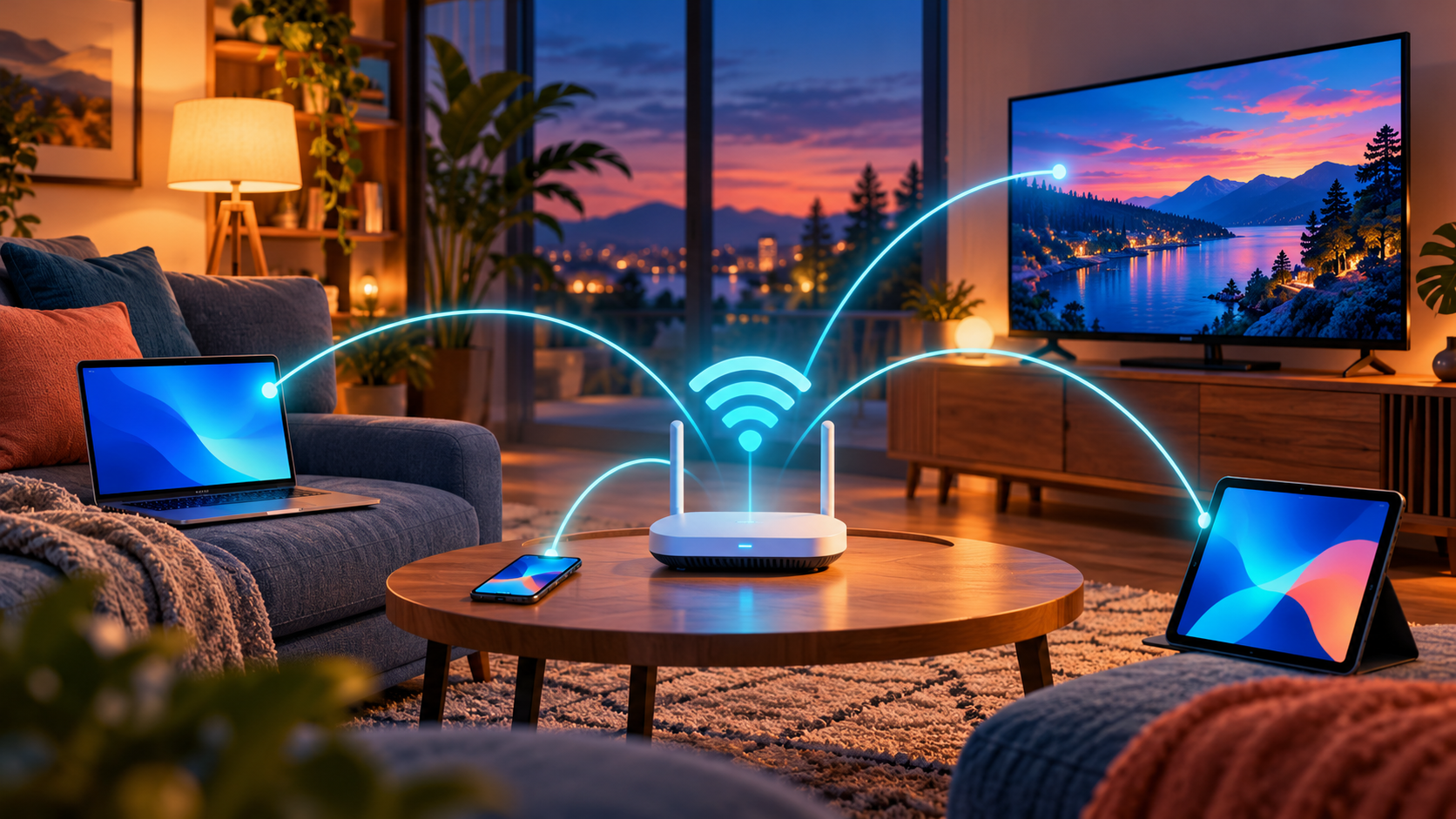
Here’s the twist that clears up a lot of confusion: Wi-Fi is not the internet. It is usually the wireless on-ramp to your local network. Your home Wi-Fi can still connect a phone to a printer or TV even if your internet provider is having a bad day.
So, what exactly is Wi-Fi?
Wi-Fi is a family of wireless local-area networking technologies based on the IEEE 802.11 standards. In plain English, it describes agreed-upon ways for devices to use radio signals to join a nearby network and exchange data. The Wi-Fi Alliance is an industry organization that tests products for interoperability and awards Wi-Fi certification; IEEE develops the underlying 802.11 technical standards.
When you join a network, your device and an access point (usually built into your wireless router) find a compatible radio channel, authenticate you, and exchange data in short bursts called frames. The radio channel is shared: devices take turns sending, much like people taking turns speaking in a busy room.
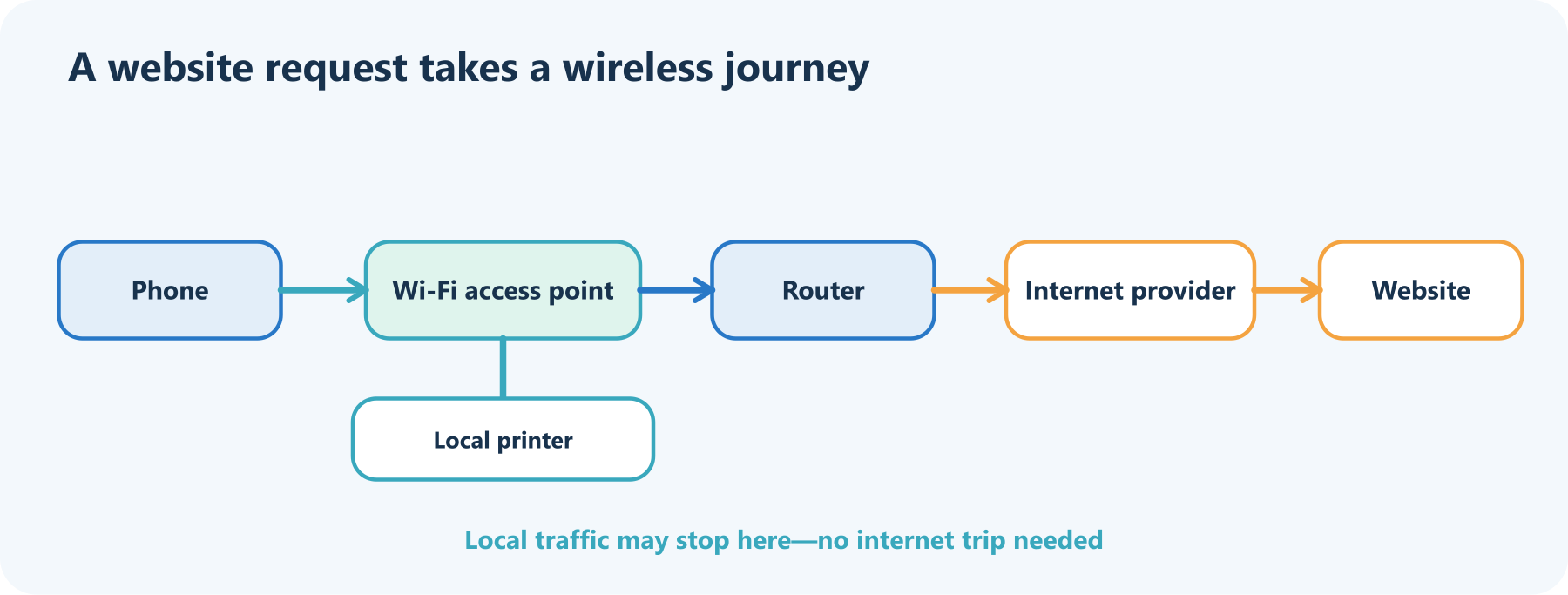
That journey also explains the difference between Wi-Fi and mobile data. Wi-Fi connects you to a nearby access point over local radio. Mobile data connects your phone to a cellular network operated by a carrier. Either one may provide a route to the internet.
The little box with several jobs
The familiar “Wi-Fi router” is often a multitasker:
| Part | What it does |
|---|---|
| Access point (AP) | Sends and receives Wi-Fi radio signals and bridges wireless devices onto the local network |
| Router | Moves traffic between your home network and other IP networks |
| Switch | Connects devices using Ethernet cables |
| Modem or ONT | Connects the router to the provider’s cable or fiber service; often built into the provider gateway |
These can be separate pieces of equipment or several functions inside one box. A mesh Wi-Fi system adds multiple access points that coordinate to improve coverage; it still needs a router to connect your home network to the internet.
Three radio bands, different tradeoffs
Wi-Fi devices use unlicensed radio spectrum in bands such as 2.4 GHz, 5 GHz, and, where regulators allow it, 6 GHz. The bands are like different roads through the air. They do not have a single “best” setting for every house:
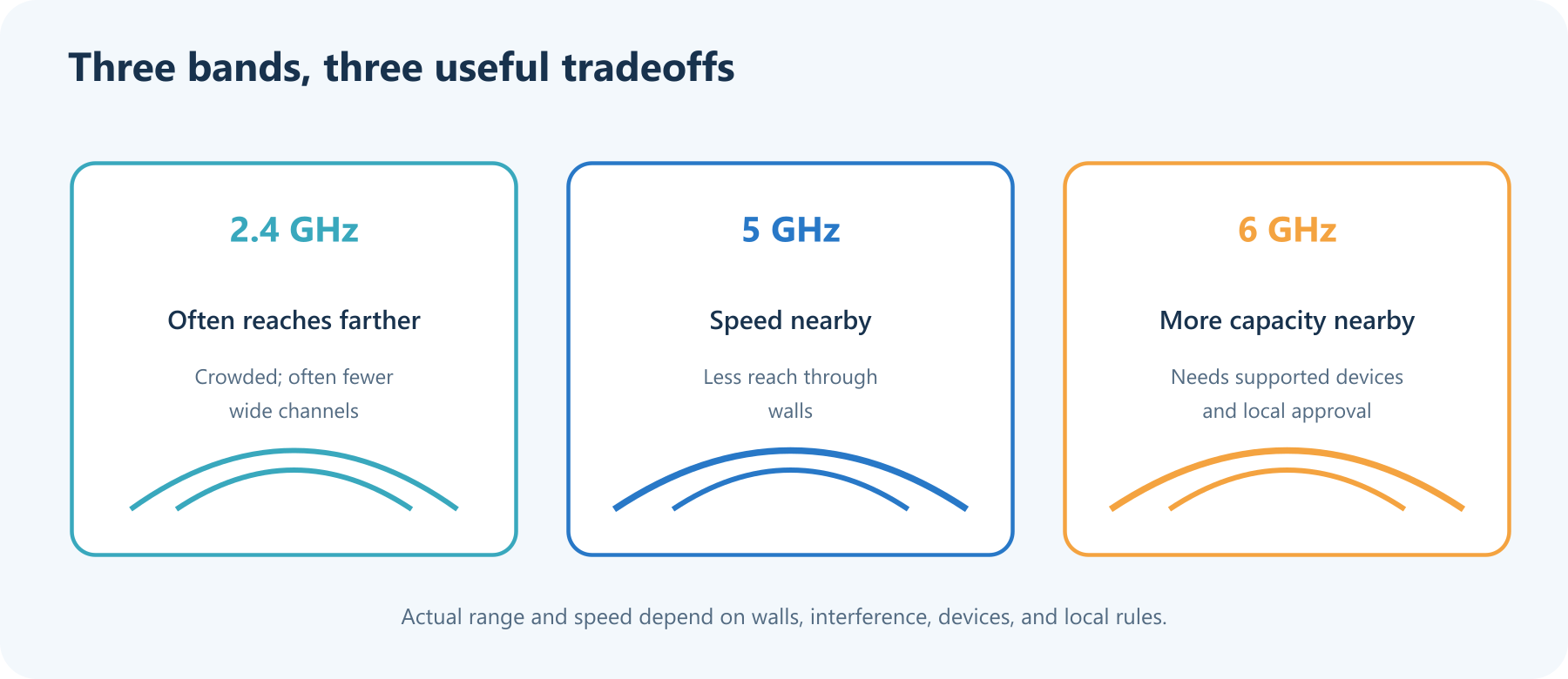
- 2.4 GHz often reaches farther and passes through walls more readily, but it is crowded by other devices and usually has fewer wide channels.
- 5 GHz often offers more channel capacity and higher speeds nearby, with less reach through walls than 2.4 GHz in many homes.
- 6 GHz adds more spectrum for compatible Wi-Fi 6E and Wi-Fi 7 devices in countries that permit it. It can be a clearer, faster lane nearby, but walls and distance still matter.
These are useful rules of thumb, not laws of physics for every router. Building materials, neighboring networks, device capability, and local spectrum rules all affect the result. A device and access point must both support a band to use it.
Wi-Fi generations: names made friendlier
You may see both letter-number standards and simple generation numbers on boxes. The generation names make a long standards family easier to recognize:
| Friendly name | IEEE family | What the generation emphasizes |
|---|---|---|
| Wi-Fi 4 | 802.11n | Multiple antennas and improvements to speed and range |
| Wi-Fi 5 | 802.11ac | Higher throughput, mainly in 5 GHz |
| Wi-Fi 6 | 802.11ax | More efficient service when many devices share a network |
| Wi-Fi 6E | 802.11ax with 6 GHz access | Extends Wi-Fi 6 into the 6 GHz band where allowed |
| Wi-Fi 7 | 802.11be | Wider channels and features designed for high throughput, lower latency, and reliability |
Wi-Fi 7’s Multi-Link Operation (MLO) lets compatible devices use more than one band or channel link together. That can improve throughput or keep a connection more reliable, depending on the devices, network, and environment. It is not a button that makes every connection instantly faster: both ends need compatible support, and the internet plan and signal conditions still count.
In the United States, the FCC has rules governing which devices can use portions of 6 GHz and at what power. Other countries make their own spectrum rules, so “Wi-Fi 6E” and Wi-Fi 7 band availability can vary by location.
Why the speed test is lower than the box number
A router’s printed maximum is usually a best-case radio rate across supported bands or streams. It is not a promise that one phone will receive that speed in a bedroom. Real performance depends on distance, walls, interference, the number of active devices, the client’s antennas, router capacity, and the speed of the broadband connection itself.
And “fast” can mean different things. Throughput is how much data arrives per second; latency is how long a message takes to make a round trip. A video download cares a lot about throughput. A video call or online game also cares about steady, low latency. More Wi-Fi bars mainly indicate signal strength, not that the internet connection is fast.
Place the access point where radio can breathe
Radio waves don’t politely pass through every wall. Metal, concrete, appliances, floors, and simple distance can weaken the signal. A router hidden in a cabinet at one end of the house is being asked to do a difficult job.
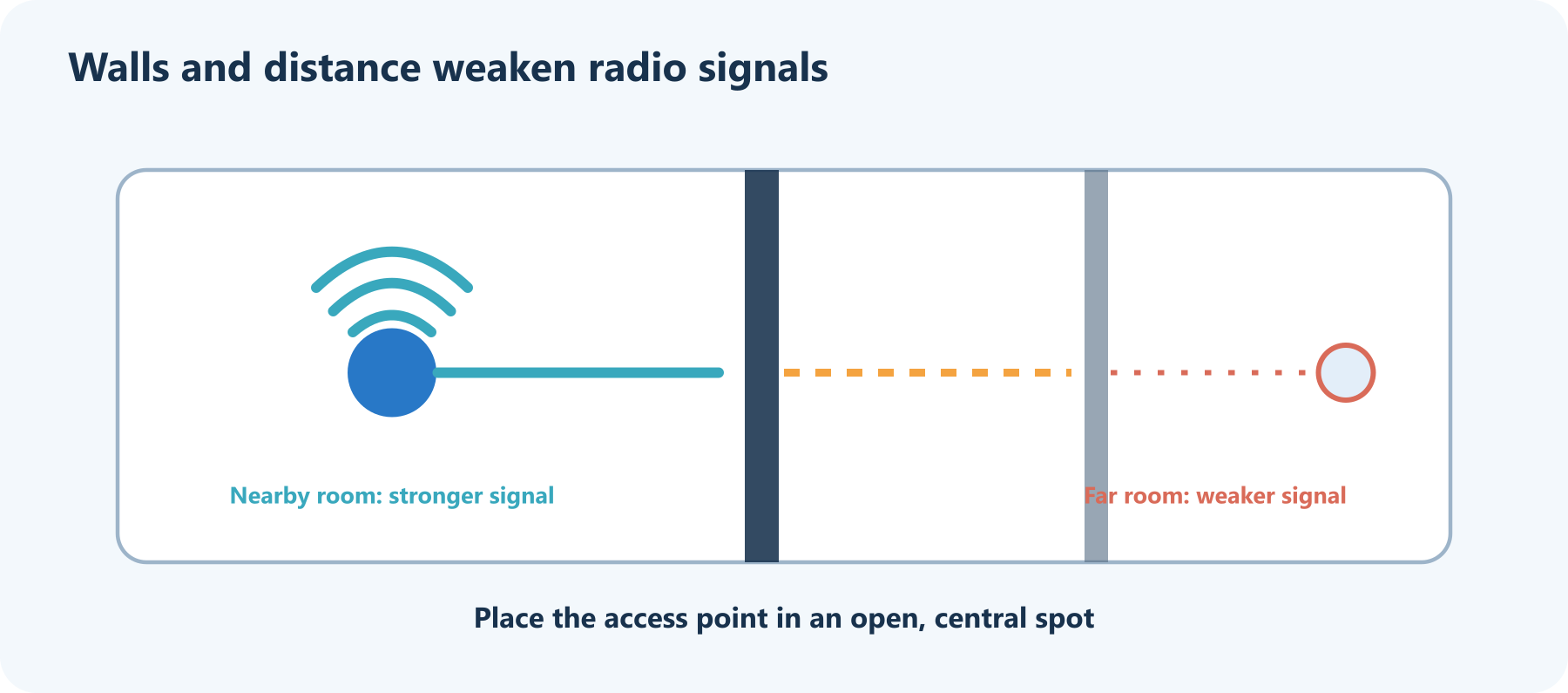
Try these practical adjustments:
- Put the router or main mesh node in an open, central, elevated spot.
- Keep it away from metal cabinets, thick walls, and large appliances where possible.
- Use Ethernet for stationary devices that need a steady connection, such as a desktop, console, or TV.
- If one area remains weak, try repositioning a mesh node or access point; place it where it still receives a good signal, not at the dead spot itself.
- Restarting the router can help after a temporary glitch, but it cannot fix a physical dead zone or a failing broadband line.
Join a network without mystery
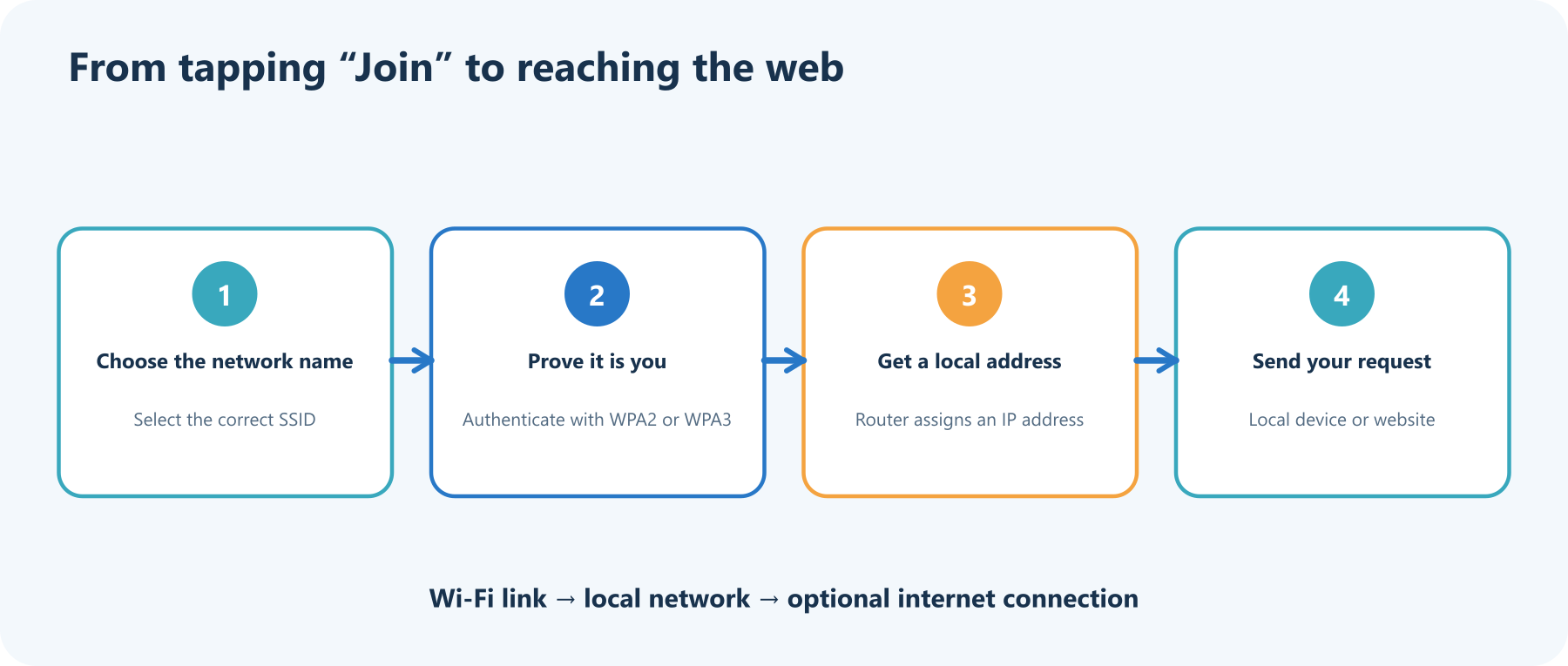
The network name is the SSID you select. The password lets the device authenticate to the network, commonly using WPA2 or WPA3 security. Once connected, the router typically assigns the device a local IP address automatically. Your phone can then reach local devices, and the router can forward internet-bound traffic to your provider.
Keep your Wi-Fi safe
Radio travels beyond your walls, so secure the network like a front door:
- Use WPA3 Personal when supported, or WPA2 Personal. Avoid obsolete WEP and original WPA modes.
- Choose a long, unique Wi-Fi password and change the router administrator password too; they protect different things.
- Install router firmware updates, and replace hardware that no longer receives security fixes.
- Turn on the router firewall and set up a guest network for visitors when available.
- Review the connected-device list occasionally. Rename devices you recognize so unfamiliar entries are easier to notice.
On public Wi-Fi, use the exact network name provided by the venue, keep your device and apps updated, and avoid ignoring certificate or security warnings. Encryption such as HTTPS protects data between your browser and a website, but it does not make every public hotspot trustworthy.
A quick Wi-Fi troubleshooting loop
If a connection gets moody, narrow down the culprit before resetting everything:
- Is one device affected or all of them? One device points to its Wi-Fi setting or hardware; all devices suggest the access point, router, or provider.
- Does Ethernet work? If wired devices work and Wi-Fi does not, focus on radio coverage, interference, or access-point settings.
- Does moving closer help? If yes, distance or obstacles are likely involved. If not, try restarting the access point and checking for updates.
- Can devices still talk locally? A printer or TV may work over Wi-Fi even when internet service is down.
- Check the router’s internet/status indicator and provider outage notices. A healthy Wi-Fi signal does not guarantee a working broadband connection.
Change one setting at a time. A factory reset can erase the network name and password and may remove provider-specific configuration.
The pocket version
Wi-Fi is the radio-based local network link that lets devices connect without a cable. The access point handles the wireless conversation; the router connects local devices to other networks. The internet is one possible destination beyond Wi-Fi. Pick bands based on the room and devices, place the router in the open, and protect the network with current encryption and software.
Sources and further reading
- IEEE 802.11-2024 — the IEEE standard for wireless LAN media access and physical-layer specifications.
- IEEE 802.11be-2024 — the Wi-Fi 7 amendment, including extremely high-throughput operation.
- Wi-Fi Alliance: Wi-Fi CERTIFIED 7 — MLO, 320 MHz channels, and other certification features.
- FCC: 6 GHz unlicensed spectrum order — U.S. rules opening spectrum for low-power indoor and standard-power devices.
- Federal Trade Commission: How to secure your home Wi-Fi network — WPA2/WPA3, passwords, updates, guest networks, and router firewalls.
Read next

How to Generate Audio from Text with Text-to-Speech (TTS)
Turn a written script into spoken audio: try your browser’s built-in voice, then generate an MP3 with a modern text-to-speech API. Learn voice selection, SSML pronunciation fixes, and quality checks.
 nbkhope
How to Label AI Data: A Practical Guide to Better Training Examples
Learn to label AI data with a clear task, practical label rules, a small pilot, and quality checks that catch disagreements instead of hiding them. Includes a worked customer-support example.
nbkhope
Build Your Own MCP Server: Give AI a New Superpower
Build a tiny MCP server from scratch: expose a useful tool, connect it to an AI host, test the conversation, and learn the safety checks that turn a fun demo into a solid integration.
nbkhope
Comments
Be kind and specific. Comments with links from new accounts appear after a moderator reviews them.