How to Use Claude: A Practical Beginner’s Guide
Learn Claude step by step: write clearer prompts, work with documents and projects, search the web, create Artifacts, and check answers. Feature access can vary by plan and workspace.


On this page
How to Use Claude: A Practical Beginner’s Guide
Claude is Anthropic’s AI assistant, available through Claude’s web app and mobile or desktop apps. You can use it to ask questions, draft and revise writing, learn a subject, work with files, brainstorm, or build a small visual Artifact. The simplest way to get a better result is also the most dependable: explain the goal, supply the context Claude needs, and say what a useful answer should look like.
Let’s go from your first message to a repeatable way to work with Claude—without treating it like a magic answer box.

Start with the outcome
Open Claude in the browser or an app, begin a new conversation, and ask for a concrete result. Instead of “Help me with my presentation,” try:
I’m preparing a five-minute presentation for a community garden group. Explain three ways to conserve water, using plain language and one practical example for each. Give me a six-slide outline, then ask what local climate zone we’re in before you recommend plants.
That request gives Claude an audience, purpose, format, constraints, and a clarifying question to ask. If its first draft misses the mark, keep working in the same conversation: “Use less jargon,” “Make slide three more visual,” or “Keep the examples specific to a small balcony.” A useful follow-up is often faster than rewriting the whole request.
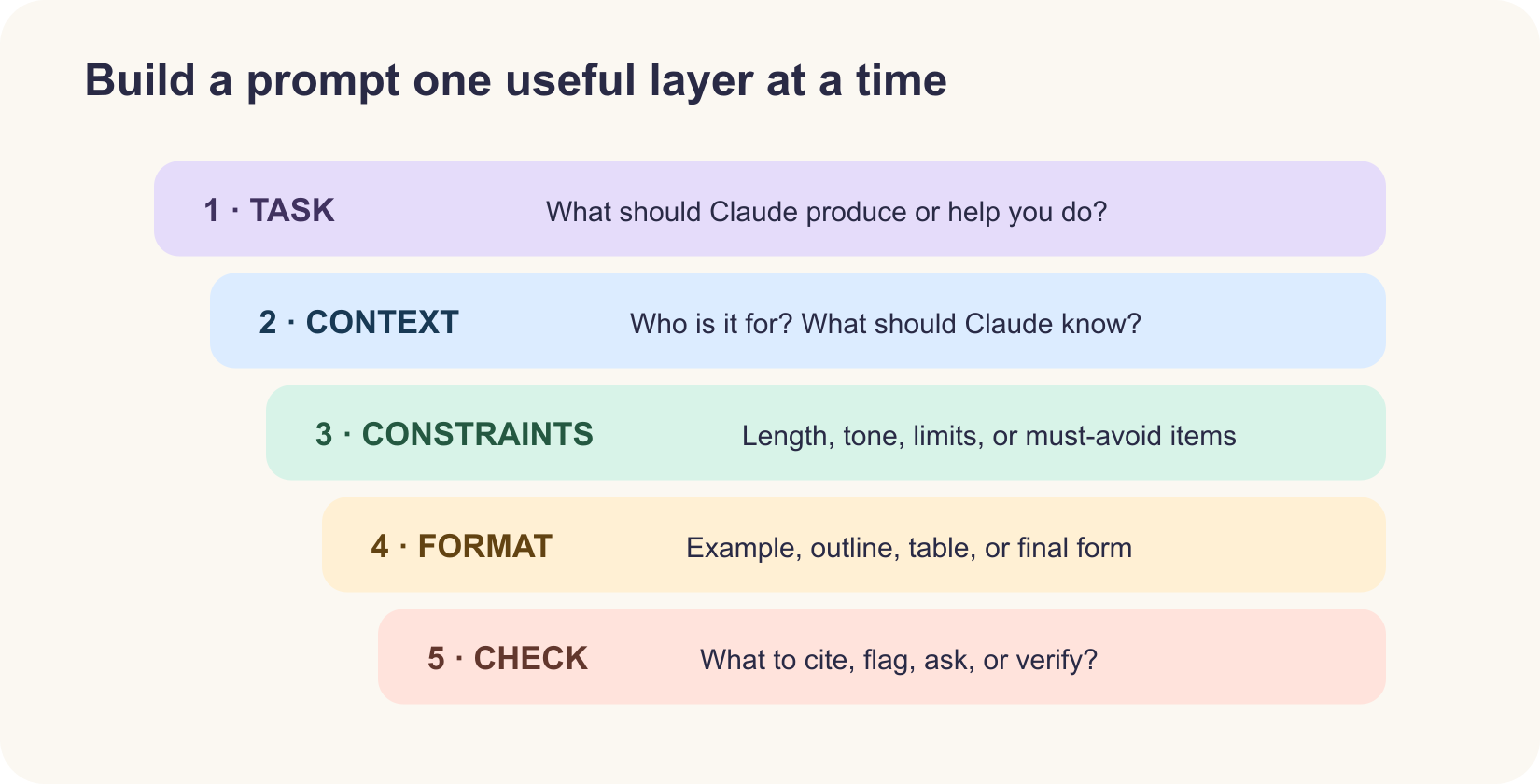
A prompt pattern that travels
Use this quick pattern for everyday tasks:
1Task: What should Claude do?
2Context: Who is this for, and what should it know?
3Constraints: What length, tone, deadline, or limits matter?
4Format: What should the result look like?
5Check: What should Claude flag, verify, or ask before finishing?
For a more complex assignment, split the work into steps and provide a small example of the output you like. Put source material in a clearly labeled block so Claude can distinguish your instructions from the text it is analyzing. For instance: “Summarize the attached policy for new staff. Use only that file, quote the section supporting each key rule, and label any unanswered question.”
Anthropic’s prompt-design guidance recommends clear, specific instructions, relevant context, smaller steps for complex tasks, and feedback when you want a revision. These practices make Claude’s job clearer and make the result easier for you to review.
Choose the right Claude feature
Claude’s tools and settings can vary by plan, app, region, and organization. Check the controls in your own account; unavailable features may be disabled by a workspace administrator or still rolling out.
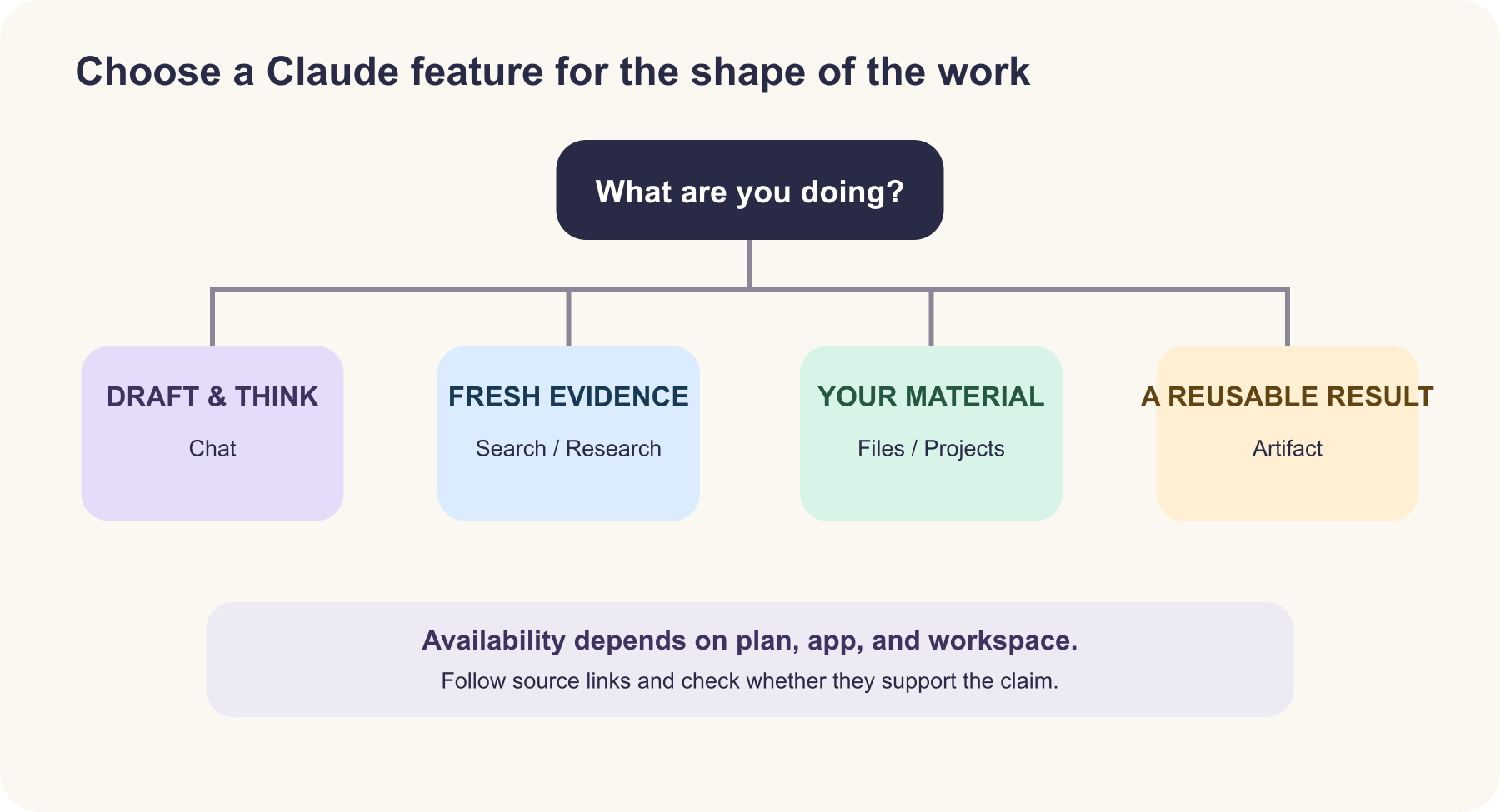
| Your task | A good place to start | Example instruction |
|---|---|---|
| Draft, revise, or brainstorm | Regular chat | “Give me three approaches, then help me choose one.” |
| Find recent information | Web Search, if available | “Search the web and cite primary sources with dates.” |
| Explore several sources | Research, if available | “Compare the strongest sources and point out where they disagree.” |
| Understand a document | Attach a file to the conversation | “Summarize the main claims and tell me which page supports each.” |
| Reuse reference material | A Project, if available | Add the core files and write project instructions for recurring work. |
| Make a visual, mini-app, or reusable document | An Artifact | “Create an editable one-page checklist with a progress indicator.” |
| Talk through an idea | Mobile voice or dictation, where available | “Help me practice a short introduction; give feedback after each try.” |
Use web search when the answer depends on what is true now. Ask for citations, then open the sources yourself. If you provide a specific link while web search is enabled, Claude may fetch the page; for a long report, attaching the relevant document or asking about a particular section can make the task more focused.
Work with files and Projects
Attach the specific file you want Claude to use, then name the question you want answered. For example: “Compare the two attached drafts. List every changed deadline and quote the relevant sentence from each version.” If a PDF contains a chart or page image, say which page to inspect. Ask Claude to point to page or section references so you can check the summary.
For ongoing work, a Project can keep project knowledge and instructions together across conversations. Put stable references—such as a style guide or product glossary—in its knowledge base, and keep the request for a particular deliverable in the chat. Projects are not just a magic memory switch: verify which information is in the project context, and avoid adding files the task does not need.
Use Artifacts to make something you can reuse
When Claude creates a substantial standalone result, it may show it as an Artifact in a separate panel. Artifacts can include documents, code, diagrams, visualizations, or small interactive apps. You can ask for a change, inspect versions, and in supported cases copy or download the result.
Be precise when editing: “Keep the chart and update only the labels,” or “Add keyboard instructions and a reset button.” Review code or facts inside an Artifact before sharing it. A polished presentation is not the same as a tested application, and an Artifact’s capabilities depend on the account and environment.
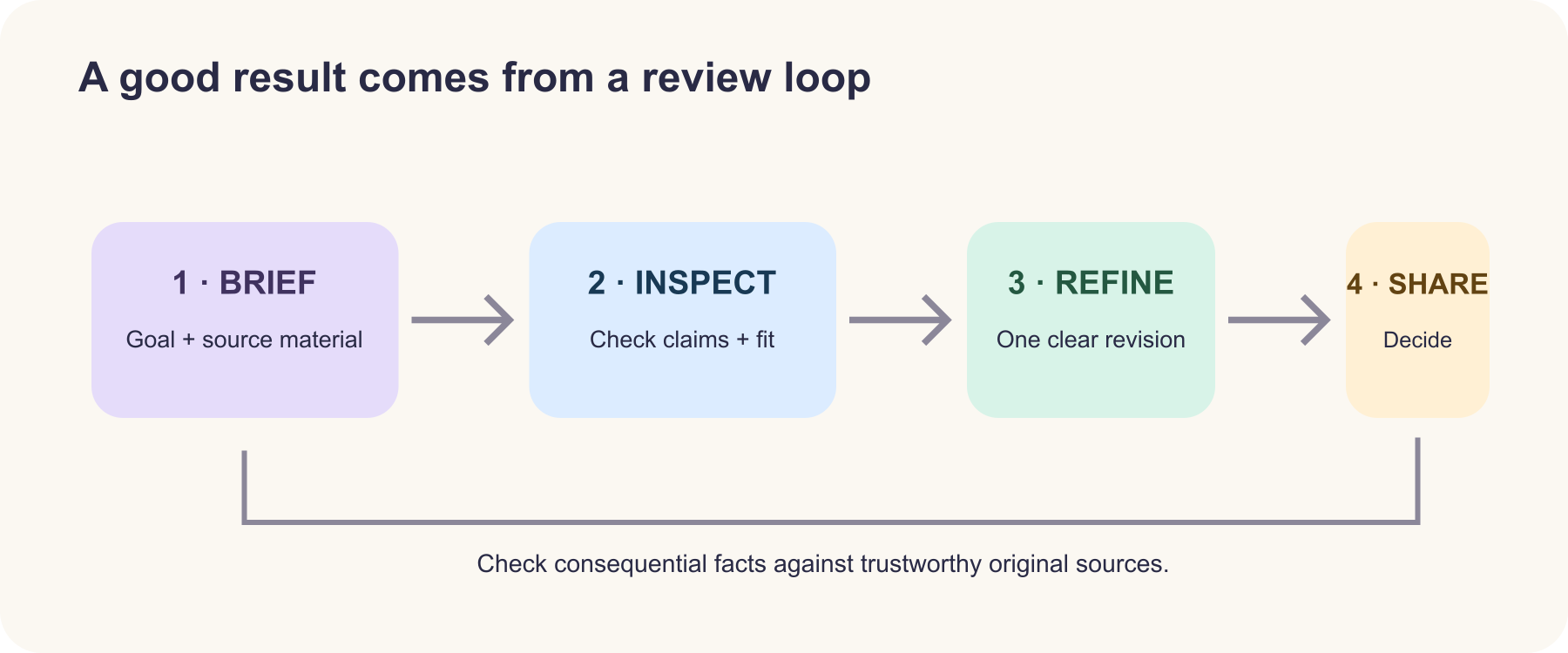
Treat answers as drafts, not verdicts
Claude can summarize, explain, and research, but it can still misunderstand a source or invent a detail. For important information, ask it to show the supporting passage, cite the source, or separate confirmed details from inference. Check dates, calculations, legal or medical guidance, and quotations against reliable originals.
When a response is too broad, narrow the request. When it sounds too certain, ask what it could not verify. When an answer includes web citations, follow the links and make sure they actually support the claim. You stay responsible for deciding what to use.
Be thoughtful with private information
Before sharing a document, remove personal, financial, health, or confidential details that Claude does not need. For personal accounts, review the current privacy and model-improvement settings. Work accounts may follow organization policies for retention, integrations, or access, so ask your administrator if you are unsure. Do not assume a private Project or a deleted chat changes every other storage or retention setting.
Your first Claude challenge
Pick one real task and try this:
Help me [outcome]. This is the audience and context: [details]. Use [attached material, if any]. Keep the response [format and constraints]. Ask before making an assumption that could change the result. Finish by listing what I should verify.
Then make one targeted revision. That pattern—context, clear request, review, iteration—works for a simple email as well as a larger research or creative project.
Official guides
Read next

How to Generate Audio from Text with Text-to-Speech (TTS)
Turn a written script into spoken audio: try your browser’s built-in voice, then generate an MP3 with a modern text-to-speech API. Learn voice selection, SSML pronunciation fixes, and quality checks.
 nbkhope
How to Label AI Data: A Practical Guide to Better Training Examples
Learn to label AI data with a clear task, practical label rules, a small pilot, and quality checks that catch disagreements instead of hiding them. Includes a worked customer-support example.
nbkhope
Build Your Own MCP Server: Give AI a New Superpower
Build a tiny MCP server from scratch: expose a useful tool, connect it to an AI host, test the conversation, and learn the safety checks that turn a fun demo into a solid integration.
nbkhope
Comments
Be kind and specific. Comments with links from new accounts appear after a moderator reviews them.