How to Use ChatGPT: A Practical Beginner’s Guide
New to ChatGPT? Learn how to ask better questions, work with files and images, use web search, projects, voice, and study tools, and check important answers before you rely on them.


On this page
How to Use ChatGPT: A Practical Beginner’s Guide
ChatGPT is at its best when you treat it like a capable collaborator who needs a clear brief. You can ask a quick question, draft something together, explore an unfamiliar topic, or work through a file. You do not need a secret prompt spell—just tell it what you are trying to do, give it enough context, and steer the result.
This guide is a friendly first tour: start a chat, write a useful prompt, choose the right tool, and keep a human hand on the important decisions.

Your first conversation
Open ChatGPT on the web or in its mobile app and start a new chat. Write the request the way you might explain it to a helpful coworker. For example:
I’m planning a two-day visit to Boston with my 10-year-old. Suggest a relaxed itinerary with one science activity each day, mostly walking or public transit, and a rainy-day backup. Ask me about our budget before recommending paid attractions.
That prompt gives ChatGPT a goal, useful context, constraints, and a direction for the next step. The first answer does not have to be perfect. You can continue in the same conversation: “Make the second day less busy,” “Show the travel time,” or “Turn this into a checklist.” ChatGPT can use the context already in that chat, so refine the answer instead of starting over.
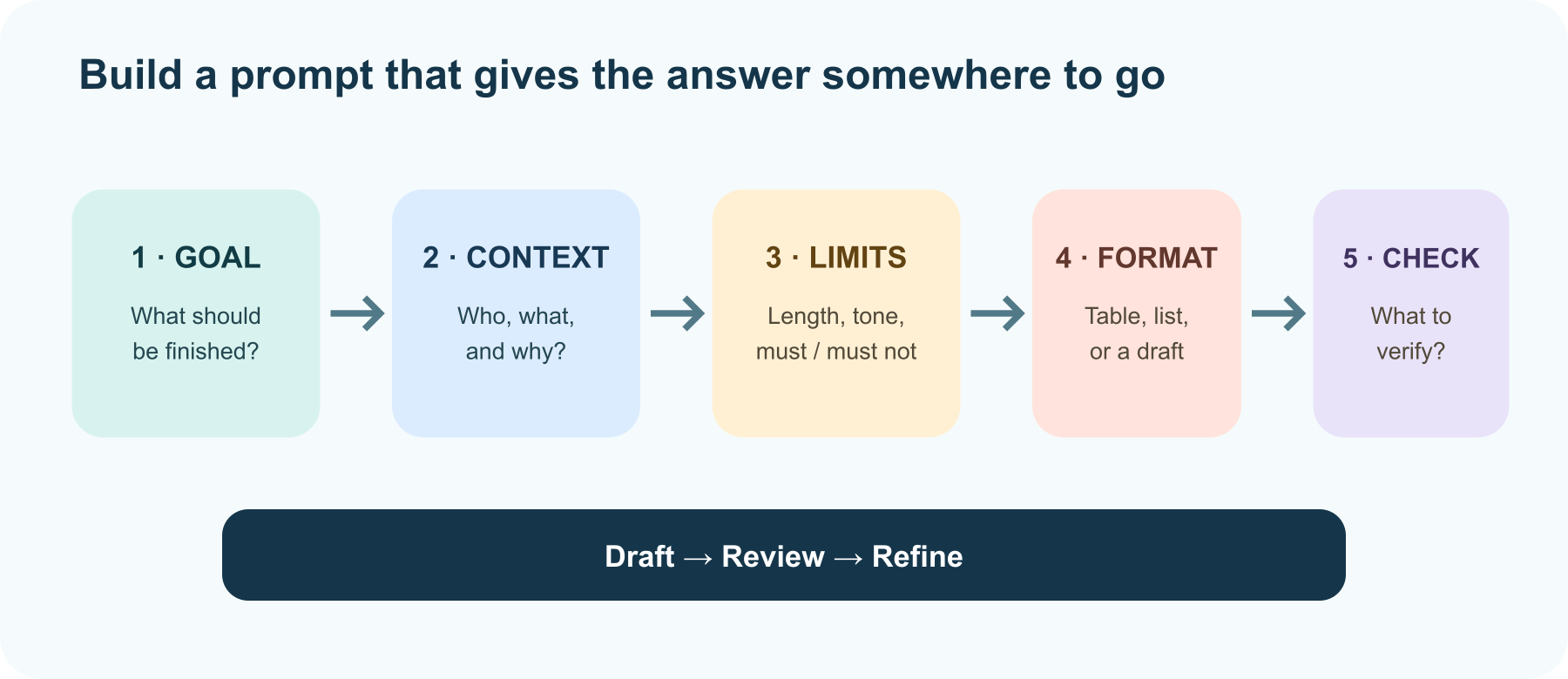
A simple prompt recipe
When a request feels too vague, add the missing pieces:
- Goal: What do you want to finish or understand?
- Context: Who is it for, what do you already know, and what material should it use?
- Constraints: Length, tone, deadline, budget, reading level, or things to avoid.
- Format: A table, checklist, outline, email, explanation, or one question at a time.
- Quality check: Ask it to flag assumptions, cite sources, or list what it could not verify.
For example: “Explain compound interest to a high-school student in under 200 words. Use one small numerical example, define any new term, and finish with one question I can try.” Clear instructions are easier to act on than “Tell me about money.”
Pick the right tool for the job
ChatGPT can answer in a normal conversation and, depending on your account and settings, may have tools for web search, file analysis, image creation, voice, projects, or study. The available controls can differ by plan, app, and workspace, so look at the tools shown in your own composer.
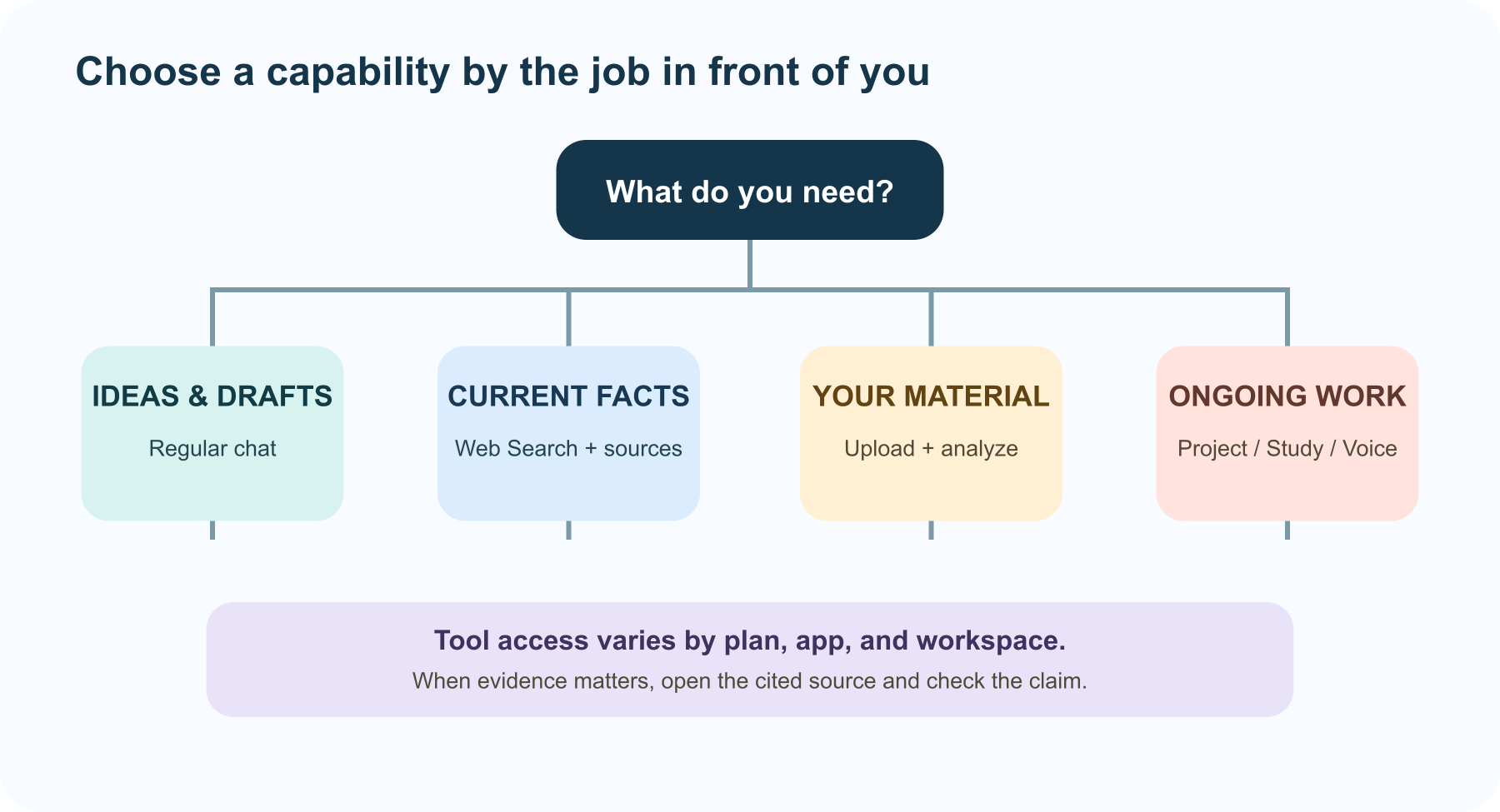
| If you want to… | Try… | A useful instruction |
|---|---|---|
| Get unstuck or brainstorm | Regular chat | “Give me five options, then help me compare them.” |
| Check something current | Web Search, if available | “Search current official sources, cite them, and note the date.” |
| Understand your own document | Upload a file or image, if available | “Summarize the key points and cite the page or section for each.” |
| Explore a dataset | Data analysis, if available | “Describe the columns, check for missing values, then chart monthly totals.” |
| Make or revise a visual | ChatGPT Images | “Create a simple 16:9 diagram with a white background and no text.” |
| Talk through an idea | Voice on a supported app | “Let’s practice a short job interview; ask one question at a time.” |
| Keep ongoing work together | A Project, if available | “Use these files and project instructions as the context for this task.” |
| Learn by practicing | Study mode, if available | “Teach me with hints, then quiz me one question at a time.” |
Search your chats is different from searching the web: sidebar search finds your past chats and files; web Search looks for current information online. When recency or evidence matters, explicitly ask for web sources and open the cited pages yourself.
Work with files and images
When uploads are available, attach a document, spreadsheet, or image and say what you want to learn from it. “What’s in this file?” is a start; “Compare the proposed budget with last year’s, list the three biggest changes, and show which worksheet each number came from” gives the task a clear finish line.
For spreadsheets, ask ChatGPT to inspect the columns and units first, then request a calculation or chart. For a long PDF, name the sections or pages you care about. For an image, say whether you want a description, comparison, text transcription, or feedback. Check any important number or quotation against the original file.
Use ChatGPT as a tutor, editor, or maker
For writing, provide the audience, purpose, and tone, then revise with concrete directions: “Keep my meaning, shorten the introduction, and mark any factual claims I should verify.” For learning, ask for a hint before an answer or request a small practice problem. Study mode can guide a lesson when it appears in your account, but you can also ask for a tutor-like approach in a regular chat.
ChatGPT can also create or edit images, speak with you in voice mode, and help analyze data when those tools are available. Pick one job at a time and describe what a good result should look like. If a tool is missing, check your app version, plan, and workspace settings.
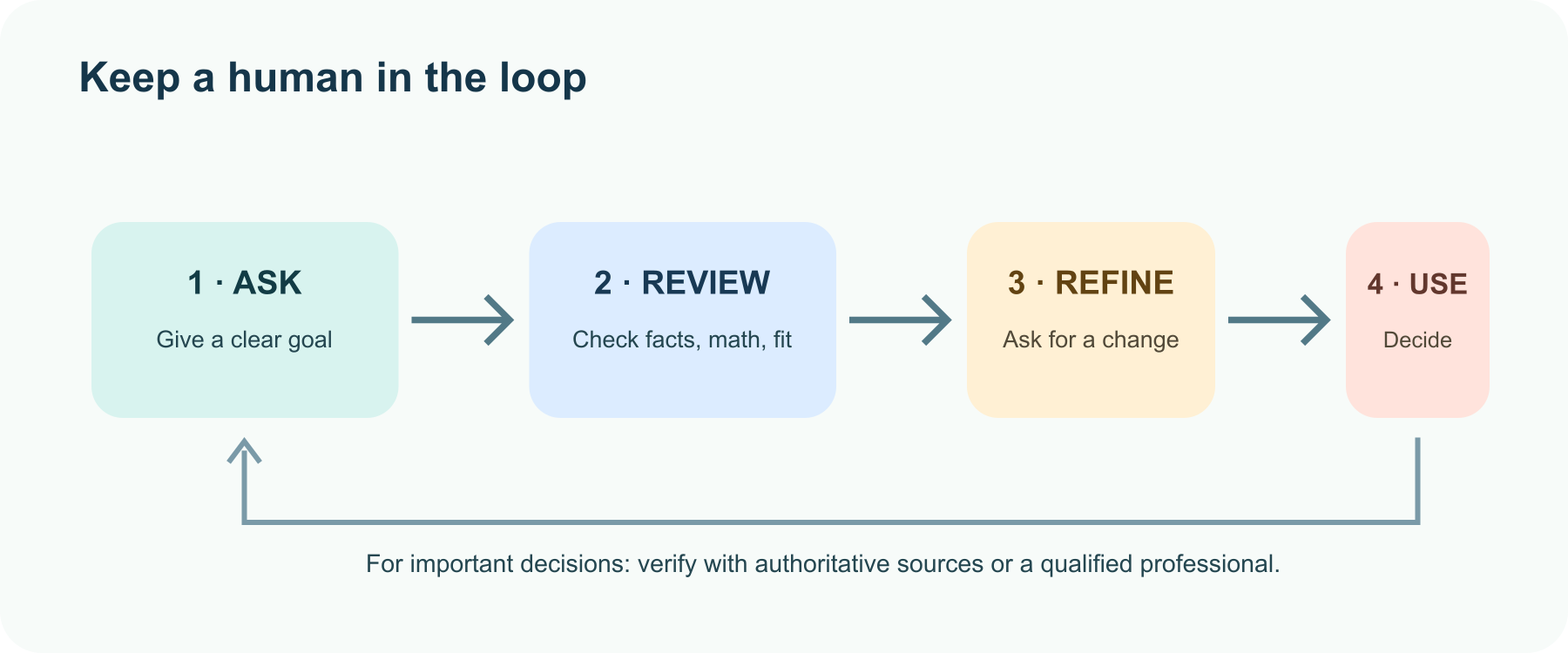
Check the answer before you use it
ChatGPT can be useful and still make mistakes. It may sound confident while getting a name, calculation, quotation, or detail wrong. Use Search for current facts and inspect the cited sources. Recalculate consequential numbers. Verify quotations in the original document. For high-stakes decisions, use a qualified professional or authoritative source rather than treating an AI answer as the final word.
Ask for uncertainty instead of polished certainty: “Separate confirmed facts from assumptions,” “Show the calculation,” or “What evidence would change this recommendation?” A useful assistant should help you see what needs checking.
Protect your privacy
Before uploading a file or typing personal details, consider whether ChatGPT needs that information. Remove account numbers, private identifiers, and confidential sections when they are not relevant. Personal-account data controls and managed-workspace policies differ; review your account’s Settings → Data controls and ask a workspace administrator about organization rules.
Temporary Chat, where available, has different history and personalization behavior from a regular chat, but it is not a reason to share passwords or highly sensitive information. Read the current data-controls page before relying on a privacy setting.
A small challenge
Try this prompt with something you are working on today:
Help me [specific goal]. Here is the context: [relevant details]. Keep the result [length/tone/format]. First, ask me any essential clarifying question. Then give me a draft and list what I should verify.
Once the draft appears, make one useful edit request. That simple loop—ask, review, refine—is the real skill. You can use it for planning a trip, understanding a document, practicing a language, or turning a blank page into a first draft.
Official guides
Read next

What Is Meta Muse? A Guide to Meta’s AI Models and Tools
Meta Muse is a family of AI models and products from Meta, spanning its Meta AI assistant, multimodal reasoning, creative tools, and developer-focused agents. Here is what the name covers and what to know about its newest models.
 nbkhope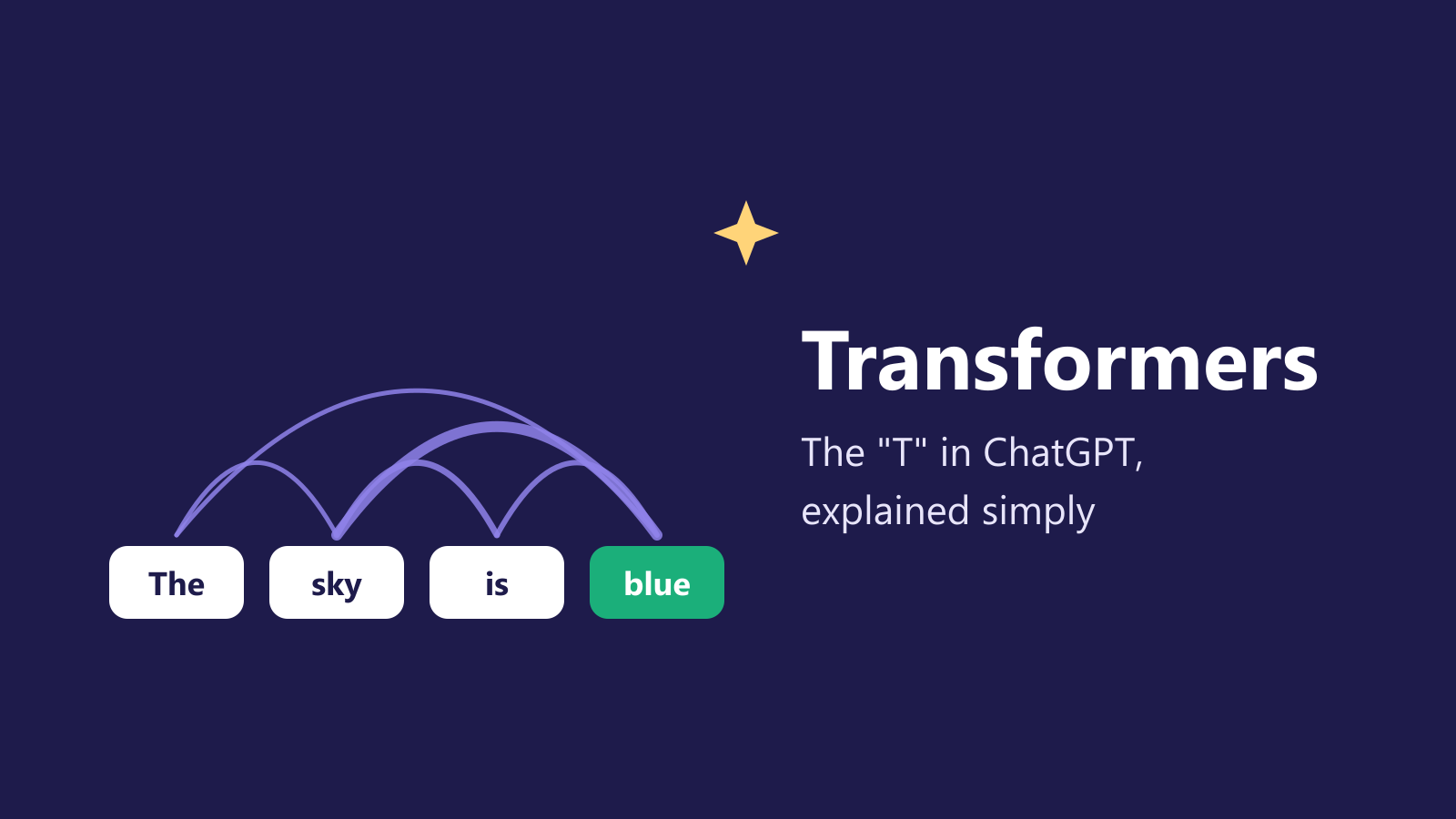
What Is a Transformer in AI? The Idea Behind ChatGPT, Explained Simply
A friendly, jargon-free guide to transformers, the AI design behind ChatGPT, Claude and Gemini. Learn how "attention" lets AI understand words in context, what happens inside a transformer, and why it changed AI so quickly.
nbkhope
What Is Reinforcement Learning? How AI Learns by Trial, Error and Reward
A friendly, jargon-free introduction to reinforcement learning, how AI learns by trial, error and reward, like training a dog with treats. Watch a real robot learn a maze, see why exploring matters, and learn how it shapes chatbots.
nbkhope
Comments
Be kind and specific. Comments with links from new accounts appear after a moderator reviews them.