How to Generate Videos with AI: From Prompt to Final Cut
Turn an idea into a polished short video with AI: plan shots, write prompts that move, generate clips, and finish the story in an editor.

On this page
How to Generate Videos with AI: From Prompt to Final Cut
A paper boat glides through a rainy neon city. A tiny robot learns to water a garden. A product spins through a studio that exists only in your imagination. With AI video tools, all three can start as a sentence.
The fun part is making the sentence cinematic. The useful part is learning to direct the model, choose your shots, and edit the results into a story. Let’s make a short video from scratch.
What does “AI video generation” mean?
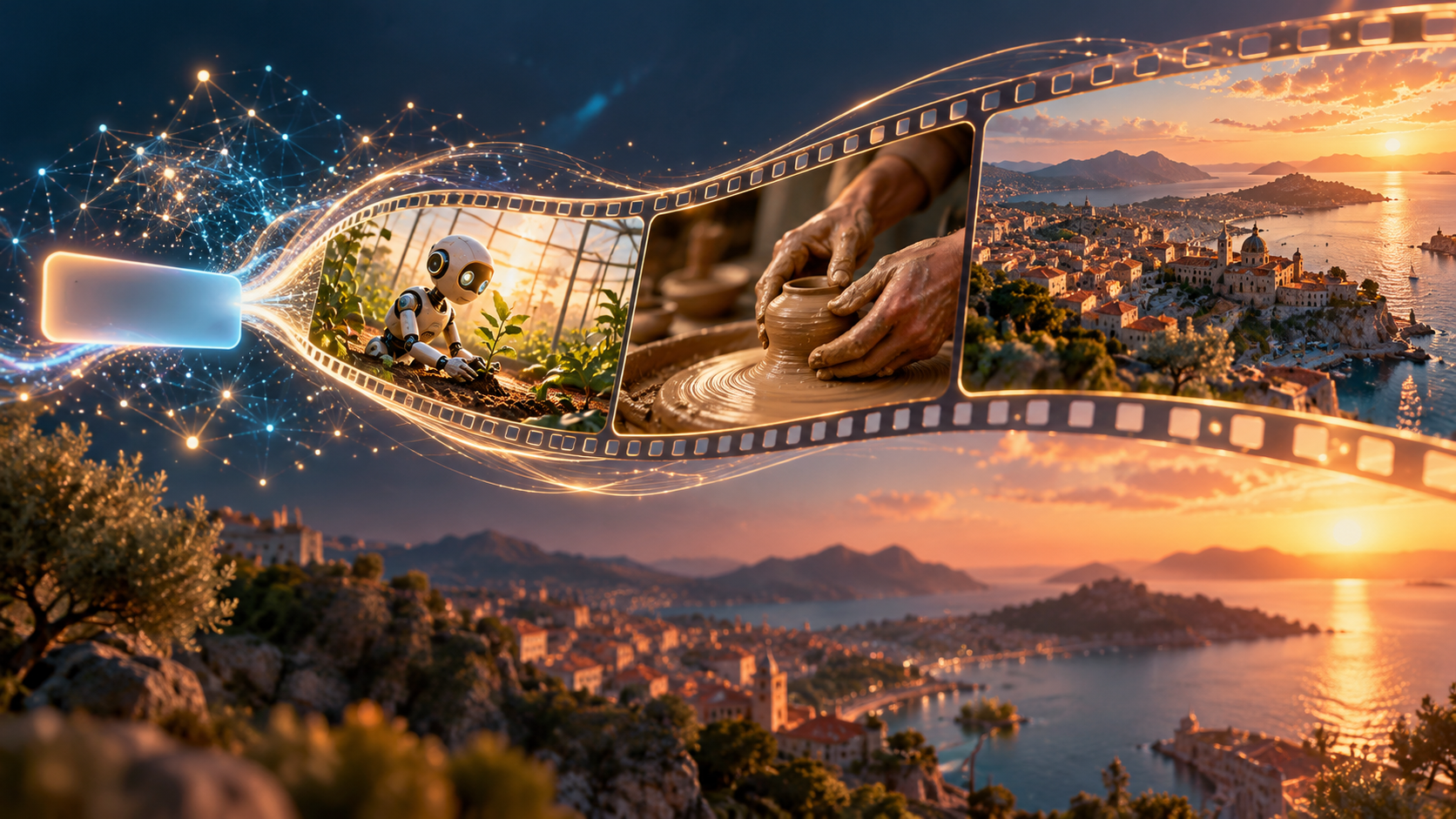
A video generation model creates moving images from instructions and, in some tools, reference images or existing clips. The common starting points are:
- Text to video: describe a scene and the model invents the frames.
- Image to video: provide a still image and ask the model to animate it.
- Keyframe guided video: provide a starting frame, ending frame, or reference images to steer composition and continuity.
- Video extension or editing: continue an existing shot or transform parts of footage.
Some current systems also generate synchronized ambience, sound effects, or speech. For example, Google DeepMind describes Veo 3.1 as a video model with audio and highlights controls such as reference imagery and extending shots. Features differ by model, app, region, and plan, so check the current product page before building a workflow around one.
The director’s trick: plan shots, not paragraphs
A model can create a lively clip, but a long, multi-event paragraph often asks it to solve too much at once. Think like a director: one clip, one main action, one camera move. Then edit a handful of clips together.
The five-step flow: concept → storyboard → generate clips → edit the sequence → review and export.
Make a tiny storyboard first
Let’s create a 15-second social video about a robot learning to care for a plant. Three shots give it a beginning, middle, and payoff:
| Shot | Story beat | Picture and motion | Sound |
|---|---|---|---|
| 1 · 4 sec | Meet the problem | Wide greenhouse at dawn; a drooping seedling; slow push in | Glasshouse ambience, soft music |
| 2 · 6 sec | The attempt | Medium shot; robot gently pours water; slight camera pan | Water trickle, robot chirp |
| 3 · 5 sec | The payoff | Close-up; leaves lift into sunlight; gentle tilt up | Birds, music resolves |
In an editor, trim each clip to its best moment, add a title and captions, then let the sound bridge the cuts. That tiny bit of editing often makes the result feel intentional instead of “three cool generations in a trench coat.”
Write prompts that give the camera something to do
A strong prompt is a compact shot description. Include the subject, action, place, framing, camera movement, lighting, visual style, and—if supported—sound. Be specific about motion, but keep the shot simple.
A prompt recipe
1[Subject] + [one clear action] + [setting]
2+ [framing and camera move]
3+ [light, palette, visual style]
4+ [motion / timing]
5+ [sound, if supported]
Too vague: “A robot in a garden.”
More shootable: “A small cream-colored helper robot carefully tips a blue watering can over one drooping basil seedling in a glass greenhouse at dawn. Medium close-up, slow camera push-in, warm sunbeams through misted glass, gentle realistic motion, quiet water trickle and two soft electronic chirps, no dialogue.”
Why it works: the prompt names one action, pins down the setting and framing, describes the camera, and gives sound a job. It leaves the model room to create detail without leaving the scene open-ended.
Keep a continuity card
When generating shots separately, repeat a few identity details so the clips belong to the same film:
- Character: small cream-colored helper robot, round blue eyes, one leaf-shaped antenna.
- Palette: sage green, warm cream, dawn gold.
- Lens and feel: gentle, intimate, naturalistic.
- Rule: no new characters; keep the robot design unchanged.
Where supported, provide the same reference image or use start/end frames. Even then, inspect each cut: “same character” is a direction, not a guarantee.
A practical creation workflow
- Pick the destination. A vertical short, a widescreen explainer, and a square teaser need different compositions. Choose aspect ratio and approximate runtime before generating.
- Write the one-sentence promise. “A robot saves one thirsty seedling.” If the premise needs a paragraph, simplify the video.
- Break it into shots. Give each shot one visual beat, a duration target, framing, and motion. Keep dialogue short and add exact on-screen text in your editor.
- Choose the right input mode. Use text-to-video to explore. Use image-to-video when you already like the design or composition. Use reference frames and extension tools when your app supports them and continuity matters.
- Generate a few variations. Change one thing at a time—camera move, lighting, or action—so you can tell what improved. Save useful prompts and settings; a seed may help reproduce a result in some systems, but it does not guarantee a pixel-identical rerun.
- Edit the story. Choose the strongest moments, trim dead time, sequence shots, add transitions sparingly, and balance music, ambience, and dialogue.
- Review on the actual screen. Check mobile safe areas, readable captions, crop, flicker, continuity, audio levels, and the first and last frames. Export a test before rendering the final.
A quick shot prompt set
Shot 1 — establish: “Wide dawn view inside a small glass greenhouse. One basil seedling droops in the foreground; the helper robot enters softly from the left. Slow push-in, warm gold light, naturalistic cinematic style, subtle glasshouse ambience.”
Shot 2 — action: “Medium close-up of the same cream robot with round blue eyes and leaf antenna, carefully watering the same basil seedling with a blue can. Slow pan right, gentle water droplets, keep the greenhouse and dawn palette consistent. Quiet water trickle, no speech.”
Shot 3 — payoff: “Close-up of the same seedling as its leaves lift toward the sun; the same robot watches in the soft background. Gentle tilt up, warm light blooms across the leaves, calm hopeful ending, birds and a soft musical resolve.”
Generate each as its own clip when you want more control over pacing. If a tool offers multi-shot or keyframe generation, you can test that too—but compare the cut and character continuity rather than assuming one mode wins.
What AI video is great at—and where it wobbles
AI video is excellent for visual exploration, mood pieces, concept trailers, abstract transitions, stylized scenes, and footage that would otherwise need a set or a travel budget. It is also handy for animatics: rough moving sketches that help a human team agree on pacing.
It still may struggle with stable text, precise logos, hands interacting with small objects, exact choreography, consistent characters across separately generated clips, and cause-and-effect physics. Sound and lip movement can also be imperfect. Treat generated footage as a draft from a very fast, very imaginative camera crew: review every frame and every syllable.
For critical facts, product details, or real-world events, verify the information independently. A beautiful generated image can look like evidence while depicting something that never happened.
Make it responsibly
- Use material you have rights to use. Check the service’s current terms for uploads, outputs, commercial use, and training.
- Get consent for identifiable people and voices. Don’t create misleading endorsements or realistic impersonations.
- Label synthetic scenes when context could confuse viewers. This matters especially for news-like, documentary, or educational footage.
- Keep provenance when available. C2PA Content Credentials can record origin and edit history in a tamper-evident way. They do not prove that the depicted event is true; they help describe a file’s provenance.
- Check accessibility. Add captions for speech, describe meaningful visuals, and don’t rely on color alone.
Your first five-minute challenge
Make a three-shot video of an everyday object doing one surprising but harmless thing. Write the shot list first. Generate only the first shot, and improve it by changing one prompt detail at a time. Then add the other two shots, edit them together, and watch once with the sound off and once with your eyes closed.
If the story still makes sense both ways, you’ve directed more than a prompt—you’ve made a tiny film.
Sources and further reading
- Google DeepMind: Veo — current capabilities and entry points; features and availability vary.
- Google Cloud: Video generation prompt guide — practical guidance for structuring prompts.
- C2PA: Content Credentials explainer — what provenance records mean and what they do not establish.
- OpenAI: Sora 2 announcement — a useful reminder to check status: OpenAI notes the Sora product is no longer available as of April 26, 2026.
Read next
How to Generate Audio from Text with Text-to-Speech (TTS)
Turn a written script into spoken audio: try your browser’s built-in voice, then generate an MP3 with a modern text-to-speech API. Learn voice selection, SSML pronunciation fixes, and quality checks.
 nbkhope
How to Label AI Data: A Practical Guide to Better Training Examples
Learn to label AI data with a clear task, practical label rules, a small pilot, and quality checks that catch disagreements instead of hiding them. Includes a worked customer-support example.
nbkhope
Build Your Own MCP Server: Give AI a New Superpower
Build a tiny MCP server from scratch: expose a useful tool, connect it to an AI host, test the conversation, and learn the safety checks that turn a fun demo into a solid integration.
nbkhope
Comments
Be kind and specific. Comments with links from new accounts appear after a moderator reviews them.